Home
» LINUX
»
How to Play Sea of Thieves on Linux with Steam and Proton
How to Play Sea of Thieves on Linux with Steam and Proton
Sea of Thieves can be played on Linux through Steam Play and Proton, even though Steam still lists Windows as the game’s native PC operating system. The current Steam release is marked Steam Deck Verified, which is strong evidence that Valve’s Proton compatibility layer is a viable way to run the Windows build. On a regular Linux desktop, the same approach generally applies, but it remains a compatibility setup rather than a native Linux port.
For the cleanest setup, install the Linux Steam client, let Steam choose its default Proton version first, and only force a different compatibility tool if the game will not start. The old advice to pin Sea of Thieves to Proton 5.13.4 is no longer appropriate.
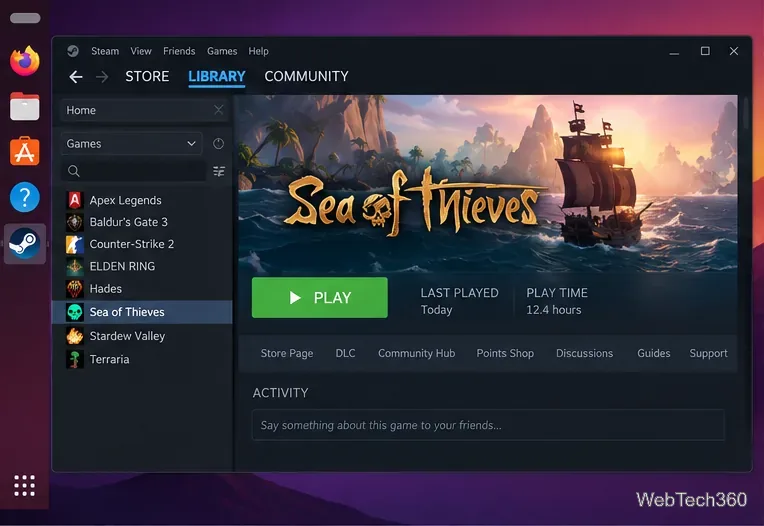
Sea of Thieves runs from the Linux Steam client through Steam Play and Proton.
What you need before installing Sea of Thieves
Make sure you have the following before you begin:
A 64-bit Linux system with current GPU drivers and Vulkan support.
An Xbox account. Sea of Thieves requires one even when the game is purchased through Steam.
At least 100 GB of available storage for the game, based on the current Steam system requirements. Keep additional free space available for updates and Steam’s compatibility files.
How to install and play Sea of Thieves on Linux
1. Install Steam for Linux
Use Valve’s installer or the Steam package supplied by your Linux distribution. Sign in to Steam and allow the client to update completely before installing the game. Valve’s Steam installation guide points users to the current official installer.
2. Make sure Steam Play is available
Sea of Thieves does not have a native Linux build, so Steam must launch the Windows version through Proton. On many current Steam installations this happens automatically for compatible games. If the game cannot be installed, open Steam > Settings > Compatibility and make sure Steam Play is enabled for Windows titles. Valve describes Steam Play as the feature that lets Windows-only games potentially run on Linux.
3. Install Sea of Thieves from your Steam Library
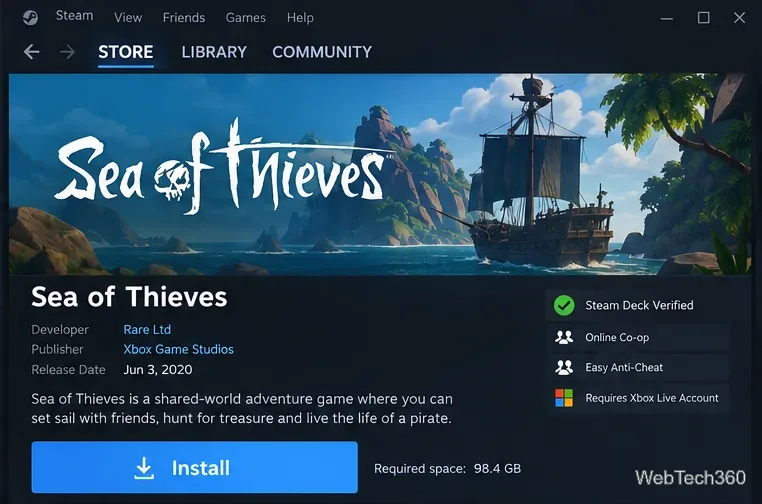
Open the Store or Library, select Sea of Thieves, and choose Install. Do not force an old Proton release before the first launch. Because the game is currently Steam Deck Verified, start with the compatibility tool Steam selects automatically.
The Steam release is Deck Verified and uses Easy Anti-Cheat, while also requiring an Xbox account.
4. Launch the game and link your Xbox account
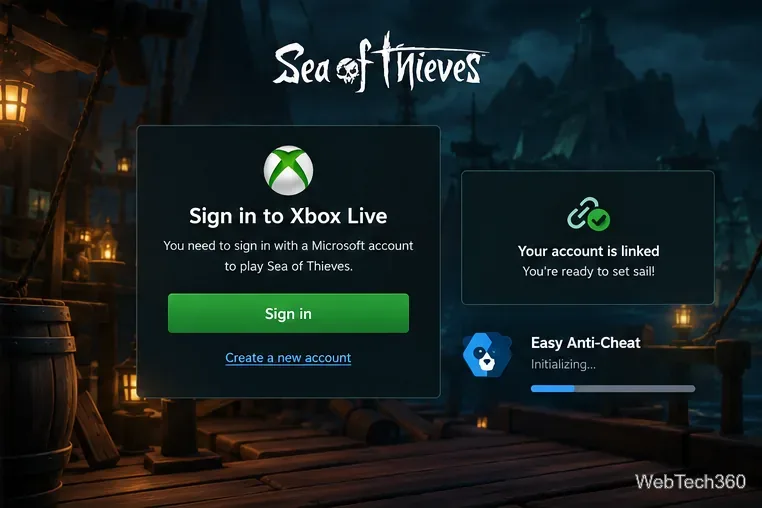
Start Sea of Thieves from Steam. The first run can take longer while Proton creates its prefix and Steam prepares required components. When the Xbox sign-in prompt appears, sign in with the Xbox account you want to use for Sea of Thieves and approve the Steam account link.
Rare’s Steam account-linking instructions note that your game progress and items are tied to the Xbox account, so choose the correct account before proceeding.
Sign in with the Xbox account that should own your Sea of Thieves progress.
What to do if Sea of Thieves does not launch
Try a newer Proton version
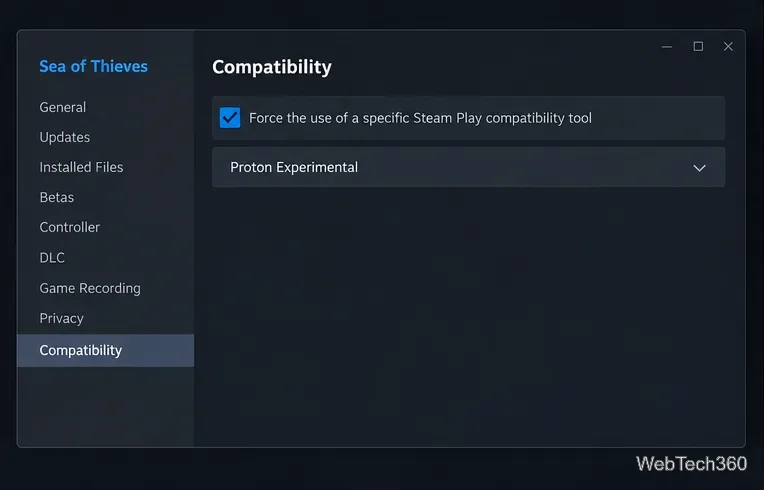
Right-click Sea of Thieves in your Library and open Properties > Compatibility. Check Force the use of a specific Steam Play compatibility tool, then try the latest regular Proton release. If that still fails, test Proton Experimental. Valve’s Steam Deck troubleshooting guidance recommends trying the latest Proton version when a game has compatibility problems.
Only override Proton when the default compatibility choice is not working.
If a manual Proton override makes the game worse, remove the override and return to Steam’s default choice. Compatibility can change after Steam, Proton, graphics-driver, or game updates, so an old version that once worked is not automatically the best option today.
Verify the game files for Easy Anti-Cheat errors
Sea of Thieves uses Easy Anti-Cheat. If Steam reports that Easy Anti-Cheat is missing or the game exits during startup, open Properties > Installed Files > Verify integrity of game files. Rare lists file verification as the first fix for the “Easy Anti-Cheat is not installed” launch error in its official EAC support article.
Update Steam, Linux, and your graphics driver
Install pending Steam client updates, system updates, and the correct Vulkan-capable driver for your GPU. If the problem started after you forced a specific Proton version, switch back to the default before changing several other settings at once.
Is Sea of Thieves officially supported on Linux?
There is still no native Linux version listed in the Steam system requirements; the store lists Windows 10 as the PC operating-system requirement. However, the same Steam listing currently marks Sea of Thieves as Steam Deck Verified. In practice, Linux players use the Windows Steam build through Proton. That distinction matters: Steam Deck compatibility is official, while a general desktop Linux configuration can vary by distribution, drivers, and Steam packaging.
For most Linux users, the best approach is simple: use the current Steam client, install the game normally, keep the default Proton choice unless there is a problem, and link the correct Xbox account on first launch.