Home
» LINUX
»
How to Play The Elder Scrolls V: Skyrim Special Edition on Linux
How to Play The Elder Scrolls V: Skyrim Special Edition on Linux
Yes, you can play The Elder Scrolls V: Skyrim Special Edition on Linux through Steam and Valve’s Proton compatibility layer. The Steam store lists the game as a Windows title rather than a native Linux release, while Valve describes Proton as the Steam Play tool that lets Windows-only games run on Linux.
This guide replaces the old Proton 5.0-10 advice with the current Steam workflow. In most cases, you should let Steam choose a recent Proton version first and only force a different compatibility tool if the game does not launch correctly.
Before you start
Install current graphics drivers and make sure your system has enough free storage. Valve’s current Steam for Linux requirements call for a 64-bit Linux system with up-to-date 64-bit and 32-bit graphics drivers. The Skyrim Special Edition Steam page lists 8 GB of RAM and 12 GB of available storage among the Windows requirements, so leave additional free space for Steam, Proton files, shader caches, saves, and updates.
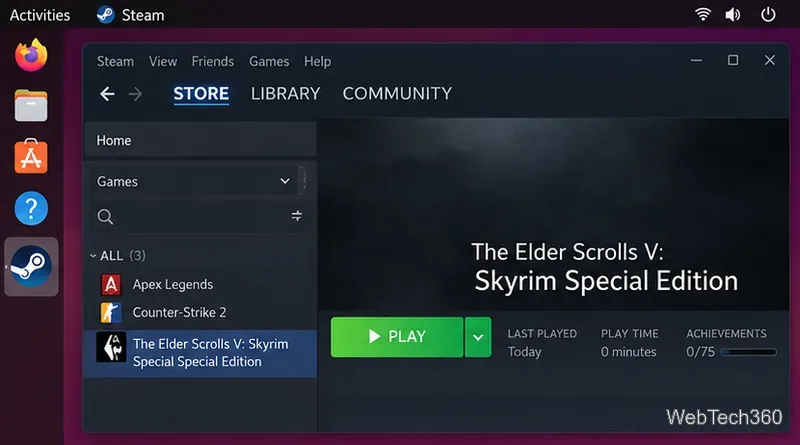
Skyrim Special Edition can be launched from the Linux Steam client once a Proton compatibility tool is available.
Step 1: Install Steam on Linux
Get Steam from your distribution’s package manager or from Valve’s official Steam download page. On Ubuntu, the distribution also provides the steam-installer package. If you use another distribution, prefer its documented Steam package instead of copying old commands from an unrelated distro.
Launch Steam after installation, allow the client to update, and sign in to the account that owns Skyrim Special Edition.
Step 2: Enable Steam Play and Proton
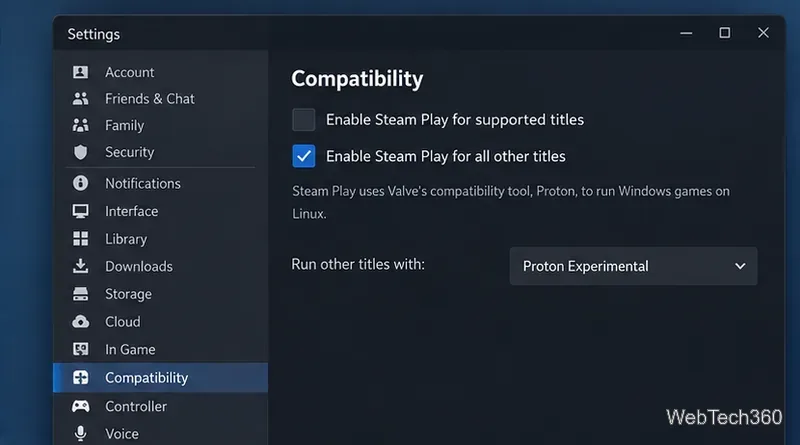
Open Steam > Settings > Compatibility. Enable Steam Play for other titles if that option is not already active, then select a current Proton tool in the compatibility drop-down. Do not select Proton 5.0-10 just because an older guide recommends it. Valve continues to ship newer Proton versions through the Steam client, and its official Proton project recommends using the Proton builds supplied by Steam for normal use.
The Compatibility section is where Steam Play can be enabled for Windows-only titles.
Step 3: Find and install Skyrim Special Edition
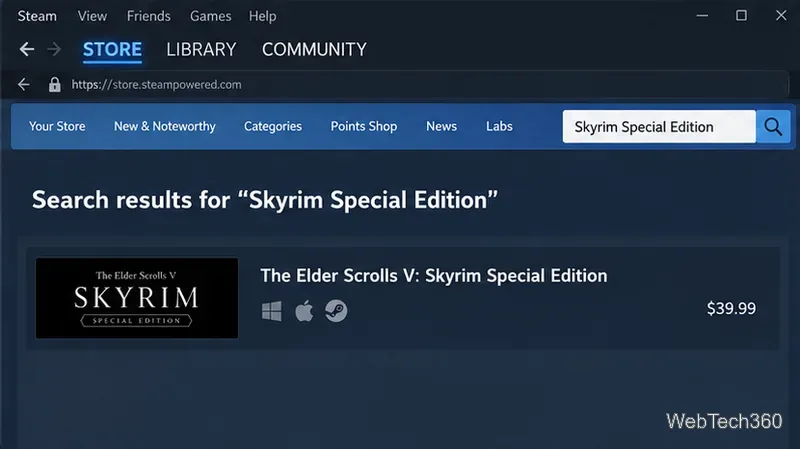
Open the Store tab and search for The Elder Scrolls V: Skyrim Special Edition. Make sure you choose the Special Edition store listing, Steam app ID 489830. Purchase it if necessary, then open Library, select the game, and choose Install.
Steam downloads the Windows game files and the compatibility components it needs. The store page describes Special Edition as the remastered release that includes the base game and its add-ons, with updated graphics and effects.
Search the Steam Store for the Special Edition listing before installing it to your library.
Step 4: Choose a per-game Proton version only if needed
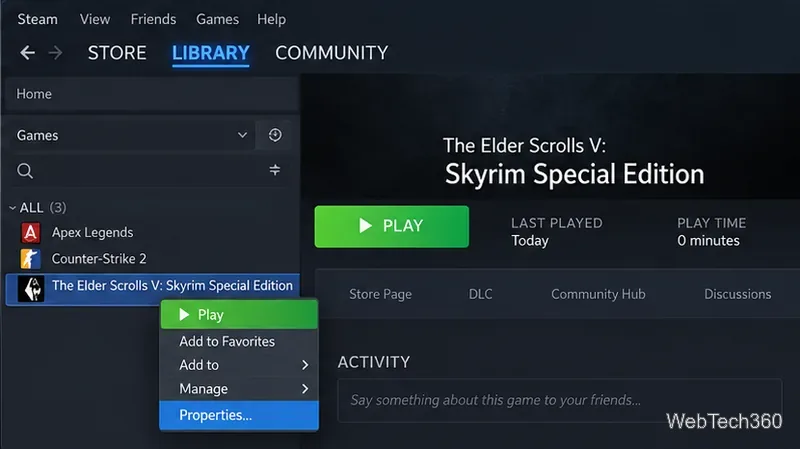
Try Steam’s default compatibility choice first. If Skyrim does not start, right-click the game in your Library and choose Properties > Compatibility. Check Force the use of a specific Steam Play compatibility tool, then try a current stable Proton release or Proton Experimental.
This per-game setting is useful because you can change Proton for Skyrim without changing the compatibility tool used by every other Windows game in your library.
Open the game’s Properties window when you need to change Skyrim’s compatibility tool.
Step 5: Launch the game and fix common problems
Select Play from the Skyrim Special Edition Library page. Steam may perform first-run setup before the launcher or game appears. If it does not start correctly, work through these checks before adding unofficial compatibility tools:
Update the graphics driver. Proton depends heavily on working Vulkan support, and Valve recommends current graphics drivers for Steam Play.
Try another Proton version. Switch between the current stable Proton release and Proton Experimental from the game’s Compatibility settings.
Verify the game files. Open Properties > Installed Files and use Steam’s file verification option if a download or update may be incomplete.
Test without mods. If the base game launches but a modded setup does not, disable third-party mods and tools until you identify the component causing the failure.
Create a Proton log when troubleshooting. Valve’s Proton documentation supports the launch option PROTON_LOG=1 %command%, which can provide diagnostic output for a failing launch.
What about Anniversary Edition and mods?
The Anniversary Edition package builds on Skyrim Special Edition with additional Creation Club content, so the same Steam-and-Proton approach applies to the underlying game. Mod managers, script extenders, and complex load orders can require extra Linux-specific configuration, however. Get the unmodified game launching through Steam first before adding those tools.
Bottom line
You do not need an old Wine prefix or a fixed legacy Proton release to play Skyrim Special Edition on Linux. Install the current Steam client, enable Steam Play, install the game, and let Steam use a modern Proton build. Only force a different Proton version when you actually need it for troubleshooting.