How to Recover Lost Partitions and Hard Disk Data Safely
Learn how to recover lost partitions and files with TestDisk and PhotoRec. Protect the source drive, scan safely, and save recovered data to another disk.
You can play The Forest on Linux through Steam Proton, Valve’s compatibility tool for Windows games. The game’s Steam listing specifies Windows system requirements rather than a native Linux version, so Proton is the bridge. Results can vary with your Linux distribution, graphics drivers, hardware, and the game’s current compatibility; this method is not a guarantee that every feature will behave exactly as it does on Windows.
Valve explains that Proton lets Windows-only games run through the Steam client on Linux. Before you begin, make sure you have a current Linux distribution, an updated graphics driver, a Steam account, and enough free disk space. If you do not own the game, you can find it on The Forest’s official Steam store page. Its listed storage requirement is for the game itself; leave additional room for Steam’s compatibility files and updates.
Install the Steam client using your distribution’s software center or its official package instructions. Package names and setup steps differ between Ubuntu, Debian, Fedora, Arch, and other distributions, so use the current directions for your own system. If your distribution does not provide a Steam package, start at Valve’s official Steam install page and follow its Linux download instructions.
Open Steam after installation, sign in, and allow the client to download any updates. If Steam itself will not start, fix that first using your distribution’s supported packages and graphics drivers; Proton cannot run a game until the Linux Steam client works normally.
In Steam, open Steam > Settings > Compatibility. Depending on the client version, the section may be labeled Steam Play. Leave support for supported titles enabled, then turn on Enable Steam Play for all other titles so Steam can offer Proton for games that do not list Linux support. Choose the default Proton option if Steam asks which compatibility tool to use, then restart Steam if prompted.
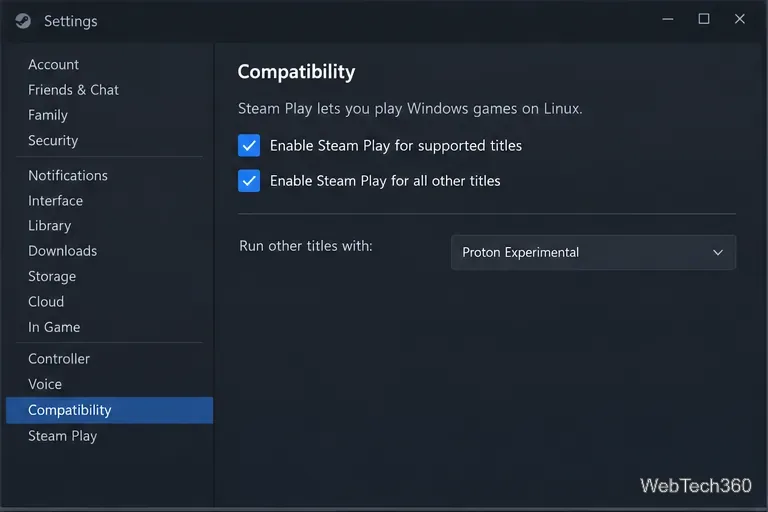
Steam Play is the client feature that manages compatibility tools, including Proton. You do not need to download Proton separately for this guide; Valve says most users should use the version provided by the Steam client. See the official Proton project for details.
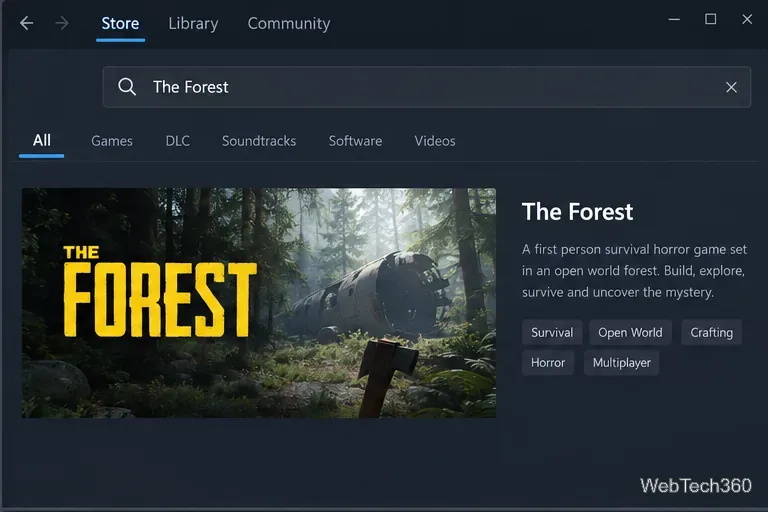
Open the Steam Store and search for The Forest. Select the game’s official store listing. If you already own it, go to Step 4. Otherwise, add it to your cart and complete the purchase through Steam; availability and price can vary by region and time.
After the game is in your account, open Library, select The Forest, and choose Install. Select the Steam library where you have enough available space, confirm the download, and let Steam finish installing the game and any required compatibility components.
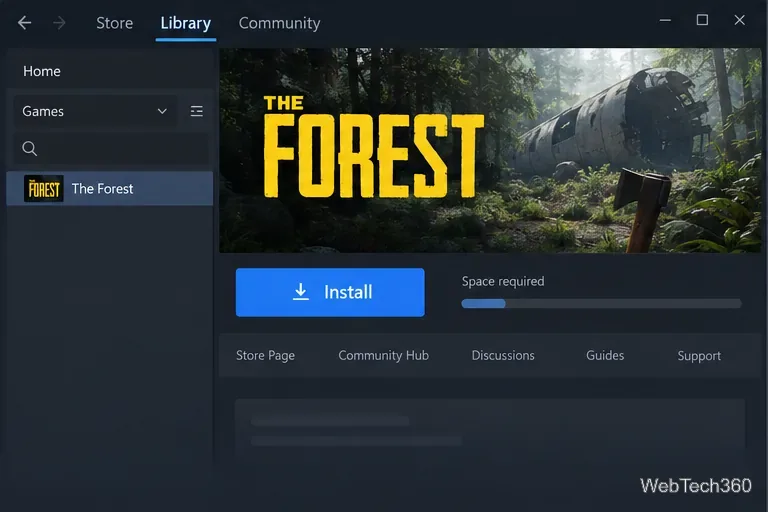
When installation finishes, select Play in your Library. On the first launch, Steam may take longer while it prepares Proton and the game’s compatibility data. Give that first setup time to complete.
If the game does not launch or behaves incorrectly, open its Library page, select the gear icon or right-click the title, and choose Properties > Compatibility. Check Force the use of a specific Steam Play compatibility tool, then try the current stable Proton version. If that does not help, test Proton Experimental. Change one setting at a time and relaunch so you can tell whether it helped. To return to Steam’s automatic choice, clear the force-compatibility checkbox.
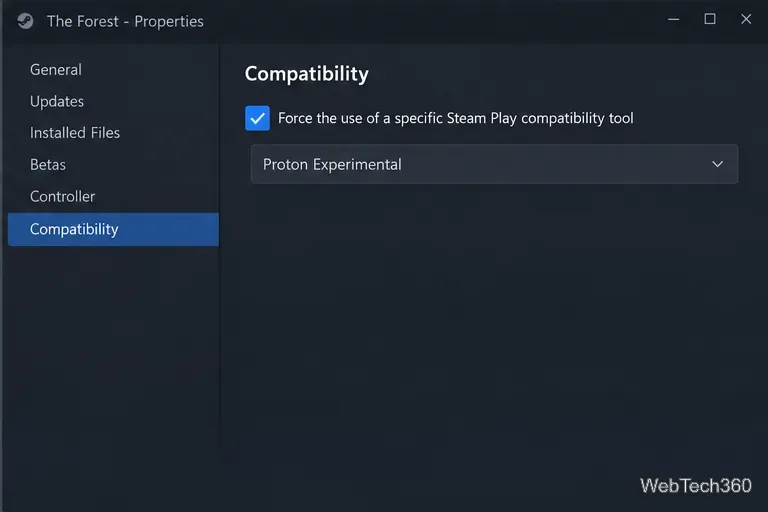
Steam’s own support page says Steam Play may let Windows-only games work on Linux, which is why results are title- and system-dependent. If a particular Proton version fails, switch back to another version or Steam’s automatic setting instead of adding random launch commands. For The Forest, the practical sequence is simple: install Steam, enable Steam Play, install the game, and test a per-game Proton option only if the default launch has a problem.
Learn how to recover lost partitions and files with TestDisk and PhotoRec. Protect the source drive, scan safely, and save recovered data to another disk.
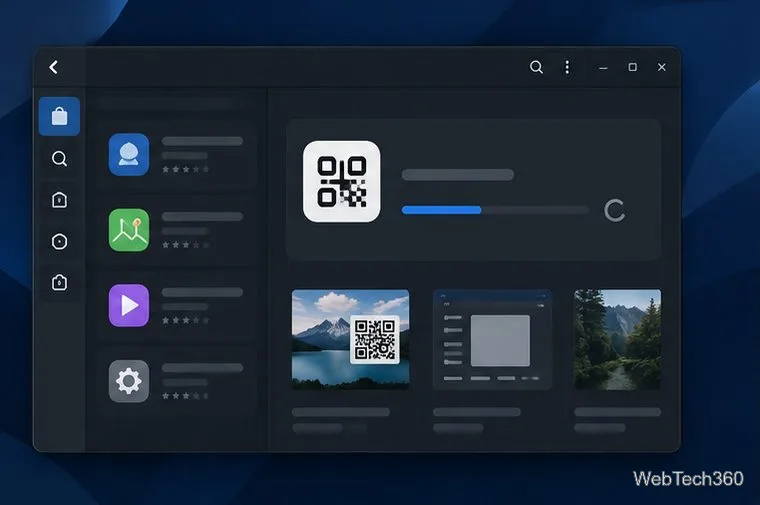
Scan QR codes on Linux with CoBang using a webcam or image file. See installation options, setup steps, and fixes for Flatpak camera access.
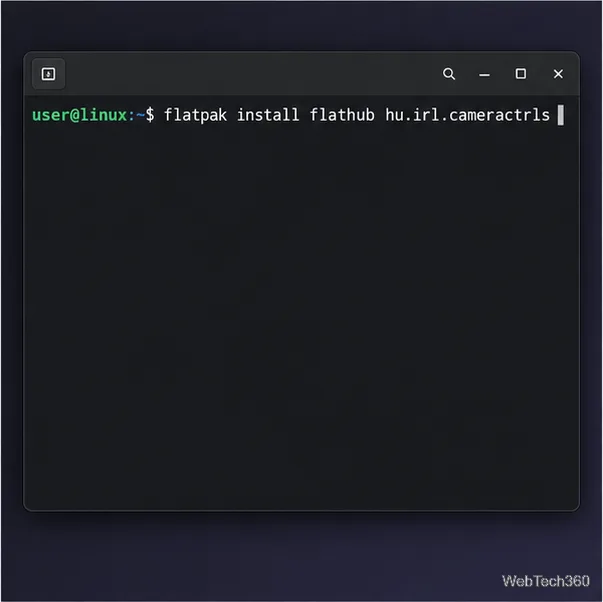
Change webcam settings on Linux with Cameractrls: tune exposure, color, flicker reduction, and other supported controls, then check compatible video modes.
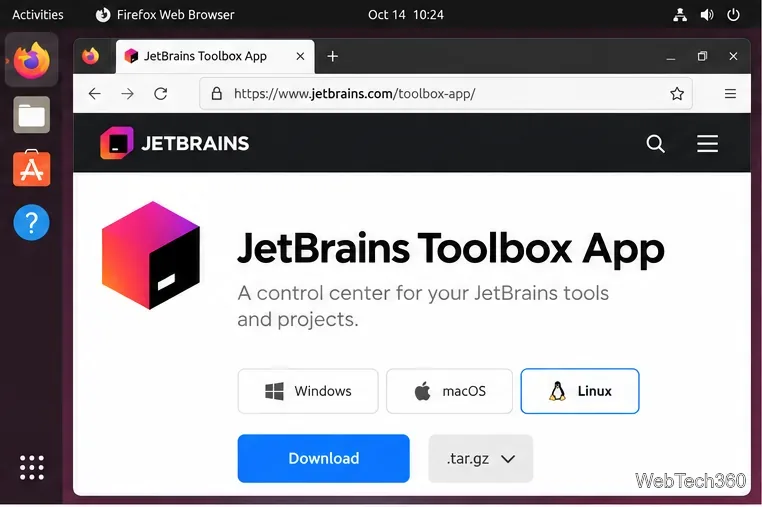
Install PhpStorm on Linux with JetBrains Toolbox or the standalone tar.gz archive, plus Snap and Arch AUR options. Java is already bundled.
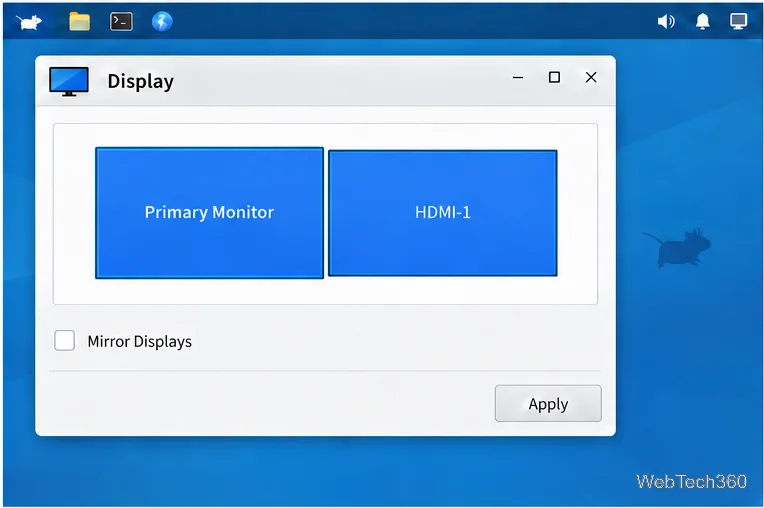
Create a separate XFCE 4 panel for each display, assign the second panel to the right output, position and size it, and add the launchers and status items you need.
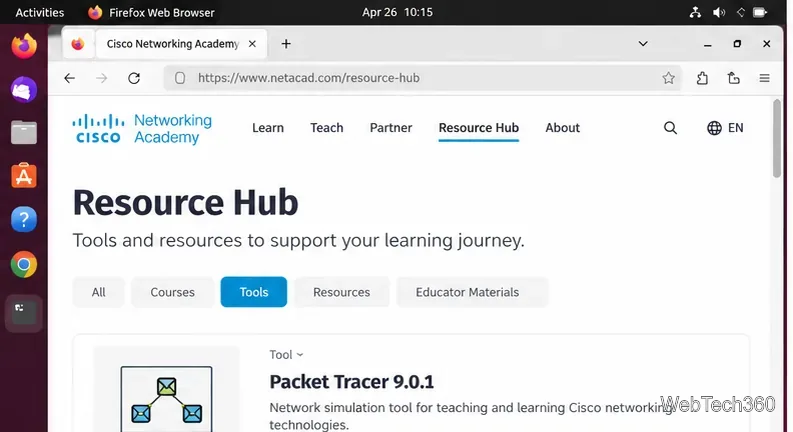
Download Cisco Packet Tracer 9.0.1 for Ubuntu 64-bit, install the DEB package with APT, accept the license in Terminal, and sign in to start a lab.
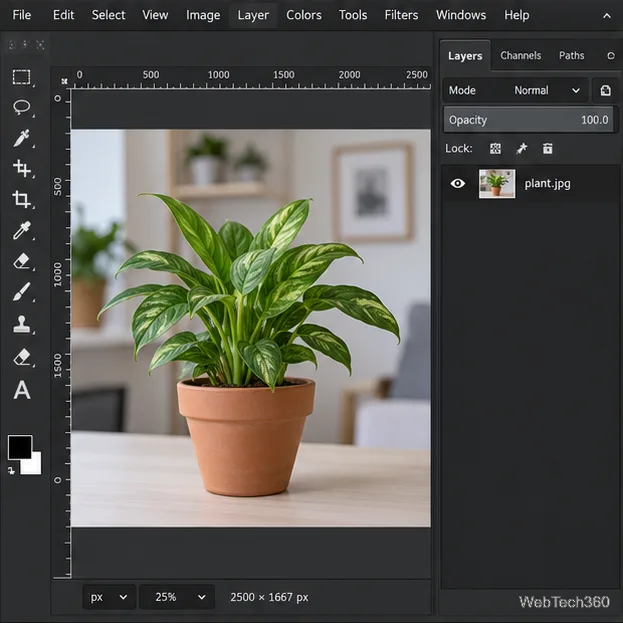
Remove a photo background on Linux with GIMP: trace a subject, delete the selected background, keep transparency, and export a reusable PNG.
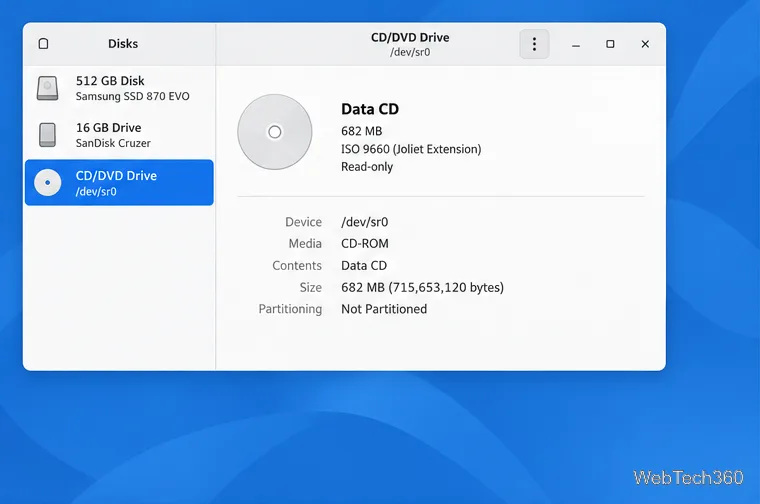
Create a CD-ROM ISO on Linux with GNOME Disks or dd. Identify the optical drive, monitor the copy, verify the image, and know when a damaged or audio disc needs another tool.
Download FlightGear for free from the official site. Compare Windows, macOS, and Linux packages, install the data files, and start your first flight.
Open Google Tasks in a browser, add a Chrome shortcut or app-style launch, and manage dated to-dos through Calendar and Gmail.