Home
» LINUX
»
How to Play The Sims 4 on Linux With Steam and Proton
How to Play The Sims 4 on Linux With Steam and Proton
Yes, you can play The Sims 4 on Linux, but it is not a native Linux game. The practical route is to install the Windows version from Steam and run it through Valve's Proton compatibility layer. You will also need an EA Account because the Steam release requires the EA app for activation and background use.
This is an unofficial Linux setup: Electronic Arts supports the EA app on Windows and macOS, not Linux. Proton can make the Windows version work, but an EA app or game update can occasionally require a different Proton version or fresh troubleshooting.
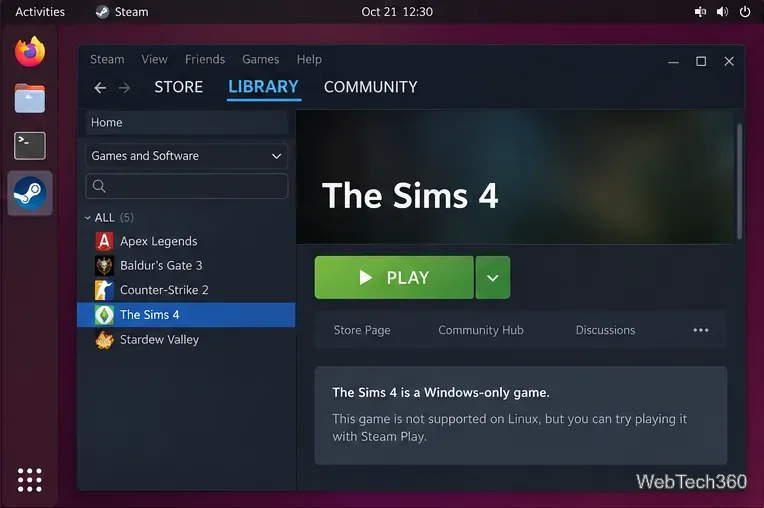
The Sims 4 can be launched from the Linux Steam client through Steam Play and Proton.
What you need before you start
A 64-bit Linux system with current graphics drivers and Vulkan support.
The Linux Steam client. Valve currently supports Steam for Linux on the latest Ubuntu LTS with Unity, GNOME, or KDE, while many other distributions also package Steam.
A Steam Account and an EA Account.
Enough free storage. The official Steam listing for The Sims 4 specifies 26 GB minimum and 51 GB recommended for the Windows version; leave additional room for Proton, the EA app, updates, and downloadable content.
Valve stopped supporting Linux distributions with glibc older than 2.31 on August 15, 2025, so update an older distribution before troubleshooting the game. See Steam's Linux support notice.
1. Install Steam on Linux
Use your distribution's current Steam package when available. On Ubuntu or Debian-based systems, Valve also provides an official steam_latest.deb package and apt repository through its Steam for Linux repository.
After installation, start Steam, let the client update itself, and sign in. If Steam itself will not open, update your Linux distribution and graphics drivers first; Valve's Linux client troubleshooting guide notes that graphics-driver problems are a common cause of startup failures.
2. Add The Sims 4 to your Steam library
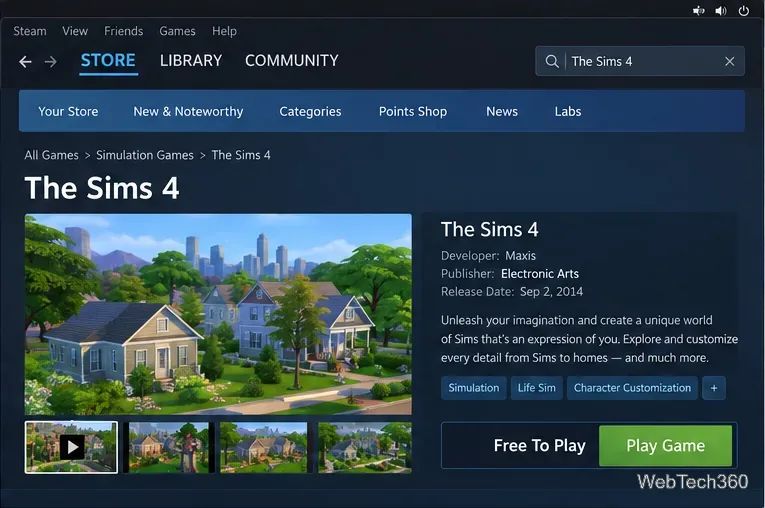
Open the Steam Store, search for The Sims 4, and choose Play Game or the equivalent add-to-library option. The base game is free to play, so the old instruction to purchase it before installation is no longer correct.
Add the free base game to your Steam library before installing it on Linux.
Return to Library, select The Sims 4, and start the installation. Steam will download the Windows build because there is no native Linux build.
3. Use Proton for compatibility
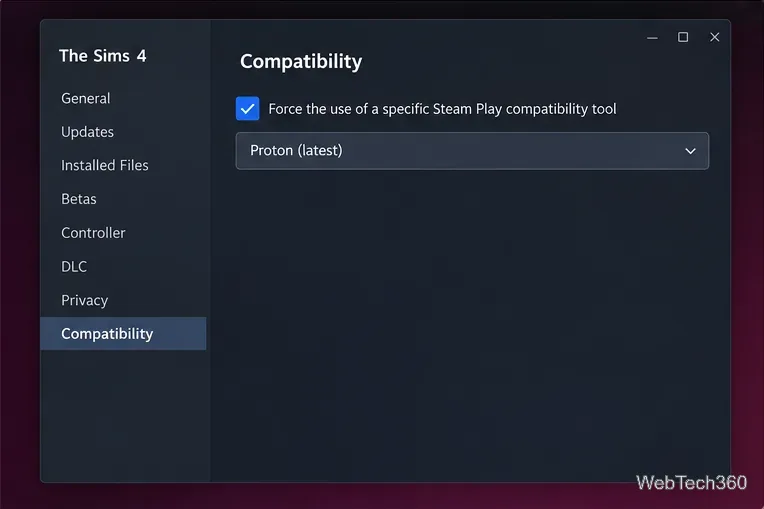
Steam normally handles Proton automatically for Windows-only games. If The Sims 4 does not offer an Install or Play button, or if it fails to launch, open the game's Properties, select Compatibility, and enable Force the use of a specific Steam Play compatibility tool. Choose the newest stable Proton version available in your Steam client.
If the newest stable release has a problem, try Proton Experimental. Valve describes Proton as the Steam Play tool that lets Windows-only games run on Linux and recommends that most users use the Proton builds supplied by Steam. See the official Valve Proton project.
Use the game's Compatibility settings if you need to select a Proton version manually.
Do not force an old Proton release such as Proton 5.13-4 simply because an older guide recommended it. Proton changes frequently, and a version that was useful years ago can now cause unnecessary launch problems.
4. Sign in to the EA app and link your accounts
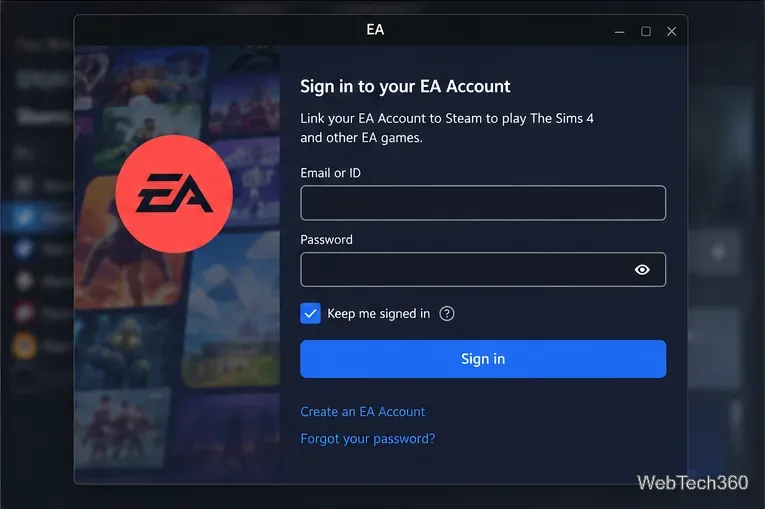
On the first launch, Steam may install or start the Windows EA app inside the Proton environment. Sign in with your EA Account and complete the Steam linking prompt. EA says Steam and EA accounts normally need to be linked only the first time you play an EA game through Steam. You can review the official steps in EA's account-linking guide.
The Steam version requires an EA Account and the EA app during launch.
EA's own EA app page lists Windows and macOS as supported operating systems, so the EA app portion of this setup is also running through compatibility technology rather than native Linux support.
5. Launch The Sims 4
Return to Steam and select Play. The first launch can take longer because Proton creates the game's compatibility environment and the EA app may finish setup. Allow those processes to complete rather than repeatedly closing and reopening the game.
If The Sims 4 will not launch on Linux
Verify the game files: in Steam, open Properties > Installed Files > Verify integrity of game files. This is Valve's documented method for repairing missing or damaged files.
Update Linux and your graphics drivers: old Mesa, NVIDIA, or Vulkan components can prevent Proton games from starting correctly.
Switch Proton versions: try the newest stable Proton first, then Proton Experimental if necessary.
Check the EA link: confirm that the Steam account you are using is connected to the intended EA Account before attempting repeated sign-ins.
Restart Steam after compatibility changes: this can help Steam reload the selected Proton tool cleanly.
If files may be damaged, follow Steam's official file-verification instructions. Because Linux is not an officially supported EA app platform, there is no guarantee that every EA app update will work immediately under Proton. Keeping Steam, Proton, your distribution, and GPU drivers current gives you the best chance of a smooth launch.