Home
» LINUX
»
How to Play The Witness on Linux With Steam Proton
How to Play The Witness on Linux With Steam Proton
The Witness does not have a native Linux build on Steam, but you can play the Windows version on Linux through Steam Play and Valve's Proton compatibility layer. In most cases, the process is straightforward: install Steam, make sure Windows-game compatibility is enabled, install The Witness, and let Steam choose a Proton version. If the default choice does not launch correctly, you can override it for this game.
A 64-bit Linux system with working graphics drivers.
A Steam account and a copy of The Witness.
At least the 5 GB of free storage listed on the game's Steam system requirements page, with additional free space recommended for Steam and Proton data.
An internet connection for Steam, the game download, and any compatibility-tool updates.
Valve's official Linux support is centered on the latest Ubuntu LTS with Unity, GNOME, or KDE. Steam is also commonly packaged for other distributions, but the exact installation method depends on your distro.
1. Install Steam on Linux
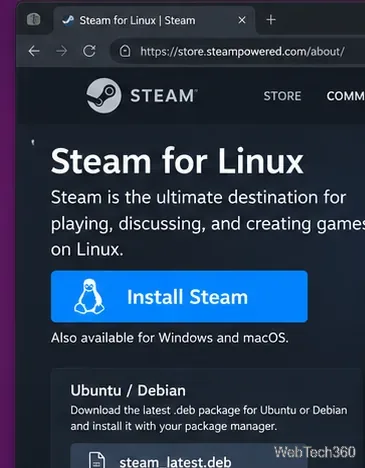
If you use Ubuntu LTS, Valve publishes the current Linux launcher and repository instructions on its official Steam for Linux repository page. On another distribution, use the Steam package provided or documented by that distribution when available.
The Steam for Linux download page provides an installer for supported Linux setups.
Install Steam, open it, allow the client to update, and sign in to the account that owns The Witness. You do not need to download Proton separately from a third-party site; Valve recommends using the Proton versions supplied by Steam for normal use.
2. Check Steam Play and Proton compatibility
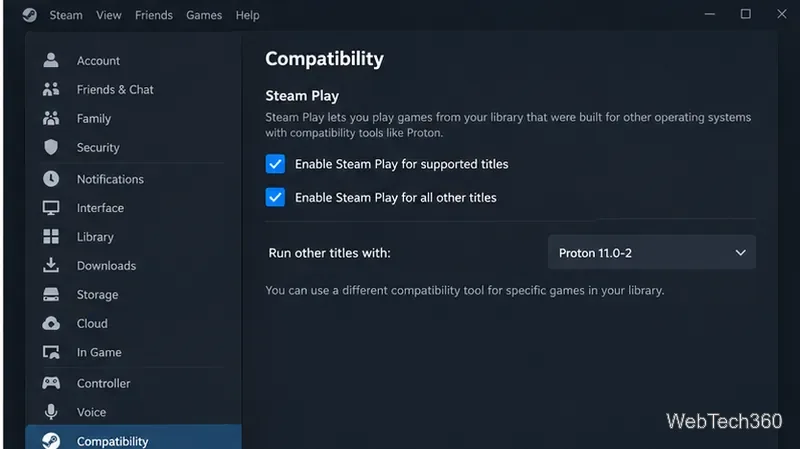
In the Linux Steam client, open Steam > Settings > Compatibility. Depending on the current Steam client version, Steam Play for Windows titles may already be enabled. If The Witness is unavailable to install, make sure Steam Play is enabled for supported titles and for other titles.
Steam's Compatibility settings control the default Proton tool for Windows games on Linux. The version number offered by Steam can change over time.
For the default compatibility tool, start with the current stable Proton version offered by Steam. Valve describes stable Proton as the regularly tested release, while Proton Experimental is intended for newer fixes and testing. There is usually no reason to start with a custom Proton build for The Witness.
3. Install The Witness from your Steam Library
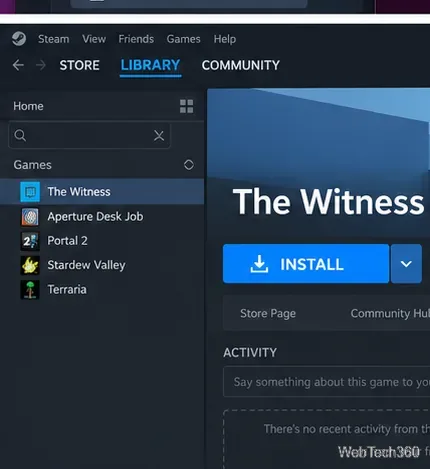
If you already own the game, select The Witness in your Library and click Install. If you do not own it yet, purchase it from the official Steam store page, then return to your Library.
Select The Witness in the Steam Library and use Install to download the Windows version that Proton will run on Linux.
Choose a Steam library location with enough free space and let the download finish. Steam will also obtain the compatibility components it needs. The store page lists Steam Cloud support, so saves can be synchronized through Steam when that feature is active for your account and installation.
4. Force a Proton version only if the default does not work
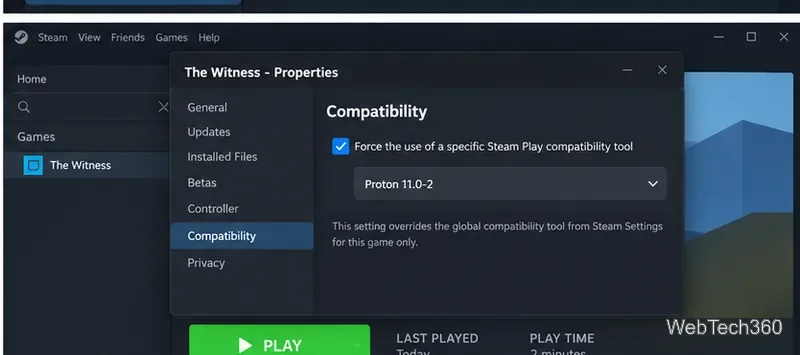
Normally, leave Steam's automatic compatibility selection alone first. If the game refuses to start, closes immediately, or develops a regression after an update, open The Witness > Properties > Compatibility. Enable Force the use of a specific Steam Play compatibility tool, then try the current stable Proton release.
A per-game Compatibility override lets you test another Steam-supplied Proton version without changing every game.
If stable Proton fails, Proton Experimental is a reasonable second test because it receives newer compatibility fixes. If Experimental makes the problem worse, remove the per-game override or switch back to stable. Avoid Proton's bleeding-edge branch unless you specifically need to test an unreleased fix; Valve warns that it is automated and untested.
5. Launch The Witness
Return to the Library page and click Play. Steam may perform first-time setup before the game opens. Once it starts, configure resolution, fullscreen mode, and graphics options from the game's own settings as needed.
If The Witness will not launch on Linux
Work through these checks before making more invasive changes:
Update Linux and your graphics drivers. Valve's Linux launch troubleshooting guidance specifically recommends keeping the OS and graphics drivers current.
Verify the game files. In Steam, open Properties > Installed Files > Verify integrity of game files. Valve documents the same path in its file verification guide.
Try a different Steam-supplied Proton version. Test stable first, then Experimental if necessary.
Remove unnecessary launch options. Old Wine, DXVK, or Proton environment variables copied from older guides can create problems after Proton updates.
Restart Steam after compatibility changes. This is especially useful if Steam has just downloaded a new Proton build.
The main point is that you do not need a native Linux port or a separate Wine installation to get started. Steam's built-in Proton workflow is the simplest path: install the Windows release, let Steam handle compatibility, and use a per-game Proton override only when troubleshooting requires it.