Home
» LINUX
»
How to Play VRChat on Linux With Steam and Proton
How to Play VRChat on Linux With Steam and Proton
Yes, you can play VRChat on Linux through Steam and Proton. The important caveat is support: VRChat officially supports Steam Deck/SteamOS through Proton, while other Linux distributions may work but are not officially supported by VRChat. For a regular Linux desktop, VRChat's own developer guidance currently points users to Proton Experimental.
VRChat itself is free on Steam. This guide focuses on Desktop Mode, which is the simplest Linux setup. PC VR on Linux adds SteamVR, headset drivers, and another compatibility layer, so a successful desktop launch does not guarantee that a VR headset will work.
Before you install VRChat on Linux
Start with a 64-bit Linux system, an up-to-date Steam client, current GPU drivers, and enough free storage for VRChat's cache. VRChat's official system-requirements page lists 21.5 GB of storage, with most of that allowance intended for downloaded content cache. The official PC operating-system requirements still list Windows 10 and Windows 11, which is why Linux desktop installations should be treated as a Proton compatibility setup rather than a native Linux release.
Valve provides the Steam client for Linux, although its formal support matrix is narrower than the number of distributions that can run Steam. If Steam itself is unstable, check Valve's Steam Client troubleshooting guidance for Linux before troubleshooting VRChat.
How to install and play VRChat on Linux
1. Install Steam and find VRChat
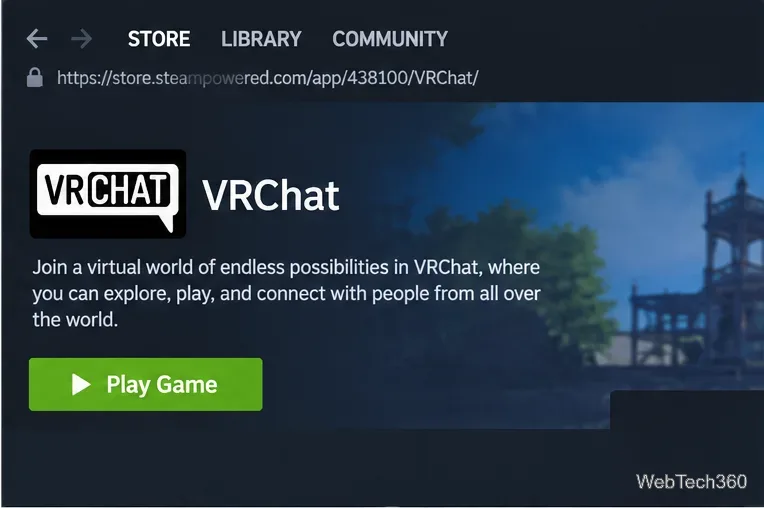
Install Steam using the package or installer appropriate for your distribution, sign in, and let the client update. Open the Store, search for VRChat, and open the official VRChat store page. You do not need a VR headset to use VRChat; Desktop Mode works with a keyboard and mouse or a supported controller.
Open the official VRChat page in Steam before configuring compatibility.
2. Use Proton Experimental on a Linux desktop
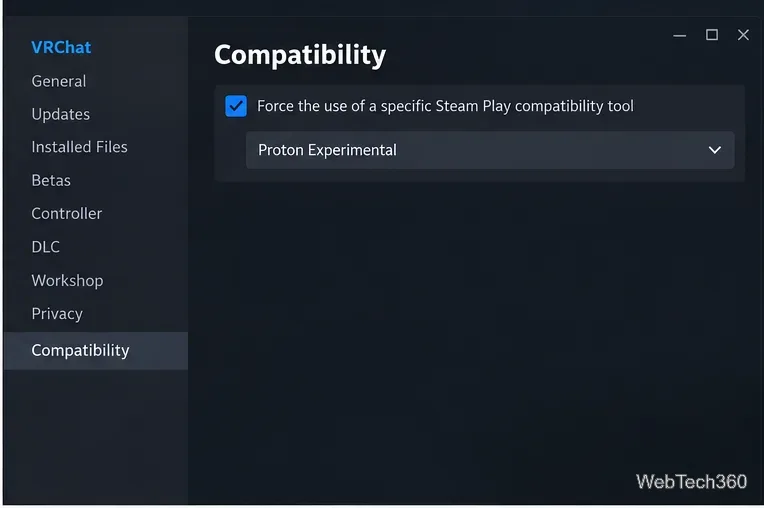
On a non-Steam-Deck Linux PC, open Library, right-click VRChat, choose Properties, then open Compatibility. Enable Force the use of a specific Steam Play compatibility tool and select Proton Experimental. VRChat's pinned developer support guidance says popular Linux distributions should work with Proton Experimental, while also making clear that those distributions are not officially supported.
Proton is Valve's compatibility layer for running Windows games on Linux. Valve recommends using the Proton versions supplied by Steam for most users; its official Proton project documents that approach.
Set VRChat to Proton Experimental on a regular Linux desktop when Steam does not choose a working Proton version automatically.
3. Install VRChat
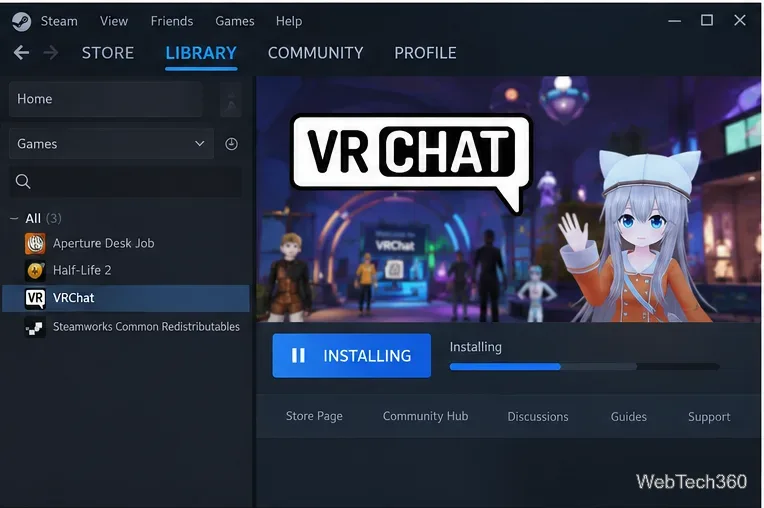
Return to the VRChat page and select Play Game or Install. Choose your Steam library location and allow Steam to download VRChat, Proton components, and any required redistributables. Do not interrupt the first setup just because Steam downloads extra compatibility files; those components are normal when a Windows game is launched through Proton.
Steam installs VRChat together with the compatibility components required by the selected Proton version.
4. Launch VRChat
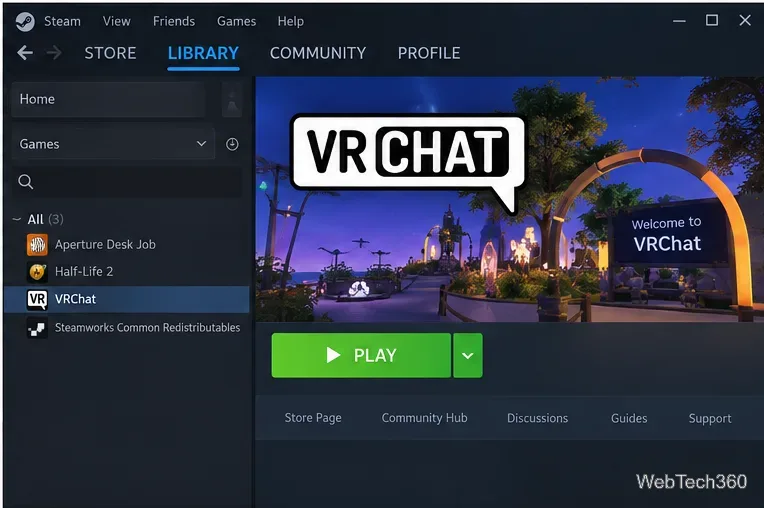
When installation finishes, select Play. Complete any first-run prompts, then sign in with your VRChat account or the account method offered by the client. If you only want to explore worlds, meet people, or use social features without a headset, continue in Desktop Mode.
On Steam Deck, start by using the default configuration instead of forcing a Proton override. Steam currently marks VRChat as Deck Verified, and VRChat says Steam Deck/SteamOS is the Linux configuration it officially supports. If a Deck installation develops compatibility problems, Valve's Steam Deck troubleshooting guide explains how to select a Proton version for a specific game.
After the download finishes, launch VRChat from the Steam Library.
Fix common VRChat problems on Linux
VRChat will not launch
First, make sure Steam and your graphics drivers are current. Then open VRChat's Steam properties and use Installed Files > Verify integrity of game files. If you previously selected a custom Proton build, switch back to Proton Experimental or Steam's default tested configuration and try again. VRChat's official troubleshooting article confirms that SteamOS works through Proton and warns that other Linux distributions are not directly supported.
World video players are blank or fail to load
VRChat's developer support post recommends unlocking H.264 support in the Steam runtime with this command when video players do not work:
steam-runtime steam://unlockh264/
This advice comes from VRChat's pinned developer support post. If your Steam package does not provide the steam-runtime command, do not substitute random commands from old guides; check the documentation for the way Steam was packaged on your distribution.
Should you install Proton-GE?
Not as a first step. VRChat currently recommends Proton Experimental for ordinary Linux desktop use, and Steam already manages official Proton builds. Community Proton versions can be useful for narrow troubleshooting cases, but adding another variable makes it harder to tell whether a problem comes from VRChat, Steam, Proton, graphics drivers, or the custom build.
Can you use VRChat in VR mode on Linux?
Possibly, but it is a more advanced setup. The official VRChat PC requirements still target Windows and list SteamVR for headset support. On a general Linux desktop, VR mode depends on whether SteamVR, your headset, controller mappings, graphics stack, and Proton all cooperate. If you primarily want reliable headset use, a platform that VRChat officially supports will be more predictable. For Linux users who mainly want VRChat's social worlds in Desktop Mode, Steam plus Proton Experimental is the most straightforward current path.