Home
» LINUX
»
How to Play World of Tanks Blitz on Linux with Steam Proton
How to Play World of Tanks Blitz on Linux with Steam Proton
You can try World of Tanks Blitz on Linux through Steam’s Proton compatibility layer. The game does not list Linux among its supported operating systems, so this is an unofficial workaround: whether it launches depends on your Linux distribution, graphics drivers, and updates to the game or Proton. Start with Steam’s current Proton version and change compatibility settings only if the game fails to start.
Before you start: Linux is not an officially listed platform
The Steam store currently lists Windows and macOS system requirements for World of Tanks Blitz, with 8 GB of available storage. It does not list a native Linux version. Valve explains that Steam Play may let some Windows-only games run on Linux, but compatibility is not guaranteed. Proton translates Windows game requirements for Linux; it does not turn this title into a supported Linux release. Check the official Steam listing and Steam’s Linux game support notes for the current platform details.
How to install and launch World of Tanks Blitz on Linux
Install Steam. Use your Linux distribution’s software center or its documented package source to install Steam. You can also start from Steam’s official download page. Open the client, sign in, and let it update. Install the graphics driver recommended for your GPU and distribution before troubleshooting game performance.
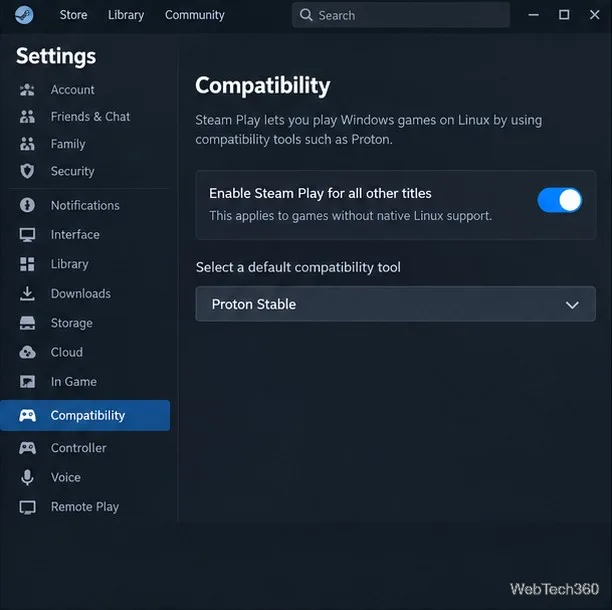
Enable Proton for Windows games. In Steam, open Steam > Settings > Compatibility. Turn on Enable Steam Play for all other titles and select the stable Proton tool if the client asks for a default. Apply the setting and restart Steam if prompted. Steam’s wording and layout may vary slightly between client versions.
Illustrative Steam-style settings view; labels can vary slightly by client version.
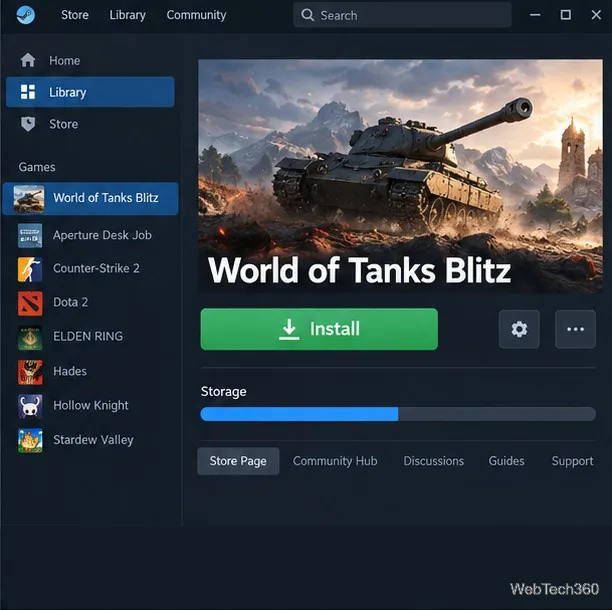
Install the game from Steam. Search the Store for World of Tanks Blitz, open its Steam page, and select Play Game or Install. Choose a library location with enough free space. Steam lists 8 GB as the game’s storage requirement; leave additional room for updates and Proton’s compatibility files. If Steam does not offer installation, confirm Proton is enabled, restart the client, and open the game page again.
Use the Steam store page to add and install World of Tanks Blitz.
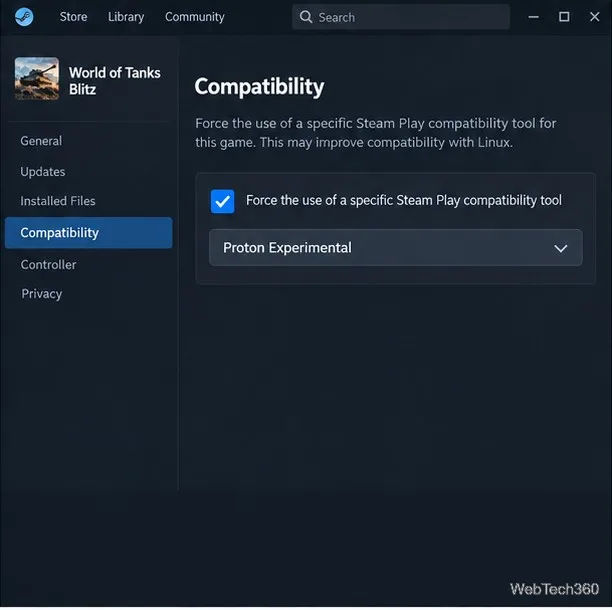
Set a per-game Proton version if needed, then launch. First try the default Proton setting. If the Play button returns to its idle state without opening the game, go to Library, right-click World of Tanks Blitz, and choose Properties > Compatibility. Check Force the use of a specific Steam Play compatibility tool and try a current stable Proton release. If that does not work, test Proton Experimental, which Valve describes as a testing branch. Apply the choice and select Play.
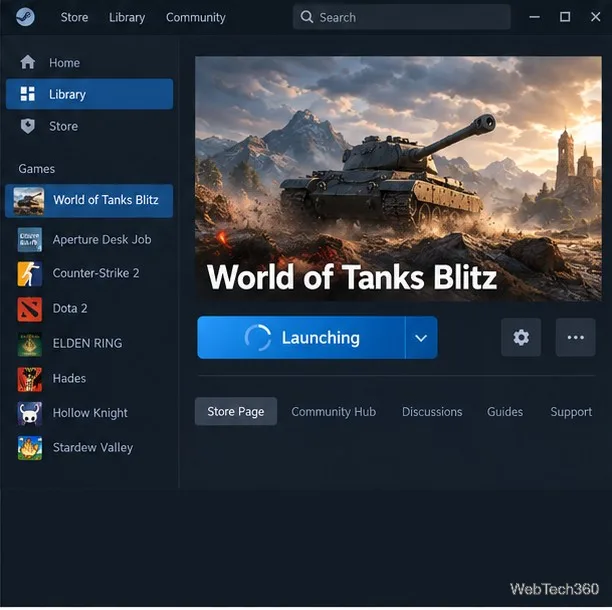
Choose a per-game Proton version only if the default compatibility setting does not launch the game.After installation, launch the game from your Steam Library and complete its sign-in screen.
On first launch, Steam may take a little longer while Proton creates the game’s compatibility files. When the game opens, follow its sign-in prompt. Wargaming supports signing in with a Steam account or an existing Wargaming.net ID; if your previous account is not linked to Steam, use the Wargaming ID option or follow Wargaming’s account-linking instructions. See Wargaming’s Steam sign-in guide.
If the game will not start
Update first: Install available Steam client, Linux system, and GPU driver updates, then restart Steam. Valve notes that older Linux systems can have conflicts with games.
Try one compatibility change at a time: Switch between the current stable Proton and Proton Experimental in the game’s Compatibility properties, then test launch. Avoid old instructions that prescribe Proton 3.16; it is not a current default recommendation.
Check the installation: In the game’s Properties, open Installed Files and run Steam’s file verification option. This can repair incomplete or damaged downloads.
Look for an update-related change: A Proton or game update can alter whether a Windows-only game works. If the issue persists, check Steam’s support troubleshooting page for games stuck at “Preparing to Launch,” then report the problem through the appropriate Steam or Wargaming support channel.
Proton compatibility can change over time, and a successful launch does not guarantee every later update will work on every Linux setup. If you need a supported installation path, use one of the operating systems listed on the game’s Steam page.