Home
» LINUX
»
How to Play World of Warships on Linux With Steam Proton
How to Play World of Warships on Linux With Steam Proton
World of Warships does not have a native Linux version, but you can run the Windows Steam release on many Linux PCs through Valve's Proton compatibility layer. Wargaming's current system requirements list Windows rather than Linux, while Valve describes Proton as the Steam Play tool for running Windows-only games on Linux.
This means Linux play is a compatibility workaround, not an officially supported Wargaming configuration. A game or Proton update can occasionally change behavior, so the safest setup is to use the Steam release, keep your graphics drivers current, and avoid unnecessary launch tweaks.
What you need before installing
A 64-bit Linux PC with the Steam client and working Vulkan-capable graphics drivers.
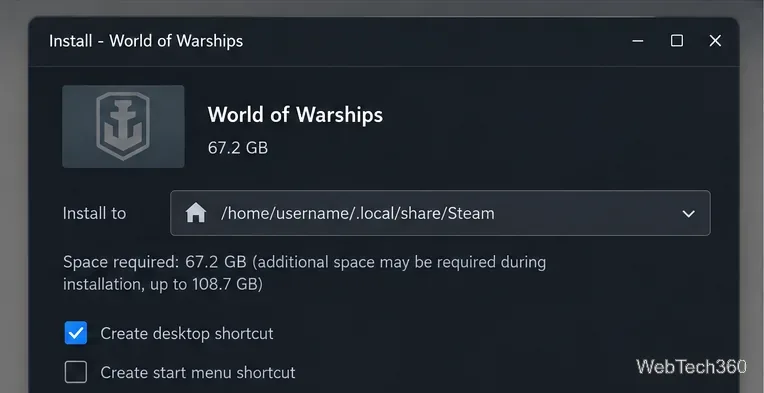
Plenty of free storage. Wargaming currently says the installed game uses about 67.2 GB, while installation can require up to 108.7 GB of disk space because temporary files are downloaded and unpacked.
An existing Wargaming.net account, or the ability to create one at first launch. Wargaming's Steam FAQ says existing accounts can be linked to Steam.
How to play World of Warships on Linux
1. Install Steam and update your graphics drivers
Install the Linux Steam client using the method recommended for your distribution, then fully update Steam and your GPU drivers. Valve's Linux troubleshooting guidance specifically calls out graphics-driver problems as a common cause of Steam issues on Linux.
2. Add World of Warships to your Steam library
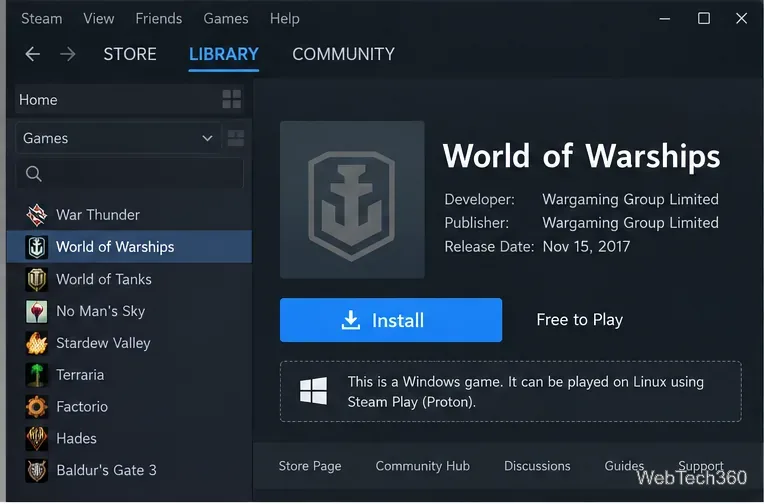
Open Steam, search for World of Warships, and add the game to your library. The store lists it as a Windows title, so Linux relies on Steam Play rather than a native Linux build.
World of Warships appears in the Steam library as a Windows game; Proton provides the Linux compatibility layer.
3. Install the game and leave extra disk space
Click Install, choose a Steam library location, and start the download. Do not plan around the installed size alone: keep roughly 110 GB free during setup so Steam has room for the game plus temporary installation data.
The installed game is about 67.2 GB, but temporary installation files can raise the required free space substantially.
4. Set a Proton version if Steam does not choose one automatically
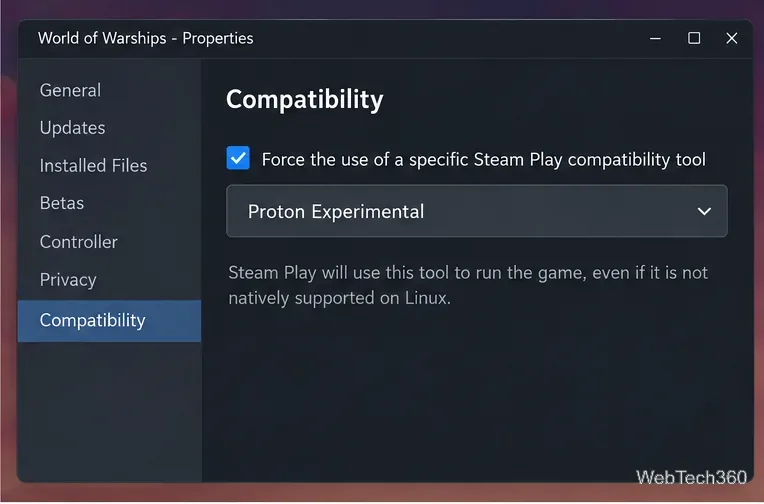
In your Library, right-click World of Warships, open Properties > Compatibility, and enable Force the use of a specific Steam Play compatibility tool if needed. Start with the newest stable Proton offered by Steam. If the game fails to start after an update, Proton Experimental is a reasonable official alternative to try; if Experimental causes a regression, switch back to the newest stable release.
Steam lets you select a Proton compatibility tool per game from Properties > Compatibility.
5. Launch the game and sign in
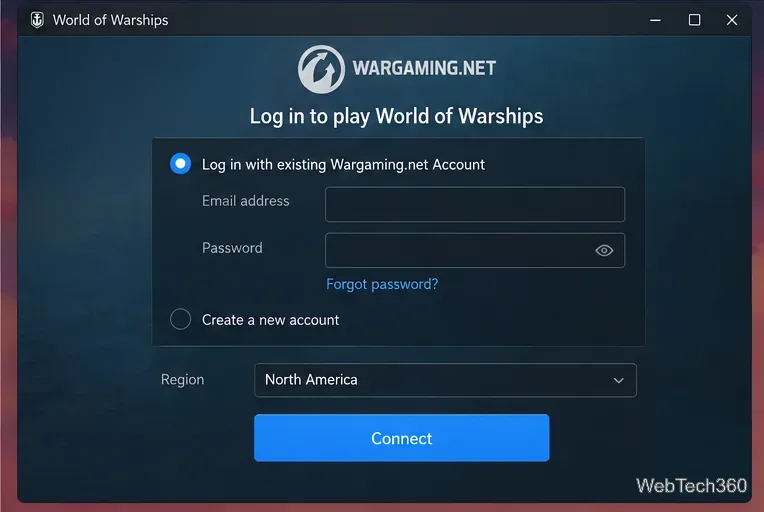
Click Play. On the first launch, follow the Wargaming sign-in flow. You can link an eligible existing Wargaming.net account or create a new account. Pay attention to the server region you choose: Wargaming notes that game progress cannot simply be transferred between regions.
First launch includes Wargaming account and region choices before you enter the game.
What to do if World of Warships will not launch
Try another official Proton build: switch between the newest stable Proton and Proton Experimental in Properties > Compatibility.
Verify the game files: in Steam, open Properties > Installed Files and run the file-integrity check if an update or interrupted download caused corruption.
Update Linux, Steam, and GPU drivers: Valve recommends keeping the operating system and graphics stack current when a Steam Play game stops launching.
Do not mix client files: Wargaming says Steam installs and updates the Steam version itself, so do not copy Wargaming Game Center files over the Steam installation.
Check account linking: if Steam is already linked to a different Wargaming account, use Wargaming Account Management or Player Support rather than repeatedly reinstalling the game.
Is World of Warships officially supported on Linux?
No. Wargaming's published PC requirements list Windows, not Linux. Proton can make the Steam version playable on Linux, but neither the Linux configuration nor every Proton release is guaranteed by Wargaming. If a patch temporarily breaks compatibility, changing Proton versions or waiting for a Steam/Wargaming update is usually safer than applying random third-party fixes.