Home
» LINUX
»
How to Purge Wine from Linux Completely
How to Purge Wine from Linux Completely
If you want to purge Wine from Linux, you need to remove two different things: the system package installed by your distribution and the Wine prefix that stores Windows applications, registry data, and per-user settings. Removing the package alone does not erase files in your home directory. Debian's APT documentation explicitly notes that package purging does not remove user data stored there.
The commands below cover Ubuntu, Debian, Arch Linux, Fedora, and openSUSE. Before deleting anything, close your Windows applications and back up any files you want to keep from your Wine prefixes.
1. Check how Wine is installed
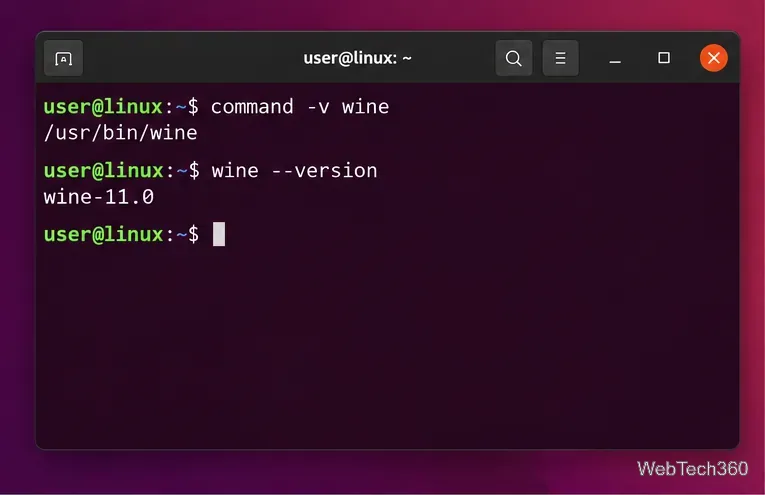
Open a terminal and confirm that the system Wine command exists:
command -v wine
wine --version
If the first command returns a path such as /usr/bin/wine, you have a Wine executable available through your shell. The Wine manual page also documents WINEPREFIX: when it is not set, Wine stores its default prefix in $HOME/.wine.
Check the Wine command before removing packages so you know which installation your shell is using.
2. Stop Wine and identify prefixes you want to remove
Close all Windows programs first. While Wine is still installed, you can stop its per-user server with:
wineserver -k
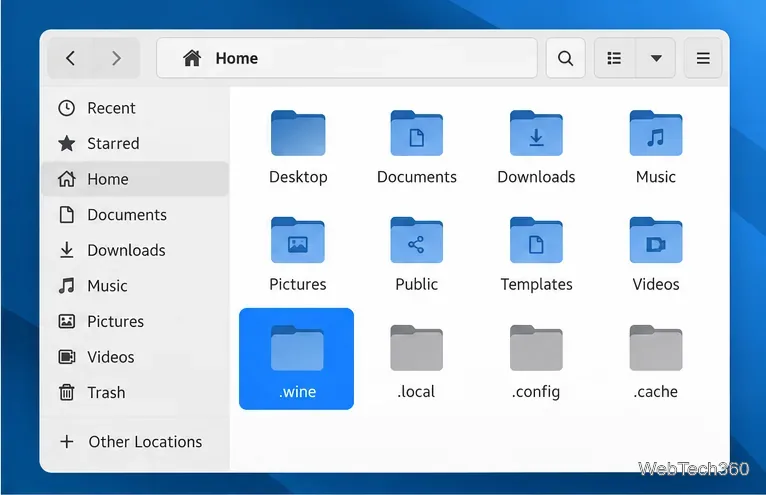
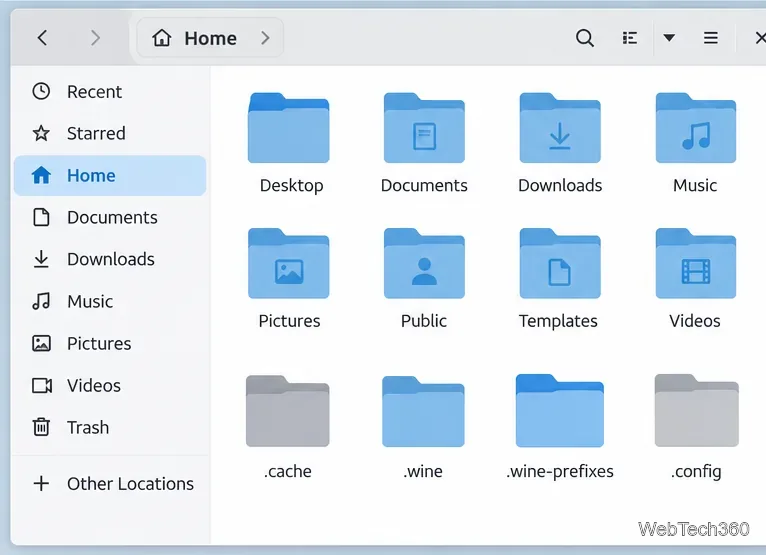
The default prefix is ~/.wine — note the lowercase w. The old instructions that use ~/.Wine are incorrect on a case-sensitive Linux filesystem. If you created additional prefixes with WINEPREFIX, those are separate directories and must be handled individually.
The default Wine prefix is the hidden .wine directory in your home folder.
Do not delete a prefix until you are sure it contains nothing you need. Removing it permanently deletes the Windows programs and Wine-side data stored inside it.
3. Remove the Wine package for your distribution
Ubuntu and Debian
First list installed packages whose names begin with Wine:
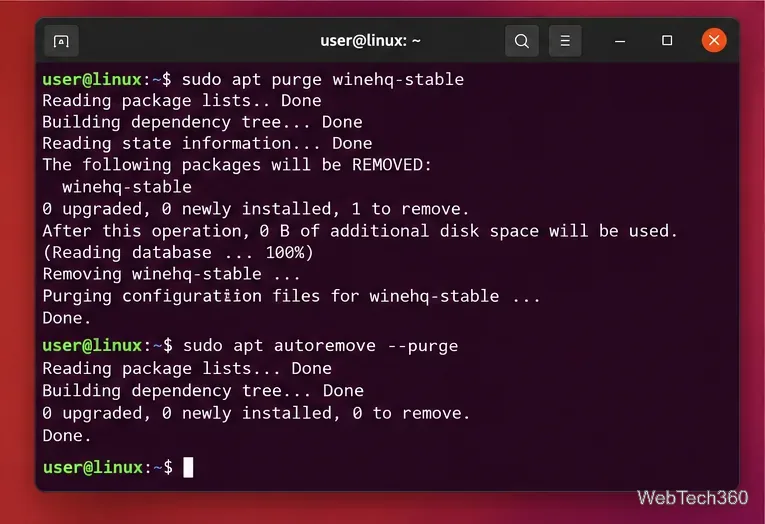
For WineHQ Development or Staging, substitute winehq-devel or winehq-staging. If you installed your distribution's wine package instead, use sudo apt purge wine. Review APT's proposed removals before confirming. The APT manual explains the difference between remove, purge, and autoremove.
On Debian-based systems, purge the Wine package you installed and then clean unused dependencies.
Arch Linux
Check which Wine branch is installed, then remove that package:
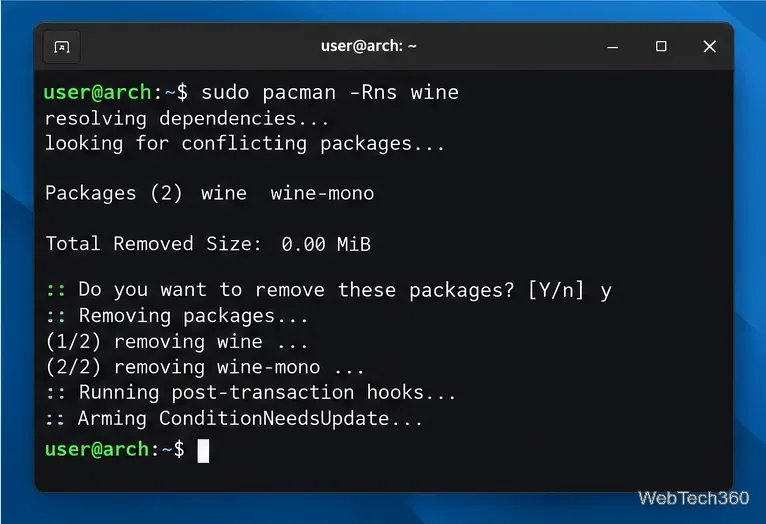
If you use wine-staging or another Wine package, replace wine with its actual package name. In pacman, -s removes dependencies that are no longer required and were not explicitly installed, while -n prevents package backup files from being saved. See the official pacman manual before confirming a large removal transaction.
Arch users can remove the installed Wine branch with pacman and clean unneeded dependencies in the same transaction.
Fedora
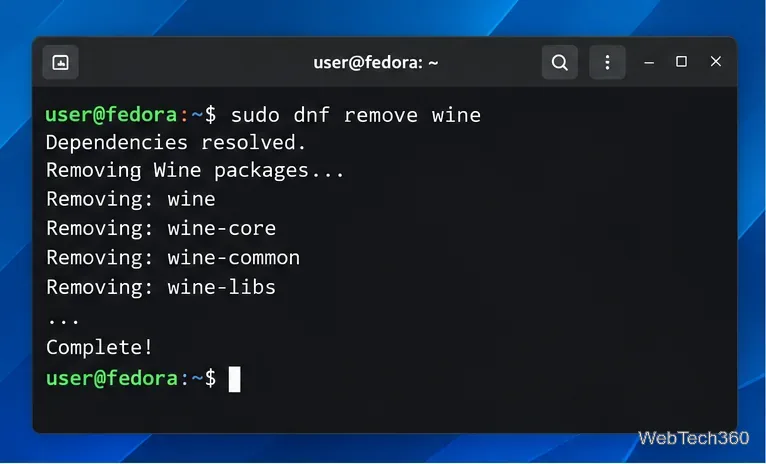
Fedora provides Wine as a metapackage with Wine subpackages. Check what is installed, then remove the metapackage:
dnf list --installed 'wine*'
sudo dnf remove wine
Current DNF5 behavior removes dependencies that are no longer needed unless autoremove is disabled. If the first command shows Wine subpackages that you explicitly installed and still remain afterward, remove only the ones you no longer want. See Fedora's Wine package page and the DNF5 remove documentation.
Fedora's Wine metapackage can be removed with DNF, which also cleans dependencies that are no longer needed by default.
openSUSE
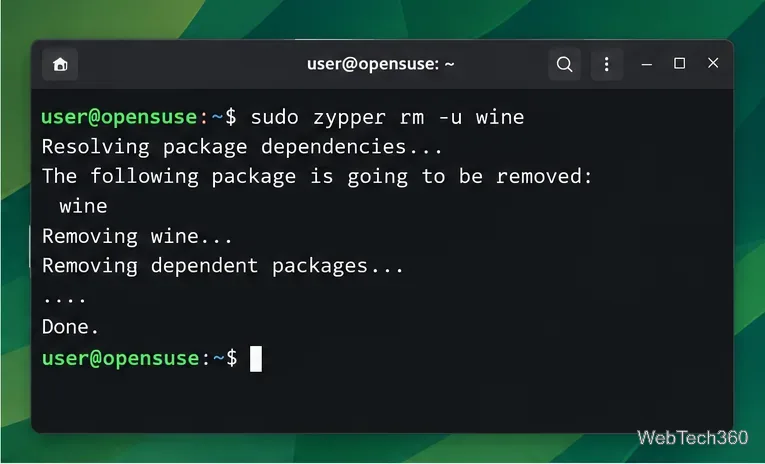
On openSUSE, inspect the installed Wine packages and remove Wine with dependency cleanup enabled:
zypper se -i wine
sudo zypper rm -u wine
The -u option is the short form of --clean-deps, which removes dependencies that become unnecessary. This behavior is documented in the openSUSE Zypper guide.
Use Zypper's dependency-cleanup option when removing Wine on openSUSE.
4. Delete Wine prefixes and remaining user data
After the package is gone, delete the default prefix only if you no longer need its Windows applications or files:
rm -rf -- "$HOME/.wine"
Custom prefixes are not automatically removed. Verify each path before deleting it; never run rm -rf against an unverified variable or a directory you have not backed up.
Review the default and custom Wine prefix folders separately before deleting them.
Wine managers such as Bottles, Lutris, and Steam/Proton can keep their own runners or compatibility prefixes. Removing the system Wine package does not necessarily remove those environments, so manage them from the application that created them unless you intentionally want to delete their data too.
5. Verify Wine is gone
Start a new terminal and run:
command -v wine
wine --version
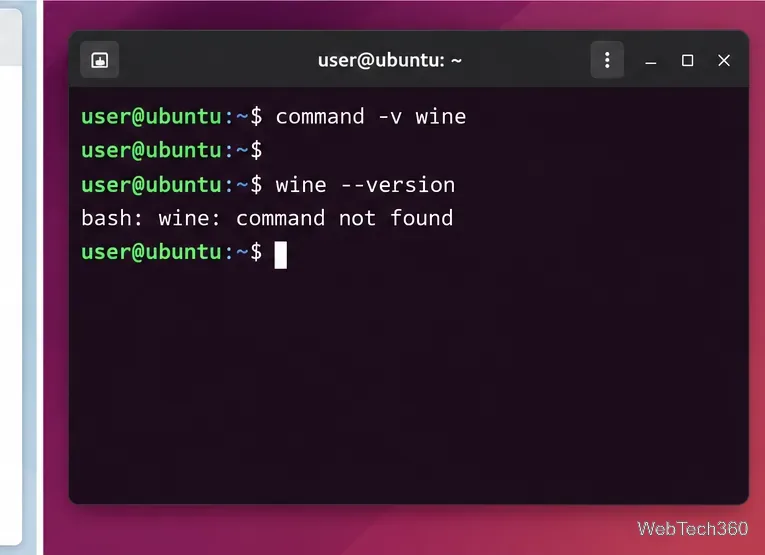
If Wine has been fully removed from your shell path, command -v wine should print nothing and the second command should report that wine is not found. If a Wine executable still appears, it may come from another package, a manually installed build, or a custom directory in your PATH.
A final command check confirms whether another Wine executable is still available in your shell path.