How to Share Files Over Bluetooth on Linux with Blueman

Send and receive files over Bluetooth on Linux with Blueman. Install OBEX support, pair devices, choose a file, accept transfers, and fix common issues.
To bring back desktop icons in elementary OS, install the third-party Desktop Folder app. Pantheon has no built-in desktop-icons toggle; the app adds panels for files, folders, links, and launchers. On elementary OS 8.1 and 8.1.1, use the Classic session because Desktop Folder does not fully support Wayland.
Desktop Folder is an optional app layer, not a system setting. elementary OS’s desktop guide describes its standard desktop as the Panel and Dock.
In OS 8.1, Secure Session (Wayland) is the default, but the login screen still offers Classic. The project README warns that Wayland support is incomplete. Its latest upstream release is v1.1.3 from September 2020, so treat the app as legacy software and test it before relying on it.
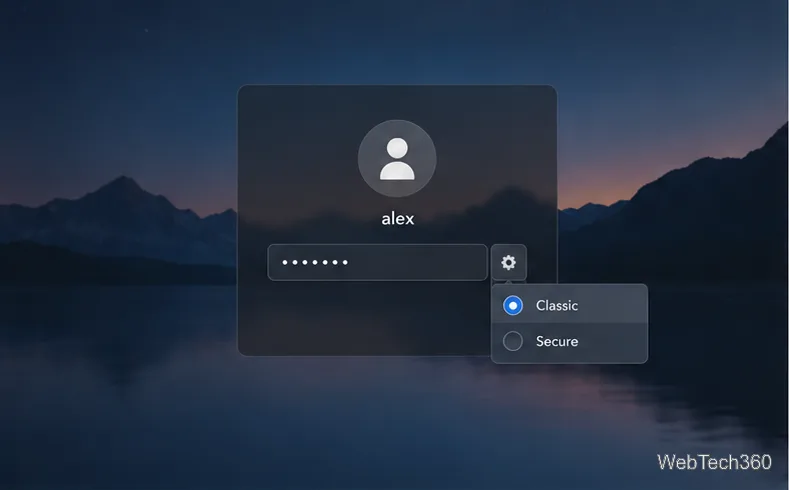
Save your work and sign out. At the login screen, open the gear menu beside the password field, select Classic, and sign in. If the greeter later returns to Secure, select Classic again.
If your release has no session menu, skip this step. On OS 8.1 or 8.1.1, Classic is the practical compatibility choice for this app.
Open AppCenter, search for Desktop Folder, and install it if the listing is available. If it is missing, the Ubuntu 24.04 archive used by OS 8 lists the desktopfolder package in Universe. Install it from Terminal with APT:
sudo apt update
sudo apt install desktopfolder
If APT cannot find the package, check your configured software sources; do not add an unfamiliar repository just to install this legacy app.
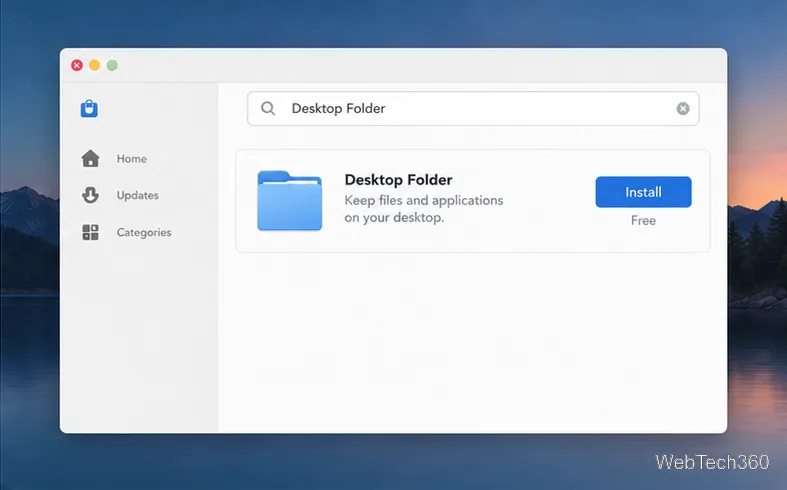
Open Applications, search for Desktop Folder, and launch it. Drag files, folders, links, or .desktop app launchers into a panel to place them on the desktop. The panels can be resized and repositioned.
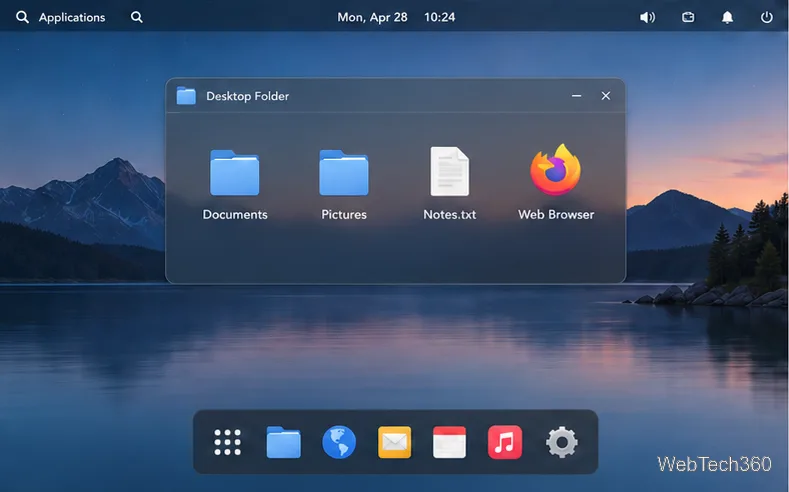
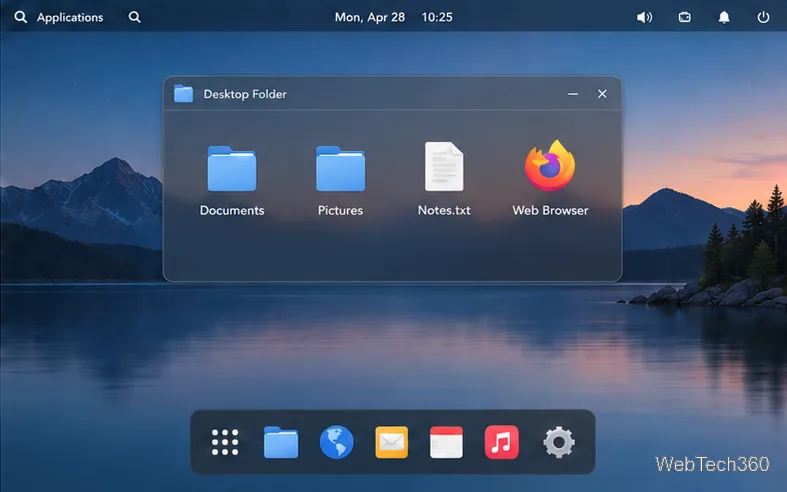
The panel comes from Desktop Folder, not Files or an elementary OS toggle. If it disappears, check that the app is running and that you are in the Classic session.
Desktop Folder supports panels that can be resized, repositioned, and colored. Keep a compact panel for folders, documents, or .desktop launchers you open often, and leave the rest of your folder structure in Files. This provides quick access without changing how the Dock, Applications menu, or System Settings work.
The project README says Desktop Folder starts automatically the next time you log in. Sign out and back in, or restart, to check. You do not need to copy a launcher into an autostart directory or run chmod on a filename from the wrong folder.
sudo apt install desktopfolder. If APT cannot locate it, review the enabled software sources before proceeding.To undo the workaround on OS 8, remove Desktop Folder through AppCenter while in Classic, sign out, and choose Secure from the gear menu at the greeter. The standard session returns, but the desktop panels disappear with the add-on.
Desktop Folder can bring shortcuts and files back, but it is not a native feature and may not work reliably in every session or app. Use it on Classic if desktop icons are important; otherwise, keep Secure Session and use Files and the Dock. The project README includes source-build instructions for advanced users, but the packaged install is simpler.
Send and receive files over Bluetooth on Linux with Blueman. Install OBEX support, pair devices, choose a file, accept transfers, and fix common issues.
Connect GNOME Files to SSH/SFTP, FTP, SMB, WebDAV, or NFS with the correct server URI, sign-in details, and fixes for common connection errors.
Open SFTP, SSH, SMB, FTP, NFS, and WebDAV locations in Dolphin, sign in safely, transfer files, and save network folders for later.
Connect a DualShock 4 to Linux by USB or Bluetooth, then check controller detection and configure Steam Input only when a game needs it.
Use DNF5 parallel downloads to reduce RPM install waits in GNOME Software, then tell when mirror or Flatpak delays need a different fix.
Access iCloud on Linux in a current browser. Learn how to sign in, use iCloud Drive and other web apps, and understand the limits of browser access.
Save GRUB settings, boot files, and UEFI entry details to removable storage, then use rescue media to repair the correct boot path safely.
Install Bitwarden on Linux with the right DEB, RPM, Snap, Flatpak, or AppImage package, then sign in and set a secure vault timeout.
Pick a screensaver theme in Xfce, preview it, choose when it starts, and configure automatic locking in the separate Lock Screen tab.
Stop GNOME Shell from blanking or locking your display automatically. Change Power and Screen Lock settings, or use Caffeine for a temporary keep-awake toggle.








