How to Share Files Over Bluetooth on Linux with Blueman

Send and receive files over Bluetooth on Linux with Blueman. Install OBEX support, pair devices, choose a file, accept transfers, and fix common issues.
To bring desktop icons back to GNOME Shell, install and enable Desktop Icons NG (DING), a community GNOME Shell extension. The simplest route is to find DING in Extension Manager, check that its active release supports your GNOME Shell version, and turn it on. GNOME does not provide a universal desktop-icons switch in Settings.
GNOME Files (Nautilus) stopped managing the desktop in GNOME 3.28, so older advice about changing a Files preference or launching a separate “Desktop Folder” app may no longer fit your system. GNOME Shell extensions provide a maintained route on compatible versions. The GNOME project describes extensions as a way to customize Shell features, while DING’s page lists its current compatible Shell releases.
Check the version of GNOME Shell that is running, rather than relying only on your Linux distribution’s name or release number. Open Terminal and run:
gnome-shell --version
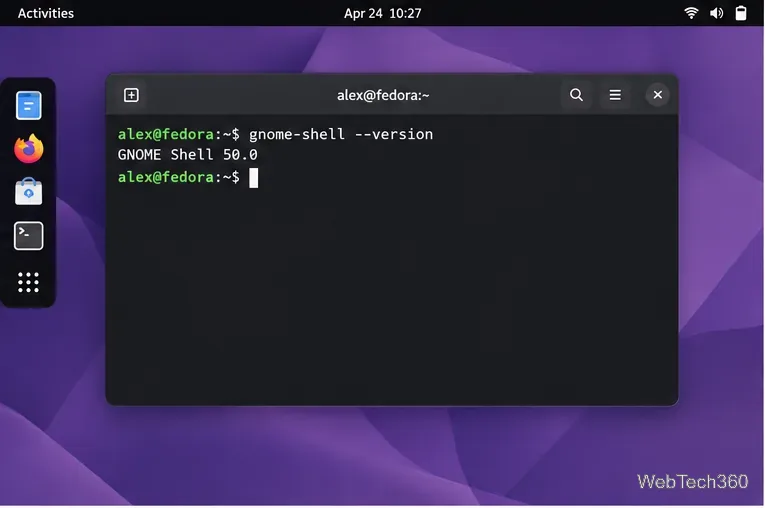
Next, open the Desktop Icons NG (DING) listing on GNOME Extensions. Check the active release rows and confirm that your Shell version is included. Compatibility can change as GNOME releases new versions, so use the live listing instead of copying a version number from an older guide. If your Shell version is not listed, do not force the extension to install; wait for a compatible release or use an option supported by your distribution.
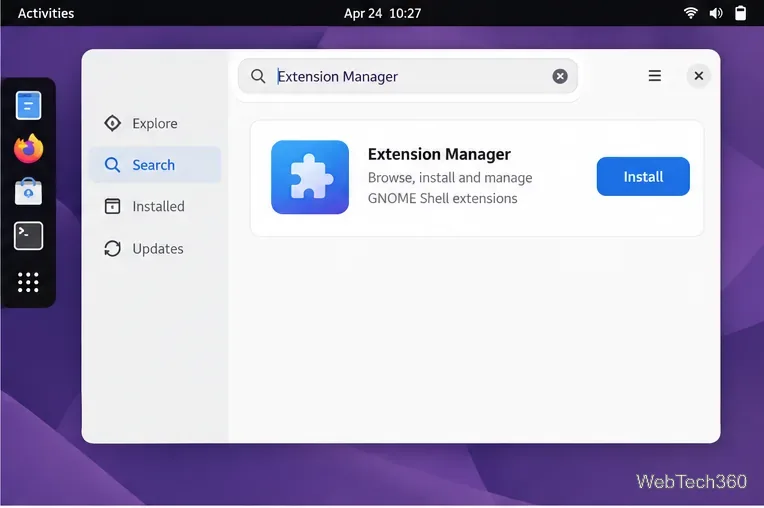
Open your distribution’s Software app and search for Extension Manager. Install the app published by Matthew Jakeman. If it is not in your software catalog, use its Flathub listing and follow the Flatpak setup instructions for your Linux distribution. Extension Manager can browse GNOME Extensions and manage installed extensions from one app, so this route avoids the older browser connector and native-host instructions.
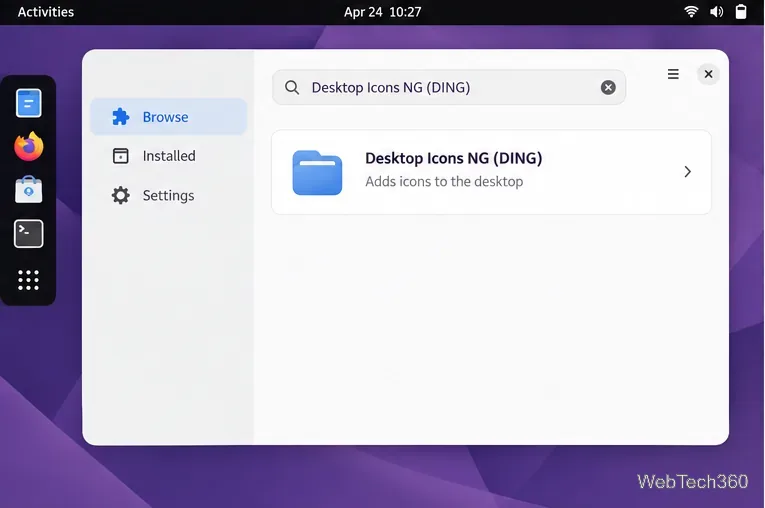
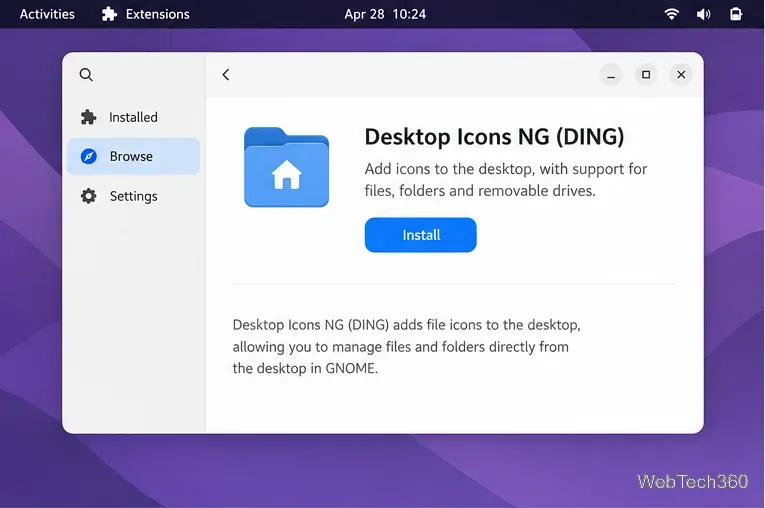
Launch Extension Manager, open Browse, and search for Desktop Icons NG (DING). Check the publisher and full extension name before selecting the result; similarly named forks may have different features or compatibility.
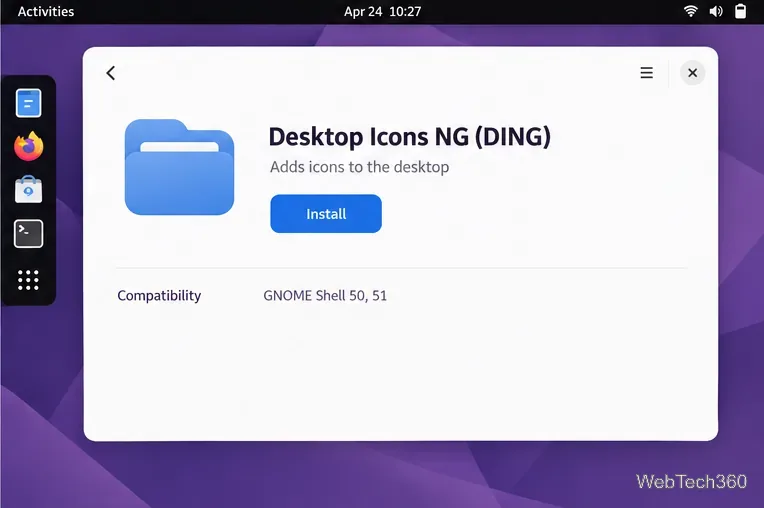
Open DING’s detail page and compare the listed GNOME Shell versions with the output from Terminal. If a compatible active release is available, choose Install and approve the prompt. If Extension Manager reports that no compatible version is available, stop here rather than installing an older or forced build.
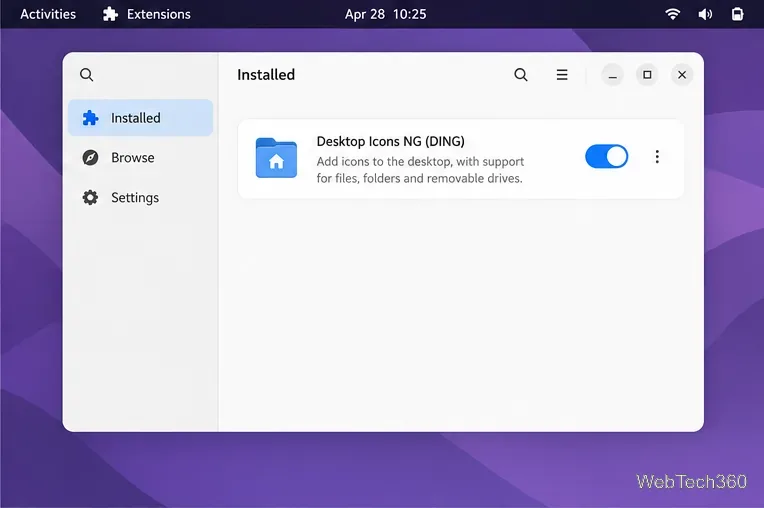
After installation, switch to Extension Manager’s Installed tab. Find Desktop Icons NG and make sure its toggle is on. Some Linux distributions include a desktop-icons extension already; if you see more than one desktop icon extension, enable only one at a time to avoid overlapping desktop handlers.
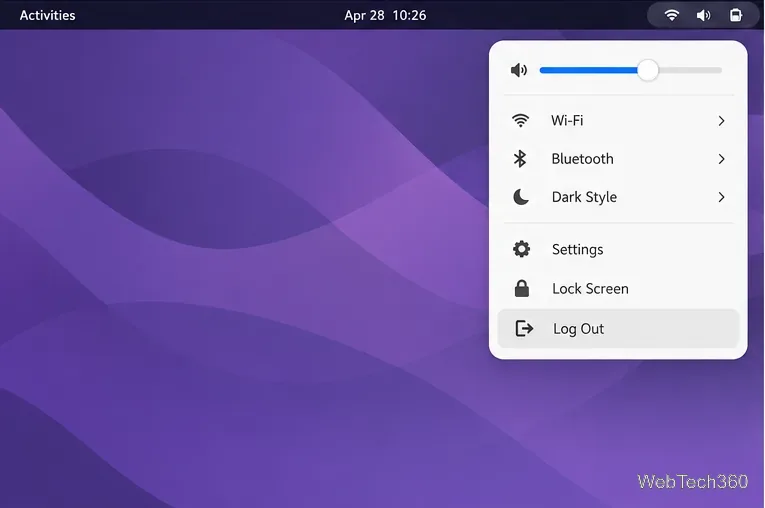
Save your work, log out of GNOME, and sign back in. Logging out and back in refreshes the Shell session on both Wayland and Xorg. Then look for the contents of your Desktop folder; DING displays files and folders from that location on the desktop.
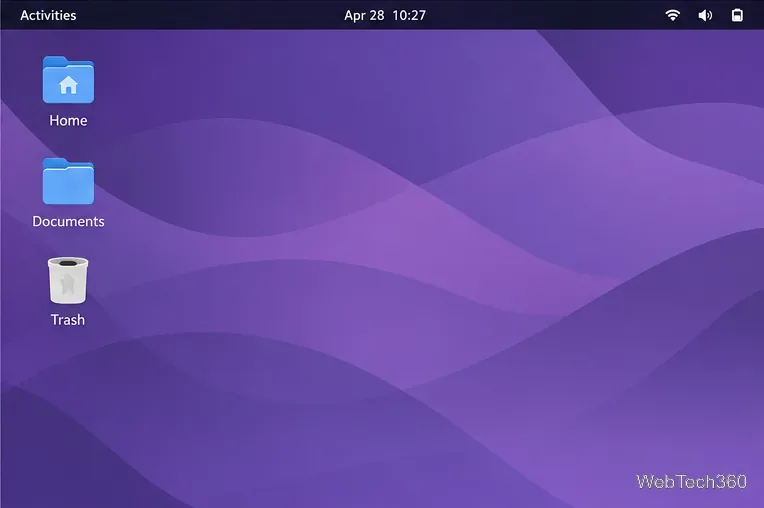
~/Desktop.GNOME Classic is a separate session, not a guaranteed desktop-icons setting. Whether it shows icons depends on the Linux distribution and the extensions it ships. If you prefer Classic, check your login screen’s session selector and your distribution’s documentation; for the standard GNOME Shell session, DING is the direct extension-based option. You can also review the DING project documentation for details about the extension.
For reference, GNOME’s documentation explains what Shell extensions do, and the archived upstream report records the removal of Nautilus desktop handling.
Send and receive files over Bluetooth on Linux with Blueman. Install OBEX support, pair devices, choose a file, accept transfers, and fix common issues.
Connect GNOME Files to SSH/SFTP, FTP, SMB, WebDAV, or NFS with the correct server URI, sign-in details, and fixes for common connection errors.
Open SFTP, SSH, SMB, FTP, NFS, and WebDAV locations in Dolphin, sign in safely, transfer files, and save network folders for later.
Connect a DualShock 4 to Linux by USB or Bluetooth, then check controller detection and configure Steam Input only when a game needs it.
Use DNF5 parallel downloads to reduce RPM install waits in GNOME Software, then tell when mirror or Flatpak delays need a different fix.
Access iCloud on Linux in a current browser. Learn how to sign in, use iCloud Drive and other web apps, and understand the limits of browser access.
Save GRUB settings, boot files, and UEFI entry details to removable storage, then use rescue media to repair the correct boot path safely.
Install Bitwarden on Linux with the right DEB, RPM, Snap, Flatpak, or AppImage package, then sign in and set a secure vault timeout.
Pick a screensaver theme in Xfce, preview it, choose when it starts, and configure automatic locking in the separate Lock Screen tab.
Stop GNOME Shell from blanking or locking your display automatically. Change Power and Screen Lock settings, or use Caffeine for a temporary keep-awake toggle.








