Home
» LINUX
»
How to Record Your Webcam on Linux With GNOME Camera
How to Record Your Webcam on Linux With GNOME Camera
The easiest current way to record your webcam on Linux with GNOME is the Camera app (project name Snapshot, app ID org.gnome.Snapshot). Open Camera, switch to video mode, press the large record button, then press stop when you are done. The app also has a built-in gallery so you can review the clip immediately.
Older Linux tutorials often use Cheese. GNOME now lists Camera as its current app for taking pictures and videos, so the steps below use that interface instead of the older Cheese menus.
Install GNOME Camera
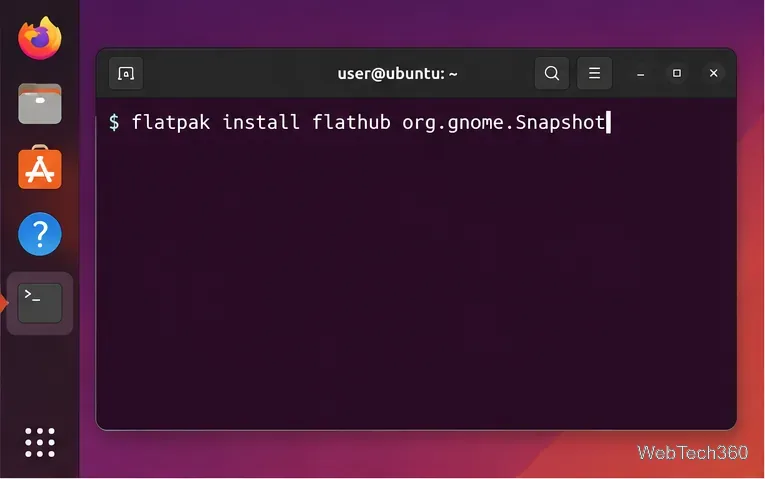
If Camera is already in your app menu, skip this section. Otherwise, the most consistent cross-distribution option is the official Flathub package. If Flatpak and Flathub are already configured, open a terminal and run:
flatpak install flathub org.gnome.Snapshot
Install GNOME Camera from Flathub with the org.gnome.Snapshot app ID.
If the command says the Flathub remote is missing, follow the official Flathub setup instructions for your distribution first. You can also install Camera from your distribution's software center when it is packaged there.
How to record your webcam on Linux
1. Open Camera and check the live preview
Launch Camera from the application menu. You should see a live image from your webcam. Before recording, check the framing, lighting, and focus. If the preview is black or the camera is missing, jump to the troubleshooting section below.
2. Switch to video mode
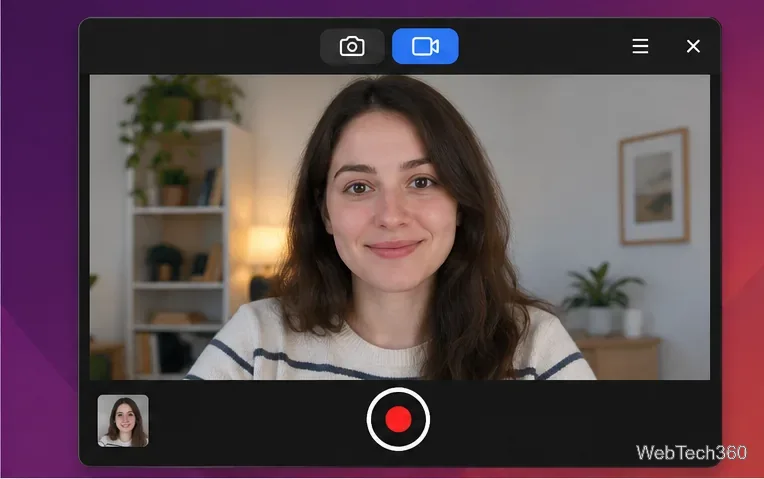
At the top of the Camera window, select the video-camera icon. In the current interface, the still-photo and video controls sit next to each other, so you do not need to open a separate settings page. Once video mode is selected, the main capture control becomes the recording button.
Select the video-camera icon, confirm the live preview, and use the large recording control.
3. Start and stop the recording
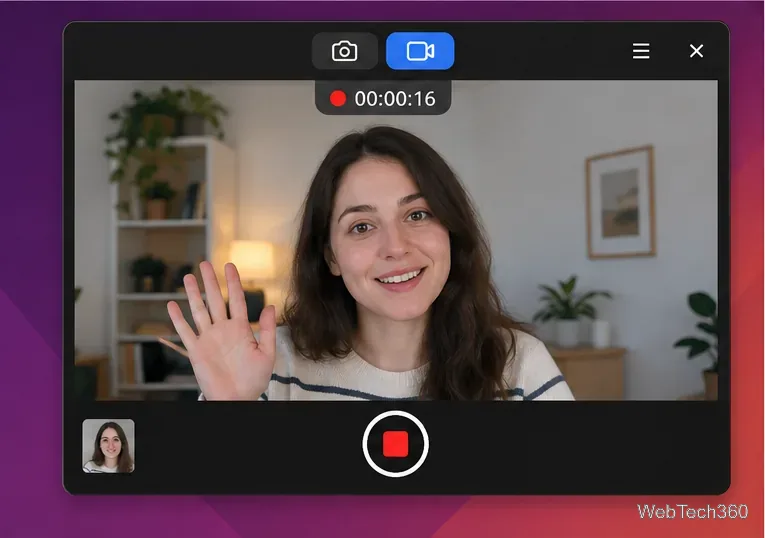
Press the large record button near the bottom of the window. While recording, Camera shows that capture is active and the main control changes to a stop button. When you have finished, press that stop control. Give the app a moment to finalize the file before closing it, especially after a longer clip.
During recording, Camera shows an active timer and changes the main control to a stop button.
4. Review the clip
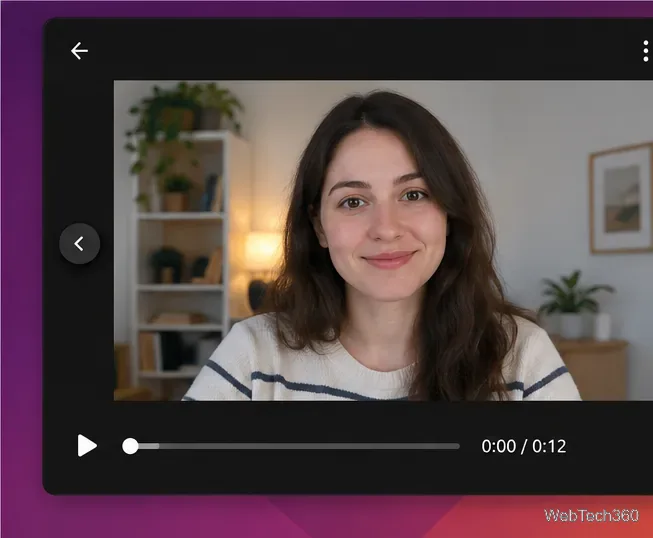
Select the small thumbnail in the lower-left corner to open Camera's gallery. From there, you can review the recording and move between recent captures. The official GNOME interface also provides a share action in the gallery for handing a capture to another compatible app.
Open the recent-capture thumbnail to review the finished webcam recording in Camera's gallery.
Where are webcam recordings saved?
The current Flathub manifest for Camera gives the app write access to the XDG Videos/Camera and Pictures/Camera locations. On a typical English-language Linux desktop, that means webcam videos are stored under ~/Videos/Camera, while still photos go under ~/Pictures/Camera. You can confirm those locations in the current Flathub manifest.
If your distribution localizes the standard user folders or you have customized your XDG directories, the visible folder names may differ. Opening the capture from Camera's gallery is the simplest way to find the file without guessing the path.
How to take a webcam photo
Camera can take still pictures as well. Return to the main view, select the camera icon at the top, frame the shot, and press the large shutter button. The image appears in the same in-app gallery and is written to your Camera pictures directory.
If Camera shows a black screen or cannot find the webcam
Close other camera apps. Quit video-conferencing tabs, streaming tools, and other webcam utilities, then reopen Camera.
Reconnect an external webcam. Unplug it, reconnect it directly to the computer if possible, and restart Camera. Also check any physical privacy shutter or camera-disable key on the laptop.
Check GNOME privacy settings. GNOME's Settings app includes controls for access to devices such as cameras and microphones; see the official GNOME Settings help.
Update the Flatpak. Run flatpak update org.gnome.Snapshot so you have the current stable build available from Flathub.
Check the media stack if you installed a native package. The Camera project lists PipeWire, WirePlumber, the GStreamer PipeWire plugin, and related GStreamer components among its requirements. The official Camera source project is the best reference if your distribution package is missing a runtime component.
For most users, installing the current Camera package, confirming the live preview, selecting video mode, and pressing record is all that is required to record a webcam on Linux.