Home
» LINUX
»
How to Remove an APT Repository from Debian
How to Remove an APT Repository from Debian
To remove an APT repository from Debian, first find the source entry, then either disable it or delete it, and finish with sudo apt update. On current Debian systems, repositories are commonly stored as deb822-style .sources files under /etc/apt/sources.list.d/. Older .list entries and /etc/apt/sources.list are still supported, but the one-line format is deprecated. Debian documents both formats in the APT sources.list manual.
If sudo is not configured on your Debian installation, run the same commands from a root shell instead.
1. Find which file contains the repository
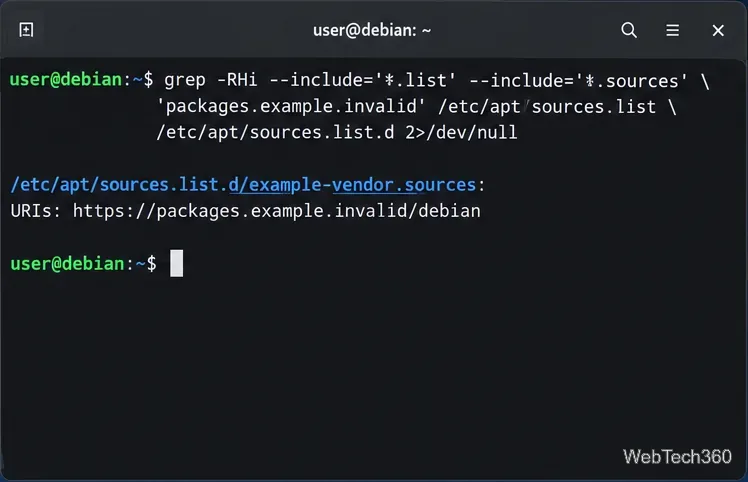
Start by searching for a distinctive part of the repository URL. Replace packages.example.invalid with the real domain you want to remove:
The output tells you exactly which file contains the matching entry. This matters because a third-party repository may be in its own .sources or .list file, or it may share /etc/apt/sources.list with other repositories.
Search for the repository domain before editing or deleting any APT source file.
2. Disable the repository without deleting it
Disabling is the safest choice if you may need the repository again.
For a modern .sources file
Open the matching file, for example:
sudo nano /etc/apt/sources.list.d/vendor.sources
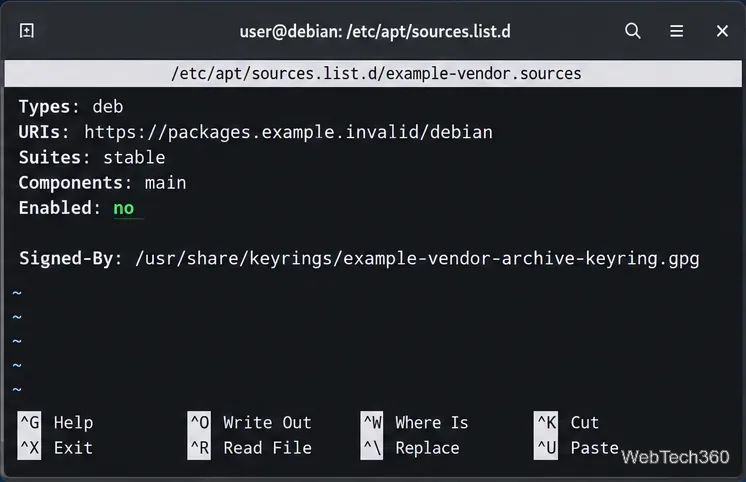
In the repository stanza you want to disable, add:
Enabled: no
That is the preferred deb822-style switch documented by APT. If a .sources file contains more than one stanza, change only the stanza for the repository you intend to disable.
For a deb822 .sources entry, adding Enabled: no disables that repository without deleting its configuration.
For a legacy .list entry
Open the file and place # at the start of the matching deb or deb-src line. APT treats the rest of a line after # as a comment. Do not comment out unrelated Debian mirrors.
3. Permanently remove the repository
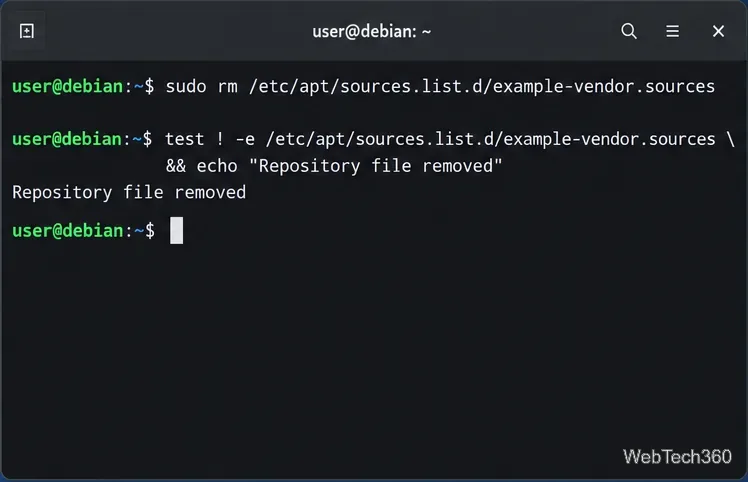
If the repository has its own dedicated file, delete that file after confirming its contents. For example:
sudo rm /etc/apt/sources.list.d/vendor.sources
For an older source, the filename may end in .list instead. If the repository is stored inside /etc/apt/sources.list, edit that file and remove only the relevant line or lines. If a .sources file contains several unrelated repository stanzas, delete only the matching stanza rather than the whole file.
Delete a dedicated repository file only after confirming it contains the source you no longer want.
4. Refresh APT and verify the repository is gone
After disabling or removing the source, refresh APT:
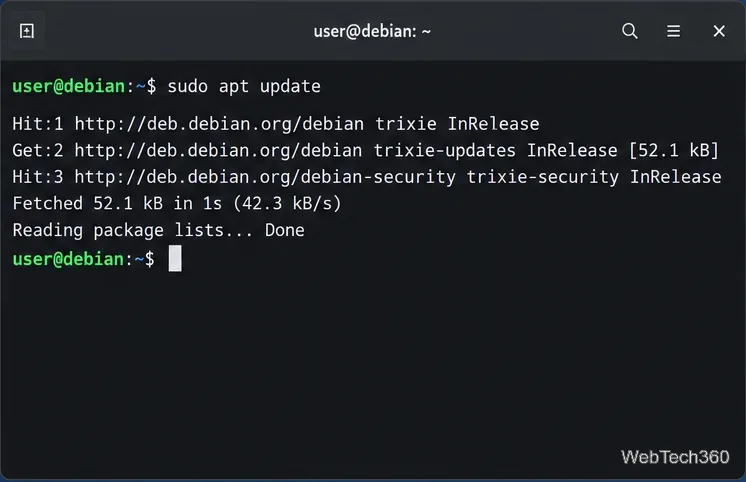
sudo apt update
The removed repository should no longer appear in the update output. You can also repeat the earlier grep command with the repository domain. If it still returns a match, another source file is still referencing the same server.
Run apt update so APT refreshes package metadata without the removed repository.
Should you remove the repository signing key too?
Removing a repository does not automatically remove its signing key. For third-party deb822 entries, check the Signed-By: field before deleting any key file. The APT manual recommends /etc/apt/keyrings for keys managed by the system administrator and /usr/share/keyrings for package-managed keyrings.
Only delete a key from /etc/apt/keyrings when you are sure no remaining repository uses it. Do not remove Debian archive keyrings or package-owned keyrings just to clean up a source entry.
What removing a repository does not do
Removing the source stops APT from fetching package metadata and future versions from that repository. It does not uninstall packages you previously installed from it. If you also want to remove one of those packages, use the normal package command, such as sudo apt remove package-name, after reviewing what APT proposes to remove.
If APT still contacts the old repository
Search the repository domain across both /etc/apt/sources.list and /etc/apt/sources.list.d/ again.
Check both .sources and .list files; the same repository can be defined more than once.
If you see a Signed-By conflict, look for duplicate definitions that point to the same repository with different key settings.
Do not delete official Debian entries unless you intentionally want to stop receiving packages or security updates from that archive.
Debian 13 documentation recommends the newer deb822 .sources layout, and the Debian Reference package-management chapter describes /etc/apt/sources.list.d/*.sources as the modern source-list format.