How to Share Files Over Bluetooth on Linux with Blueman

Send and receive files over Bluetooth on Linux with Blueman. Install OBEX support, pair devices, choose a file, accept transfers, and fix common issues.
To remove a broken GRUB boot entry, first identify what created it, then regenerate GRUB's menu from its source files. On Ubuntu and Debian, run sudo update-grub; Fedora and Arch use different commands. Do not delete a line directly from the generated grub.cfg: a later update can recreate it, and an edit in the wrong place can make the system harder to boot.
A GRUB menu can show Linux kernels, other detected operating systems, custom entries, and a firmware setup option. The last item, often labeled UEFI Firmware Settings, is not a broken operating system entry. Older kernels and recovery options are also different from an entry for an uninstalled OS. Keep at least one known-good kernel and its recovery option until you have confirmed the system boots normally.
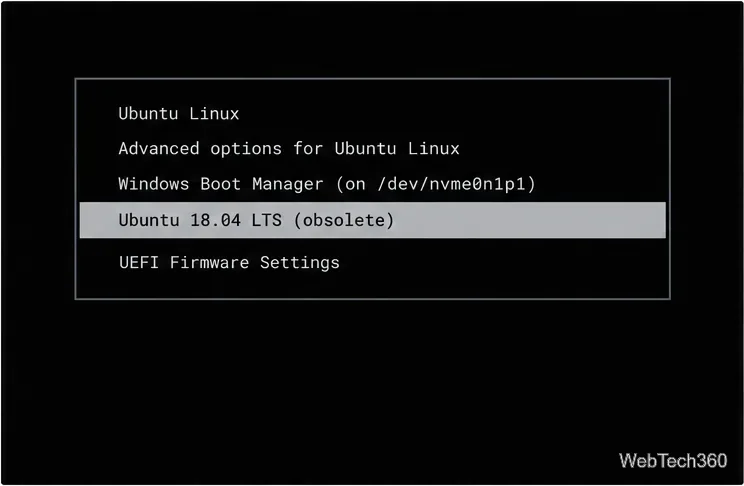
GRUB normally builds its menu from settings such as /etc/default/grub and scripts in /etc/grub.d/. The main grub.cfg is generated output. The GNU GRUB manual describes this generated configuration flow.
If you just uninstalled another operating system or removed a kernel package, rebuild the menu first. Open a terminal in the Linux installation whose GRUB menu you use, then run the command for that distribution:
| Distribution | Regenerate the menu |
|---|---|
| Ubuntu or Debian | sudo update-grub |
| Fedora (current releases) | sudo grub2-mkconfig -o /boot/grub2/grub.cfg |
| Arch Linux | sudo grub-mkconfig -o /boot/grub/grub.cfg |
Ubuntu and Debian document update-grub as a helper that runs grub-mkconfig to write the menu file. Fedora 34 and later use /boot/grub2/grub.cfg as the main configuration; avoid writing over the small UEFI pointer file at /boot/efi/EFI/fedora/grub.cfg. Arch documents the /boot/grub/grub.cfg output path. For another distribution, follow its current GRUB documentation and use its configured output path.
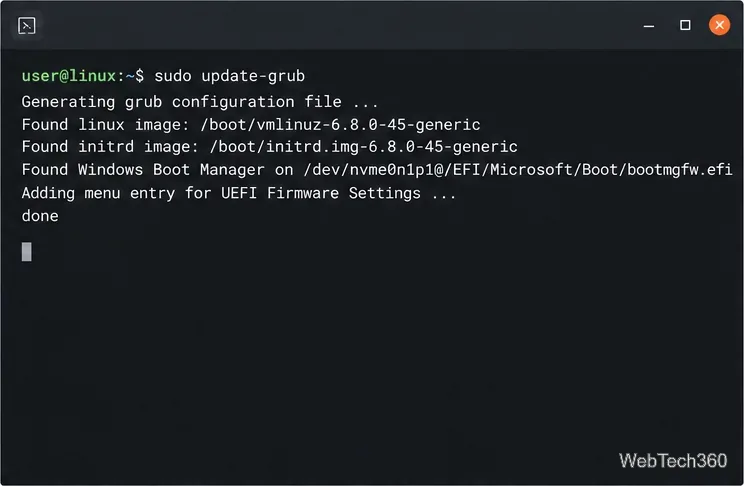
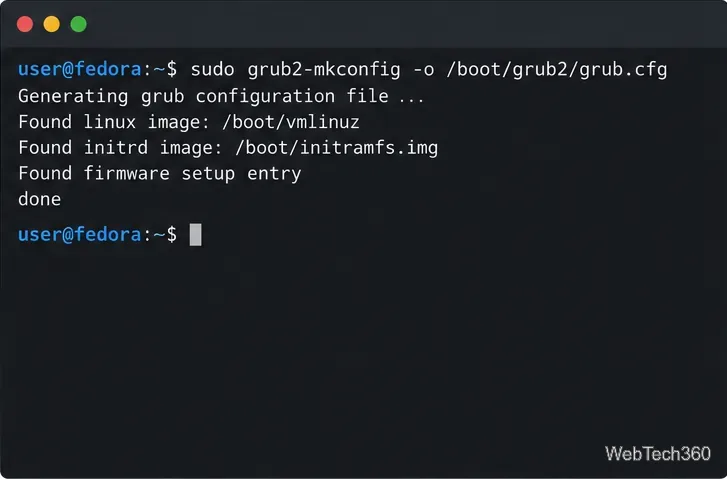
/boot/grub2/grub.cfg.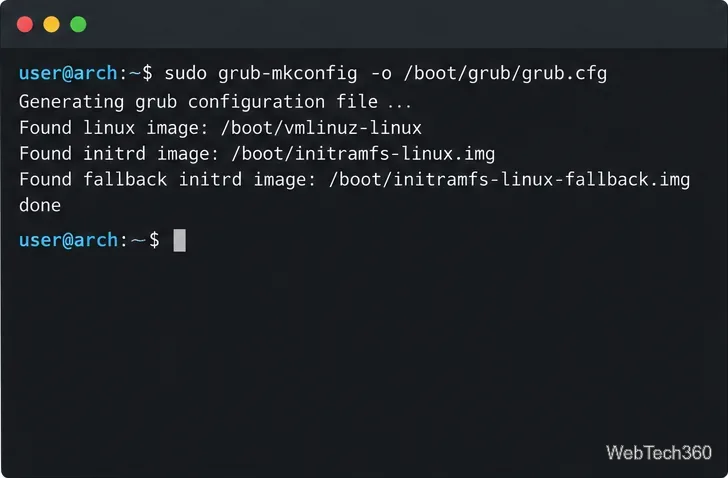
grub-mkconfig with the /boot/grub/grub.cfg output path.Review the command output for errors and for references to the operating system you removed. Restart only after the command finishes successfully. If the unwanted entry is gone, no manual menu editing is needed.
GRUB can use os-prober to find other operating systems and add them to its menu. If it keeps finding an obsolete installation, check that another connected or mounted partition is not still presenting that installation. If you do not want GRUB to list any other detected operating systems, back up /etc/default/grub, then set this option in that file:
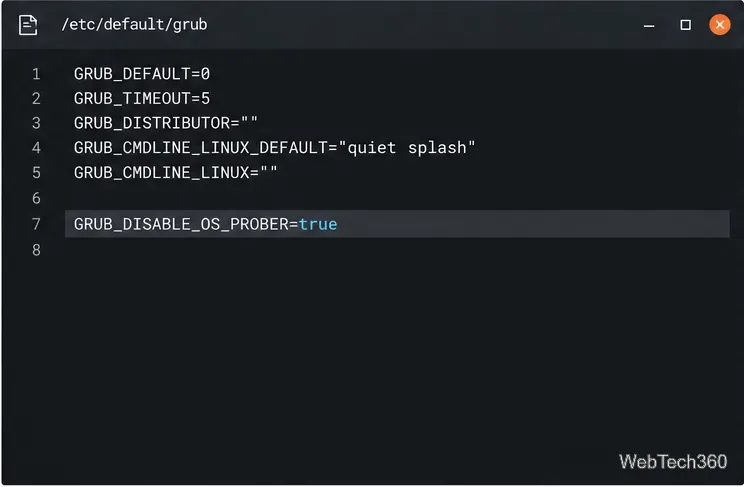
GRUB_DISABLE_OS_PROBER=trueSave the file and regenerate GRUB with the command for your distribution above. This setting removes all automatically detected non-current systems from the menu, including a Windows installation you may still use. If you need dual boot, leave OS detection enabled and correct the stale partition or detection source instead. The Arch Linux GRUB guide explains how os-prober and mounted partitions affect generated entries.
A custom entry can be stored in /etc/grub.d/40_custom or in a sourced file such as /boot/grub/custom.cfg. Inspect those files for the obsolete menuentry block. Remove only that block; if you edit 40_custom, keep its existing header and executable script lines. Then regenerate the main configuration. Arch's guide documents both custom-entry locations.
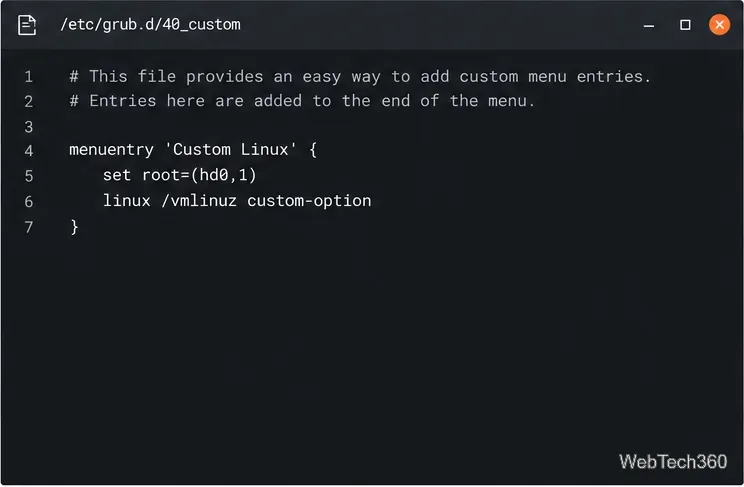
40_custom, rather than in generated grub.cfg.To inspect the generated menu without changing it, search for its menu-entry lines. Adjust the path for your distro; Fedora's main file is in /boot/grub2/.
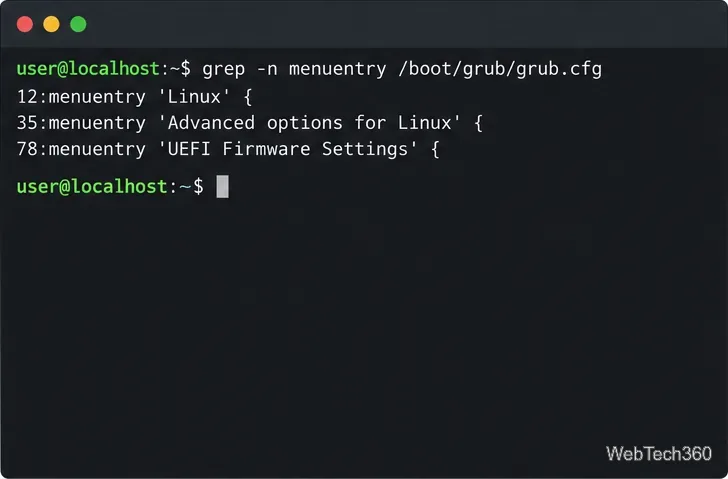
grep -n 'menuentry' /boot/grub/grub.cfgKernel entries are usually created from kernels still installed on the system. Remove an unneeded kernel through your distribution's package manager, not by deleting menu text or files from /boot by hand. Keep the running kernel and at least one known-good fallback. Then regenerate GRUB and check the menu again.
If the label appears in the computer's firmware boot picker rather than inside GRUB, it is a UEFI boot-manager record stored separately from GRUB's menu. You can inspect those records with sudo efibootmgr -v on a UEFI-booted Linux system:
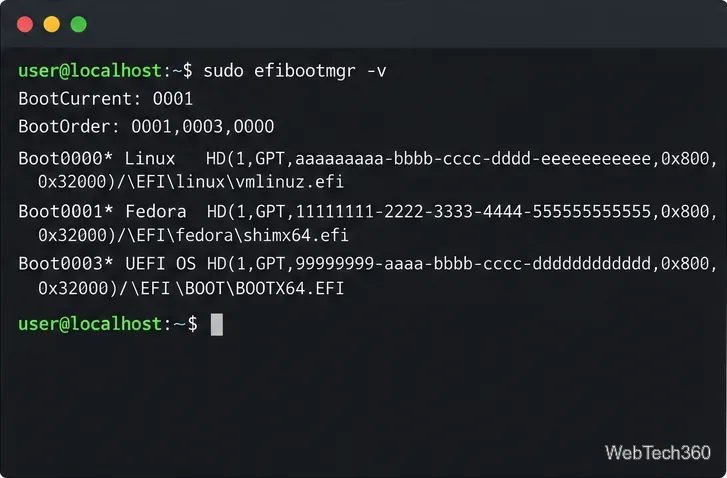
The efibootmgr manual documents that the tool can delete UEFI boot records. Do not remove an entry just because its label looks unfamiliar: first identify its loader and confirm it is not the current or only working Linux boot path. If you confirm a specific obsolete record, the manual's deletion form is sudo efibootmgr -b XXXX -B, replacing XXXX with the exact hexadecimal boot number. That command changes firmware data; it does not edit GRUB's menu.
After rebuilding the menu or removing a custom source entry, restart and confirm that the intended Linux system boots. If the stale OS entry returns, revisit its source: OS detection, a custom menu file, an installed kernel package, or a separate UEFI firmware record. Avoid editing the generated configuration directly; fixing the source and regenerating it is the durable repair.
Send and receive files over Bluetooth on Linux with Blueman. Install OBEX support, pair devices, choose a file, accept transfers, and fix common issues.
Connect GNOME Files to SSH/SFTP, FTP, SMB, WebDAV, or NFS with the correct server URI, sign-in details, and fixes for common connection errors.
Open SFTP, SSH, SMB, FTP, NFS, and WebDAV locations in Dolphin, sign in safely, transfer files, and save network folders for later.
Connect a DualShock 4 to Linux by USB or Bluetooth, then check controller detection and configure Steam Input only when a game needs it.
Use DNF5 parallel downloads to reduce RPM install waits in GNOME Software, then tell when mirror or Flatpak delays need a different fix.
Access iCloud on Linux in a current browser. Learn how to sign in, use iCloud Drive and other web apps, and understand the limits of browser access.
Save GRUB settings, boot files, and UEFI entry details to removable storage, then use rescue media to repair the correct boot path safely.
Install Bitwarden on Linux with the right DEB, RPM, Snap, Flatpak, or AppImage package, then sign in and set a secure vault timeout.
Pick a screensaver theme in Xfce, preview it, choose when it starts, and configure automatic locking in the separate Lock Screen tab.
Stop GNOME Shell from blanking or locking your display automatically. Change Power and Screen Lock settings, or use Caffeine for a temporary keep-awake toggle.








