Home
» LINUX
»
How to Replace Audio in a Video on Linux with Kdenlive
How to Replace Audio in a Video on Linux with Kdenlive
You can replace the audio in a video on Linux with Kdenlive by importing the video and replacement audio, separating the video's existing audio, deleting it, adding the new track, and rendering the finished file. Current Kdenlive versions place a video's picture and sound on separate timeline tracks while keeping them grouped for synchronized editing.
Install Kdenlive on Linux
The safest place to get a current build is the official Kdenlive download page. KDE currently offers Linux users an AppImage and a stable Flatpak. Distribution repositories may also include Kdenlive, but their versions vary.
If Flatpak is already configured, install Kdenlive with:
flatpak install flathub org.kde.kdenlive
For AppImage, download the file from the official page, make it executable, and run it. The workflow below follows the current interface documented in Kdenlive's official quick-start guide.
How to replace the video's audio track
1. Import the video and replacement audio
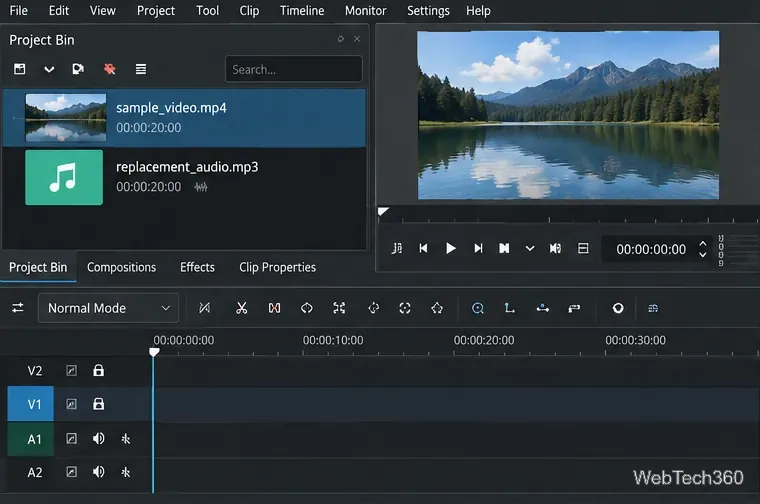
Open Kdenlive and create a project. In the Project Bin, click Add Clip or Folder, then add both the video you want to edit and the audio file you want to use instead.
The video and replacement audio are ready in the Project Bin.
2. Put the video at the start of the timeline
Drag the video from the Project Bin to the timeline and place its beginning at 00:00:00. Kdenlive automatically puts the video stream on a video track and the embedded sound on an audio track. The two parts remain grouped so they stay synchronized when moved or cut.
Play a few seconds and confirm that the clip starts where you expect. If there is empty space before it, drag the grouped clip left until it begins at the start of the timeline.
3. Ungroup the clip and delete the original audio
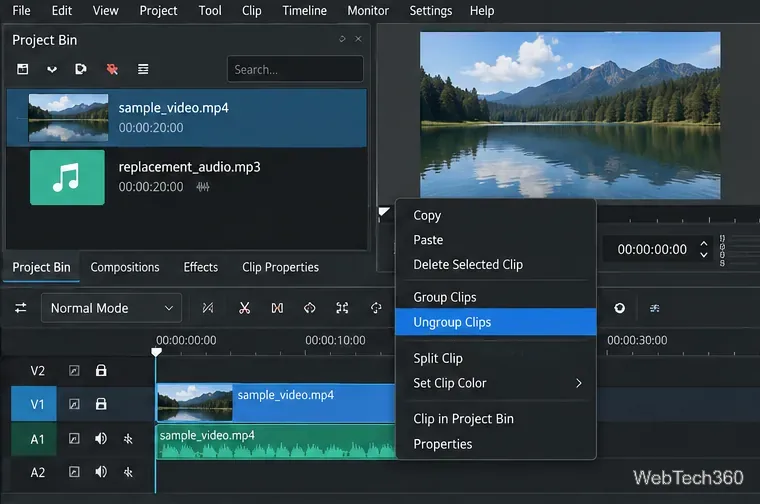
Select the grouped video and audio clips. Right-click and choose Ungroup Clips, or use Timeline > Ungroup Clips. The default shortcut is Ctrl + Shift + G. Kdenlive's grouping documentation specifically recommends ungrouping when you need to delete only the audio part of a clip.
Ungroup the clips so the original audio can be removed without deleting the video.
Select the original audio clip and press Delete. The video remains on its video track. If you know in advance that you will never need the source audio, Kdenlive also lets you drag only the video stream from the Clip Monitor to the timeline, avoiding the ungroup-and-delete step.
4. Add and synchronize the replacement audio
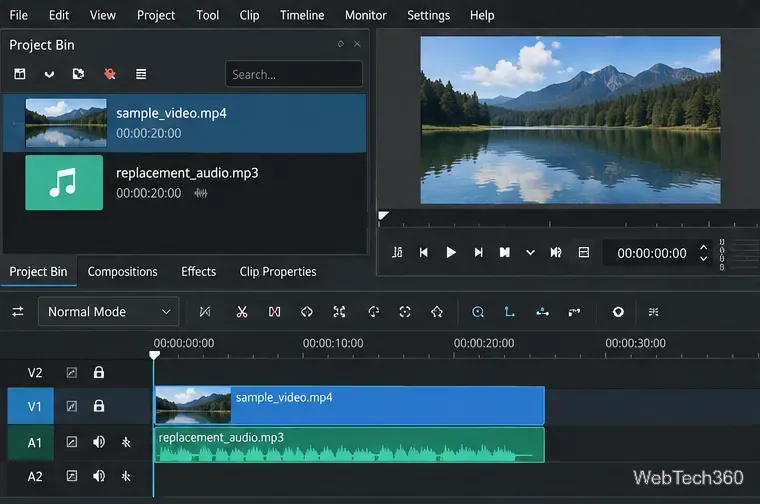
Drag the new audio file from the Project Bin onto an audio track below the video. Place its start where the replacement sound should begin. For a full replacement, that is usually the same starting position as the video.
The replacement audio is aligned with the video at the start of the timeline.
Play the project and use the waveform to check synchronization. If the new audio is longer than the video, trim its end. If it is shorter, decide whether the remaining section should be silent or use additional audio. For narration or dialogue, zoom into the timeline and align waveform peaks with the matching action or speech.
5. Render the finished video
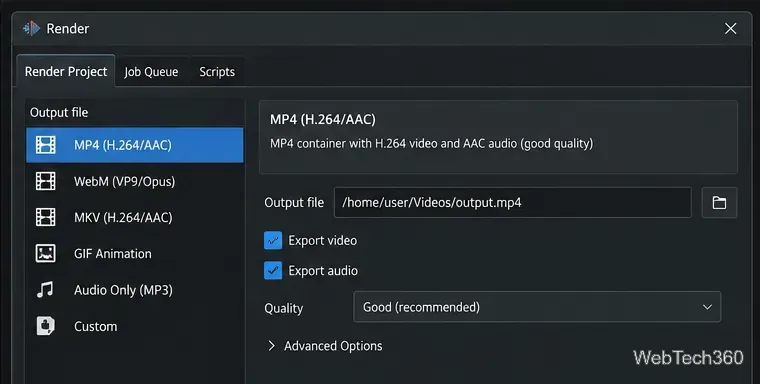
Save the project, then open File > Render. The default shortcut is Ctrl + Enter. Choose an output filename and a suitable preset, and make sure audio export is enabled. Kdenlive's official rendering guide documents the current Render dialog and output options.
Choose an output file and a preset that includes audio before rendering.
For a simple replacement, keep the project's original resolution and frame rate unless you need a different output format. After rendering, open the exported video and check the beginning, middle, and ending to make sure the replacement audio stays synchronized.
Common problems after replacing audio
The exported video is silent: confirm that audio export is enabled and that the replacement audio track is not muted.
The sound starts too late: move the replacement track left until its first intended sound matches the correct frame. Use the playhead and waveform rather than guessing.
Audio slowly drifts out of sync: a start-offset fix will not solve progressive drift. Check whether the replacement recording has the correct duration or needs retiming.
You only want silence: deleting the original audio works, but Kdenlive also documents a Mute effect if you want to keep the clip available for later use.
Once the original audio is separated, replacing it is ordinary timeline editing: remove the unwanted sound, position the new track, verify sync, and render with audio enabled.