Home
» LINUX
»
How to Reset a Forgotten Password on Linux
How to Reset a Forgotten Password on Linux
If you forgot a Linux login password, you can usually set a new one without reinstalling the operating system. The simplest option is to sign in with a second administrator account and run sudo passwd username. If no administrator account is available, Ubuntu users can reset a local password from the GRUB recovery menu. The recovery steps below are Ubuntu-specific; other distributions may use different menu labels and procedures.
Use these steps only on a system you own or administer. Resetting a local password does not unlock encrypted storage or change a centrally managed account.
Option 1: Use another administrator account
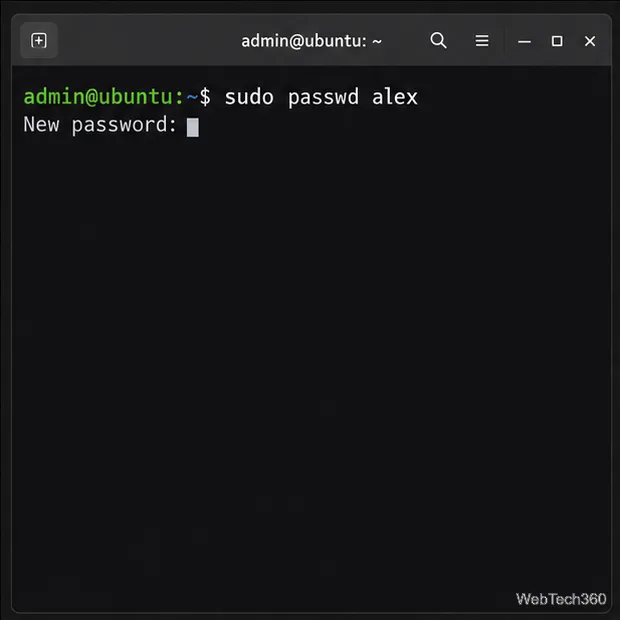
Sign in to a different local administrator account and open Terminal. Run sudo passwd alex, replacing alex with the target account’s login name.
If sudo asks for a password, enter the password of the administrator account you are using. Then type the new password for the locked account twice. The terminal does not echo the characters. A successful reset means the account can use the new password at the next sign-in.
Example: an administrator can use sudo passwd alex to set another local account’s password.
The superuser can change another local account’s password without its old one, but the account you use must already have sudo rights.
Option 2: Reset a local Ubuntu password in Recovery Mode
If no other administrator account is available, Ubuntu’s GRUB recovery menu provides a root shell for resetting a local password. Commands there can change system files, so follow the steps carefully.
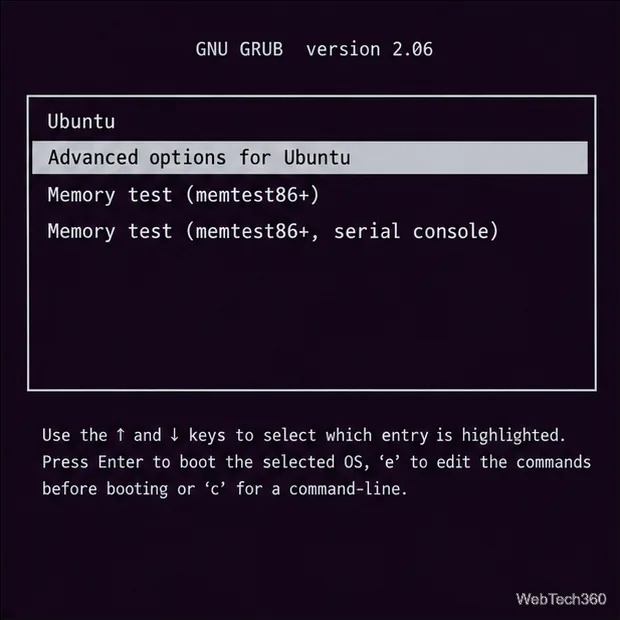
Open GRUB. Restart and hold the right Shift key during Ubuntu startup, as Canonical documents. Highlight Advanced options for Ubuntu and press Enter. If GRUB stays hidden, check the computer maker’s boot instructions; firmware settings vary.
In Ubuntu’s GRUB menu, choose Advanced options for Ubuntu. Menu wording can differ by release.
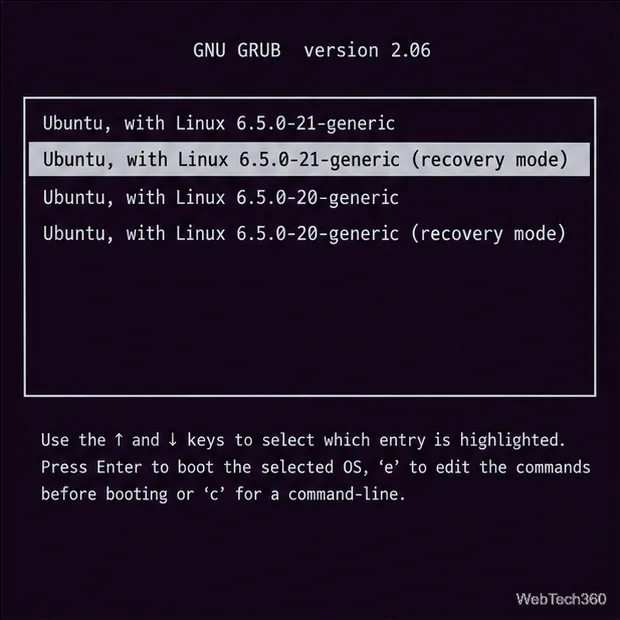
Choose recovery mode. Select the recovery-mode entry for the kernel you normally boot and press Enter. If unsure, choose the newest installed kernel.
Choose a recovery-mode entry for an installed kernel; the version labels depend on the system.
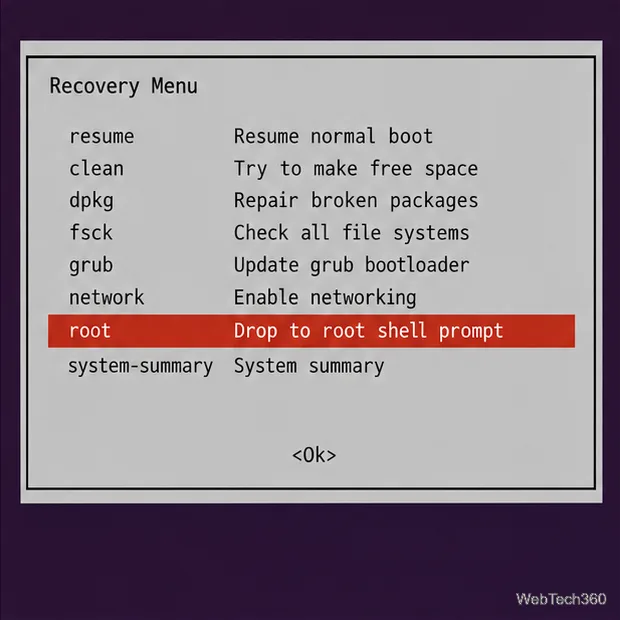
Open the root shell. In the Recovery Menu, choose root — Drop to root shell prompt. This gives administrator access from the local console without requiring the forgotten account password. If the disk is encrypted, you still need its unlock passphrase or recovery key before Ubuntu can access the installation.
Choose root — Drop to root shell prompt to open the recovery shell.
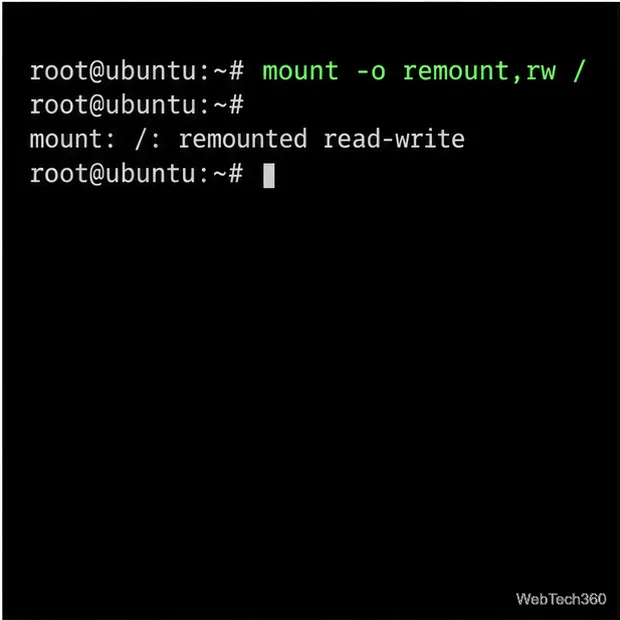
Make the root filesystem writable. If it is read-only, run mount -o remount,rw /. The remount option changes an existing mount; no output can be normal.
If the installed root filesystem is read-only, remount it read-write before changing the password.
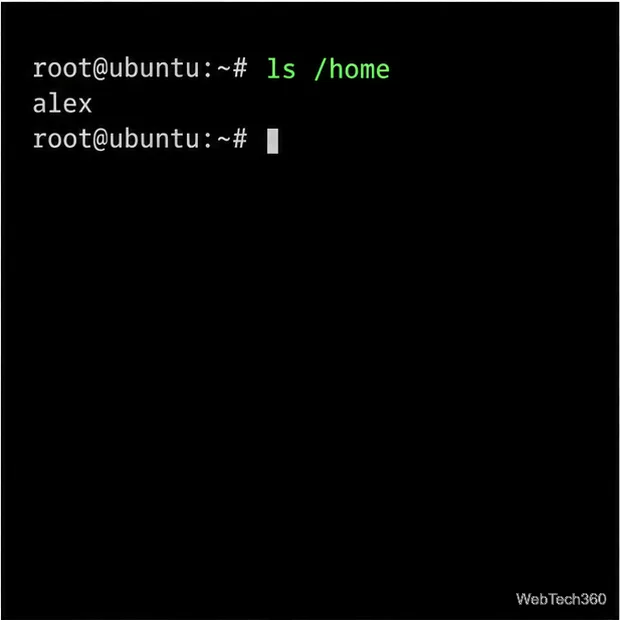
Confirm the login name. Run ls /home. On most desktop installs, the home-directory name matches the login name, while the display name may differ. If the home path or account is unclear, check the account records instead of guessing.
On a typical desktop installation, the name under /home is also the login name.
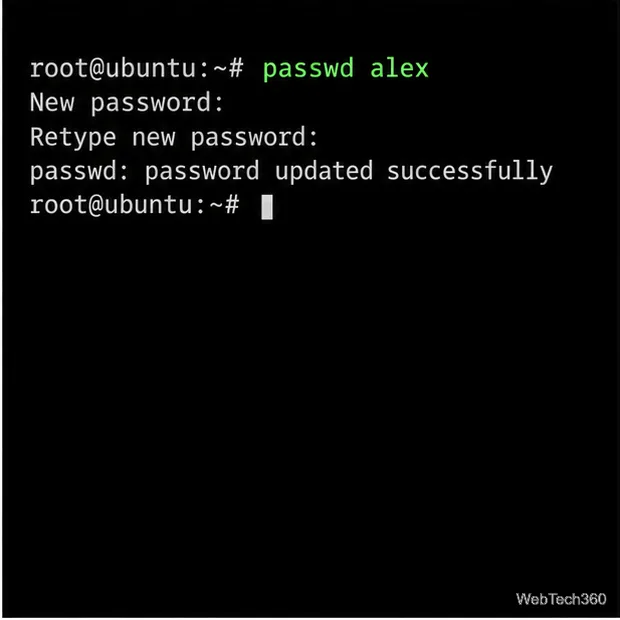
Set the new password. Run passwd alex, replacing alex with the login name. Enter the new password twice; nothing appears as you type. The passwd utility may reject passwords that do not meet system rules.
Enter the new password twice; the terminal does not display the characters as you type.
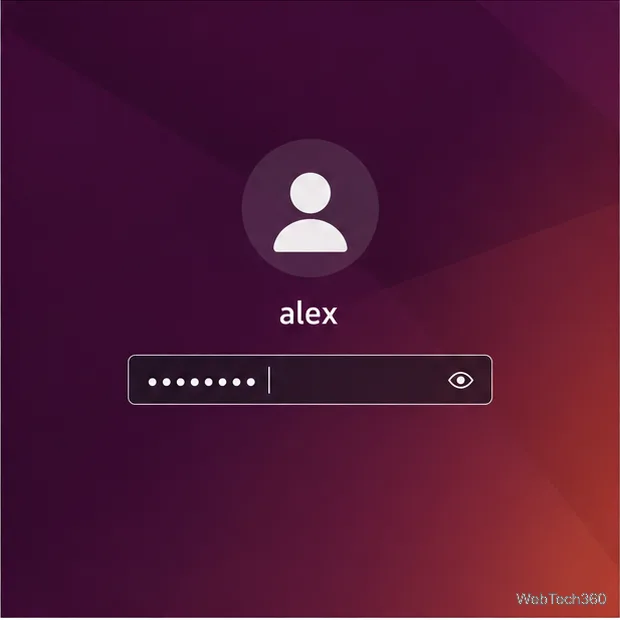
Restart and sign in. Type reboot. Remove any installation USB, then sign in with the new password and store it securely.
After rebooting, enter the new account password at the Linux login screen.
What a password reset does not unlock
Full-disk encryption: The disk’s passphrase or recovery key protects data before the operating system loads. Resetting the Linux account password does not replace that key.
GNOME keyring: Passwords saved in the Login keyring may still be protected by the old login password after an administrator resets the system account. If prompted, the keyring is a separate store; do not delete it if you need its saved credentials. GNOME explains how to update a keyring when you know its current password.
Managed or remote accounts: LDAP, Active Directory, SSO, and other centrally managed accounts must be changed through the identity provider or system administrator. A local passwd command may not control them.
If recovery mode is missing or the command fails
Recovery labels vary, and Fedora, openSUSE, Linux Mint, and other distributions may use different procedures. Avoid copying fixed device paths such as /dev/sda1; disks may use encryption, LVM, Btrfs subvolumes, or separate home partitions. Use your distribution’s current recovery guide. If passwd reports an authentication-token error, verify that you are in the installed system’s root shell and that its root filesystem is writable. Stop if you cannot identify the correct account or partition.