How to Access a Windows BitLocker Partition in Linux

Use Dislocker to unlock a BitLocker volume in Linux, mount its virtual NTFS file read-only, and safely unmount it without exposing your password in a command.
The official project name is HamoniKR OS. If you searched for “Harmonica OS,” this guide uses the official HamoniKR spelling from the project documentation. The practical distinction that matters most is this: on an Ubuntu-family desktop such as HamoniKR, you normally sign in with a regular administrator account and use sudo for privileged tasks. Ubuntu disables direct root login by default, so a “forgotten root password” is often really a forgotten password for the administrator account created during installation.
HamoniKR’s current documentation describes the OS as Ubuntu-family software and shows the installer creating a username and password for the user account. Its command examples also use sudo. Ubuntu’s own documentation states that the root account is disabled by default and that administrative commands are normally run with sudo. That is why the safest recovery procedure is usually to reset your normal administrator password, not to create a new root password.
| Situation | What to do |
|---|---|
| You forgot your normal HamoniKR login password | Boot into GRUB recovery mode, open a root shell, remount / read-write, then run passwd your_username. |
| You truly enabled a separate root password and forgot it | Use the same recovery shell, but run passwd root. Do this only if you intentionally use direct root authentication. |
| The root filesystem is read-only | Run mount -o remount,rw / before passwd. |
| The disk is encrypted and asks for an encryption passphrase or recovery key | You must unlock the encrypted disk first. Resetting an account password does not recover a lost disk-encryption key. |
| You cannot reach the GRUB or recovery menu | Check firmware boot behavior and try showing GRUB with Shift or Esc; if recovery entries are unavailable, use a trusted HamoniKR/Ubuntu live USB as a separate repair path. |
ls /home.Restart the computer. If the GRUB menu does not appear automatically, try holding Shift on legacy BIOS systems or tapping Esc immediately after the firmware logo on many UEFI systems. Firmware behavior varies, so the exact key timing is system-dependent.
In GRUB, select the entry labeled similar to Advanced options for HamoniKR OS. The wording may include the installed distribution or kernel name rather than exactly matching the illustration below. Then choose a kernel entry that ends in (recovery mode).
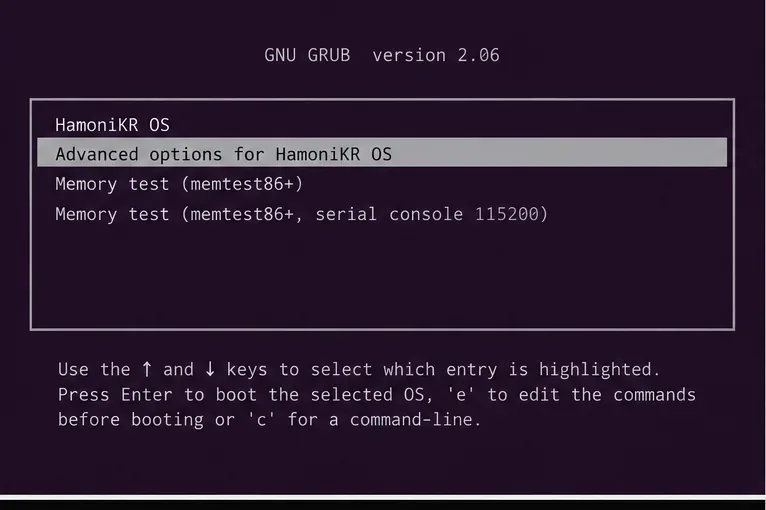
HamoniKR’s official installation guide confirms that the distribution uses a GRUB boot menu. For the project’s current installation documentation, see HamoniKR 8.0 installation guidance.
After the recovery environment loads, choose the option similar to root — Drop to root shell prompt. Recovery-menu wording can vary by Ubuntu-family release and installed recovery packages.
The recovery root filesystem is commonly mounted read-only. Before changing a password, remount it read-write:
mount -o remount,rw /You can verify the mount state with:
mount | grep ' on / '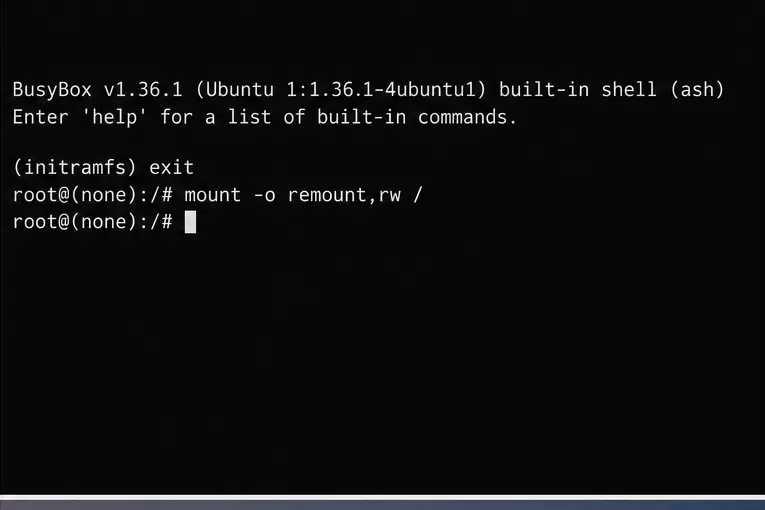
The mount command’s remount,rw behavior is documented in the Ubuntu mount manual page.
If you know the login name, skip to the next step. If you only remember the display name shown on the desktop, list the home directories:
ls /homeFor example, if the output includes john, that is a likely local username. You can confirm it with:
id johnIf the account exists, id prints its UID and group memberships. Avoid guessing at system-service accounts. The account you want is normally the human user created during installation.
Reset the normal administrator account with:
passwd johnReplace john with the real username. Type the new password when prompted, then type it again. Linux does not display password characters while you type. A successful change ends with a message similar to password updated successfully.
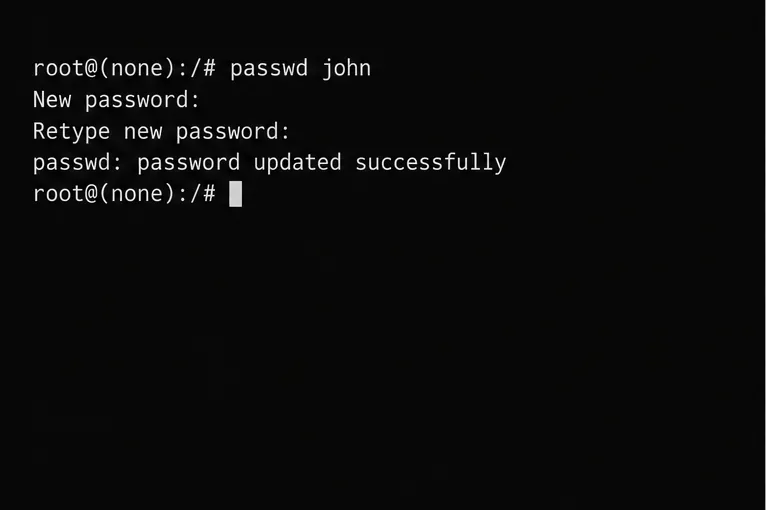
passwd followed by the affected username; a success message confirms that the password database was updated.The Ubuntu passwd manual documents the password-changing command and account locking behavior.
Ubuntu documentation says the root account is disabled by default, and HamoniKR follows the Ubuntu family’s sudo-based administrative model. If you previously and deliberately enabled direct root authentication and now need to replace that root password, the recovery-shell command is:
passwd rootHowever, do not enable a root password merely because you forgot your normal desktop password. Resetting the normal administrator account is the better fit for the default security model. Ubuntu explains this design in its Linux command-line tutorial, including why sudo is preferred over long-lived root sessions.
Flush pending writes, then reboot:
sync
reboot
If reboot does not return cleanly from the recovery environment, type exit to go back to the recovery menu and choose the normal resume or reboot option.
At the graphical login screen, select the repaired account and enter the new password. Once you are logged in, test administrative access with a harmless command:
sudo -vWhen prompted, enter the same new user password. If the command returns without an error, your login password and sudo authentication are working.
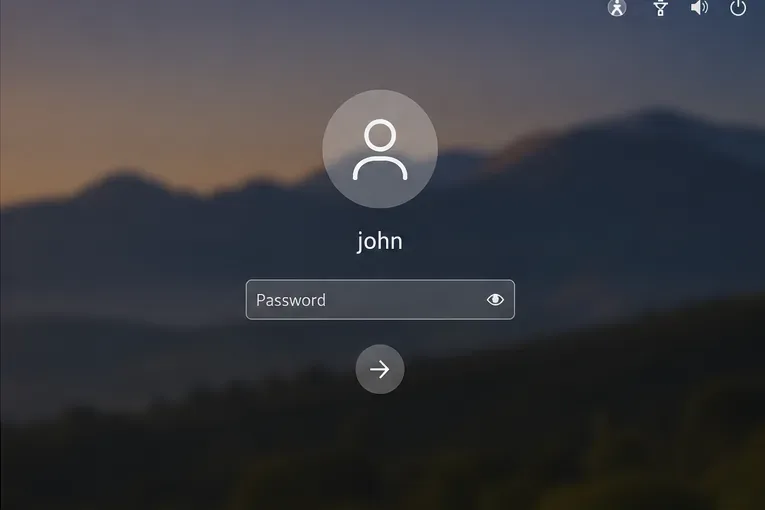
sudo accepts it.This usually means the system could not update the password files. In recovery mode, first make sure / is writable:
mount -o remount,rw /
passwd your_username
If the error continues, stop rather than repeatedly editing account files by hand. Filesystem damage, a full root partition, or unusual authentication configuration can require a different repair path.
An account password and a disk-encryption passphrase are not the same credential. Ubuntu’s security documentation explains that full-disk encryption uses its own passphrase-derived key material. If the machine asks for a LUKS, TPM-backed encryption, or recovery key before the operating system starts, you must satisfy that encryption prompt before the account password reset can help. See Ubuntu full-disk encryption documentation.
Do not assume that the system is broken. GRUB configuration, hidden menus, customized kernels, dual-boot setups, or vendor firmware can change what appears. A live USB can be used to mount the installed system and perform a controlled repair, but device names and encrypted-volume handling differ enough that a one-size-fits-all command sequence would be unsafe. If you take that route, first identify the actual root partition and confirm whether encryption is present.
After you regain access, run:
cat /etc/os-releaseKeep the output with your maintenance notes. HamoniKR currently publishes version-specific documentation, and recovery screens may differ across releases. The current project guide describes HamoniKR as an Ubuntu-family operating system and documents its Cinnamon-based desktop environment in HamoniKR’s Ubuntu integration documentation.
sudo -v to confirm administrator authentication.sudo.This process changes a local account password by using authorized physical recovery access. It does not recover the old password, decrypt data whose encryption key is unknown, repair a damaged filesystem, or recover credentials for online services. It also does not prove that every HamoniKR release presents the same recovery-menu labels. The commands mount -o remount,rw / and passwd username are standard Linux/Ubuntu-family operations; the surrounding boot-menu workflow can vary with firmware, GRUB configuration, disk encryption, and the installed HamoniKR release.
For most HamoniKR desktop installations, the key practical takeaway is simple: reset the password of the administrator user created during installation, then continue using sudo. Only set a root password if your system was intentionally configured to use direct root authentication and you understand the security implications.
Use Dislocker to unlock a BitLocker volume in Linux, mount its virtual NTFS file read-only, and safely unmount it without exposing your password in a command.
Learn how to reduce RAM usage on Linux by finding memory-hungry apps, trimming browser and startup load, and testing a lighter desktop safely.
Compare four WhatsApp alternatives for Linux by privacy defaults, desktop support, setup requirements, and the people each app suits.
Troubleshoot a VirtualBox VM that will not start on Linux by checking vboxdrv, kernel headers, Secure Boot, Extension Pack versions, and VM logs.
Transfer your Ubuntu user data with a tar archive and external drive, then restore personal files and selected settings without overwriting the new setup.
Install gThumb on Linux, browse and make simple photo edits, then set it as the default app for the image types you choose in GNOME.
Create an organized playlist in Rhythmbox or save a reusable XSPF playlist in VLC. Learn how to add tracks, name a list, and reopen it on Linux.
Install Dino on Linux with Flatpak or your distribution’s package manager. Get current Ubuntu, Debian, Fedora, and Arch commands, plus first-launch tips.
Install Arch Linux’s linux-lts kernel, add it to GRUB or systemd-boot, select it at startup, and verify it while keeping a fallback kernel.
Download the right Pi 4 image, write it to a microSD card, and complete LibreELEC’s first-run setup with Raspberry Pi Imager.








