How to Share Files Over Bluetooth on Linux with Blueman

Send and receive files over Bluetooth on Linux with Blueman. Install OBEX support, pair devices, choose a file, accept transfers, and fix common issues.
GParted can shrink or expand a Linux partition. Back up important files and confirm the target disk first. Most partitions must be unmounted; use a live USB for the installed system's root partition. GParted queues edits so you can review them before applying. Its manual documents the resize dialog and pending operations.
The interface illustrations below use example device names, mount points, and sizes.
Install GParted from your distribution's software repository. For example:
| Distribution | Install command |
|---|---|
| Ubuntu or Debian | sudo apt install gparted |
| Fedora | sudo dnf install gparted |
| openSUSE | sudo zypper install gparted |
On other distributions, install gparted from the official repository. Open it from the applications menu and authenticate if prompted. The GParted download page lists packages and the live image.
Choose the disk from the upper-right selector. Match its capacity, then identify the partition by its path, file system, label, size, and mount point. Device names such as /dev/sda vary by computer, so do not rely on the name alone.
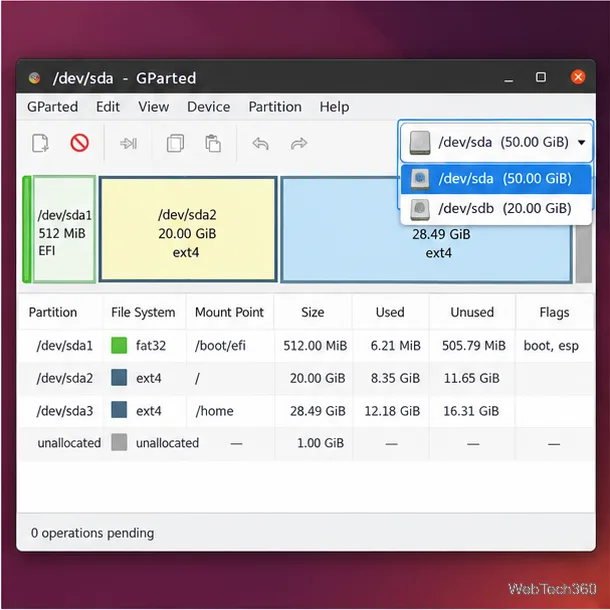
A mount point of / marks the running root file system. Data partitions may be mounted under /media or /run/media. Confirm the capacity and details before editing.
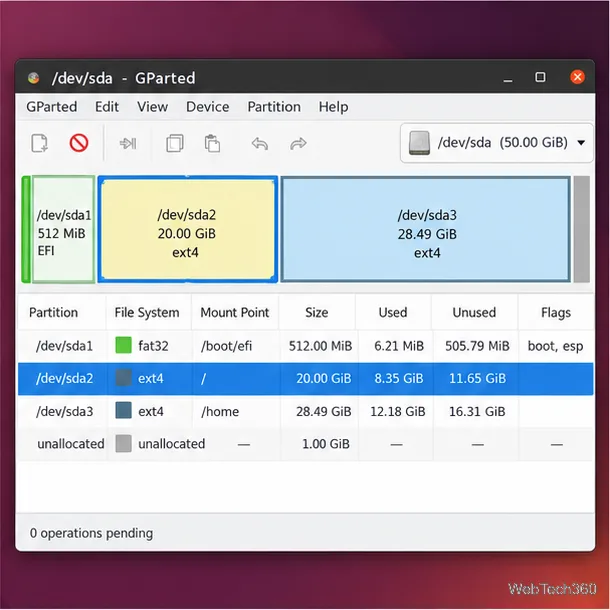
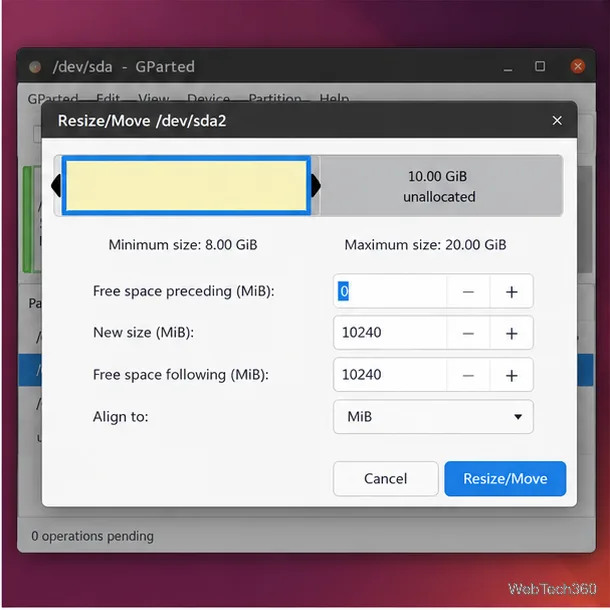
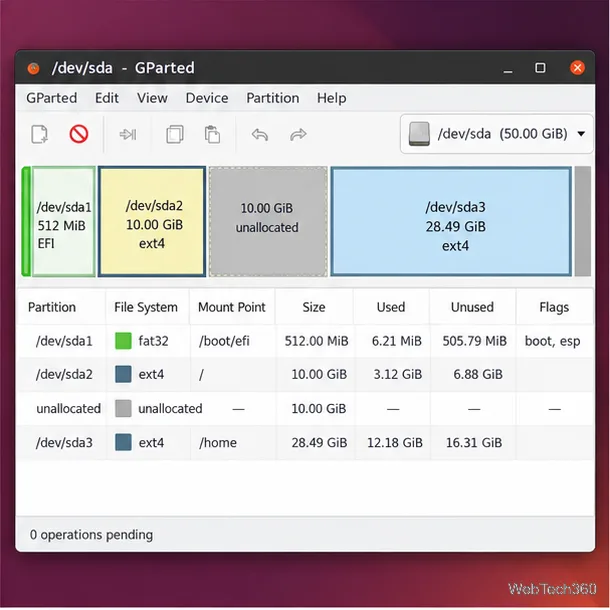
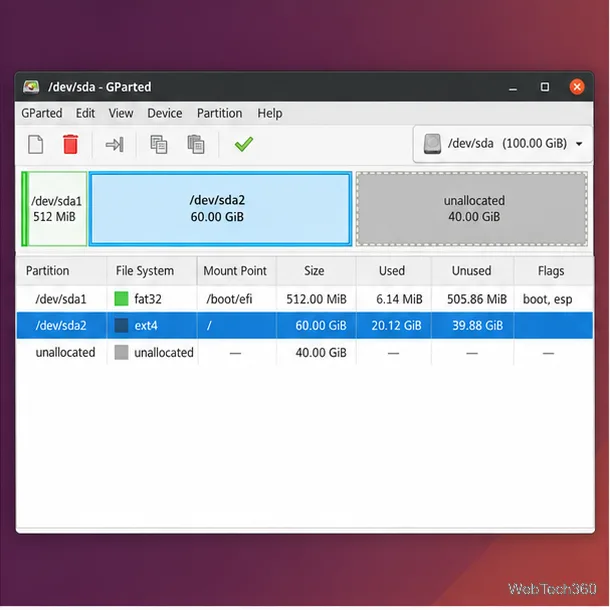
Click Resize/Move to add the change to GParted's pending operations. This only stages the plan; it does not yet write the resize to disk.
The running Linux root partition is active. Some file systems allow limited online growth, but support varies; shrinking or moving it requires an inactive partition. Boot a live environment for root-partition changes.
Download the GParted Live image and follow its USB instructions. Writing the image can erase the selected USB drive, so verify the device. Boot from the USB and open GParted. The current live image is for 64-bit x86; on another architecture, use a compatible live Linux system with GParted.
Select the internal disk and confirm the installed root partition has no mount point. Then resize it and review the pending operation as above.
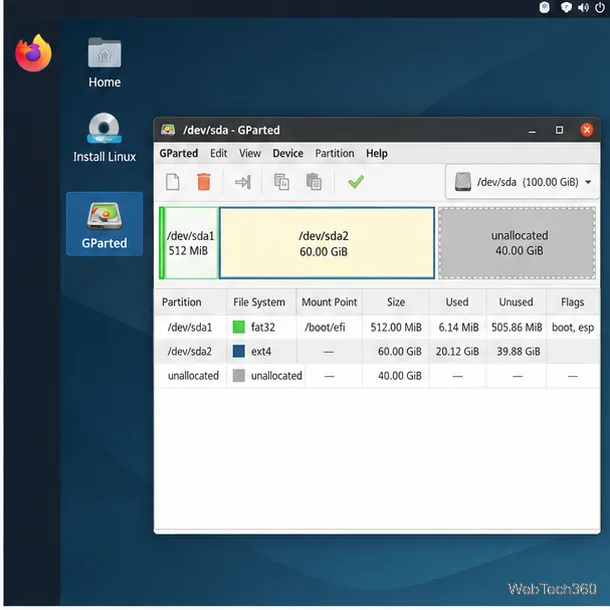
Review the pending list: confirm the device path, old and new sizes, and any planned move. Undo mistakes before continuing. If the plan is correct, click the apply checkmark and confirm. Keep the computer powered while GParted works; large resizes and moves can take time.
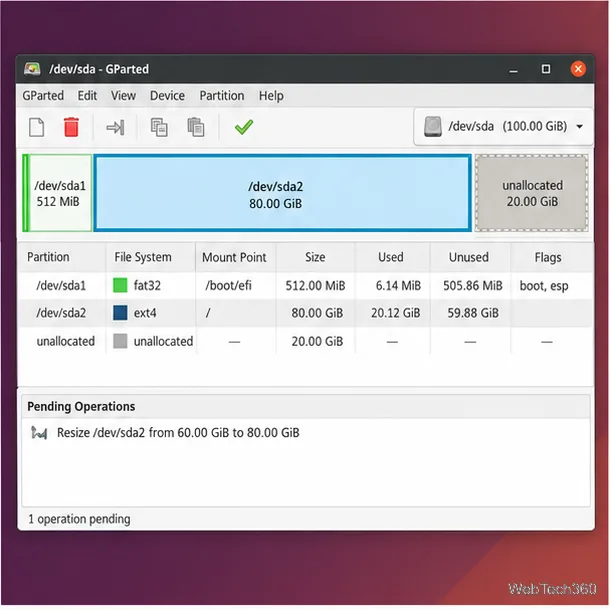
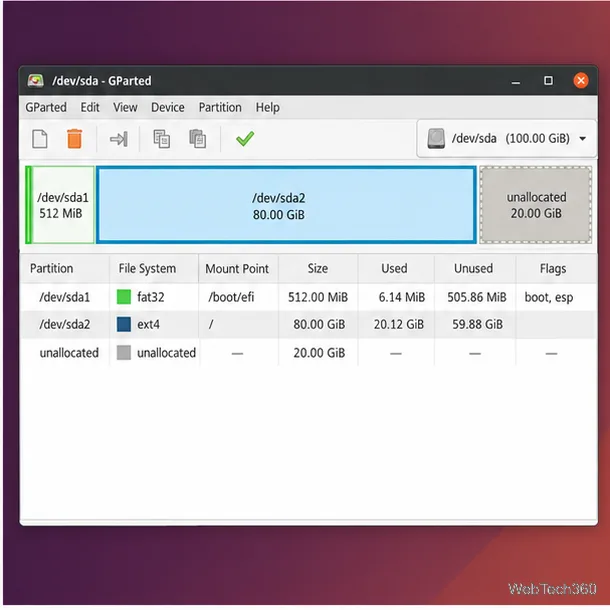
After completion, verify the refreshed map. For a system disk, remove the USB and boot Linux; confirm the partition mounts and files are available. If GParted reports an error, save its details before taking further action.
Support depends on the file system and operation. XFS can grow but cannot shrink in place, so making it smaller requires a migration plan. LUKS, LVM, and RAID layouts need their layers resized consistently. Check GParted's feature matrix and your distribution's documentation first; never proceed without a restorable backup.
Send and receive files over Bluetooth on Linux with Blueman. Install OBEX support, pair devices, choose a file, accept transfers, and fix common issues.
Connect GNOME Files to SSH/SFTP, FTP, SMB, WebDAV, or NFS with the correct server URI, sign-in details, and fixes for common connection errors.
Open SFTP, SSH, SMB, FTP, NFS, and WebDAV locations in Dolphin, sign in safely, transfer files, and save network folders for later.
Connect a DualShock 4 to Linux by USB or Bluetooth, then check controller detection and configure Steam Input only when a game needs it.
Use DNF5 parallel downloads to reduce RPM install waits in GNOME Software, then tell when mirror or Flatpak delays need a different fix.
Access iCloud on Linux in a current browser. Learn how to sign in, use iCloud Drive and other web apps, and understand the limits of browser access.
Save GRUB settings, boot files, and UEFI entry details to removable storage, then use rescue media to repair the correct boot path safely.
Install Bitwarden on Linux with the right DEB, RPM, Snap, Flatpak, or AppImage package, then sign in and set a secure vault timeout.
Pick a screensaver theme in Xfce, preview it, choose when it starts, and configure automatic locking in the separate Lock Screen tab.
Stop GNOME Shell from blanking or locking your display automatically. Change Power and Screen Lock settings, or use Caffeine for a temporary keep-awake toggle.








