If /home is on its own Linux partition, the safest way to resize it is usually to boot from a live environment so the partition is not in active use. Back up important files first, identify the exact /home device, then use GParted Live to shrink or grow it. This guide covers a standard dedicated partition; encrypted LUKS layouts and LVM volumes need additional layer-specific steps.
Before resizing your home partition
Partition changes can cause data loss if you select the wrong device, lose power, or interrupt an operation. The GParted project explicitly recommends creating a disk or partition image backup before resizing or moving partitions. See the official GParted Live documentation before proceeding.
- Back up your home files to another physical drive or a verified backup location.
- Confirm that
/home is a separate partition. If it is only a directory inside the root filesystem, there is no separate home partition to resize.
- Check the filesystem type. GParted can grow and shrink ext4 and Btrfs, but XFS cannot be directly shrunk. The current support matrix is on the GParted filesystem features page.
- Remember that growing requires adjacent unallocated space. If free space is elsewhere on the disk, another partition may have to be moved or resized first.
1. Identify the Linux home partition
While booted into your normal Linux installation, open a terminal and run:
findmnt /home
findmnt -T /home
lsblk -f
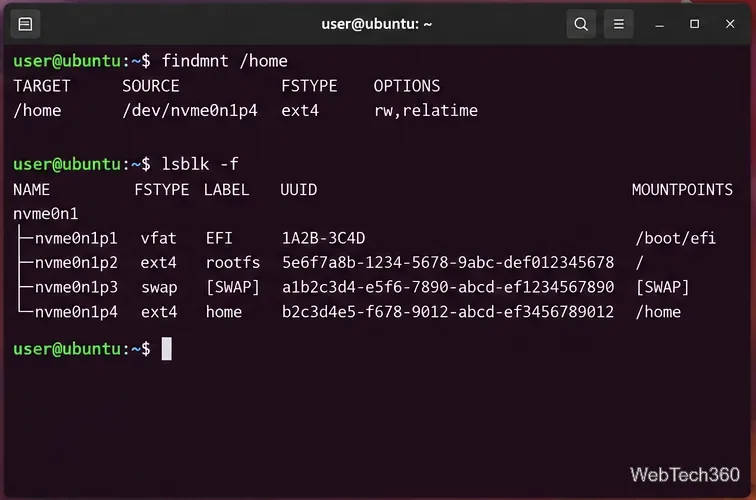
The first command checks for an exact /home mount. The -T command shows which filesystem contains the /home path, while lsblk -f helps you match the device with its filesystem, label, size, and other partitions. Write down the exact device name. For example, /dev/nvme0n1p4 is only an example; your system can use a completely different path.
If findmnt /home returns no dedicated mount and findmnt -T /home reports the root mount point /, your home directory is not on a separate partition and this procedure does not apply.
2. Create a GParted Live USB
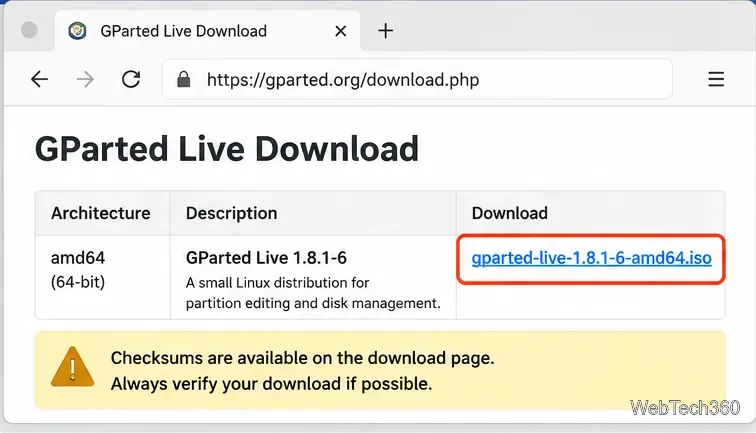
Download the current stable image from the official GParted download page. As of October 22, 2026, the stable GParted Live image listed there is 1.8.1-6 for amd64. GParted notes that current Live releases are 64-bit for x86-64 systems.
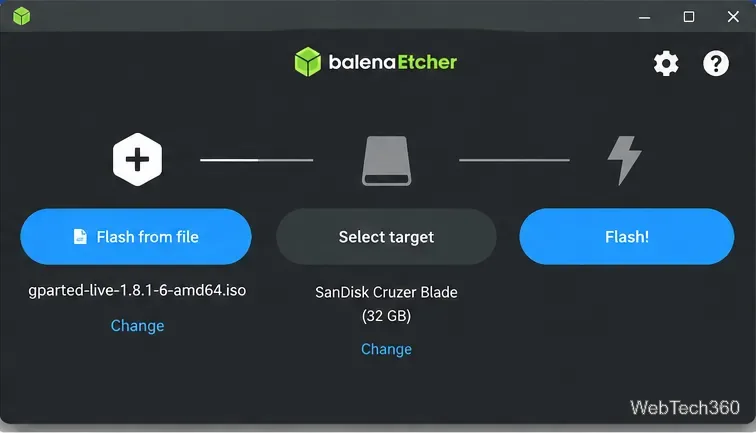
Next, write the ISO to a USB drive. One straightforward graphical option is balenaEtcher. Choose Flash from file, select the GParted ISO, select the correct USB drive, and start the flash. The USB drive will be erased, so verify the target carefully.
3. Boot into GParted Live
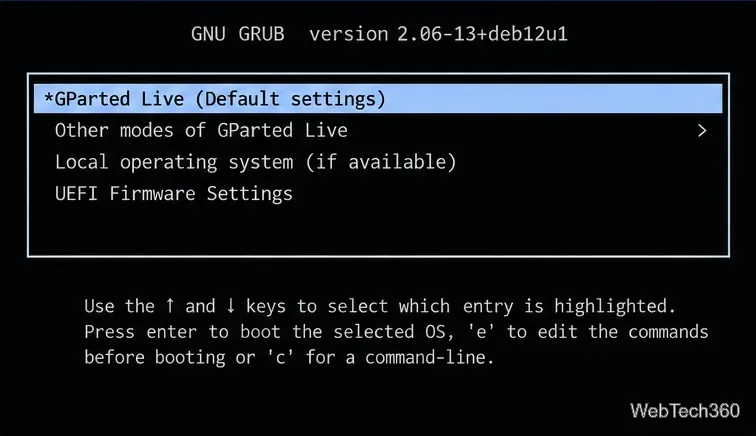
Restart the computer and use your firmware boot menu to start from the USB drive. The key varies by manufacturer, commonly one of the function keys or Esc. When the GParted menu appears, choose GParted Live (Default settings). The current GParted download page states that its amd64 image supports UEFI Secure Boot.
4. Select the correct disk and home partition
After GParted opens, use the device selector in the upper-right corner to choose the disk that contains the partition you identified earlier. Match the device path, filesystem, size, and label instead of guessing. A partition that is mounted may have resize options disabled; the GParted FAQ recommends unmounting it before modifying it.
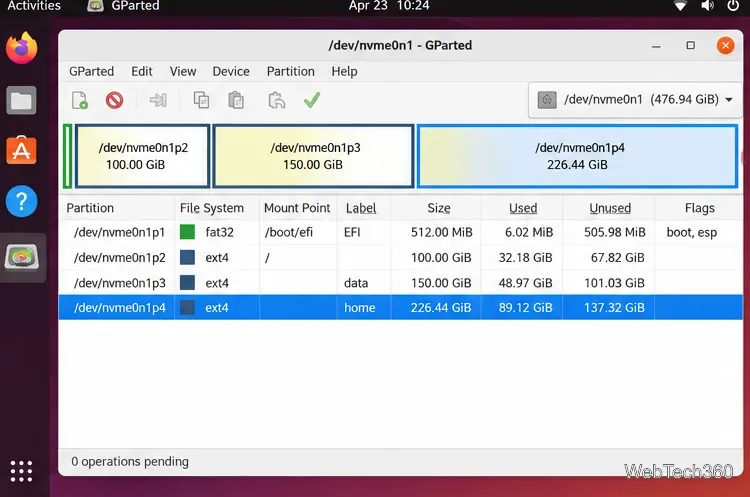
5. Resize the home partition
Right-click the home partition and choose Resize/Move.
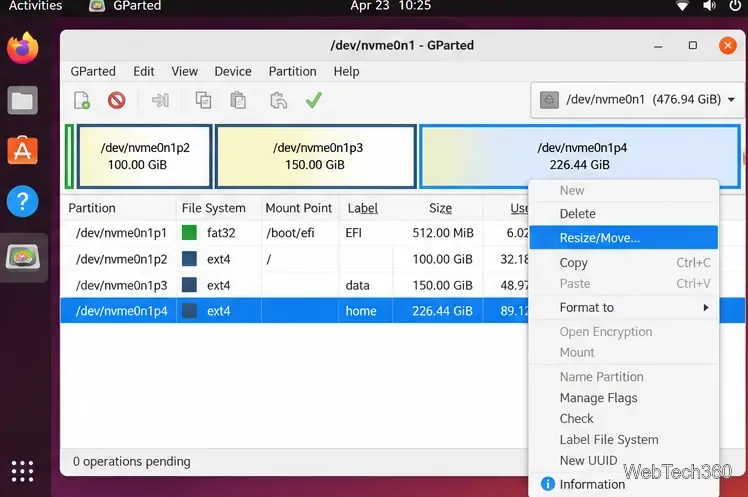
To shrink /home, reduce the New size value or drag the appropriate partition edge inward. Keep enough free space for your current files and future growth. To grow it, increase the size into unallocated space that is directly adjacent to the partition. GParted's documentation notes that unallocated space must be adjacent for a partition to grow.
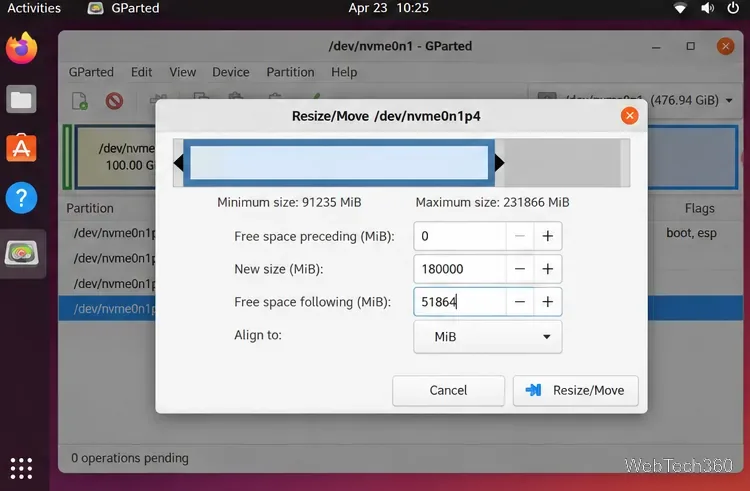
If the free space you want to use is separated from /home by another partition, do not simply type a larger number. You must first create adjacent unallocated space, which can require moving or resizing neighboring partitions. Moving large partitions can take a long time and adds risk, so a current backup is especially important.
6. Apply the pending operation
Click Resize/Move to queue the change. Before writing anything to disk, review the pending operation and confirm the device path and new size. Then click the green checkmark or choose Edit > Apply All Operations.
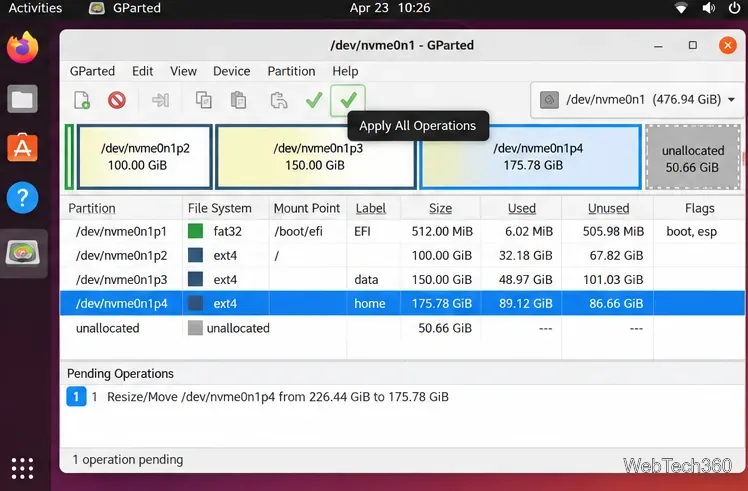
Do not shut down the computer, remove the storage device, or interrupt GParted while it is applying changes. When the operation finishes successfully, close GParted, reboot, remove the live USB, and start Linux normally. Run findmnt /home and lsblk -f again to confirm the final layout.
If Resize/Move is unavailable
- The partition is mounted: unmount it from the live environment before trying again.
- The filesystem cannot be shrunk: XFS, for example, supports growing but not direct shrinking in GParted. Do not force the operation.
- The partition is inside LUKS or LVM: resizing the visible partition alone is not enough; the encryption, physical volume, logical volume, and filesystem layers may need to be resized in the correct order.
- There is no adjacent unallocated space: create adjacent space first by safely resizing or moving the neighboring partition.









