How to Access a Windows BitLocker Partition in Linux

Use Dislocker to unlock a BitLocker volume in Linux, mount its virtual NTFS file read-only, and safely unmount it without exposing your password in a command.
The safest way to restrict SSH users to a specific directory on Ubuntu 24.04 is to use OpenSSH's ChrootDirectory with ForceCommand internal-sftp. This is ideal when the account only needs file transfer. It gives the user an SFTP view whose filesystem root is the directory you choose, while blocking an interactive shell and SSH forwarding.
If the user genuinely needs a normal shell, the decision is different. A chrooted interactive shell needs its own shell binary, libraries, device nodes, and supporting files inside the jail. OpenSSH documents this explicitly. For most upload, backup, agency, vendor, and shared-hosting accounts, SFTP-only chroot is far simpler and less error-prone. For untrusted users who need a full command environment, a container or dedicated VM is usually easier to maintain than hand-building a shell chroot.
This guide uses Ubuntu 24.04 LTS and an example user named alice. The user will be restricted to /srv/sftp/alice and will be allowed to write only inside /files. Replace the names and paths to suit your server.
The most common chroot failure is caused by permissions. OpenSSH requires every component of the ChrootDirectory path to be owned by root and not writable by group or other users. This requirement is checked unconditionally. That means you should not make /srv/sftp/alice writable by alice.
Instead, make the jail root root-owned and create a writable child directory:
/srv/sftp/alice        root:root   755
└── files              alice:alice 755
This design follows the behavior documented in the Ubuntu 24.04 sshd_config(5) manual. The same manual notes that internal-sftp needs no extra runtime files inside the chroot, which is why it is the best fit for a restricted file-transfer account.
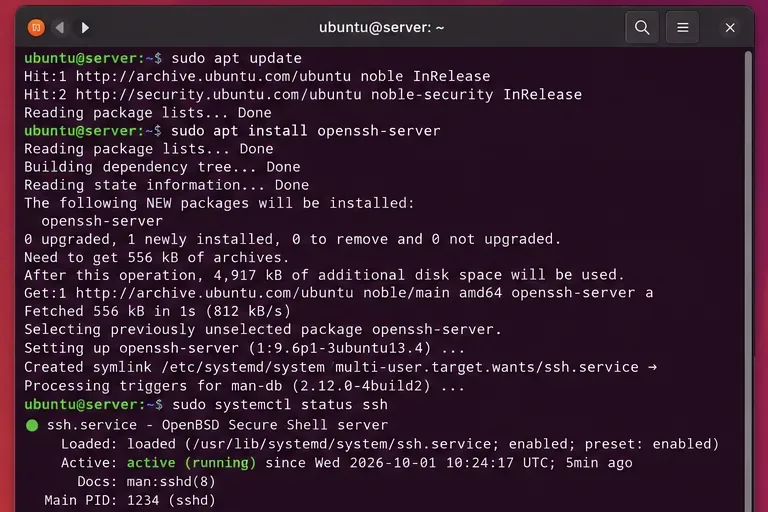
ssh.service is running before changing access rules.Install the server package if necessary:
sudo apt update
sudo apt install openssh-server
sudo systemctl status ssh.service
Ubuntu's official OpenSSH documentation uses openssh-server for the daemon package and ssh.service for service management. See the Ubuntu Server OpenSSH guide.
If this is a remote machine and SSH is your only administrative path, keep your existing administrator session open while making changes. A bad SSH configuration can lock you out.
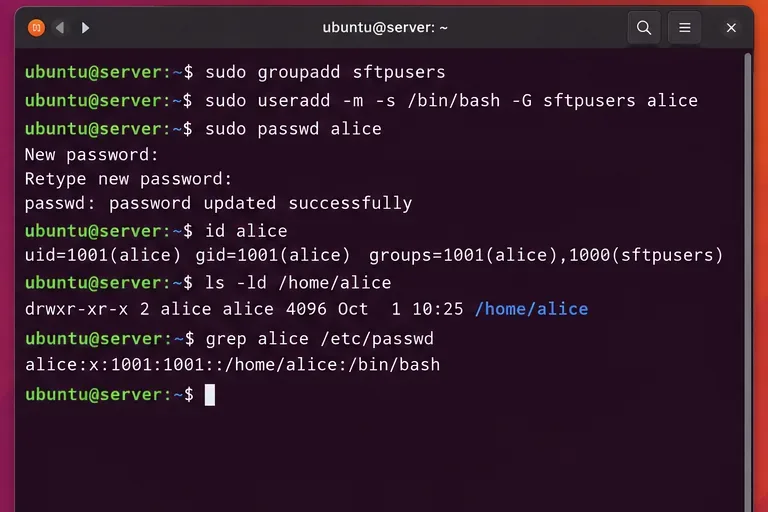
Create a group for restricted users. If alice already exists, only add her to the group:
sudo groupadd sftpusers
sudo adduser alice
sudo usermod -aG sftpusers alice
id alice
If you already use SSH public keys, keep doing so. The chroot configuration controls what happens after authentication; it does not require you to switch from key authentication to passwords.
A group-based rule is usually better than a separate Match User block for every account. It keeps policy in one place. A per-user rule is still useful when different users must be jailed to unrelated layouts.
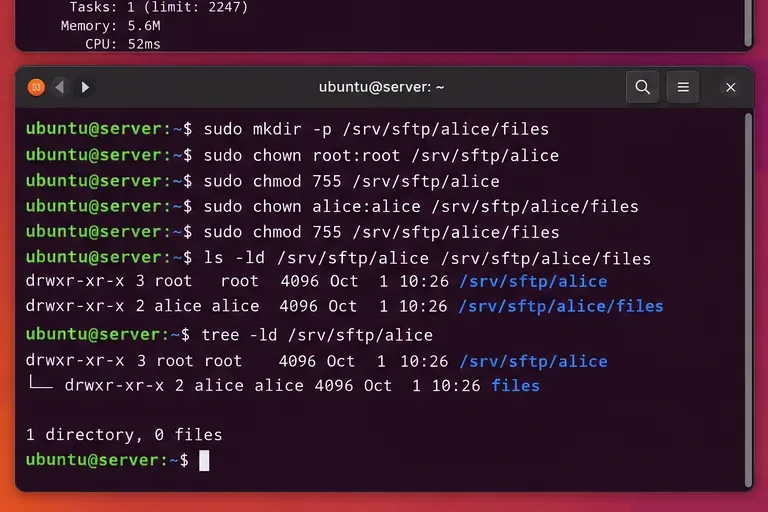
files directory is writable by the restricted user.Create the directory hierarchy:
sudo mkdir -p /srv/sftp/alice/files
sudo chown root:root /srv/sftp/alice
sudo chmod 755 /srv/sftp/alice
sudo chown alice:alice /srv/sftp/alice/files
sudo chmod 755 /srv/sftp/alice/files
Verify the ownership:
ls -ld /srv /srv/sftp /srv/sftp/alice /srv/sftp/alice/files
namei -l /srv/sftp/alice
If /srv or /srv/sftp is group-writable or user-writable, fix that too. OpenSSH checks all path components, not just the final directory.
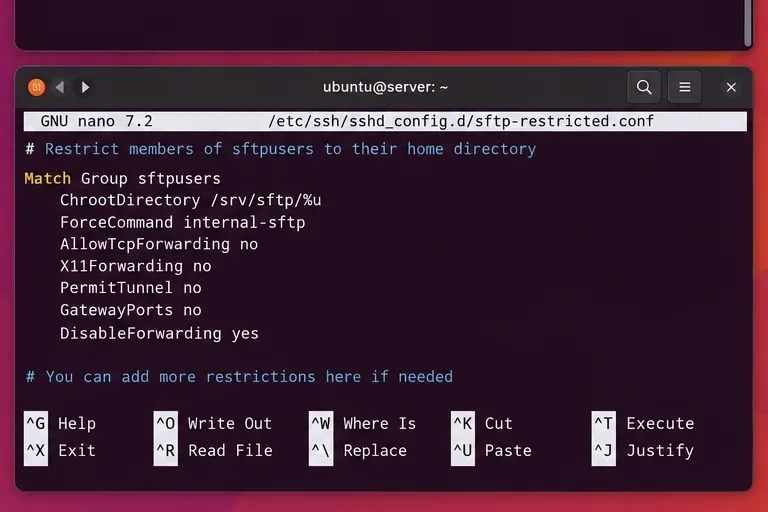
Match Group block applies the chroot and SFTP-only policy only to members of sftpusers.Ubuntu's current server documentation recommends keeping custom SSH settings in /etc/ssh/sshd_config.d/ rather than mixing them into the packaged main file. Create a snippet:
sudo nano /etc/ssh/sshd_config.d/90-sftp-restricted.confAdd:
Match Group sftpusers
    ChrootDirectory /srv/sftp/%u
    ForceCommand internal-sftp -d /files
    DisableForwarding yes
    PermitTTY no

Match all
%u expands to the authenticated username, so alice is placed in /srv/sftp/alice. The -d /files argument tells the internal SFTP server to start inside the writable child directory. DisableForwarding yes disables X11, agent, TCP, and StreamLocal forwarding in one directive; it is specifically documented for simplifying restricted configurations.
The final Match all is important in a snippet because it ends the conditional context before later configuration is parsed.
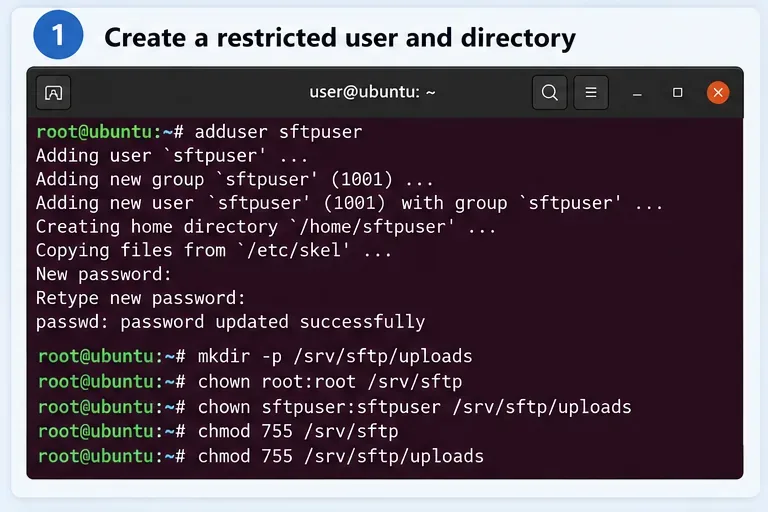
For multiple users with the same layout, keep the group rule shown above. For a single exceptional account, use a user-specific block instead:
Match User vendor1
    ChrootDirectory /srv/vendor/vendor1
    ForceCommand internal-sftp -d /incoming
    DisableForwarding yes
    PermitTTY no

Match all
Choose based on administration cost:
| Scenario | Best rule | Why |
|---|---|---|
| Many upload-only users with the same structure | Match Group | One policy applies to every member. |
| One vendor needs a unique directory | Match User | The path and restrictions can differ without affecting others. |
| User needs a normal interactive shell | Do not use this SFTP-only recipe | An interactive chroot needs a complete runtime environment. |
| Untrusted user needs commands and strong isolation | Consider a container or VM | Easier to define and update a complete execution environment. |
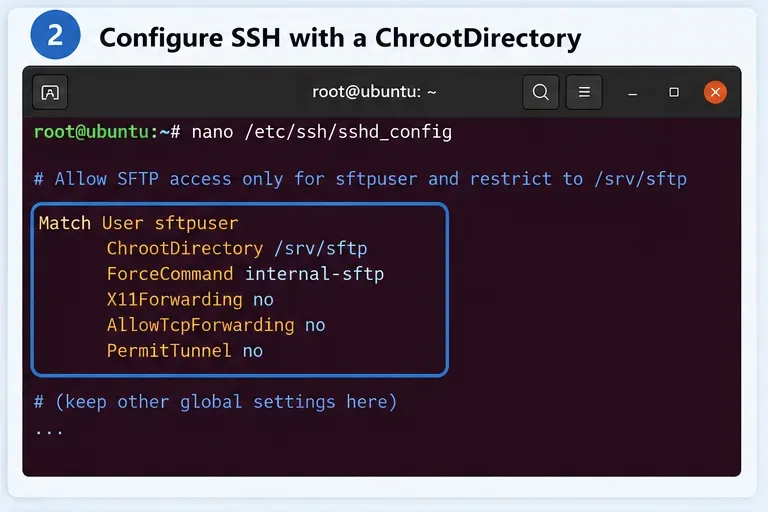
Never restart SSH immediately after editing the file. First run the syntax test recommended by Ubuntu:
sudo sshd -tNo output means the syntax check succeeded. You can also inspect the effective configuration for a particular user:
sudo sshd -T -C user=alice,host=localhost,addr=127.0.0.1 | grep -E 'chrootdirectory|forcecommand|disableforwarding|permittty'You should see the expected chroot path and forced SFTP command. This is especially useful on Ubuntu because settings can come from both /etc/ssh/sshd_config and files under /etc/ssh/sshd_config.d/. Ubuntu notes that OpenSSH generally uses the first value obtained for most directives, so checking the effective configuration is safer than assuming which file wins.
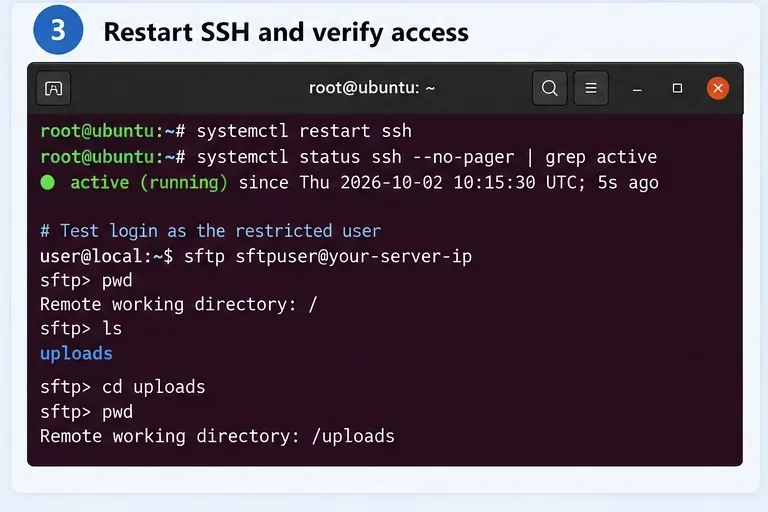
Apply the change:
sudo systemctl restart ssh.service
sudo systemctl status ssh.service
Then connect from another terminal:
sftp alice@server.example.comInside SFTP, test:
pwd
ls
put test.txt
ls -l
With the configuration above, the initial SFTP directory should be /files. The slash shown by SFTP is the root of the chroot, not the real server root.
A normal shell attempt should not produce an unrestricted shell:
ssh alice@server.example.comBecause ForceCommand internal-sftp replaces the requested session with the in-process SFTP server, this account is intentionally for file transfer rather than command execution.
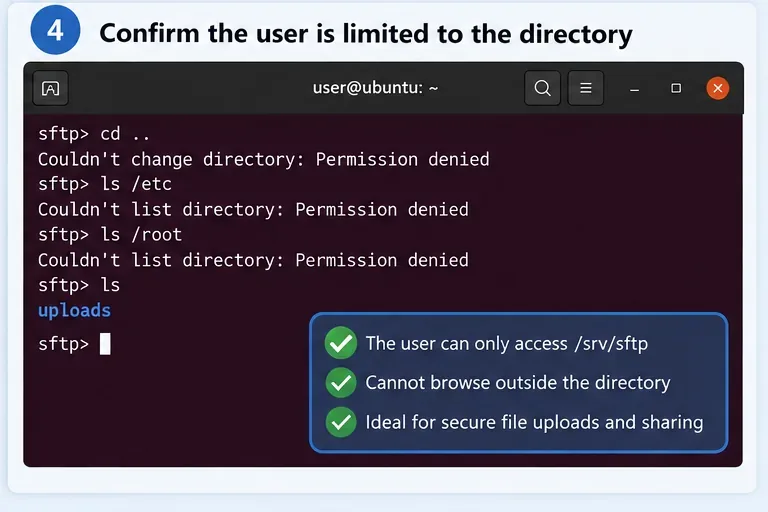
/etc and /root must not become visible outside the chroot.Try to move above the apparent root and inspect sensitive host paths:
cd ..
ls /
ls /etc
ls /root
Inside the chroot, / represents /srv/sftp/alice on the host. If you created no etc or root directory inside that jail, the user cannot reach the host's real /etc or /root.
Also test an upload into /files. A configuration that blocks escape but accidentally makes the entire jail read-only is secure but not useful for an upload account.
If login fails immediately, inspect the SSH service log:
sudo journalctl -fu ssh.serviceUbuntu's OpenSSH guide recommends the SSH service journal for troubleshooting. If you see an ownership or mode error, inspect every parent directory:
namei -l /srv/sftp/aliceThe chroot path must be root-owned and not writable by group or others. A common mistake is this:
sudo chown alice:alice /srv/sftp/aliceDo not solve the problem by weakening OpenSSH checks. Put the user's writable area below the chroot root instead:
sudo chown root:root /srv/sftp/alice
sudo chmod 755 /srv/sftp/alice
sudo chown alice:alice /srv/sftp/alice/filesChrootDirectory can also be used with an interactive shell, but the setup is substantially more complex. OpenSSH states that an interactive chroot needs at least a shell and basic /dev nodes, plus any binaries, libraries, name-resolution files, and other dependencies required by the commands you allow.
For a tightly controlled appliance account, building such a jail can be justified. For general Linux command access, it often creates a maintenance burden: security updates for tools and libraries must also be reflected inside the jail. If your actual requirement is “let this person run commands but isolate them from the host,” a container, VM, or purpose-built restricted service is usually easier to audit.
Directory restriction is only one layer. For internet-facing servers, also consider:
sudo access.DisableForwarding yes for SFTP-only accounts so the SSH connection cannot be repurposed for tunnels or agent forwarding.journalctl -u ssh.service and file ownership after adding users.For the definitive behavior of ChrootDirectory, Match, ForceCommand, and DisableForwarding, use the Ubuntu 24.04 OpenSSH server configuration manual. For Ubuntu-specific configuration layout, validation, restart commands, and logging, refer to the official Ubuntu OpenSSH Server documentation.
If the goal is “this SSH account may upload and download files only inside one directory,” use a root-owned ChrootDirectory, place writable content in a user-owned child directory, and force internal-sftp. Validate with sshd -t before restarting, then test both the allowed upload path and attempted access outside the jail. That gives you a small, understandable security boundary without having to construct a complete Linux environment inside the chroot.
Use Dislocker to unlock a BitLocker volume in Linux, mount its virtual NTFS file read-only, and safely unmount it without exposing your password in a command.
Learn how to reduce RAM usage on Linux by finding memory-hungry apps, trimming browser and startup load, and testing a lighter desktop safely.
Compare four WhatsApp alternatives for Linux by privacy defaults, desktop support, setup requirements, and the people each app suits.
Troubleshoot a VirtualBox VM that will not start on Linux by checking vboxdrv, kernel headers, Secure Boot, Extension Pack versions, and VM logs.
Transfer your Ubuntu user data with a tar archive and external drive, then restore personal files and selected settings without overwriting the new setup.
Install gThumb on Linux, browse and make simple photo edits, then set it as the default app for the image types you choose in GNOME.
Create an organized playlist in Rhythmbox or save a reusable XSPF playlist in VLC. Learn how to add tracks, name a list, and reopen it on Linux.
Install Dino on Linux with Flatpak or your distribution’s package manager. Get current Ubuntu, Debian, Fedora, and Arch commands, plus first-launch tips.
Install Arch Linux’s linux-lts kernel, add it to GRUB or systemd-boot, select it at startup, and verify it while keeping a fallback kernel.
Download the right Pi 4 image, write it to a microSD card, and complete LibreELEC’s first-run setup with Raspberry Pi Imager.








