Home
» LINUX
»
How to Run Foobar2000 on Linux with Wine
How to Run Foobar2000 on Linux with Wine
Foobar2000 can run on Linux through Wine. The Foobar2000 site lists a Windows download and confirms that its Windows version works on Linux with Wine. Install Wine from your distribution, download the installer from the official site, and launch it with Wine. This avoids relying on old setup instructions or unverified repackaged builds.
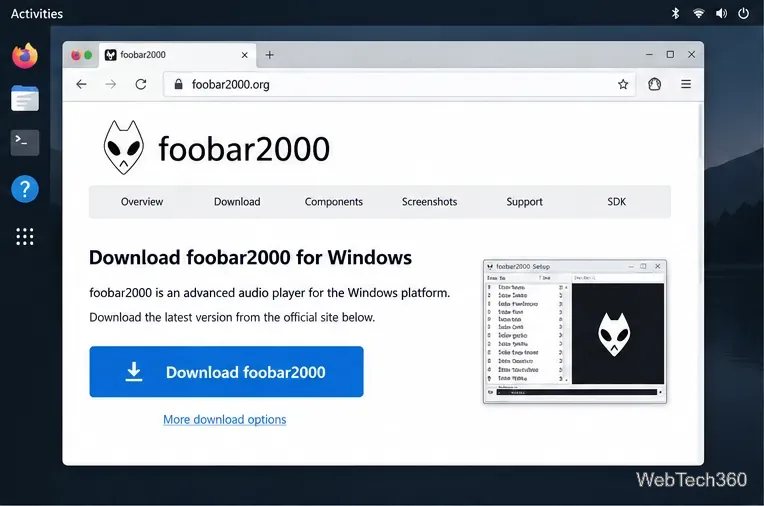
Choose the Windows installer from the official Foobar2000 site. Page details can change.
Before you start
You need a Linux desktop, an internet connection, and a working sound output. On most Intel or AMD 64-bit PCs, choose the 64-bit Windows installer. The official download page lists the available Windows builds. Wine package names and setup steps vary by distribution, so use your distro’s software manager or follow the WineHQ download guide for your Linux version.
Install Foobar2000 with Wine
1. Install Wine from your distribution
Install the Wine package recommended by your Linux distribution, then open a terminal and check that the command is available:
wine --version
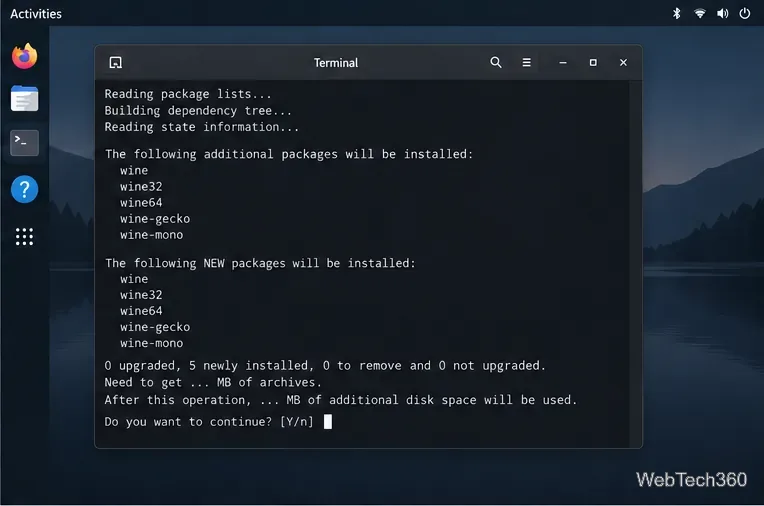
If your system does not recognize the command, finish the distro-specific Wine setup before continuing. For Arch Linux, the ArchWiki Wine guide explains the available package options. The package transaction and names shown by a package manager differ across distributions.
Wine installation screens vary by distro; install the package from your distribution’s recommended source.
2. Download the official Windows installer
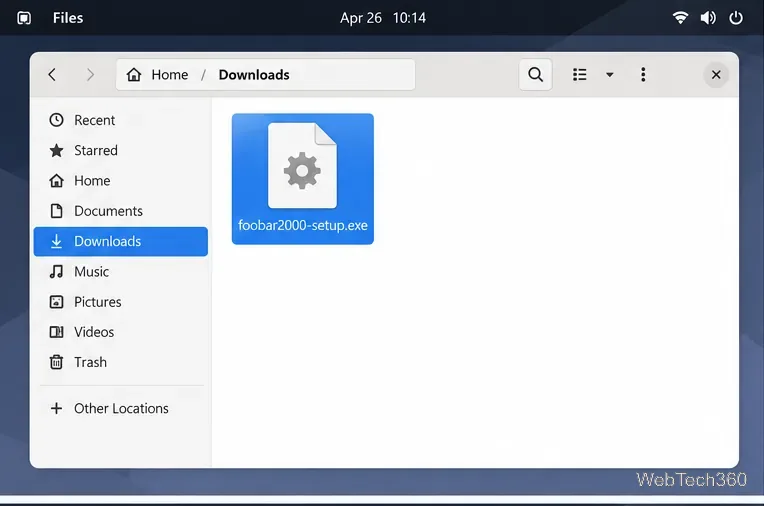
Open the Foobar2000 for Windows download page and save the current stable installer. Avoid old direct-download links from tutorials, since Foobar2000 releases change. For a predictable terminal command, rename the downloaded file to foobar2000-setup.exe and place it in your Downloads folder.
Keep the downloaded installer in Downloads, or use its actual location and filename in the next command.
3. Start the installer with Wine
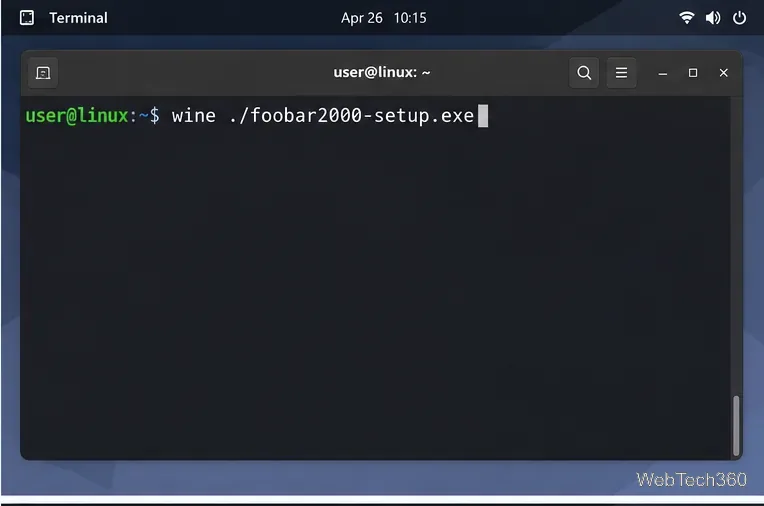
In a terminal, move to Downloads and run the installer. If you kept its original filename, replace the example filename below with that name.
cd "$HOME/Downloads"
wine ./foobar2000-setup.exe
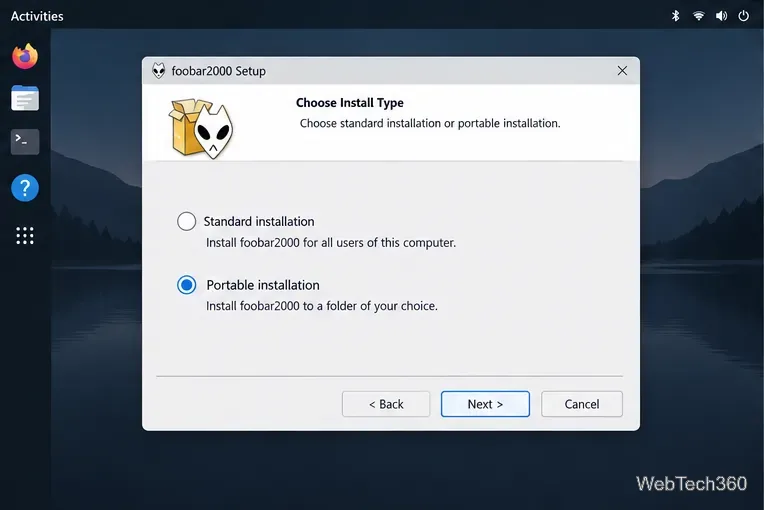
Wine may initialize its default Windows environment the first time you run it. Let that finish, then follow the Foobar2000 setup prompts. Choose the standard installation for the usual setup. If the installer offers a portable option, choose it only if you want the program’s settings stored beside its files and have write access to that folder.
Run the Windows installer with Wine from the directory where you saved it.The installer’s portable option is useful when you want the app’s data kept with its program folder.
4. Launch Foobar2000
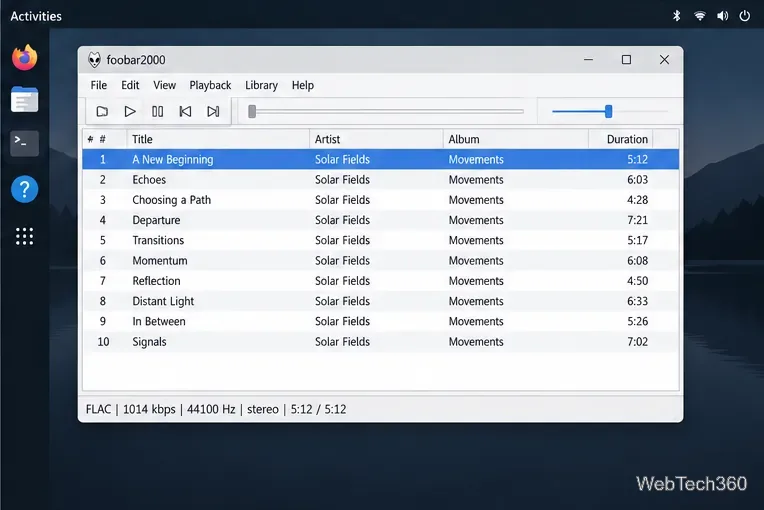
When setup finishes, look for Foobar2000 in your desktop’s application menu, sometimes under Wine. If you selected a portable install, open the folder you chose and run its Foobar2000 executable with Wine. The exact location depends on the install type and folder you selected. The first launch may take a moment while Wine completes setup.
The Foobar2000 player window is what you should see after launching the installed app.
Add your music and confirm playback
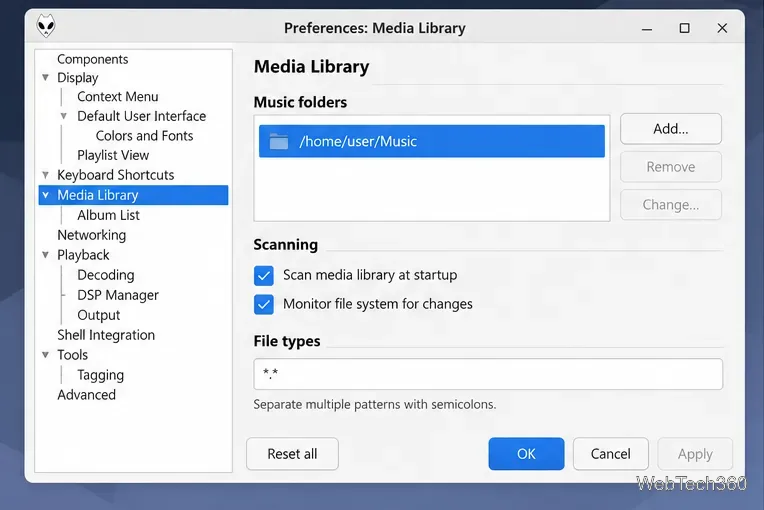
To populate the library, open File > Preferences > Media Library, choose Add, and select the Linux folder that contains your music. Let Foobar2000 scan it. You can add a different folder later or remove one that you no longer want monitored. If you only want to play a few tracks without indexing a library, use the app’s file or folder open command instead.
Add the Linux music directory under Preferences → Media Library.
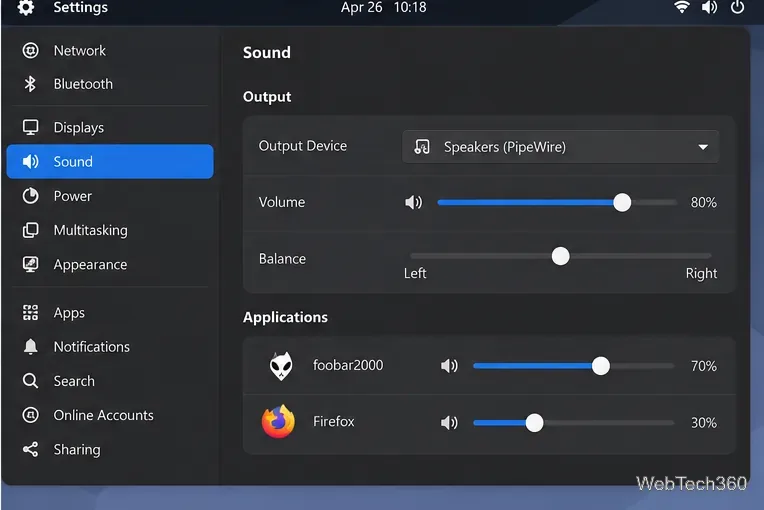
Play a track to confirm the setup. If the player is silent, check that Linux is using the expected output device and that the system volume is up. Also check the per-app volume in your desktop’s Sound settings, then open Foobar2000’s playback output preferences and select the default output device if needed.
Check both the selected speaker output and Foobar2000’s application volume when audio is missing.
Troubleshooting common problems
The installer does not open: confirm Wine is installed with wine --version, make sure the download completed, and launch the file from its containing folder. Running the command in a terminal can reveal an error that a desktop shortcut hides.
Your music folder is empty: check that you selected the real Linux folder and that your account can read it. Add the folder again in Media Library if you moved the files after the initial scan.
Foobar2000 opens but has no sound: test another Linux app, verify the system output and app volume, then restart Foobar2000 after changing the output device.
A component causes a crash: third-party Windows components may not behave the same under Wine. Update or temporarily remove add-ons one at a time; Foobar2000’s official FAQ recommends isolating problematic components.
Why this guide uses the official installer
Older guides may point to Snap or AUR builds. These are community-managed packaging routes, not native Foobar2000 Linux releases; the Arch User Repository documentation explains that AUR build files are user-contributed. On February 24, 2026, Foobar2000 cautioned against unofficial Linux repacks that combine older Wine and player builds and recommended downloading the app directly and using Wine from your distribution. That advisory does not establish that every community package is unsafe, but it explains why the direct route is documented here. Read the Foobar2000 compatibility notice before choosing a third-party package.