Home
» LINUX
»
How to Run Linux on an iPad With UTM SE
How to Run Linux on an iPad With UTM SE
Yes, you can run Linux on an iPad. The simplest current method is UTM SE, which is available directly from the App Store and does not require jailbreaking, AltStore, a Mac, or a Windows PC. UTM SE uses software emulation rather than JIT, so it is slower than a normal laptop, but it is useful for lightweight Linux systems, terminal tools, and learning.
The old approach of sideloading UTM SE with AltStore is no longer necessary for this basic setup. UTM also retired its official prebuilt VM gallery, so the most reliable path now is to install UTM SE, download a Linux image from the distribution's official site, and create the VM yourself.
What you need
An iPad that can run iPadOS 14 or later, which is the current minimum listed for UTM SE on the App Store.
Enough free storage for the app, the Linux ISO, and the virtual disk.
A lightweight ARM64/aarch64 Linux image. Alpine Linux is a good starting point because UTM's own documentation specifically recommends lightweight systems such as Alpine for UTM SE.
An external keyboard is optional, but it makes terminal work much easier.
UTM SE supports several emulated CPU architectures, including aarch64 and x86_64. For a modern iPad, choosing an ARM64/aarch64 Linux build avoids the extra overhead of emulating an Intel PC when you do not need one. UTM warns that non-jailbroken devices are typically limited to allocating roughly half their physical memory to a VM, so avoid assigning excessive RAM.
Step 1: Install UTM SE from the App Store
Open the App Store on the iPad, search for UTM SE: Retro PC emulator, and install the app from Turing Software, LLC. You can also open the official UTM SE App Store listing.
The App Store version of UTM SE can be installed directly, so the old AltStore requirement no longer applies to this method.
UTM's official iOS installation documentation confirms that UTM SE does not need a jailbreak. It also explains the tradeoff: UTM SE has no JIT and uses a slower interpreter for emulation.
Step 2: Download a lightweight ARM64 Linux ISO
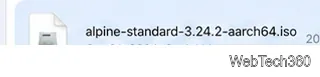
For the smoothest first setup, download a small distribution rather than a heavy desktop environment. The official Alpine Linux downloads page provides a Standard aarch64 ISO. At the time of this update, Alpine 3.24.2 is the current stable release.
Use the aarch64/ARM64 build when creating a lightweight Linux VM for an iPad.
Save the ISO somewhere easy to find in the Files app, such as Downloads. Debian ARM64 or Ubuntu Server ARM64 can also work, but may feel slower in UTM SE.
Step 3: Create a new Linux VM in UTM SE
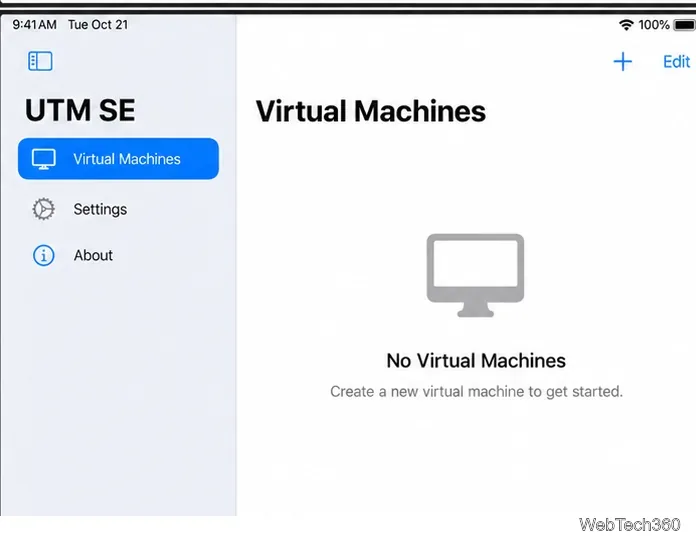
Open UTM SE and tap the + button to create a new virtual machine. Choose the QEMU/emulation path, select Linux, and use aarch64 (ARM64) as the guest architecture. Exact labels can vary slightly between UTM releases.
Start from UTM SE's Virtual Machines screen and create a new machine.
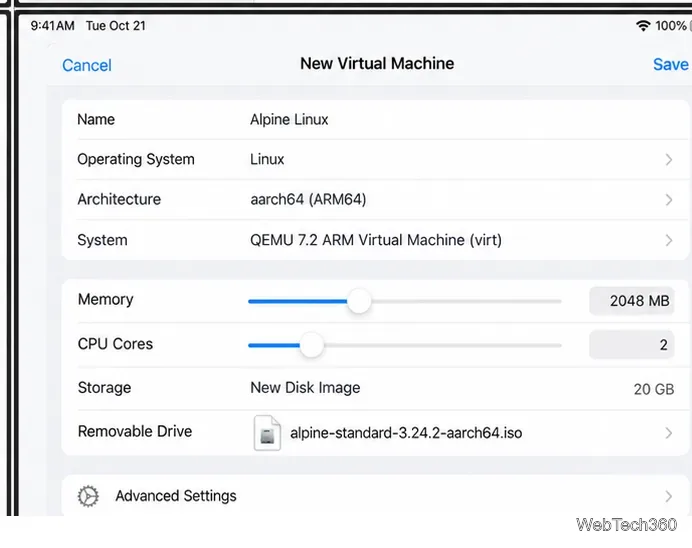
For Alpine, start with 1–2 GB of RAM and an 8–20 GB virtual disk. If iPadOS terminates the VM, reduce the assigned memory. Leave advanced CPU and machine options at their defaults unless needed.
Step 4: Attach the ISO, install Linux, and boot from the virtual disk
Add the downloaded Linux ISO as a removable CD/DVD image, create a virtual disk, save the VM, and start it. Follow the distribution's installer as you would on a normal computer. With Alpine, that usually means configuring the keyboard, network, user account, time zone, and target disk.
Example settings for a lightweight ARM64 Linux VM; the exact UTM labels may vary by version.
After the installer finishes, shut the VM down before changing its virtual hardware. Then open the VM settings and eject or remove the installation ISO so the machine boots from the virtual disk instead of starting the installer again. Launch the VM once more and sign in to Linux.
What to expect from Linux on an iPad
UTM SE is best treated as a portable lab rather than a replacement for a high-performance Linux laptop. Terminal-focused distributions are usually much more practical than full GNOME or KDE desktops. UTM SE also does not support USB device sharing, and its lack of JIT is the biggest performance limitation.
If you need more speed, the full UTM can be sideloaded and can use JIT when an appropriate JIT-enabling method is active. That route is more complex, so check UTM's current iOS installation options before attempting it.
Older tutorials may also point to the official UTM gallery has been retired. Use a current ISO from the Linux distribution itself instead of an unmaintained preconfigured image.
Quick troubleshooting
The VM is extremely slow: use Alpine or another minimal ARM64 distribution, avoid a heavy desktop, and close other iPad apps.
UTM closes or the VM stops: reduce the VM's RAM allocation; iPadOS can terminate memory-heavy apps.
The installer starts again after reboot: shut down the VM and detach the ISO from the removable drive.
The ISO does not boot: confirm that you downloaded an ARM64/aarch64 image and that it is attached as bootable removable media.