Home
» LINUX
»
How to Run sudo Without a Password on Linux
How to Run sudo Without a Password on Linux
You can run sudo without a password by adding a NOPASSWD rule to the sudoers policy. The safest approach is to allow only the exact administrative command you need instead of disabling password prompts for every sudo command.
Before changing anything, remember what this setting does: anyone or anything that gains control of your logged-in account may be able to run the permitted command as root without another authentication step. The sudoers manual documents NOPASSWD as the tag that removes authentication for matching commands.
Why sudo -s is not a passwordless sudo method
The older advice to run sudo -s does not actually configure passwordless sudo. The -s option starts a shell under sudo, but the sudo policy can still require you to authenticate first. You may also see several commands run without another prompt because sudo normally caches successful authentication for a short period. That is different from a permanent NOPASSWD rule.
Run a specific sudo command without a password
This example lets the user alex restart Nginx without a password. Replace the username, command, and arguments with values that match your system.
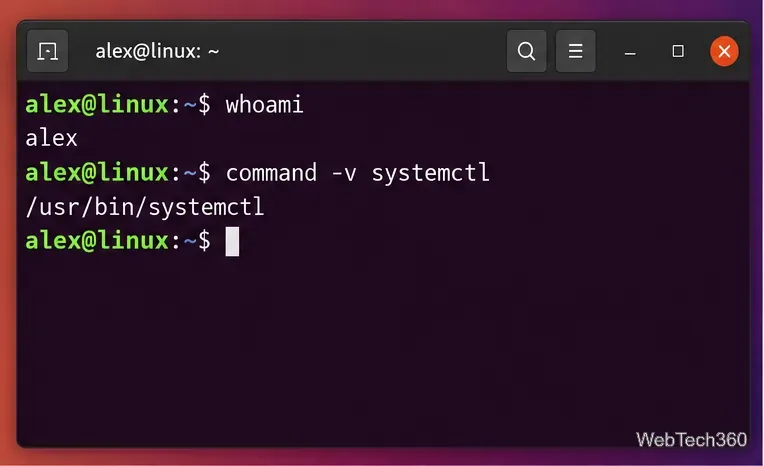
1. Confirm your username and the command path
Run the following commands as your normal user:
whoami
command -v systemctl
The second command may return /usr/bin/systemctl. Use the path your own system reports. Sudoers rules should identify commands by their full path.
Check the account name and the full path of the command before writing the sudoers rule.
2. Create a dedicated sudoers drop-in file
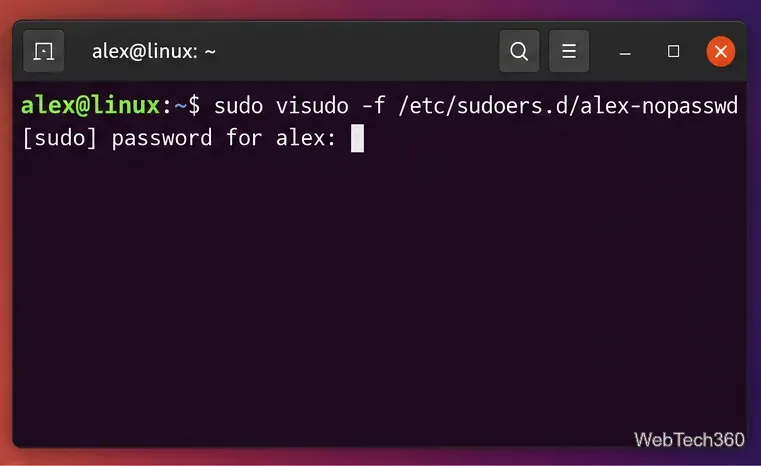
Instead of editing /etc/sudoers directly, use visudo with a file in /etc/sudoers.d:
sudo visudo -f /etc/sudoers.d/alex-nopasswd
You will normally enter your password for this setup step. visudo is preferred because it checks syntax before accepting changes. The Ubuntu visudo manual also notes that visudo locks the file during editing and checks for parse errors.
Open a separate sudoers drop-in file with visudo rather than editing the main policy file with a normal text editor.
3. Add the narrowest NOPASSWD rule you need
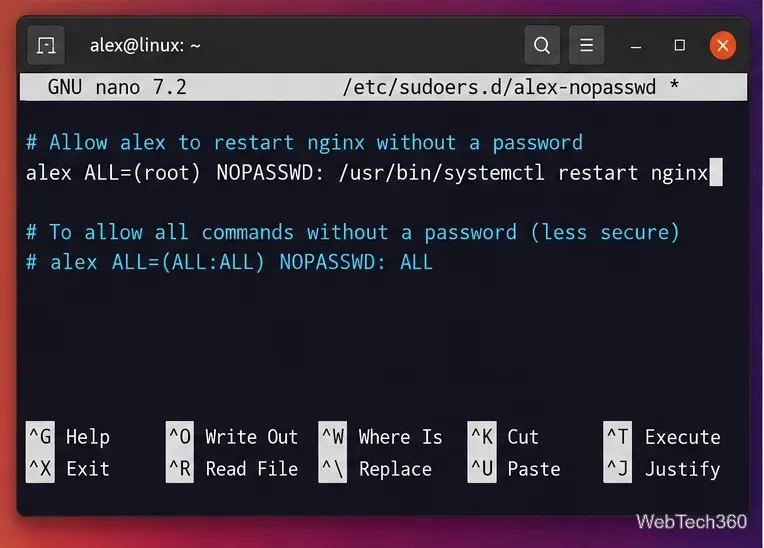
For the Nginx restart example, add:
alex ALL=(root) NOPASSWD: /usr/bin/systemctl restart nginx
This rule allows only that command with those arguments to run as root without authentication. To allow several specific commands, separate command specifications with commas.
If you deliberately want every sudo command for one user to skip authentication, the broad rule is:
alex ALL=(ALL:ALL) NOPASSWD: ALL
This is much less secure and is rarely the best choice on a workstation or shared system. A compromised user session would have a direct path to unrestricted root privileges.
A command-specific rule is safer than granting NOPASSWD: ALL.
4. Validate and test the rule
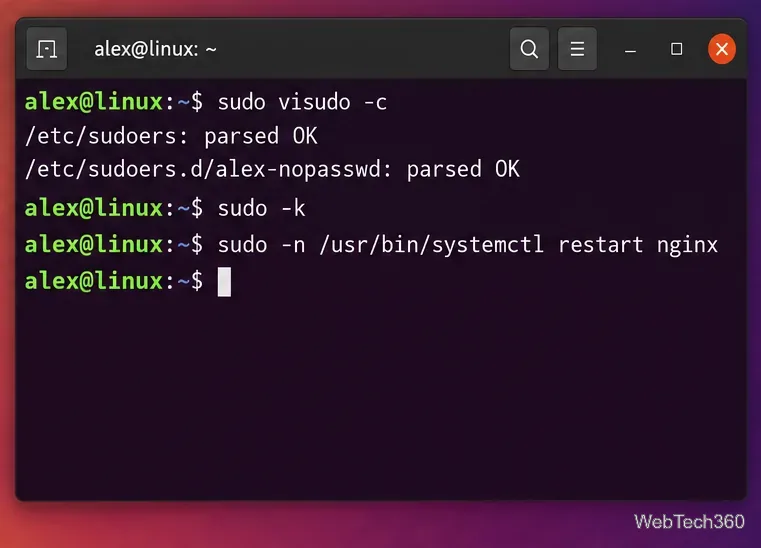
After saving and leaving the editor, check the complete sudoers policy:
sudo visudo -c
Do not skip this check. The visudo documentation explains that sudoers policy is evaluated as a whole, so checking the complete configuration catches problems that may involve included files.
Then invalidate any cached sudo credential and test non-interactively:
sudo -k
sudo -n /usr/bin/systemctl restart nginx
The -n option tells sudo not to prompt. If the rule matches, the command runs without asking for a password. If authentication is still required, sudo exits with an error instead of waiting for input. This makes sudo -n especially useful for scripts that must never hang on a password prompt.
Validate the policy, clear cached credentials, and use sudo -n to confirm that the command truly no longer needs a password.
Troubleshooting passwordless sudo
The command still asks for a password: confirm the username, command path, and arguments exactly match the sudoers entry.
The command is not allowed: run sudo -l to review the privileges assigned to your account.
The drop-in appears to be ignored: use a simple filename such as alex-nopasswd. Some sudoers configurations ignore files in /etc/sudoers.d whose names contain a dot or end in backup-style suffixes.
You need to undo the change: reopen the drop-in with sudo visudo -f /etc/sudoers.d/alex-nopasswd, remove or narrow the rule, save, and run sudo visudo -c again.
Best practice
Use passwordless sudo only when there is a concrete need, such as a tightly controlled service action or automation task. Prefer an exact command path and exact arguments, avoid NOPASSWD: ALL when possible, and keep the sudoers rule as small as the job permits. That preserves most of sudo's protection while still removing the password prompt where it is genuinely necessary.