You can run Windows 98 on Linux in a virtual machine with Oracle VirtualBox, provided your Linux computer uses an x86_64 processor and you have your own Windows 98 installation media and product key. The important caveat is that Windows 98 is now a legacy guest: Oracle's current VirtualBox 7.2 support matrix does not list it as a supported guest OS, so expect more manual setup than with a modern version of Windows.
As of October 22, 2026, Oracle lists VirtualBox 7.2.22 as the current stable release. This guide uses the current VirtualBox 7.2 workflow rather than the obsolete 6.1 package links in the older instructions.
Before you start
- Use an x86_64 Linux host. Oracle states that VirtualBox on an Arm host can run only Arm-based guest operating systems, so an x86 Windows 98 guest is not supported on Arm Linux through this method.
- Have a legitimate Windows 98 or Windows 98 Second Edition CD/ISO and product key. This guide does not provide installation media or license keys.
- Install a current VirtualBox build. Oracle provides Linux packages and a generic installer in its official VirtualBox 7.2.22 download directory.
- Keep the VM offline unless networking is necessary. Microsoft ended security-update support for Windows 98 and Windows 98 SE on July 11, 2006, so it should not be treated as a safe general-purpose internet system. See Microsoft's Windows 98 support-lifecycle notice.
1. Install VirtualBox on Linux
Install VirtualBox from your distribution's package manager if it offers a suitable current build, or use Oracle's package for your distribution. Avoid hard-coding an old DEB or RPM download because those version-specific URLs expire quickly.
On Debian- and Ubuntu-based systems, VirtualBox may need matching Linux kernel headers so its host kernel modules can build. Systems using UEFI Secure Boot may also require those modules to be signed. Oracle documents both requirements in the VirtualBox 7.2 User Guide.
2. Create the Windows 98 virtual machine
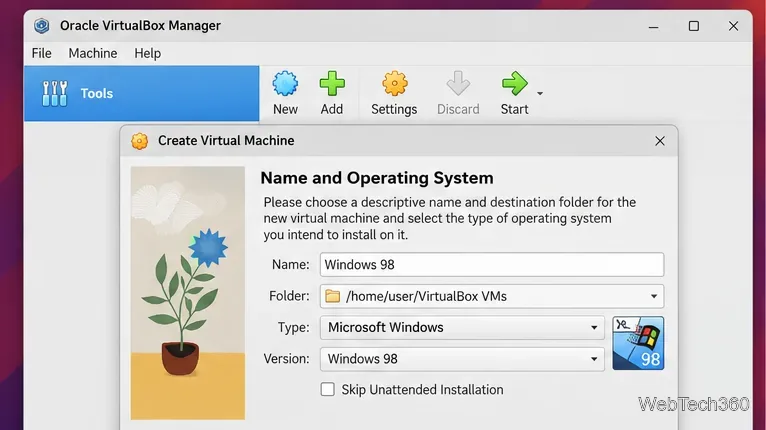
- Open VirtualBox Manager and click New.
- Name the VM Windows 98.
- If VirtualBox offers a Windows 98 guest type, select it. If the wizard offers unattended installation, choose Skip Unattended Installation and install Windows 98 interactively.
- Do not enable EFI. Windows 98 expects a legacy BIOS-style boot environment.
3. Use conservative virtual hardware
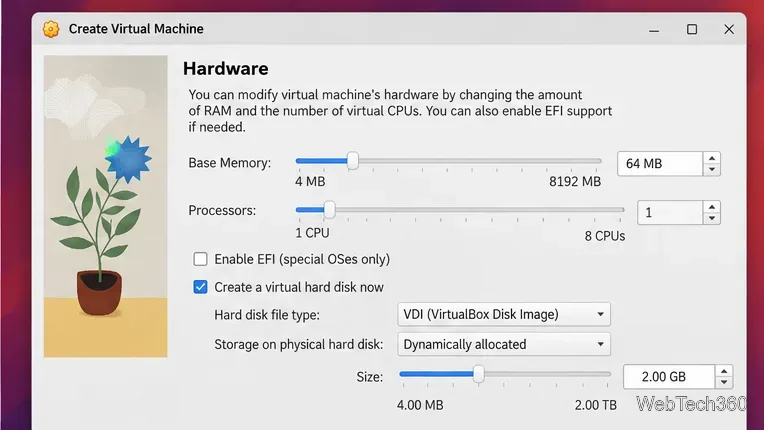
Windows 98 does not benefit from modern VM-sized hardware allocations. A practical starting point is 64 to 128 MB of RAM, one virtual CPU, and a 2 GB dynamically allocated VDI disk. These values are intentionally modest to reduce legacy compatibility problems; they are not limits imposed by your Linux host.
If you later need a larger disk for old software or games, increase storage carefully rather than giving the VM a huge modern disk from the start.
4. Attach the Windows 98 ISO
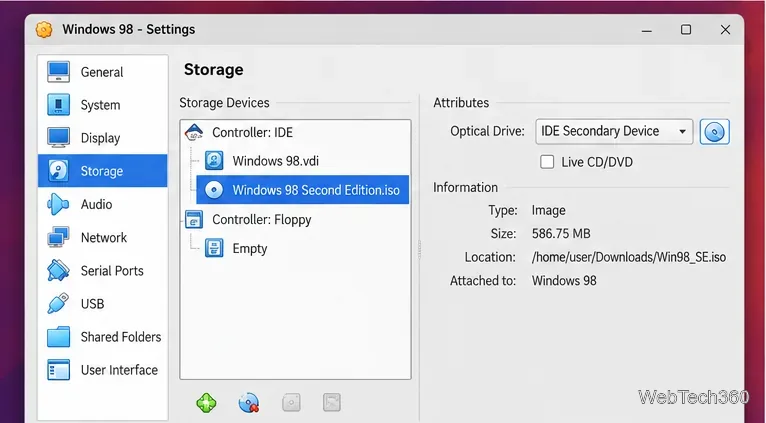
Open the VM's Settings, select Storage, and attach your Windows 98 ISO to the virtual optical drive. Using an ISO is usually simpler than passing a physical CD drive through to the guest.
For old Windows guests, an IDE optical controller is a sensible compatibility choice. If your original Windows 98 CD is not bootable, you may also need a bootable Windows 98 startup floppy image attached to the virtual floppy controller.
5. Start the VM and install Windows 98
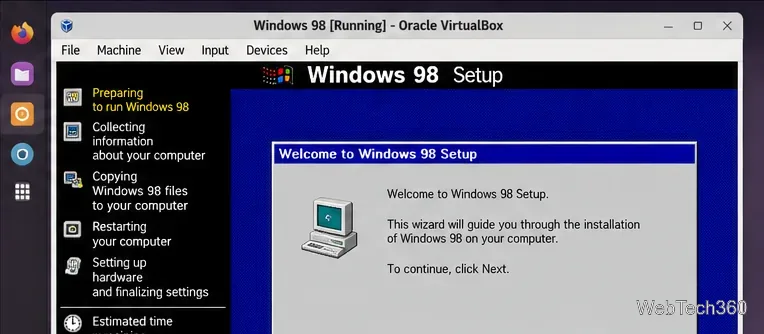
- Select the Windows 98 VM and click Start.
- Boot from the Windows 98 CD or ISO and follow Setup normally.
- Create or format the virtual disk when Setup asks, then enter your valid Windows 98 product key.
- After the first restart, let the VM boot from its virtual hard disk. If it repeatedly returns to the beginning of Setup, eject the ISO temporarily or put the hard disk ahead of the optical drive in the boot order.
What to expect after installation
Current VirtualBox 7.2 Guest Additions do not list Windows 98 as a supported Windows guest, so features such as automatic display resizing, shared clipboard, and modern shared-folder integration should not be assumed to work. For moving retro software into the VM, mounting a small ISO that contains the required files is often the simplest option.
Once Windows 98 is stable, take a VirtualBox snapshot before installing old drivers, games, or utilities. That gives you a quick rollback point if a legacy installer destabilizes the VM.
Troubleshooting common Windows 98 VM problems
- The VM will not boot from the ISO: confirm the image is actually bootable, verify the virtual optical drive is attached, and keep EFI disabled.
- Setup keeps restarting: remove the ISO after Windows has copied its installation files, or change the boot order so the virtual hard disk starts first.
- The mouse is trapped in the upper-left part of the screen: avoid the USB Tablet pointing device. Oracle's current manual documents a Windows 98-specific USB tablet coordinate issue; using a PS/2-style mouse is the simpler first fix.
- You expected Guest Additions: this is a legacy limitation, not a failed installation. Windows 98 is absent from the current Windows Guest Additions compatibility list.
With those limitations understood, a small offline Windows 98 VM remains useful for running old applications and games that do not behave correctly under Wine, while keeping the legacy operating system contained inside your Linux desktop.









