Home
» LINUX
»
How to Schedule a Shutdown on Linux
How to Schedule a Shutdown on Linux
To schedule a one-time Linux power-off, run sudo shutdown --poweroff +30 to shut down in 30 minutes, or use a future 24-hour clock time such as 23:00. Cancel a pending shutdown with sudo shutdown -c. These commands use administrator privileges and apply to the machine where you run them.
Check the system clock first
A clock-time shutdown follows the computer’s local system clock. Before scheduling one, check the current time with date. On a systemd-based distribution, timedatectl also shows the configured time zone and whether the clock is synchronized. Save open work and consider other users or services: a shutdown ends sessions and interrupts programs running on that computer.
Choose a one-time shutdown time
Power off after a countdown
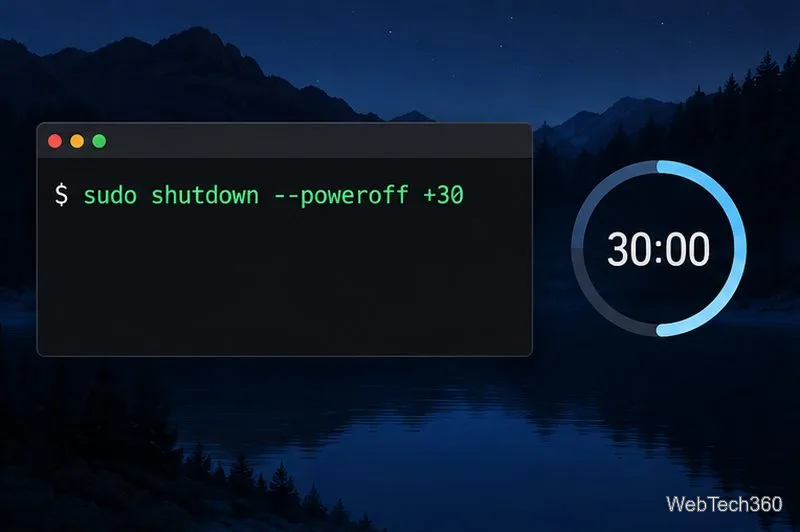
Open a terminal and enter the number of minutes from now after the plus sign. For example, this schedules a power-off in half an hour:
sudo shutdown --poweroff +30
Use a plus sign and a number of minutes to schedule a countdown.
Use +5 for five minutes or +90 for an hour and a half. To power off immediately, use sudo shutdown --poweroff now. The --poweroff option makes the intended action explicit. The command can also send a warning message to logged-in users:
sudo shutdown --poweroff +30 "This computer will power off in 30 minutes. Save your work."
On systemd, a timed shutdown warns users and prevents new logins shortly before the system goes down. On a shared workstation or remote server, give people enough notice and check that no important task is still running.
Power off at a clock time
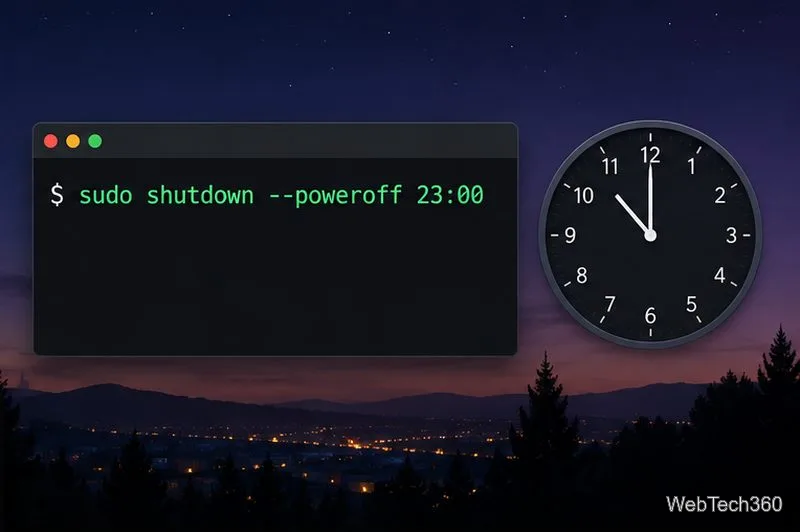
To schedule a shutdown for 11 p.m. today, enter the time using a 24-hour clock:
sudo shutdown --poweroff 23:00
Enter a future time in 24-hour format, using the computer’s local clock.
The time is interpreted using the computer’s local clock, not UTC. If the time you enter has already passed today, the system may shut down immediately; it does not necessarily mean “tomorrow at that time.” Check date first, and use a countdown when you mean a duration from now. A clock-time command schedules one pending action, not a daily repeating rule.
Cancel or inspect the pending action
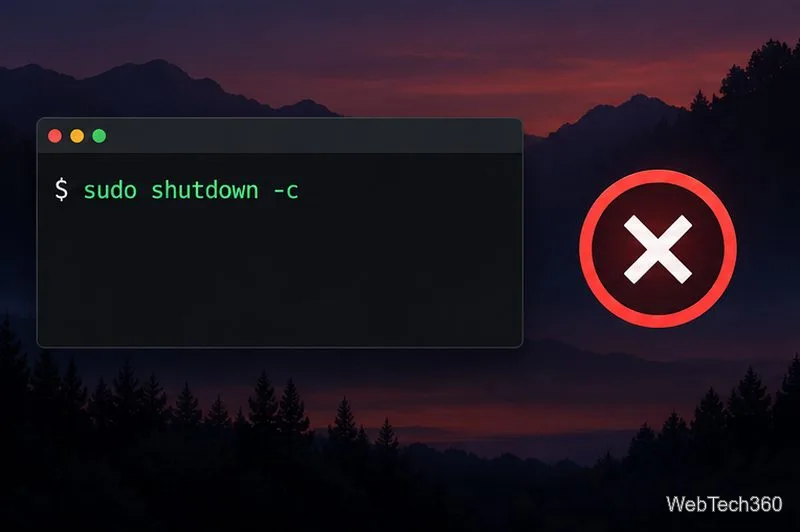
If plans change, cancel the scheduled shutdown before its deadline:
sudo shutdown -c
The -c option cancels a pending timed shutdown.
On systemd version 250 or later, sudo shutdown --show displays the pending action and its scheduled time. That option is not available on every distribution or older release, so use -c to cancel and check your terminal’s help page if an option is rejected. The standard shutdown options and time formats are documented in the systemd shutdown manual.
Use rtcwake when you want sleep and an automatic wake
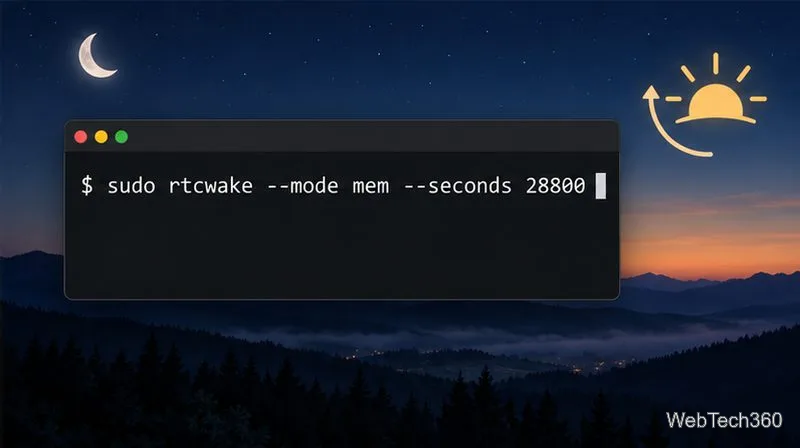
shutdown powers the machine off; it does not turn it back on later. If your goal is to suspend the computer and resume after eight hours, rtcwake can set an alarm and enter suspend-to-RAM:
sudo rtcwake --mode mem --seconds 28800
This command requests suspend-to-RAM and an RTC wake alarm eight hours later.
This command suspends the computer immediately; it is not a scheduled power-off. The mem mode keeps the session in memory and still uses some power. Whether the system wakes at the requested time depends on the kernel, firmware, and real-time-clock hardware. If you need a full power-off with an attempted timed wake, sudo rtcwake --mode off --seconds 28800 requests that mode, but support varies by computer. Read the rtcwake manual and test the behavior before relying on it.
For a recurring shutdown
A command such as shutdown 23:00 creates a one-time shutdown. For a repeating schedule, create and enable a systemd timer that starts a power-off service at the desired calendar time. Timer units use calendar expressions and have options for handling missed runs; see the systemd timer documentation. Review the timer carefully before enabling it, especially on a shared or remote machine.
Quick troubleshooting
The computer shuts down immediately: Recheck the clock and time zone. A clock time that has already passed may be treated as due now. Use +30 for a 30-minute countdown.
The command asks for a password or fails with a permission error: Run it with an account authorized to use sudo. Do not leave out the privilege escalation on systems that require it.
The computer does not wake after rtcwake: The device may not support the requested suspend state or RTC alarm. Check firmware settings and the manual for your distribution and hardware.
For a single planned power-off, sudo shutdown --poweroff +minutes or sudo shutdown --poweroff HH:MM is the simplest approach. Use sudo shutdown -c if you need to cancel it.