Home
» LINUX
»
How to Send Files Over the Network on Linux With Warpinator
How to Send Files Over the Network on Linux With Warpinator
Warpinator lets you send files directly between computers on the same local network without setting up Samba, FTP, cloud storage, or a shared USB drive. Install it on both Linux PCs, make sure they are on the same local subnet, use the same Group Code, then choose the destination computer and send your files.
Warpinator is maintained by the Linux Mint project. Its official documentation also warns users not to download the app from look-alike Warpinator websites, so stick to your distribution repositories, the verified Flathub listing, or the Linux Mint Warpinator repository.
Install Warpinator on Linux
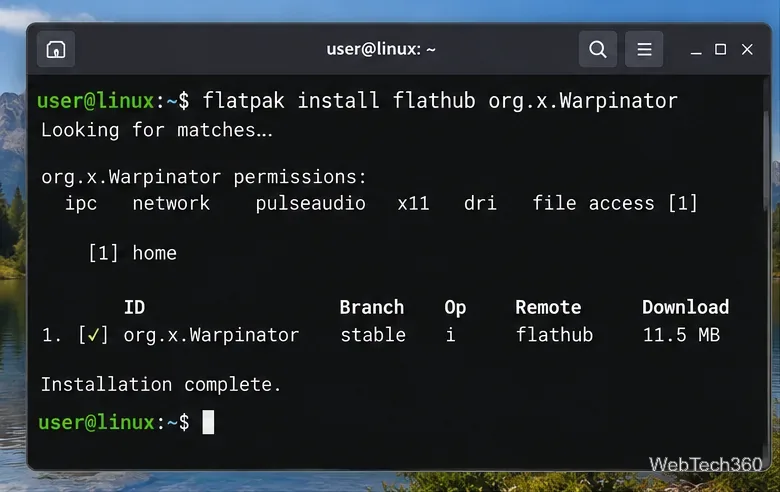
For most distributions, Flatpak is the simplest cross-distro option. If Flatpak and Flathub are already configured, run:
flatpak install flathub org.x.Warpinator
Installing Warpinator from the verified Flathub package. Terminal output and package details can vary by distribution and Flatpak version.
Linux Mint and LMDE users can install the native package with:
sudo apt install warpinator
On Arch Linux, the official Warpinator README currently documents a native repository package, so there is no need to use an AUR helper:
sudo pacman -S warpinator
If you specifically need to build from source, use the dependency and build instructions in the current official README instead of copying old version-pinned commands.
Prepare both computers
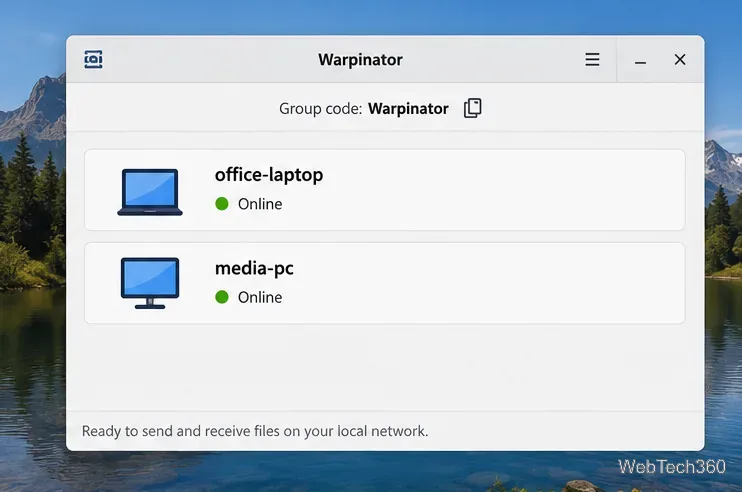
Launch Warpinator on both PCs. The app uses local-network discovery, so the computers should appear automatically when they are reachable on the same subnet and are using compatible settings.
Warpinator discovers other participating computers on the local network and shows their connection status.
Set a unique Group Code
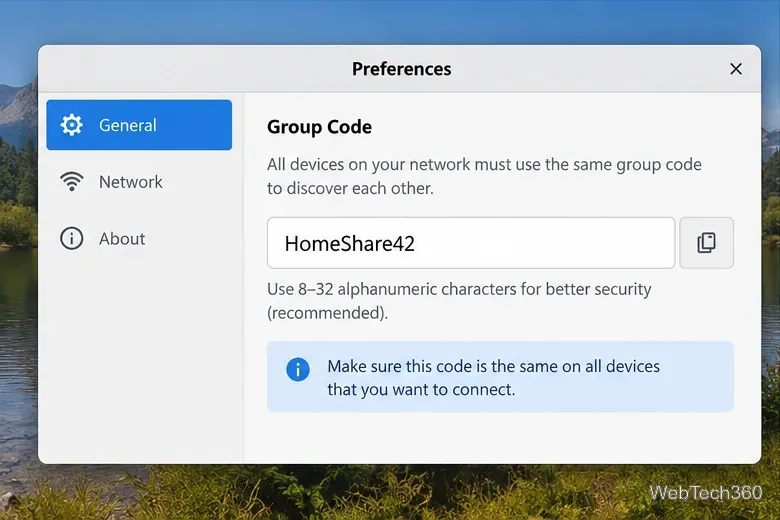
Before transferring files, open Warpinator Preferences on both computers and set the same Group Code. The Linux Mint project recommends replacing the default code with a unique one. Its security notes recommend standard alphanumeric characters and a code between 8 and 32 characters.
Changing the default code enables Warpinator's secure mode behavior and helps prevent unrelated devices on the same network from joining your group simply by using the default value.
Use the same unique Group Code on the computers that should discover and trust one another.
Send files with Warpinator in five steps
Open Warpinator on both computers. Wait for the receiving PC to appear in the device list.
Select the receiving computer. Confirm that the device name is the one you expect before starting the transfer.
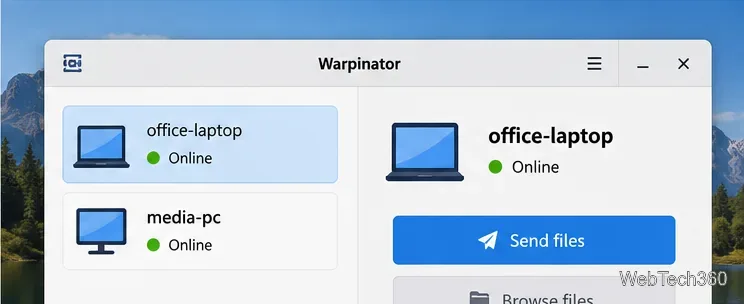
Choose Send files. Use the file picker to select the item or items you want to transfer. Warpinator supports multiple transfers.
Approve the transfer if prompted. On the receiving computer, review the incoming request and accept it when approval is required.
Open the configured incoming folder. Warpinator saves completed transfers to the incoming location set in its preferences, so check that setting if you are unsure where a file went.
Select the destination computer, then use Send files to start a local-network transfer. Controls may look slightly different across package versions.
If Warpinator cannot find the other computer
Most discovery problems come from network or security settings rather than the file itself. Check these items in order:
Group Code: both devices must use exactly the same code.
Subnet and network interface: Warpinator expects devices to be on the same local subnet. If a PC has Wi-Fi, Ethernet, virtual adapters, and a VPN active at once, choose the correct interface in Preferences.
VPN: temporarily disable the VPN while testing, or enable its LAN-access option if it provides one.
Firewall: the official documentation lists TCP ports 42000 for transfers and 42001 for authentication. It also notes that Flatpak-to-Flatpak discovery can require UDP 5353, while UDP on the transfer port can help compatibility with older Warpinator versions.
Virtual machines: use a bridged network adapter so the VM is visible as a peer on the LAN.
If the problem persists, quit Warpinator completely and run it in debug mode. Native packages use warpinator --debug; the Flatpak build uses flatpak run --command=warpinator org.x.Warpinator --debug. The resulting log can help identify interface, discovery, or firewall failures.
What Warpinator is best for
Warpinator is a strong fit for quick transfers between trusted devices on a home or office LAN. It avoids uploading files to the internet and does not require you to configure a permanent file-sharing server. For frequent shared-folder access, remote transfers over the internet, or centralized storage, a dedicated protocol or synchronization tool may be more appropriate.