How to Share Files Over Bluetooth on Linux with Blueman

Send and receive files over Bluetooth on Linux with Blueman. Install OBEX support, pair devices, choose a file, accept transfers, and fix common issues.
To set up a backup snapshot on Linux Mint, use Timeshift: open it from the application menu, choose a snapshot method, select a storage location, set a schedule, and create a first snapshot. For most standard installations on ext4, choose Rsync. Use Btrfs only when Mint is installed on a Btrfs layout Timeshift supports. Timeshift is meant to restore system files and settings; keep a separate backup of documents, photos, and other personal files.
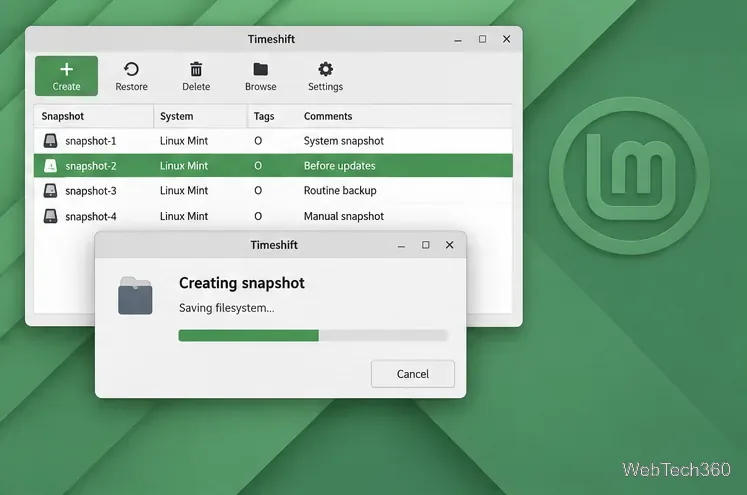
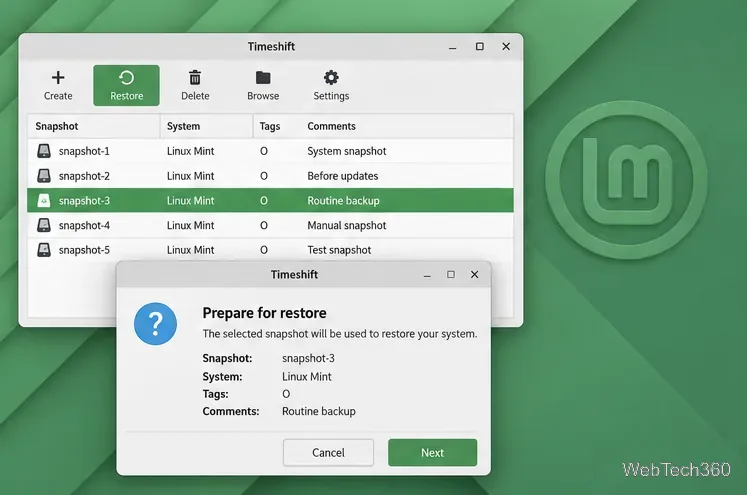
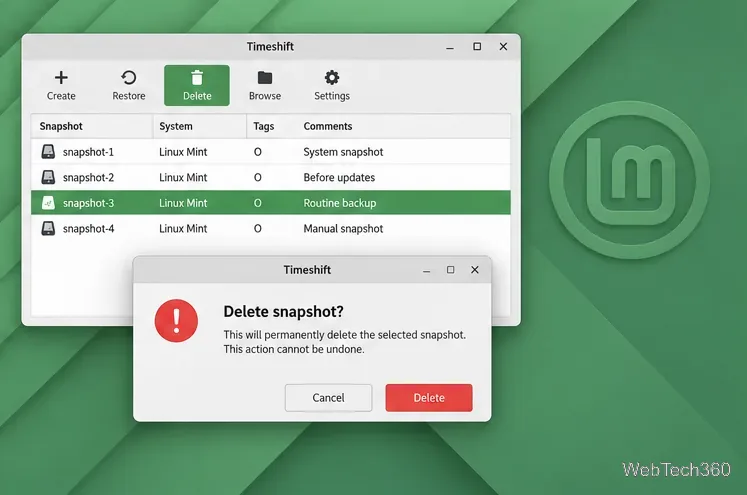
The screen illustrations below show representative Timeshift options. Exact wording and layout can vary by Linux Mint and Timeshift release.
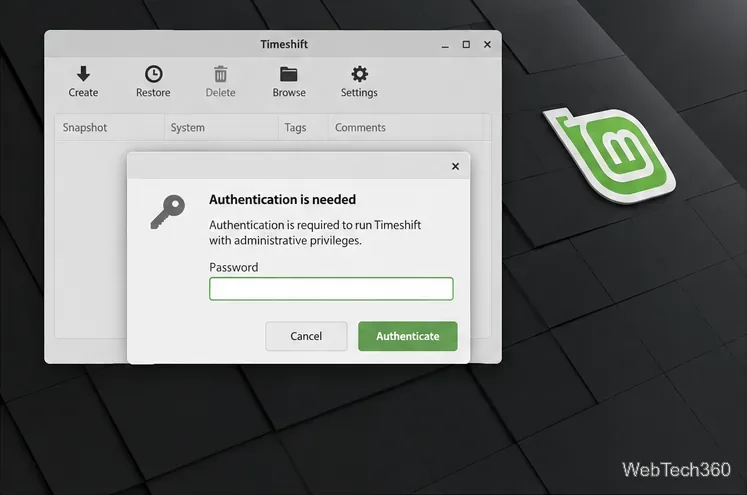
Timeshift is included with many Linux Mint installations. Search the application menu for Timeshift. If it is missing, install it through Software Manager or run sudo apt install timeshift in Terminal. Starting the app requires administrator authentication; enter your account password when prompted.
@ root subvolume layout. If you are unsure which layout you have, choose Rsync. Select Next to continue.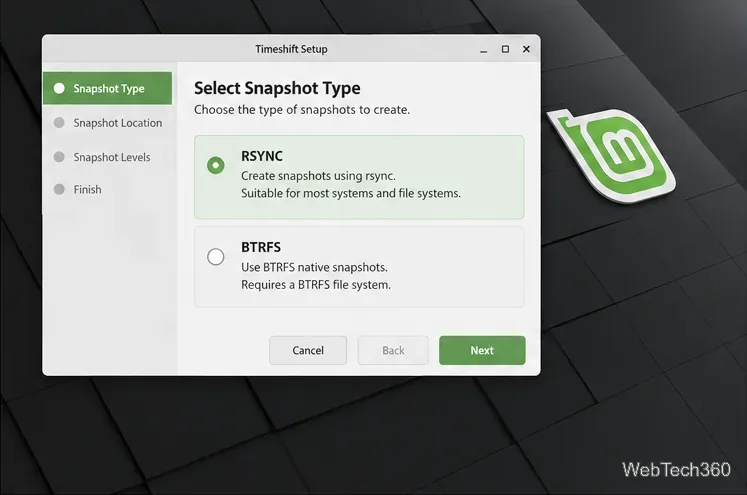
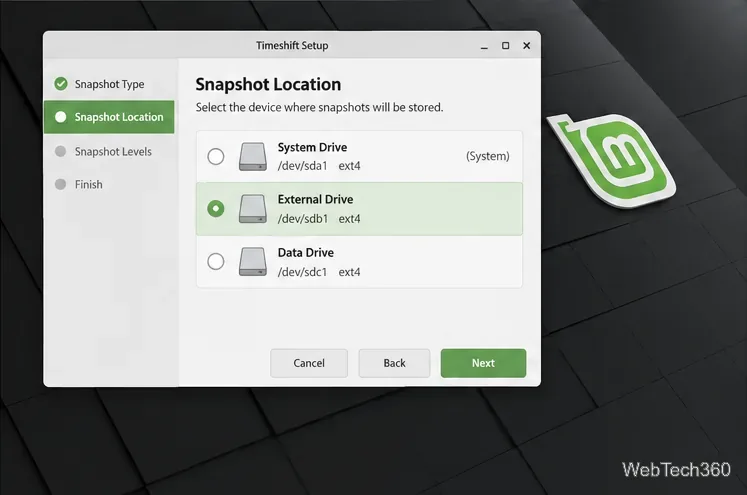
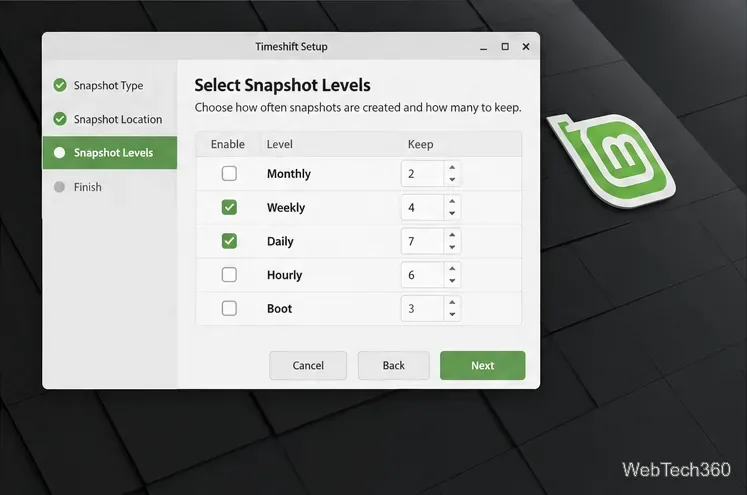
.config; those settings may also be rolled back when you restore a snapshot. Use a separate file-backup tool for personal files. Finish the wizard after checking the remaining settings.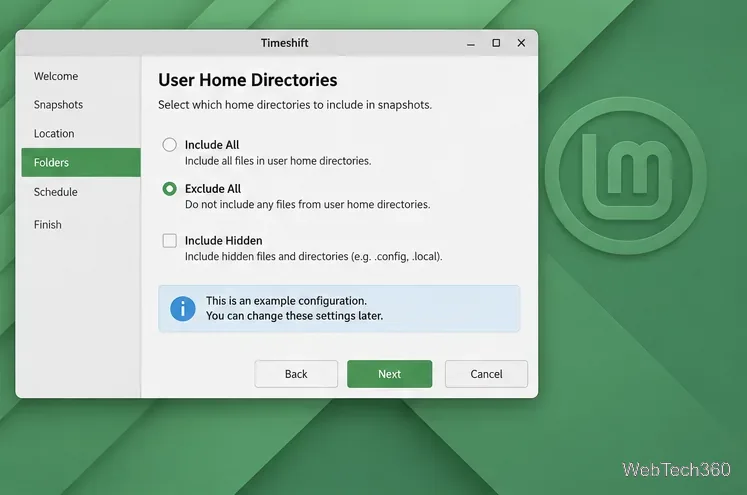
In Timeshift’s main window, select Create. The first Rsync snapshot can take a while because it has to copy the system files selected for protection. Let it finish, then confirm that a new entry appears in the snapshot list. Later Rsync snapshots can reuse unchanged data through hard links, but still need adequate free space. Create a manual snapshot before a major system change, such as a Linux Mint upgrade, even if automatic scheduling is enabled.
To roll back system changes, select the snapshot you want from the list and click Restore. Review the restore screens carefully, especially the device and bootloader mappings, before confirming. Restoring replaces system files with the versions in that snapshot, so any included settings or files can also roll back. A restore started from the running system requires a reboot to complete. If Linux Mint will not boot, start a Linux Mint live USB, open or install Timeshift in the live session, select the disk containing the snapshots, and follow the restore prompts.
Select an old snapshot in Timeshift and click Delete, then verify the selected entry before confirming. Deletion is permanent. Prefer adjusting the retention counts in Settings when you want Timeshift to remove older scheduled snapshots automatically. Do not let the snapshot destination run out of space; Timeshift’s upstream documentation recommends reducing snapshot levels or retention when storage is limited.
Timeshift is a system restore utility, not a complete disaster-recovery plan. Keep a separate copy of your personal files on another disk or trusted backup destination. A snapshot stored on the same physical drive also cannot protect against that drive’s failure. See the Timeshift project documentation for supported filesystems and restore details, and the Linux Mint upgrade guide for an example of creating a system snapshot before an upgrade.
Send and receive files over Bluetooth on Linux with Blueman. Install OBEX support, pair devices, choose a file, accept transfers, and fix common issues.
Connect GNOME Files to SSH/SFTP, FTP, SMB, WebDAV, or NFS with the correct server URI, sign-in details, and fixes for common connection errors.
Open SFTP, SSH, SMB, FTP, NFS, and WebDAV locations in Dolphin, sign in safely, transfer files, and save network folders for later.
Connect a DualShock 4 to Linux by USB or Bluetooth, then check controller detection and configure Steam Input only when a game needs it.
Use DNF5 parallel downloads to reduce RPM install waits in GNOME Software, then tell when mirror or Flatpak delays need a different fix.
Access iCloud on Linux in a current browser. Learn how to sign in, use iCloud Drive and other web apps, and understand the limits of browser access.
Save GRUB settings, boot files, and UEFI entry details to removable storage, then use rescue media to repair the correct boot path safely.
Install Bitwarden on Linux with the right DEB, RPM, Snap, Flatpak, or AppImage package, then sign in and set a secure vault timeout.
Pick a screensaver theme in Xfce, preview it, choose when it starts, and configure automatic locking in the separate Lock Screen tab.
Stop GNOME Shell from blanking or locking your display automatically. Change Power and Screen Lock settings, or use Caffeine for a temporary keep-awake toggle.








