Home
» LINUX
»
How to Set Up a High-Refresh-Rate Monitor on Linux
How to Set Up a High-Refresh-Rate Monitor on Linux
To set up a high-refresh-rate monitor on Linux, select it in your desktop’s display settings, choose a supported refresh rate, and apply the change. Menus vary by desktop; available modes depend on the monitor, GPU, resolution, and cable or dock.
Before changing the refresh rate
Check the monitor manual or on-screen display for rates supported at your chosen resolution and input. Some high rates work only through a particular port. If the mode is missing, connect directly to the GPU when possible and check the cable, adapter, and dock.
Use the monitor’s native resolution. With multiple screens, select the high-refresh monitor and configure it separately; mirroring can restrict available combinations. The examples below use 2560 × 1440 at 144 Hz.
Set the rate in your desktop environment
If the menu path differs, search the application menu for Displays, Display, or Monitor. Select the screen, choose a rate, and apply it.
GNOME
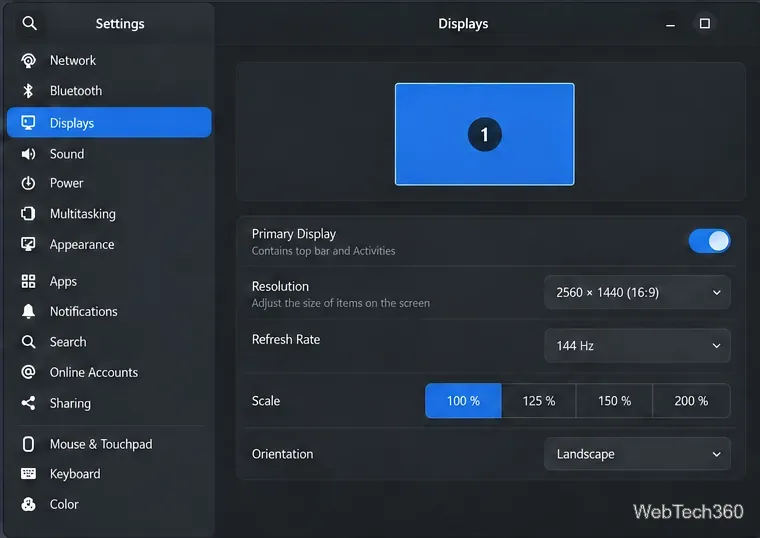
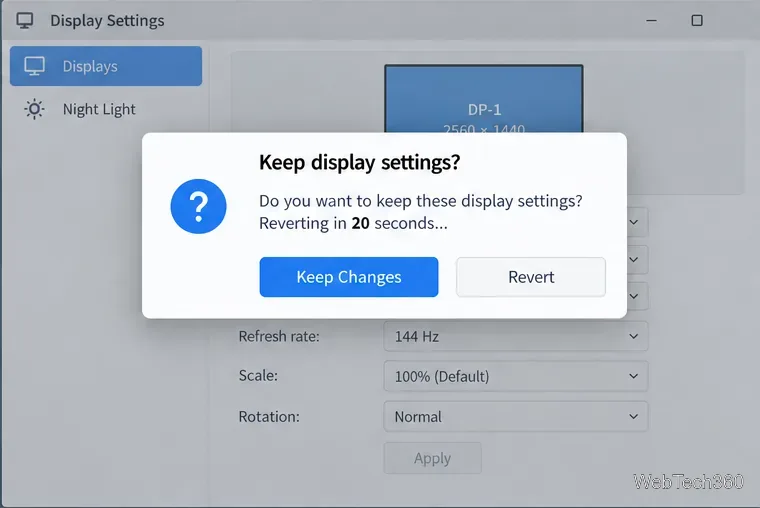
Open Activities, search for Displays, and select your monitor. Choose a value under Refresh Rate and click Apply. Confirm with Keep Changes if the picture is stable; otherwise, GNOME restores the previous mode after about 20 seconds.
Illustrative GNOME Displays panel: choose the selected monitor’s refresh rate, then apply and confirm it.
KDE Plasma
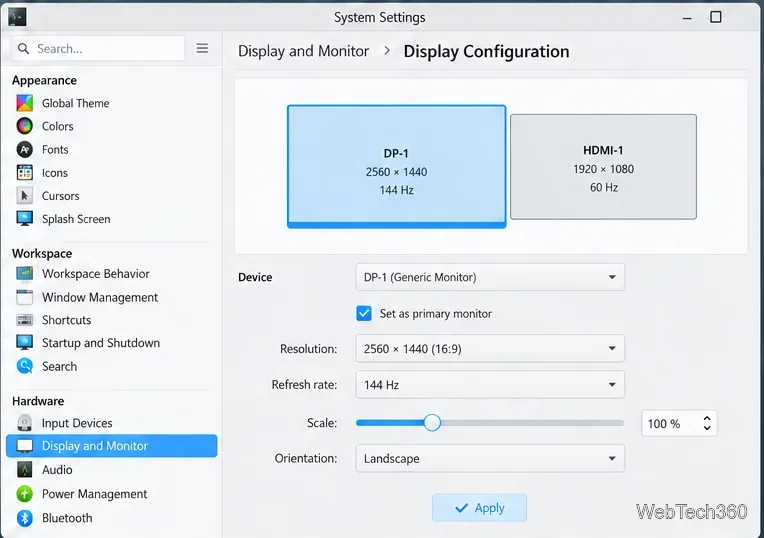
Open System Settings > Hardware > Display and Monitor > Display Configuration. Select the monitor, choose a rate, and apply it. Confirm the change only if the screen remains readable. Wording can vary by Plasma release.
Illustrative Plasma Display Configuration view with the selected monitor and refresh-rate menu.
Xfce
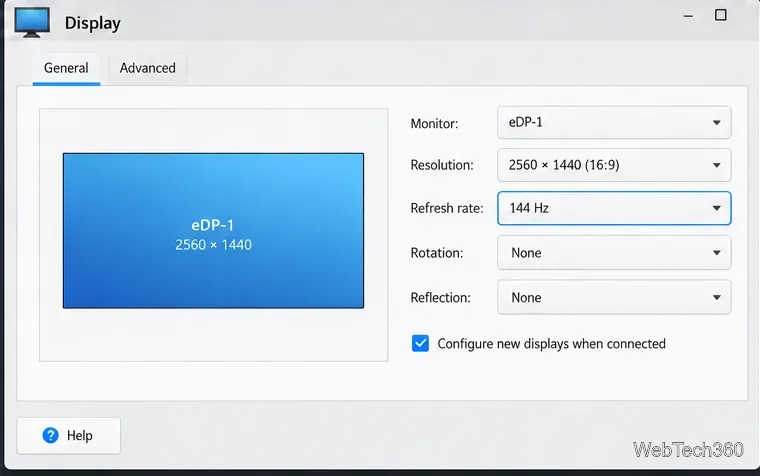
Open Settings > Display from the applications menu. Select the target monitor, choose a value from Refresh rate, and press Apply.
Illustrative Xfce Display panel with its refresh-rate list highlighted.
MATE
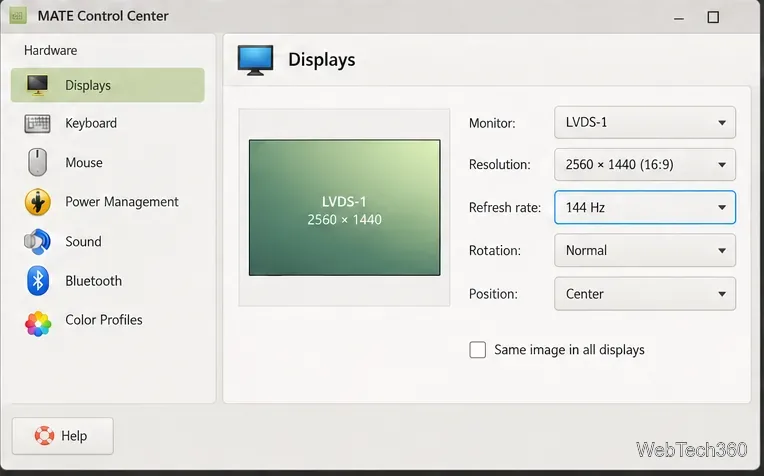
Open Control Center > Displays. Select the monitor, choose its refresh rate, and apply the change. Some distributions place the launcher in a differently named settings menu.
Illustrative MATE Displays panel showing a selected monitor and refresh-rate setting.
LXQt
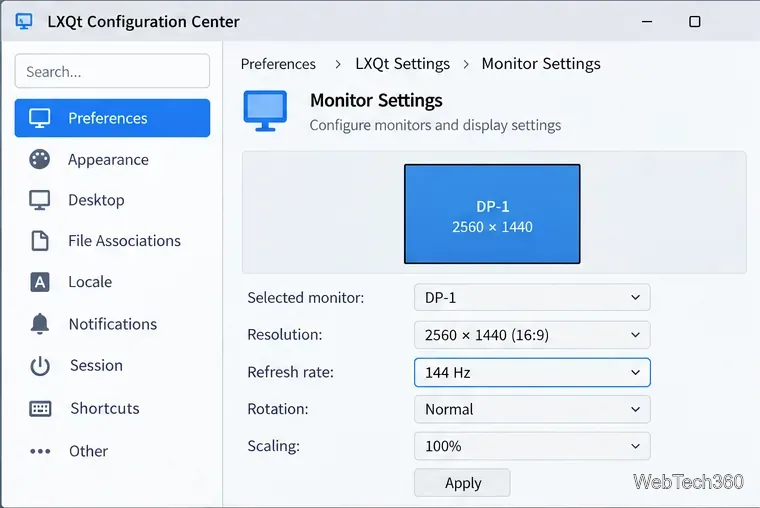
Open Preferences > LXQt Settings > Monitor Settings, select the screen, choose a rate, and click Apply. The utility is lxqt-config-monitor. LXQt says it is not currently supported under wlroots-based Wayland compositors; use that compositor’s display settings instead.
Illustrative LXQt Monitor Settings view; availability depends on the session and compositor.
Budgie
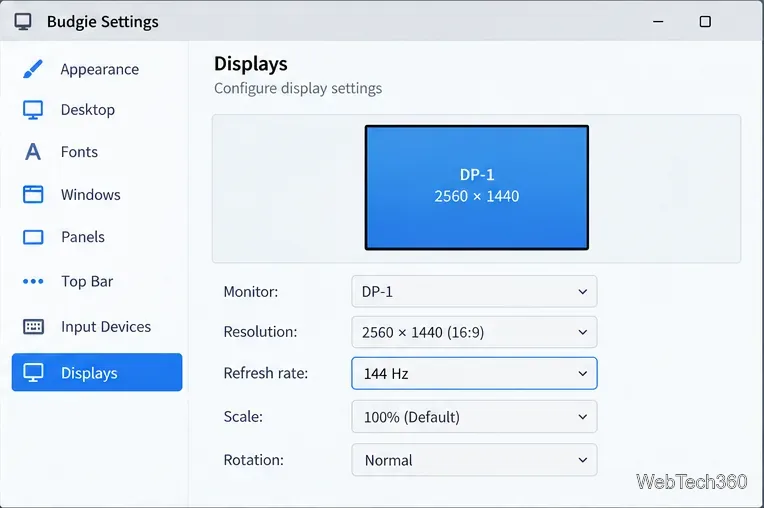
Open Budgie’s settings app and search for Displays. Select the monitor, choose a listed rate, and apply it. The display panel name varies by Budgie release and distribution; confirm the change if prompted.
Illustrative Budgie display settings; the panel name and available controls can vary by release.
Confirm and verify the change
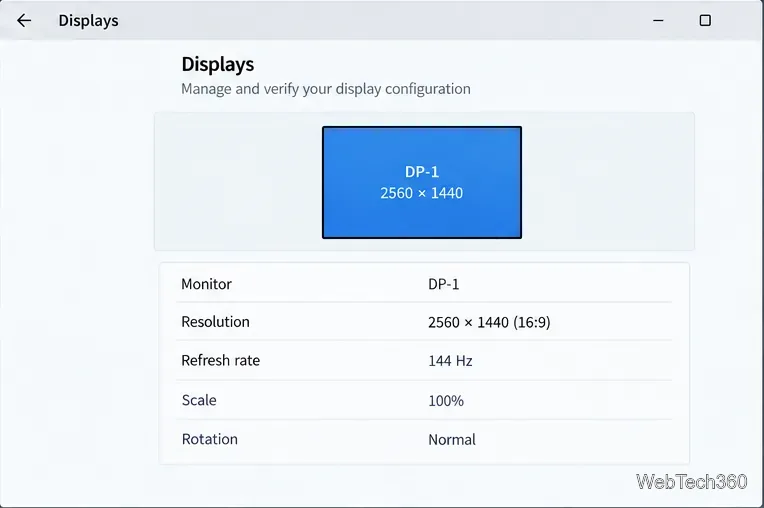
Keep a new mode only if the image is stable and readable. If the screen goes blank or distorted, wait for the countdown or choose Revert. Then check that the intended monitor still shows the selected resolution and rate.
Illustrative safety prompt: keep the mode only if the screen remains usable; otherwise let it revert.Illustrative verification view with the chosen resolution and refresh rate visible.
A 144 Hz setting does not force an app to render 144 frames per second; frame rate depends on the app, GPU, and its settings.
G-SYNC and variable refresh rate
G-SYNC or VRR is separate from the fixed refresh rate. Set the monitor’s mode first. If the monitor, GPU, driver, and compositor support VRR, enable it through the control your desktop or driver provides. NVIDIA’s current setting is named AllowVRR; the older AllowGSYNC name is deprecated. NVIDIA notes that nvidia-settings has limited functionality on Wayland, so its older OpenGL Settings checkbox is not a universal Linux step. If no VRR control appears, check your compositor and driver documentation.
If the high refresh rate is missing
Check the resolution and port: use native resolution and the monitor input rated for the desired mode.
Try a direct connection: a cable, adapter, dock, or GPU output can limit reported modes.
Use the right settings tool: configure Wayland displays through the desktop or compositor; xrandr is for X11/RandR.
Test separately: disable mirroring or disconnect other monitors to check whether the combination is limiting the rate.
Stay with listed modes: update the graphics driver through your distribution, reconnect the display, and check again. If a mode is unstable, let it revert and select a lower supported rate.