Home
» LINUX
»
How to Set Up a Jellyfin Media Server on Linux
How to Set Up a Jellyfin Media Server on Linux
To set up a Jellyfin media server on Linux, install the server package, open its web wizard, create an administrator account, and add your media folders. This guide uses Jellyfin’s current checksum-verified installer for Debian, Ubuntu, and supported derivatives. Other Linux distributions should follow Jellyfin’s container or community-package guidance.
Before starting, mount your media storage and note its Linux path, such as /srv/media/Movies. The package runs Jellyfin as a separate service account named jellyfin, which needs permission to traverse parent directories and read files. For other distributions or manual repository setup, see the official Linux installation guide.
Install and configure Jellyfin
1. Download and verify the installer
On the Debian or Ubuntu server, open a terminal or connect over SSH. Install the download and checksum tools, then fetch the script and its checksum file:
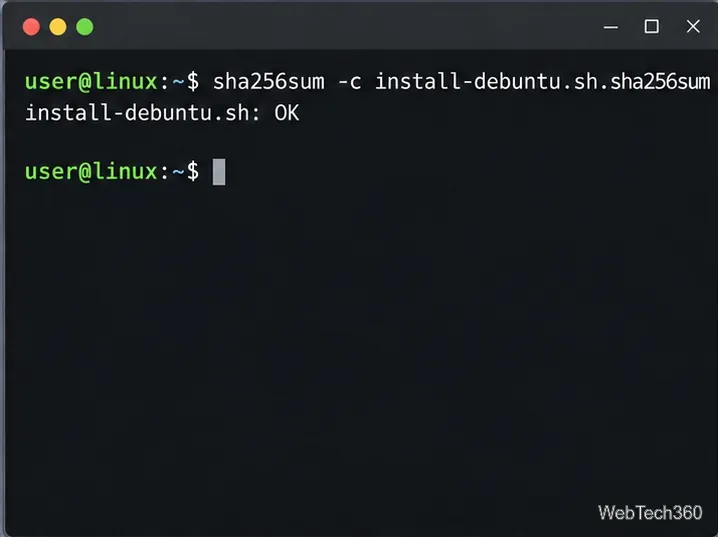
Continue only if the result is install-debuntu.sh: OK. Because the installer runs with elevated privileges, you may inspect it first with less install-debuntu.sh. Jellyfin’s guide lists supported derivatives and manual installation options.
2. Run the installer and check the service
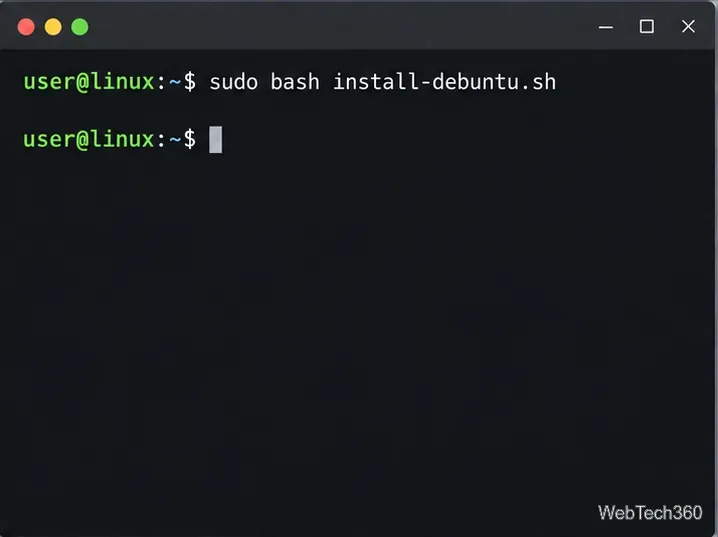
Run the verified script, then confirm Jellyfin is active:
sudo bash install-debuntu.sh
sudo systemctl status jellyfin
The official installer configures the Jellyfin repository and server package.
If it is stopped, enable it at boot and start it with sudo systemctl enable --now jellyfin.
3. Open the setup wizard
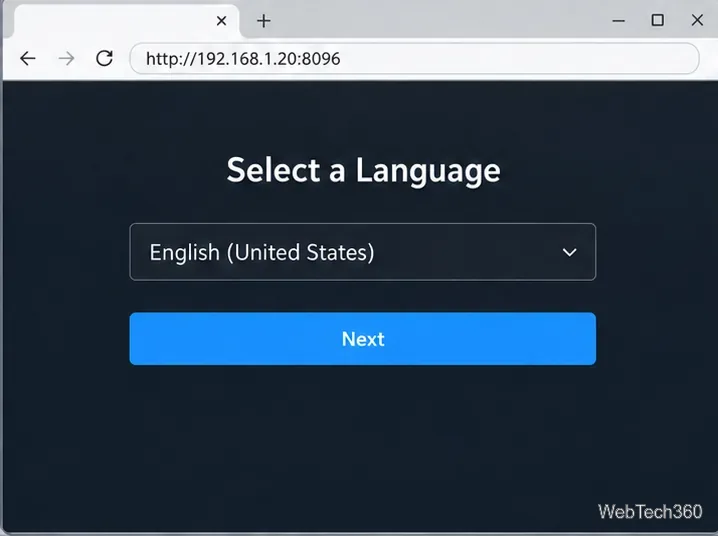
From a device on the same network, visit http://<server-ip>:8096, replacing the placeholder with the Linux server’s LAN address. Use http://localhost:8096 on the server itself. Port 8096/TCP is the default HTTP port. If the page will not load, check the service and allow the port through the firewall for trusted LAN devices.
Open the server address in a browser on the same network.
4. Choose a language and create an administrator
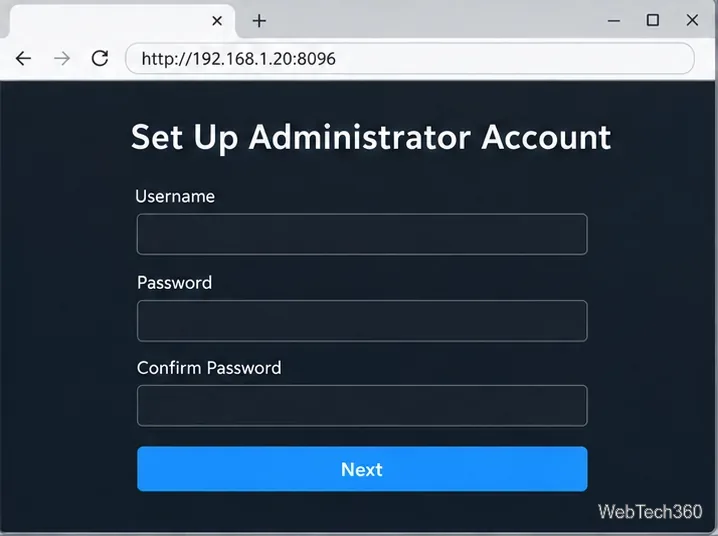
Select the setup interface language, then enter an administrator username and a strong, unique password. This account controls server settings and users; add other accounts after the wizard if needed.
Choose a unique administrator name and a strong password.
5. Add a media library
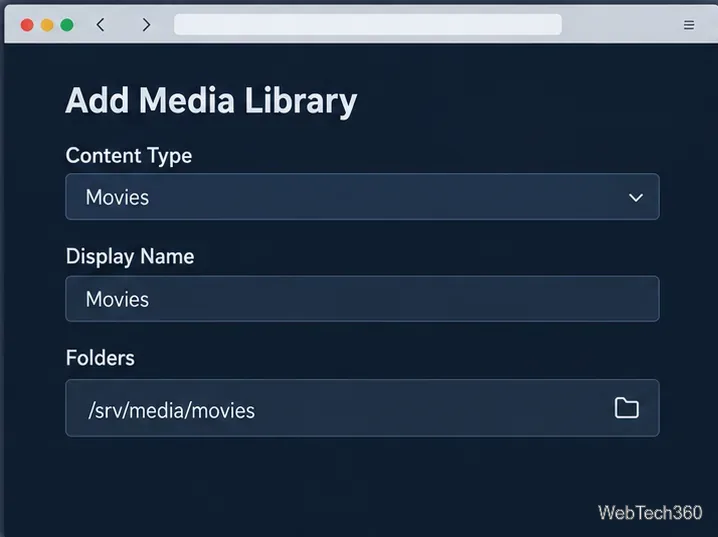
Choose Add Media Library, select a type such as Movies, Shows, or Music, enter a display name, and add its full folder path. Separate libraries help Jellyfin identify content. For example, use a folder such as /srv/media/Movies/Arrival (2016)/Arrival (2016).mkv. See the library guide and movie naming guide.
Add a dedicated library path that the Jellyfin service can read.
If a folder is missing or scans empty, test access as the service account: sudo -u jellyfin ls /srv/media/Movies. Grant it only read and directory-traverse permissions through your media group or a scoped ACL. Avoid broad recursive chmod 777 or changing ownership of an entire disk. The official FAQ also points to permissions and file organization as common causes of missing media.
6. Set the metadata language and region
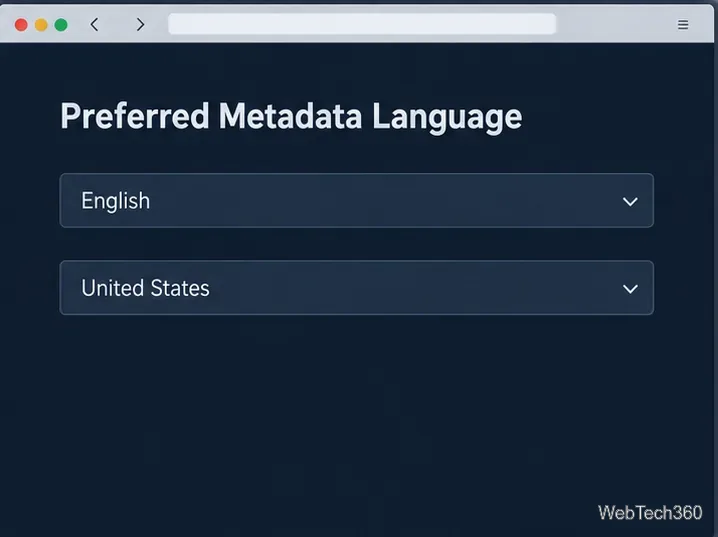
Choose the language and region Jellyfin should prefer for titles, descriptions, and other fetched metadata. This is separate from the setup interface language and can be changed per library later. Results depend on provider availability and an internet connection.
Set the language and region Jellyfin should use for metadata lookups.
7. Review remote-access settings
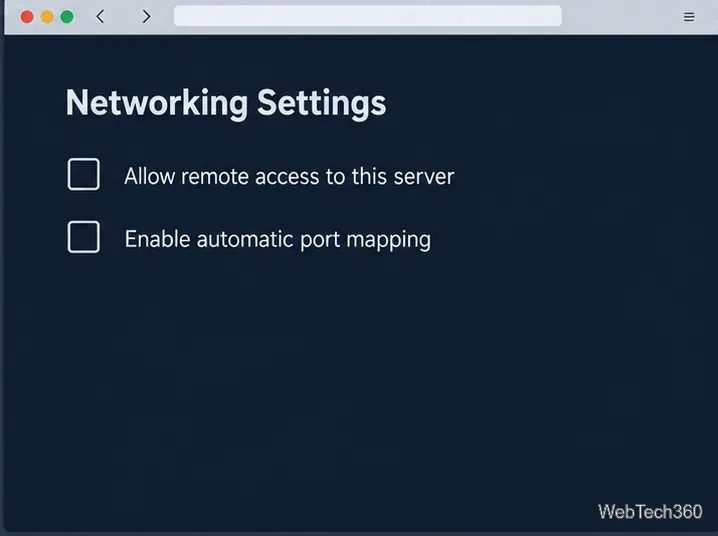
Leave remote access off for a local-only server. If you plan to watch from outside your home, enable Allow remote access to this server and separately configure a secure connection, such as a VPN or HTTPS reverse proxy. The wizard setting does not provide encryption or finish router configuration. Leave Enable automatic port mapping off unless you specifically need UPnP; Jellyfin recommends disabling it unless required.
Keep automatic port mapping disabled unless you specifically need UPnP.
Do not forward plain HTTP port 8096 directly to the public internet. Jellyfin’s default HTTPS port is 8920/TCP and is unused until HTTPS is configured. Follow the official networking guide before enabling off-site access.
8. Finish and test playback
Complete the wizard, sign in, and let Jellyfin scan the selected folders. Test from another device on your LAN, entering the server address and port manually if discovery does not find it. Compatible apps are listed on the official clients page.
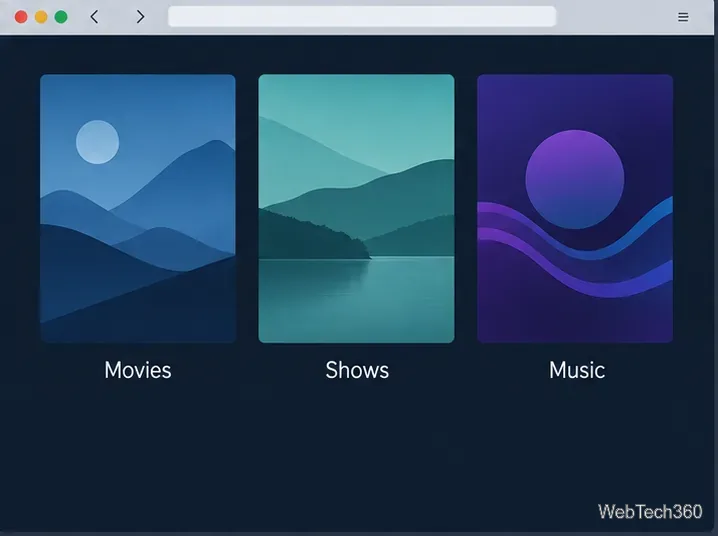
After the first scan, open a Jellyfin client and confirm the libraries appear.
Fix common setup problems
Web page unavailable: check sudo systemctl status jellyfin, the server IP, port 8096, and LAN firewall rules. Recent logs: sudo journalctl -u jellyfin -n 50 --no-pager.
Empty library: confirm storage is mounted and the jellyfin account can read the folder. Use the correct library type and supported naming.
Client cannot discover the server: enter the LAN address and :8096 manually. Local discovery uses UDP 7359, but direct address entry does not depend on discovery.
Once local playback works, add users or configure remote access as a separate networking task.