Home
» LINUX
»
How to Set Up a Music Library in Rhythmbox on Linux
How to Set Up a Music Library in Rhythmbox on Linux
To set up a music library in Rhythmbox, choose the folder where your audio files live, add that folder from the app’s Music > Add Music menu, then enable library monitoring if you want new files picked up automatically. Rhythmbox can scan a folder tree, so you can keep albums in subfolders; you do not have to move everything into ~/Music if your collection is stored somewhere else.
1. Install Rhythmbox if it is not already on your system
Rhythmbox is included with some GNOME-based Linux installations. Search your application menu first. If it is missing, install the package from your distribution’s repository. Common commands are:
Ubuntu or Debian: sudo apt install rhythmbox
Fedora: sudo dnf install rhythmbox
Arch Linux: sudo pacman -S rhythmbox
openSUSE: sudo zypper install rhythmbox
Package availability and versions vary by release, so use your distribution’s software center if a command does not find the package. The Rhythmbox project page lists the current upstream release and notes that many GNOME-oriented package repositories include the player. A Flatpak is also listed on Flathub; Flathub labels it a community-provided, unverified package, so the distribution package is the straightforward choice for most users.
2. Choose and organize your music folder
Keep your collection in one location that is available whenever Rhythmbox runs. The usual starting point is ~/Music, but a different folder, mounted drive, or network share can work too. For a removable or network location, mount it before opening Rhythmbox; the player cannot scan a drive that is offline or inaccessible.
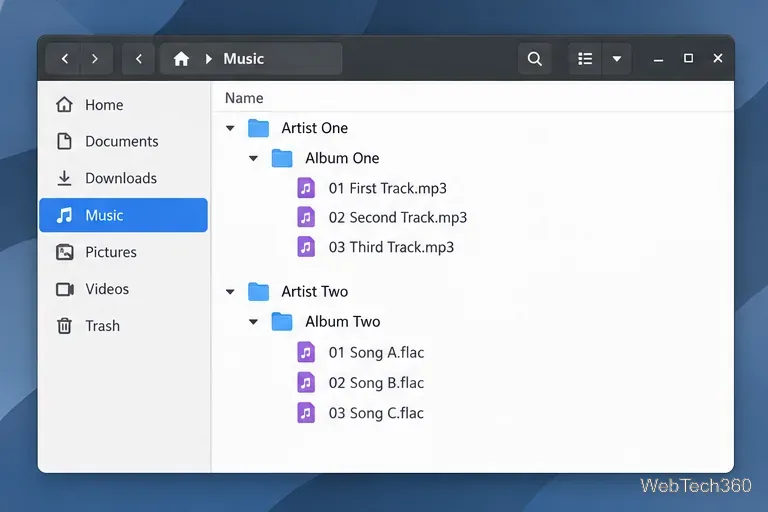
A folder structure such as Music/Artist/Album/track.flac makes the files easier to browse and back up. Rhythmbox reads the audio files’ embedded tags to display artist, album, and title information, so a tidy folder structure does not replace accurate tags. If songs appear with missing or incorrect details, check their metadata in a tag editor or in Rhythmbox’s track information.
Artist and album folders keep the collection easy to browse in your file manager.
3. Add the folder and import its tracks
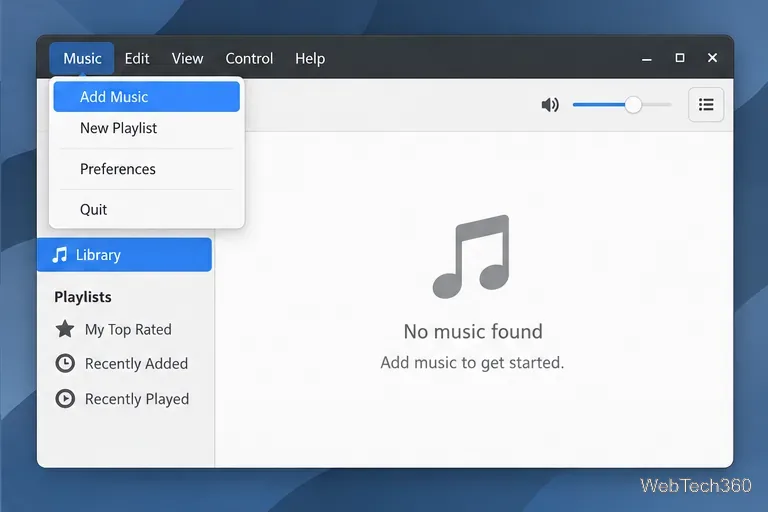
Open Rhythmbox and choose Music > Add Music from the application menu. Menu placement can differ slightly across desktop environments.
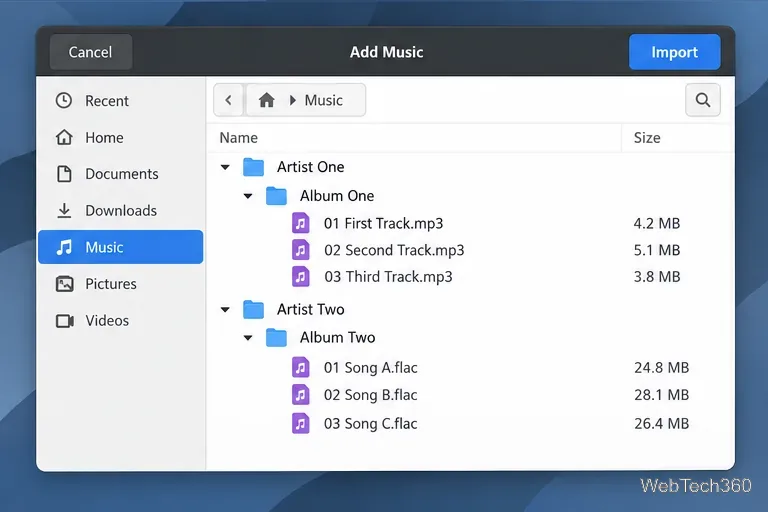
In the folder chooser, select the top-level folder that contains your collection. For example, choose ~/Music if your albums are stored beneath it. If your music is elsewhere, navigate to that location instead.
Wait for Rhythmbox to scan the selection. If the import view lists tracks, review the list and choose Import to add them to the library.
After importing, select Music or Library in the left sidebar to browse the tracks. If the list is empty, make sure you selected the folder that actually contains the audio, not a neighboring folder. Rhythmbox uses GStreamer for playback, so whether a particular format plays depends on the codecs available on your Linux system.
Open Add Music from the application menu to choose a library folder.Choose the collection folder, then confirm the listed tracks with Import when prompted.
4. Turn on automatic library updates
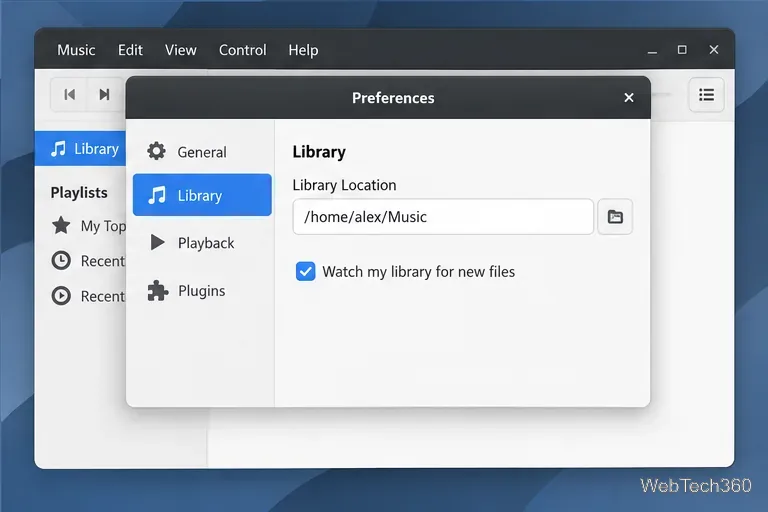
To have Rhythmbox notice files you add later, open Music > Preferences and select the Library page. Confirm that Library Location points to the folder you want Rhythmbox to manage, then enable Watch my library for new files. Close Preferences when finished.
With monitoring enabled, save new audio files inside the library folder or one of its subfolders. Files outside that location will not be included just because they are on the same computer. If your version uses slightly different labels, look in Preferences for the library location and file-watching option; the Rhythmbox user manual covers the library and import controls.
Check the library location and enable the option to watch it for new files.
Fix common library problems
New tracks do not appear: Check that monitoring is enabled and that the files are inside the configured library folder. For a one-time update, run Add Music again and import the folder.
The library is empty: Confirm that the selected folder contains audio files and that a mounted drive is available to your user account.
Tracks appear but will not play: Your distribution may need an additional GStreamer codec package for that format. Install codecs from trusted distribution repositories.
Artist or album names are missing: The files may not contain complete tags. Correct the metadata, then rescan or reimport the folder.
For version-specific information, use the upstream source and issue tracker or your distribution’s package documentation. Once the correct folder is selected and monitoring is enabled, Rhythmbox can keep a local collection organized as you add music over time.