How to Share Files Over Bluetooth on Linux with Blueman

Send and receive files over Bluetooth on Linux with Blueman. Install OBEX support, pair devices, choose a file, accept transfers, and fix common issues.
Install Ubuntu’s tftpd-hpa server and tftp-hpa client. This setup serves files from /srv/tftp and keeps uploads in a separate directory. Check the Ubuntu server package and client package listings.
Security: TFTP has no login or encryption. Restrict access to a trusted LAN; reachable clients can read available files and may upload where permissions allow. Do not transfer secrets. The TFTP specification describes its security limits.
Refresh APT metadata, then install both packages:
sudo apt update
sudo apt install tftpd-hpa tftp-hpa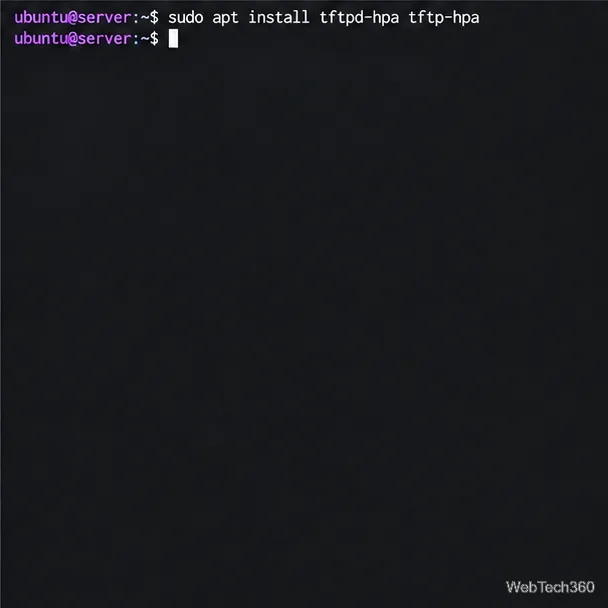
Edit the package configuration file:
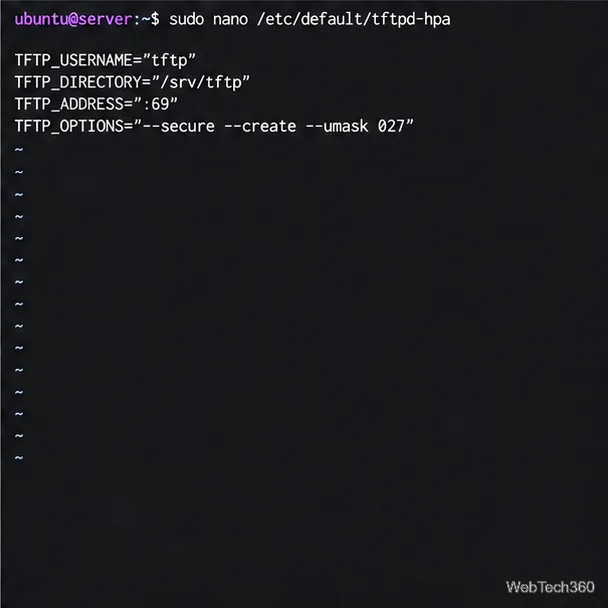
sudo nano /etc/default/tftpd-hpaSet these values:
TFTP_USERNAME="tftp"
TFTP_DIRECTORY="/srv/tftp"
TFTP_ADDRESS=":69"
TFTP_OPTIONS="--secure --create --umask 027"
--secure confines the daemon to its configured root, --create allows uploads, and --umask 027 limits new upload files to mode 0640. The Ubuntu tftpd manual documents these options. Save with Ctrl+O, press Enter, then Ctrl+X.
Because --secure makes /srv/tftp the client-visible root, filenames are relative to it: use hello.txt, not /srv/tftp/hello.txt. TFTP clients do not browse directories, so keep a list of published filenames and their paths.
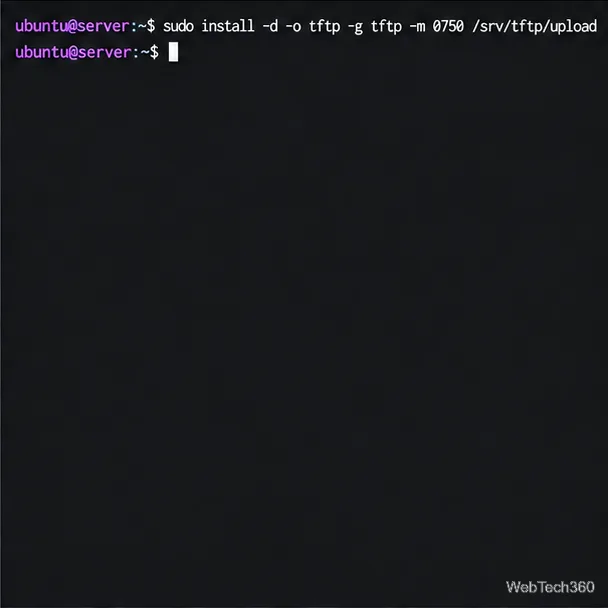
Keep the main root owned by root, and give write access only to the upload folder:
sudo install -d -o root -g root -m 0755 /srv/tftp
sudo install -d -o tftp -g tftp -m 0750 /srv/tftp/upload
The daemon can read the root but only the tftp account can write in /srv/tftp/upload. Avoid making the whole tree world-writable with permissions such as 777.
Files in the public root should be treated as readable by every allowed client. Keep that tree limited to boot images, firmware, or other material intended for that network. For private transfers, choose a protocol with authentication and encryption.
Create a known file in the root. TFTP’s default read checks require served files to be publicly readable, so set mode 0644:
echo 'TFTP test file' | sudo tee /srv/tftp/hello.txt
sudo chmod 0644 /srv/tftp/hello.txt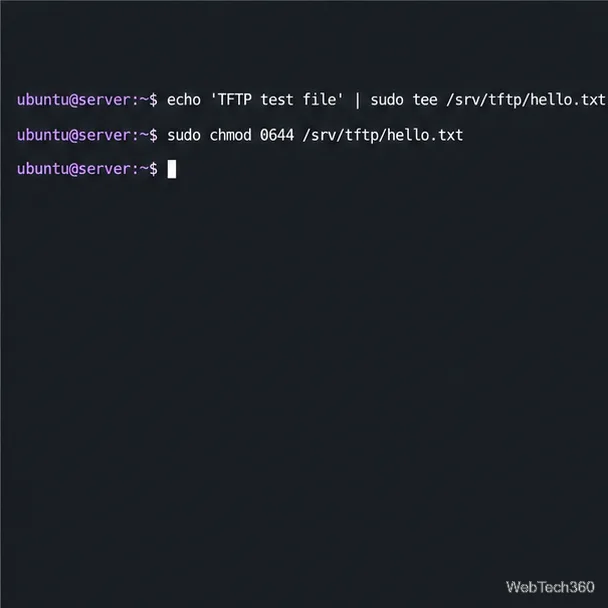
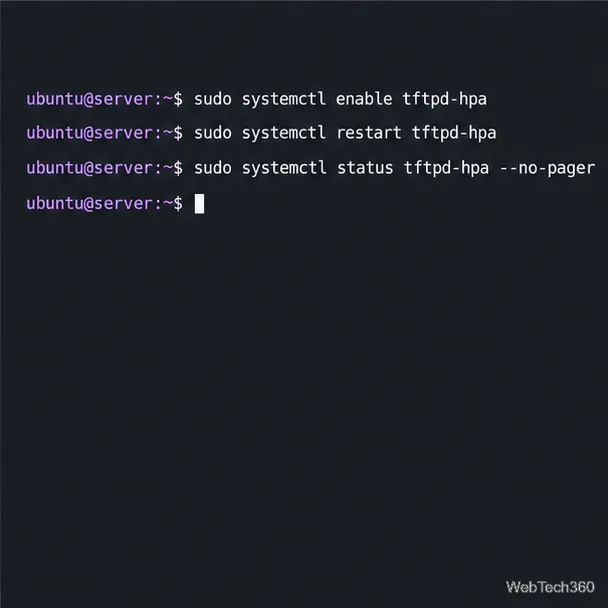
Enable the unit at boot, restart it to apply the settings, and inspect its status:
sudo systemctl enable tftpd-hpa
sudo systemctl restart tftpd-hpa
sudo systemctl status tftpd-hpa --no-pager
If startup fails, check the service log with sudo journalctl -u tftpd-hpa -b --no-pager.
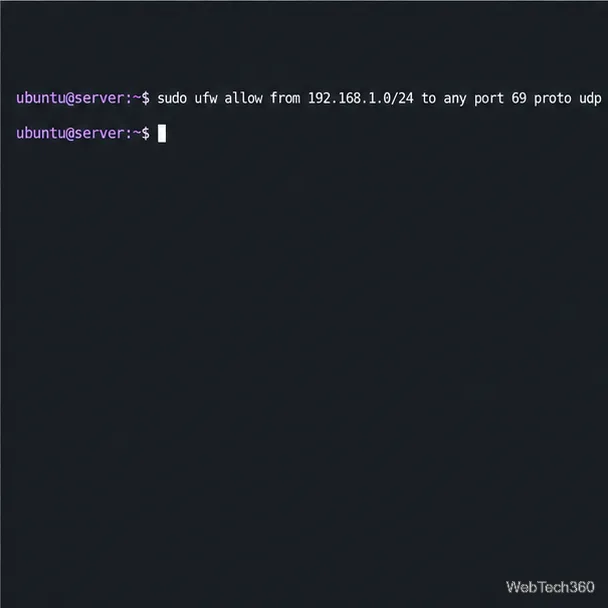
If UFW is enabled, allow the initial request only from your client subnet. Replace the example network with your trusted LAN range:
sudo ufw allow from 192.168.1.0/24 to any port 69 proto udp
sudo ufw status
See Ubuntu’s UFW guide for source-network rules. TFTP starts on UDP port 69, then uses a server-selected UDP port for file data, as described in the protocol specification. A strict firewall, router, or NAT device may allow the request but block the transfer. If clients time out, use TFTP-aware connection tracking or an appropriate firewall policy; do not open every UDP port or expose TFTP to the internet. This command adds a rule; it does not enable UFW. If you administer the server over SSH and intend to turn on an inactive firewall, allow SSH first to preserve remote access.
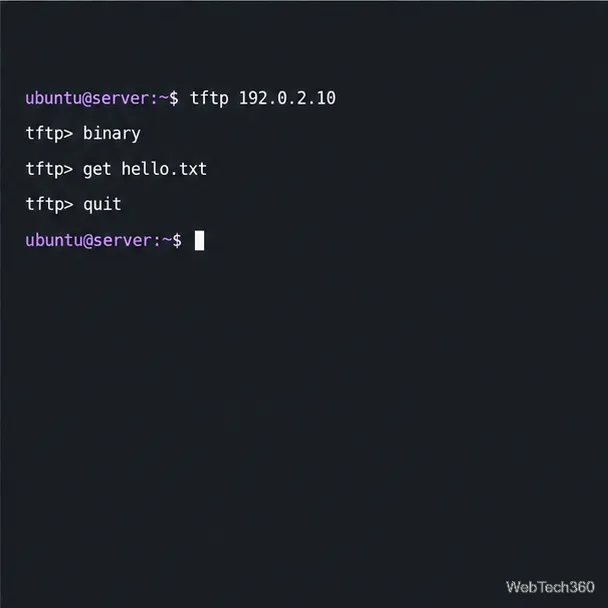
On the server, run ip -brief address and note its reachable LAN address. On an Ubuntu client, install the client if needed. Replace 192.0.2.10 below with the real server address:
sudo apt install tftp-hpa
tftp 192.0.2.10
tftp> binary
tftp> get hello.txt
tftp> quit
The file is saved in the client’s current directory. The Ubuntu tftp client manual documents binary and get. Binary mode is recommended for firmware, boot images, and files whose bytes must remain unchanged. Linux filenames are case-sensitive, so enter each remote name exactly.
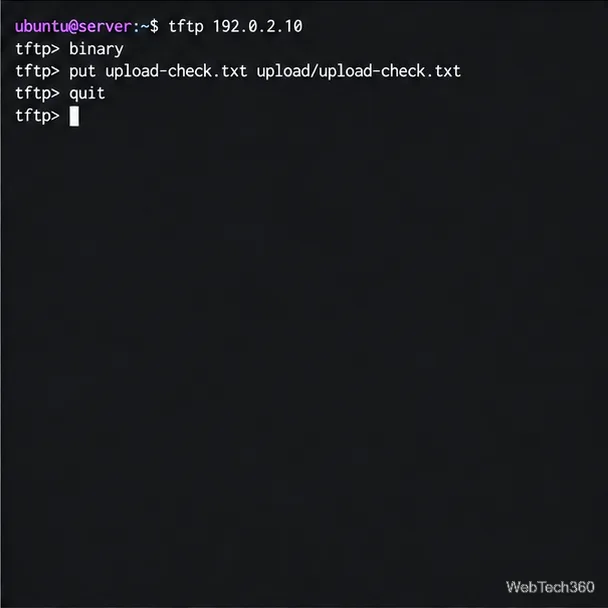
On the client, create a test file, then send it to a path under the server’s upload directory:
printf 'Upload test' > upload-check.txt
tftp 192.0.2.10
tftp> binary
tftp> put upload-check.txt upload/upload-check.txt
tftp> quit
Use the server’s actual address. The remote path is relative to /srv/tftp; verify the upload on the server with sudo ls -l /srv/tftp/upload/. TFTP clients use known filenames rather than browsing a directory listing.
/srv/tftp and confirm it exists.tftp ownership of the destination and confirm --create is set.To isolate a network issue, test from a client on the same LAN first. If that works but a routed client times out, check the router or firewall for TFTP-aware handling of the negotiated data port.
For a read-only service, remove --create from TFTP_OPTIONS and restart tftpd-hpa.
Send and receive files over Bluetooth on Linux with Blueman. Install OBEX support, pair devices, choose a file, accept transfers, and fix common issues.
Connect GNOME Files to SSH/SFTP, FTP, SMB, WebDAV, or NFS with the correct server URI, sign-in details, and fixes for common connection errors.
Open SFTP, SSH, SMB, FTP, NFS, and WebDAV locations in Dolphin, sign in safely, transfer files, and save network folders for later.
Connect a DualShock 4 to Linux by USB or Bluetooth, then check controller detection and configure Steam Input only when a game needs it.
Use DNF5 parallel downloads to reduce RPM install waits in GNOME Software, then tell when mirror or Flatpak delays need a different fix.
Access iCloud on Linux in a current browser. Learn how to sign in, use iCloud Drive and other web apps, and understand the limits of browser access.
Save GRUB settings, boot files, and UEFI entry details to removable storage, then use rescue media to repair the correct boot path safely.
Install Bitwarden on Linux with the right DEB, RPM, Snap, Flatpak, or AppImage package, then sign in and set a secure vault timeout.
Pick a screensaver theme in Xfce, preview it, choose when it starts, and configure automatic locking in the separate Lock Screen tab.
Stop GNOME Shell from blanking or locking your display automatically. Change Power and Screen Lock settings, or use Caffeine for a temporary keep-awake toggle.








