How to Access a Windows BitLocker Partition in Linux

Use Dislocker to unlock a BitLocker volume in Linux, mount its virtual NTFS file read-only, and safely unmount it without exposing your password in a command.
Setting up an encrypted data volume on SUSE Linux Enterprise Server is easier when you separate the job into two layers. LUKS, or Linux Unified Key Setup, protects a block device such as a disk or partition. After you unlock that device, Linux exposes a normal mapped device under /dev/mapper/, where you can create a file system and mount it like any other storage.
This guide uses a dedicated secondary disk, /dev/sdb, as the example. The mounted volume will appear at /data/secure and the unlocked mapping will be called securedata. Replace those names with the values on your server.
Version note: the command-line workflow below is suitable for current SUSE Linux Enterprise Server releases that include cryptsetup. The SUSE Linux Enterprise Server 16.0 documentation published in 2026 includes encrypted storage support in Cockpit, while the SLES 15 SP7 Security and Hardening Guide documents LUKS-based encrypted partitions in YaST. The CLI route is used here because it makes each storage layer visible and is easier to troubleshoot. See the SUSE Linux Enterprise Server 16.0 documentation and the SLES 15 SP7 encryption guide for the vendor documentation.
LUKS is the standard Linux on-disk format for encrypted block devices. It stores encryption metadata in a LUKS header and lets one encrypted volume have multiple unlock credentials. Current cryptsetup normally creates LUKS2 unless you explicitly request another format.
Encryption protects data at rest. If someone steals a powered-off disk, they should not be able to read the encrypted payload without a valid key or passphrase. Once the volume is unlocked and mounted, however, ordinary Linux permissions control access. LUKS does not protect files from a process that already has legitimate access to the mounted file system.
Prepare these items before running destructive storage commands:
/dev/sdb.sudo or a root shell.cryptsetup utility. Check with cryptsetup --version. If it is not installed, install the package through your normal SUSE software-management process.Critical warning: cryptsetup luksFormat writes a new LUKS header and makes existing data on the target device inaccessible. SUSE also warns that converting an existing partition to encrypted storage on a running system destroys the data on that partition. Do not continue until you have positively identified the target device.
Start by listing block devices:
lsblk -o NAME,SIZE,FSTYPE,TYPE,MOUNTPOINTS
lsblk -f
Check the size, device name, existing file system, and mount points. In this example, /dev/sdb is a separate 20 GB disk with no mounted file system. Your server may instead use a partition such as /dev/sdb1, an NVMe name such as /dev/nvme1n1p1, or a virtual disk such as /dev/vdb.
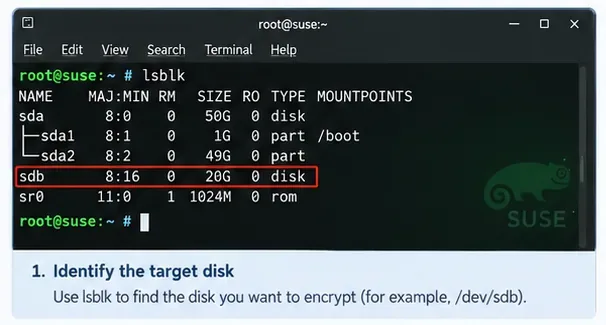
Caption: Verify the target device by name, size, and mount state before running any LUKS formatting command.
Do not identify a disk only by its letter. Device names can change after hardware or virtual-machine configuration changes. Before destructive commands, compare lsblk with your storage inventory, hypervisor settings, or SAN presentation information.
Create the encrypted container:
sudo cryptsetup luksFormat /dev/sdbluksFormat initializes the LUKS metadata and prompts for confirmation and a passphrase. Current cryptsetup defaults to LUKS2. You can inspect the result afterward with:
sudo cryptsetup luksDump /dev/sdb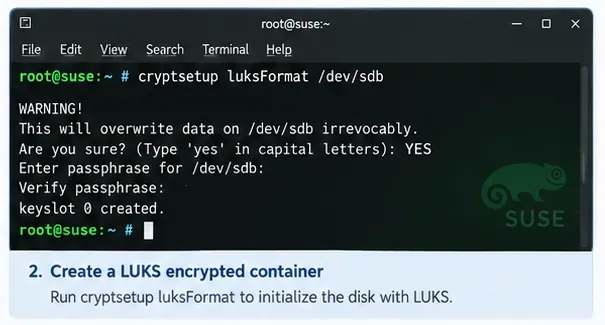
Caption: The LUKS format step is destructive, so cryptsetup asks for explicit confirmation before creating the encrypted container.
Avoid adding cipher, key-size, or PBKDF options just because you saw them in an older tutorial. Cryptsetup and SUSE provide modern defaults, and changing them without a documented requirement can reduce compatibility or make recovery harder.
A LUKS container cannot be formatted with a normal file system until it is unlocked. Open it and create a device-mapper mapping named securedata:
sudo cryptsetup open /dev/sdb securedataAfter you enter the passphrase, the decrypted mapping appears as:
/dev/mapper/securedataYou can confirm it with:
sudo cryptsetup status securedata
lsblk -f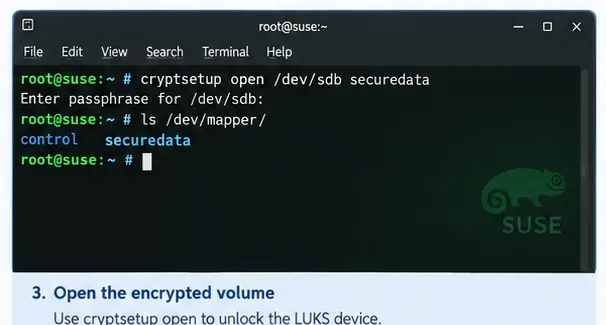
Caption: Unlocking the LUKS container creates a mapped block device named securedata under /dev/mapper.
The LUKS layer encrypts blocks; it does not provide directories or files by itself. Create the file system on the mapped device, not on the raw encrypted disk. This example uses ext4:
sudo mkfs.ext4 /dev/mapper/securedataIf your storage standard requires XFS or another supported file system, use that instead. The important rule is that the file system belongs on /dev/mapper/securedata, while /dev/sdb remains the encrypted LUKS container.
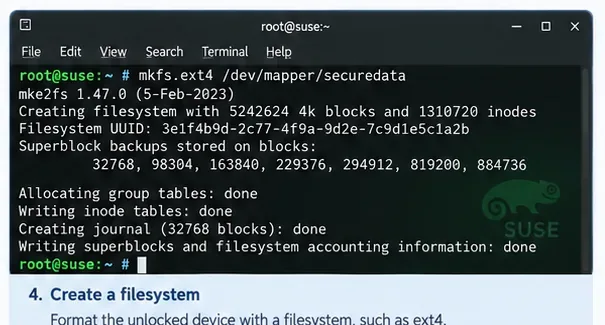
Caption: Create the normal Linux file system inside the unlocked mapping, not directly on the encrypted backing disk.
Create a directory and mount the new file system:
sudo mkdir -p /data/secure
sudo mount /dev/mapper/securedata /data/secure
df -h /data/secure
At this point the volume is usable. Create a small test file if appropriate for your environment, read it back, and then remove it. This verifies the full path from LUKS unlock through the file system to the mounted directory.
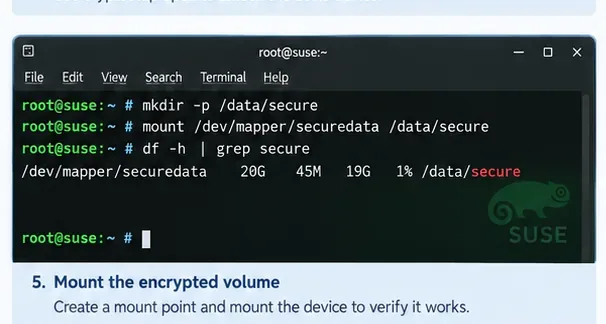
Caption: A successful test mount confirms that the decrypted mapping and its file system are usable before you configure boot-time behavior.
For persistent configuration, prefer stable identifiers instead of assuming the disk will always be called /dev/sdb. Display both the LUKS UUID and the file-system UUID:
sudo blkid /dev/sdb
sudo blkid /dev/mapper/securedata
The raw device should report a type such as crypto_LUKS. The mapped device should report the file-system type and its own UUID. Keep these two UUIDs straight: the LUKS UUID identifies the encrypted container, while the file-system UUID identifies the file system inside it.
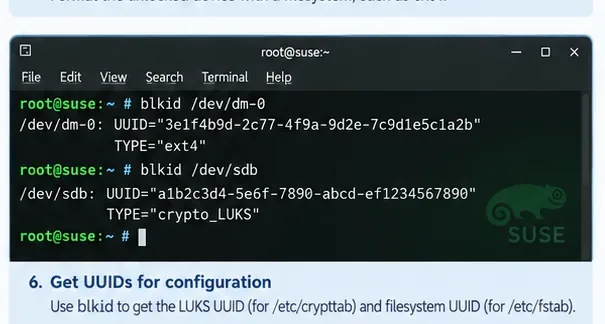
Caption: The encrypted container and the file system inside it have separate identifiers that serve different configuration purposes.
On systemd-based Linux systems, /etc/crypttab describes encrypted block devices that should be opened during boot. A basic passphrase-prompted entry has four fields: mapping name, encrypted device, key file, and options.
Using the LUKS UUID from the previous step, an example entry is:
securedata UUID=<LUKS-UUID> none luksThen add the mounted file system to /etc/fstab. You can reference the mapped device or its file-system UUID. SUSE's SLES 15 SP7 guidance notes that YaST commonly uses the mapper device name for newly configured LUKS mount points because it works robustly with systemd generators. A straightforward entry is:
/dev/mapper/securedata /data/secure ext4 defaults 0 2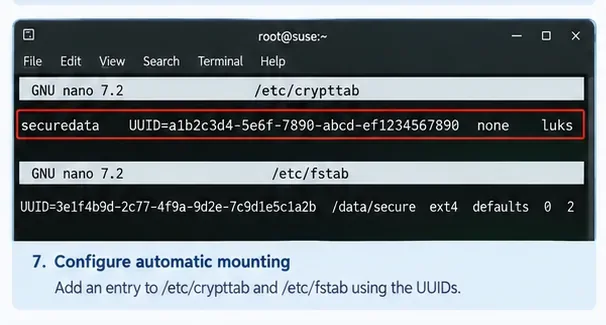
Caption: The crypttab entry opens the encrypted container, while the fstab entry mounts the file system exposed through the mapper device.
Before rebooting, check for simple mistakes. You can run:
sudo systemctl daemon-reload
sudo mount -a
mount -a helps catch many fstab problems, but it does not replace testing the actual boot-time unlock sequence.
For an ordinary secondary data volume, editing /etc/crypttab and /etc/fstab is normally the key persistent configuration. Reboot the server and verify that you receive the expected passphrase prompt, the LUKS mapping opens, and the file system mounts:
sudo reboot

lsblk -f
sudo cryptsetup status securedata
findmnt /data/secure
If the encrypted device is needed during the early initramfs stage—for example, because it contains storage required before the normal root file system is fully available—your design may also require regenerating initramfs with dracut. Do not add an initramfs rebuild mechanically to every data-volume setup; whether it is necessary depends on when the device must be available during boot.
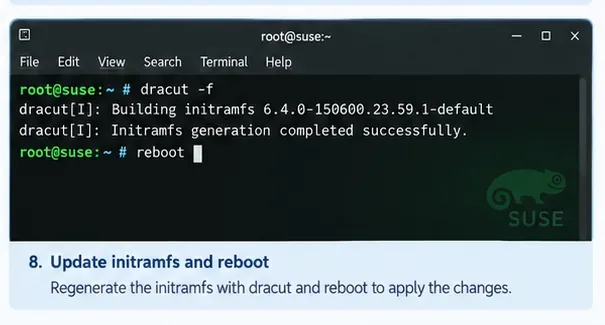
Caption: Rebuilding initramfs with dracut is relevant for early-boot encrypted storage; a normal secondary data volume may only need crypttab, fstab, and a reboot test.
The LUKS header contains critical metadata and keyslot information. After the volume is working, consider making an offline header backup:
sudo cryptsetup luksHeaderBackup /dev/sdb --header-backup-file /root/securedata-luks-header.imgThen move the backup to a protected location that is separate from the encrypted disk. Treat the backup as sensitive: a header backup plus a passphrase that was valid when the backup was made can be enough to decrypt the data area. The cryptsetup project documents this behavior in its official cryptsetup FAQ.
| Mistake | Why it matters | Safer approach |
|---|---|---|
Running luksFormat on the wrong disk | The existing data becomes inaccessible. | Verify device name, size, mount points, and storage inventory first. |
Formatting /dev/sdb with ext4 after creating LUKS | That overwrites the LUKS layer instead of creating a file system inside it. | Run mkfs on /dev/mapper/securedata. |
| Forgetting the passphrase | LUKS is designed so data cannot simply be recovered without an enrolled key. | Use your organization's approved secret-recovery process and maintain tested recovery material. |
| Assuming encryption replaces Linux permissions | Mounted data is available to processes with sufficient OS permissions. | Keep ownership, permissions, SELinux/AppArmor policy, and application controls appropriate. |
| Using unstable device names in boot configuration | Disk letters can change. | Use UUIDs or stable mapper names where appropriate. |
| Skipping a reboot test | A manual mount can work even when boot-time configuration is wrong. | Test the actual restart sequence during a maintenance window. |
If you prefer a graphical workflow, SUSE provides supported management interfaces. The SLES 15 SP7 Security and Hardening Guide documents encrypted partitions in YaST's Expert Partitioner. SUSE Linux Enterprise Server 16.0 documentation also describes encrypted partition configuration in Cockpit, including a passphrase and encryption options. Use the SLES 15 SP7 Expert Partitioner documentation or the SLES 16.0 Cockpit administration guide if your operational standard favors those tools.
A successful setup should survive more than one command. You should be able to reboot, unlock the volume through the intended method, confirm the securedata mapping is active, verify /data/secure is mounted, and read the expected files. You should also know where the passphrase recovery process and LUKS header backup are stored.
That is the useful mental model to keep: the physical disk holds a LUKS container; unlocking it creates a mapper device; the mapper device holds the file system; and the file system is mounted at a directory. Once those layers are clear, most LUKS troubleshooting becomes much more straightforward.
Use Dislocker to unlock a BitLocker volume in Linux, mount its virtual NTFS file read-only, and safely unmount it without exposing your password in a command.
Learn how to reduce RAM usage on Linux by finding memory-hungry apps, trimming browser and startup load, and testing a lighter desktop safely.
Compare four WhatsApp alternatives for Linux by privacy defaults, desktop support, setup requirements, and the people each app suits.
Troubleshoot a VirtualBox VM that will not start on Linux by checking vboxdrv, kernel headers, Secure Boot, Extension Pack versions, and VM logs.
Transfer your Ubuntu user data with a tar archive and external drive, then restore personal files and selected settings without overwriting the new setup.
Install gThumb on Linux, browse and make simple photo edits, then set it as the default app for the image types you choose in GNOME.
Create an organized playlist in Rhythmbox or save a reusable XSPF playlist in VLC. Learn how to add tracks, name a list, and reopen it on Linux.
Install Dino on Linux with Flatpak or your distribution’s package manager. Get current Ubuntu, Debian, Fedora, and Arch commands, plus first-launch tips.
Install Arch Linux’s linux-lts kernel, add it to GRUB or systemd-boot, select it at startup, and verify it while keeping a fallback kernel.
Download the right Pi 4 image, write it to a microSD card, and complete LibreELEC’s first-run setup with Raspberry Pi Imager.








