Home
» LINUX
»
How to Set Up an MP4 Video Player on Ubuntu
How to Set Up an MP4 Video Player on Ubuntu
If you need an MP4 video player on Ubuntu, VLC is the easiest place to start. It has a full graphical interface, handles the MP4 container and common codecs such as H.264 and AAC, and is available through Ubuntu's software tools. If you prefer a smaller, keyboard- and command-line-friendly player, mpv is an excellent alternative.
Option 1: Install VLC on Ubuntu
For most people, VLC is the simplest choice because you can install it from Ubuntu's App Center and open videos without hunting for separate codec packs. VideoLAN lists MP4/MOV/3GP among VLC's supported input formats and also documents support for widely used video codecs including H.264. See the official VLC features page for format details.
Install VLC from App Center
Open App Center from the Ubuntu dock, or search for it from Activities.
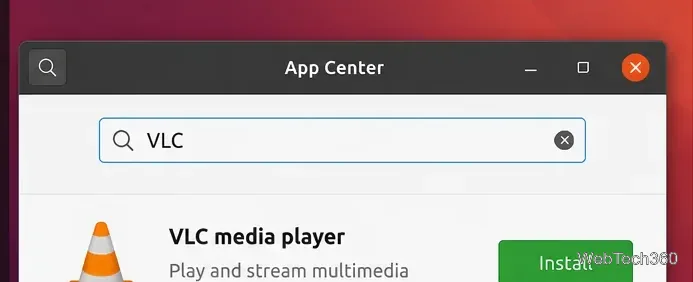
Search for VLC.
Select VLC media player and choose Install.
Enter your password if Ubuntu asks for authorization, then wait for the installation to finish.
Canonical's current App Center documentation notes that applications can be offered as Snap or Debian packages and that App Center may list the Snap first when both are available.
Search for VLC in App Center, select the media player, and choose Install.
Install VLC from Terminal instead
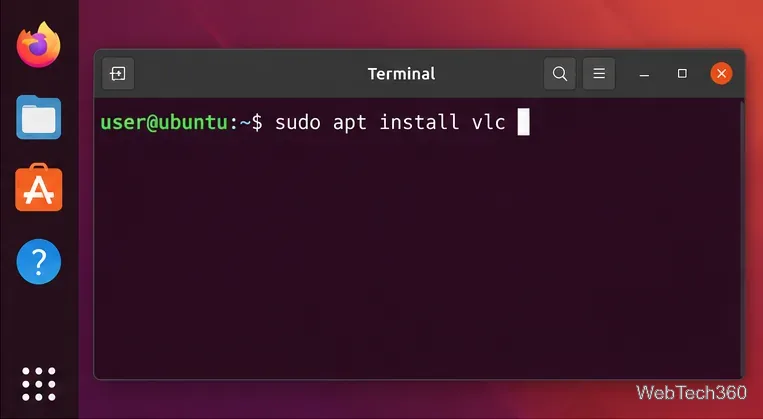
If you prefer APT, open Terminal and run:
sudo apt update
sudo apt install vlc
The VLC package is available in Ubuntu's official archive; you can verify the current package on the Ubuntu Packages page for VLC. VideoLAN also provides an official Snap installation route with sudo snap install vlc. You only need one installation method.
APT is a straightforward alternative when you want to install VLC from Terminal.
Play an MP4 file in VLC
Launch VLC media player from the applications menu.
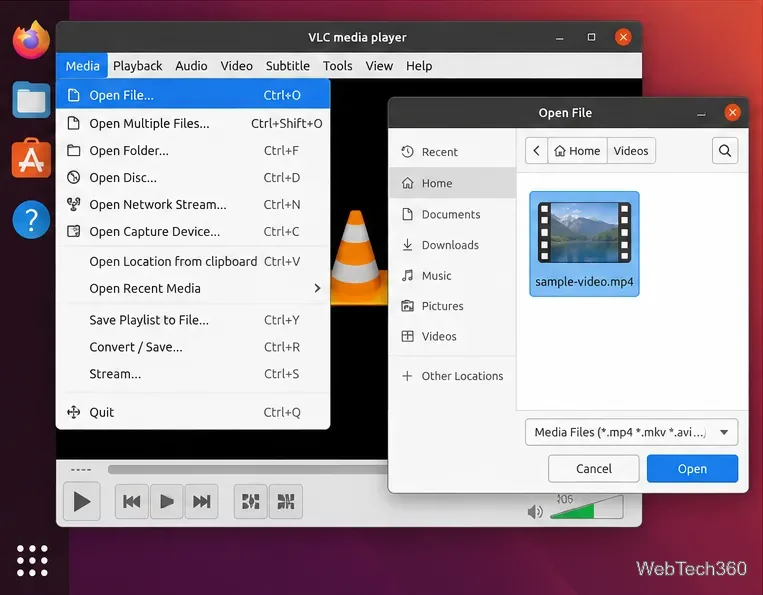
Select Media > Open File.
Browse to your MP4 file, select it, and click Open. Playback should start immediately.
You can also right-click an MP4 file in Files and choose VLC from the Open With choices. Once the video is playing, use VLC's normal pause, seek, volume, subtitle, and fullscreen controls.
Use Media > Open File in VLC, then select the MP4 you want to watch.
Option 2: Use mpv for a lighter MP4 player
mpv is a strong alternative if you like a minimal interface or want to launch videos directly from Terminal. Ubuntu packages mpv in its repositories, and the Ubuntu mpv package page lists the current package for Ubuntu 26.04 LTS.
Install it with:
sudo apt update
sudo apt install mpv
Then play a video by passing the file path to mpv:
mpv "/path/to/video.mp4"
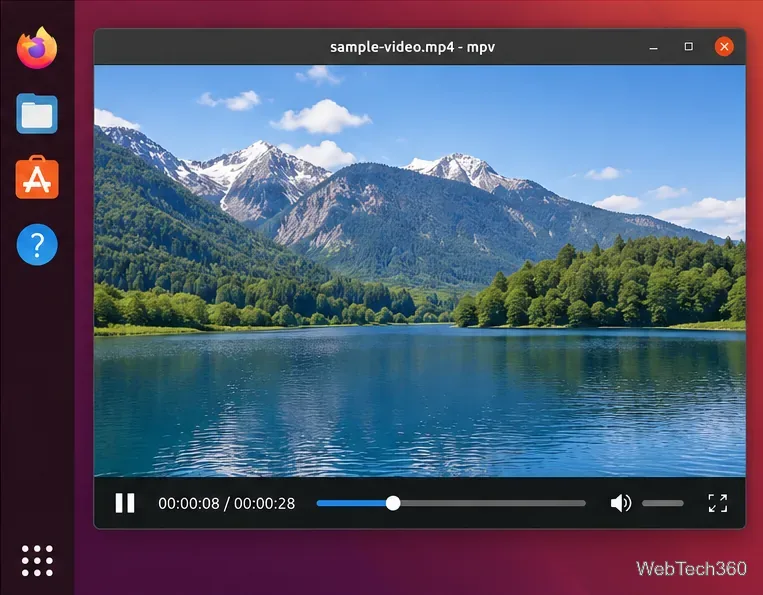
You can also launch mpv graphically and drag a media file onto its window on supported desktops. The official mpv manual documents file-path playback, interactive controls, and drag-and-drop behavior.
mpv keeps the interface minimal while still providing basic playback controls.
VLC or mpv: which should you choose?
Player
Best for
Why choose it
VLC
Most Ubuntu users
Full GUI, broad format support, easy file opening, subtitles, playlists, and streaming features.
mpv
Minimalist or advanced users
Light interface, excellent command-line workflow, configurable controls, and scripting support.
If an MP4 file still will not play
An MP4 file is a container, so two files with the same .mp4 extension can contain different video and audio codecs. If one MP4 fails but others play normally, the problem may be the file itself or an unusual codec rather than Ubuntu.
Try a second, known-good MP4 file to confirm the player is working.
Update your package lists and install available VLC or mpv updates through Ubuntu's normal software updater.
Try the same file in both VLC and mpv. If both fail, the file may be damaged or encoded in a way your installed build cannot decode.
If the video opens but is choppy, test playback without other heavy applications running and make sure your graphics drivers and system updates are current.
For a straightforward Ubuntu setup, start with VLC. Keep mpv in mind when you want a leaner player or a command-line workflow.