Home
» LINUX
»
How to Set Up and Use Qutebrowser on Linux
How to Set Up and Use Qutebrowser on Linux
Qutebrowser is a keyboard-focused, Vim-inspired web browser built with Python and Qt. On Linux, you can install it from several distribution repositories, then handle most everyday browsing without reaching for the mouse. This guide covers the current installation options, the shortcuts that matter first, and the supported ways to customize the browser.
Install Qutebrowser on Linux
Qutebrowser's own installation guide lists packages for major Linux distributions. The project notes that distro packages are community-maintained, so versions in Debian Stable or Ubuntu can lag behind upstream releases.
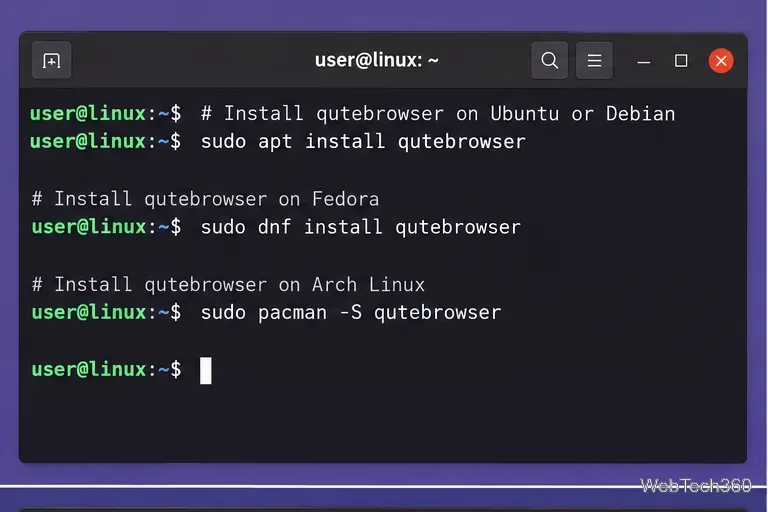
Open a terminal and use the command for your distribution:
Ubuntu, Debian, and Linux Mint:sudo apt install qutebrowser
Fedora:sudo dnf install qutebrowser
Arch Linux:sudo pacman -S qutebrowser
Gentoo: run emerge -av qutebrowser as root.
Void Linux: run xbps-install qutebrowser as root.
For openSUSE, the official Qutebrowser instructions point users to prebuilt packages on the openSUSE Build Service rather than documenting a universal default-repository command.
Use the package command that matches your Linux distribution.
After installation, launch the browser from your desktop application menu or run qutebrowser in a terminal. If a distro package is old or broken, check the upstream installation page before adding third-party repositories.
Open websites and search from the keyboard
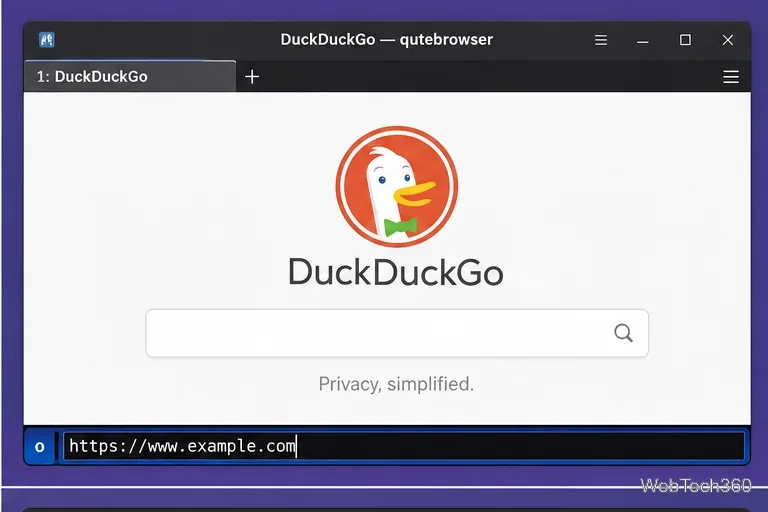
The fastest way to learn Qutebrowser is to use its normal-mode shortcuts. According to the official Qutebrowser quickstart, press o to enter a URL or search query in the current tab. Press O instead to open it in a new tab. If the text is not recognized as a URL, Qutebrowser sends it to the configured search engine; DuckDuckGo is the default search engine documented by the project.
Press o, type a URL or search, and press Enter.
For page navigation, use the arrow keys or the Vim-style h, j, k, and l keys. Press H to go back in history and L to go forward. Use + and - to zoom.
Click links without a mouse
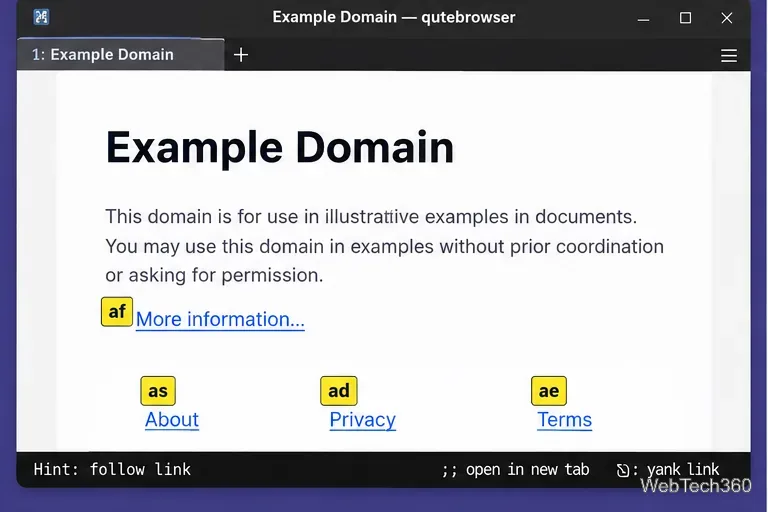
Press f to enter hint mode. Qutebrowser places short labels over clickable elements; type the label shown on the link you want. This is one of the browser's defining features because it makes link navigation practical without pointer movement.
Hint mode labels clickable elements so you can select them from the keyboard.
Manage tabs, search pages, and bookmarks
A small set of shortcuts covers most daily browsing:
J / K: move to the next or previous tab.
d: close the current tab.
u: reopen the most recently closed tab.
/: search within the current page; use n and N for next and previous matches.
: open the command line.
Commands provide access to functions that do not need a dedicated shortcut. For example, use :bookmark-add to save the current page and :bookmark-list to open the bookmark list. The official command reference documents available commands and their options.
Customize Qutebrowser
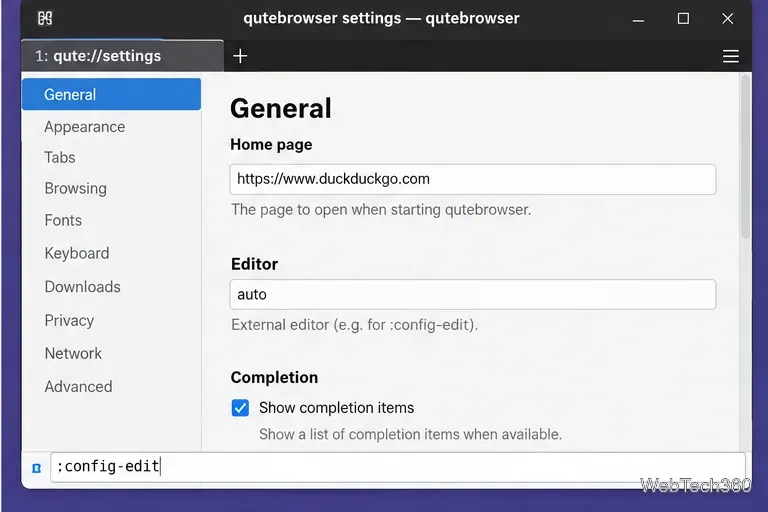
For simple changes, press : and run :set with no arguments. Qutebrowser opens its qute://settings page, where supported settings can be changed and saved to autoconfig.yml. The project specifically advises against editing that YAML file by hand.
Qutebrowser supports both its settings page and a Python configuration file for customization.
Advanced users can create config.py, typically at ~/.config/qutebrowser/config.py on Linux. Run :config-edit to open it in your configured editor and :config-source to reload it. The official configuration guide also explains an important detail: once a config.py exists, autoconfig.yml is not loaded automatically unless your Python configuration calls config.load_autoconfig().
Useful first-session checklist
Install Qutebrowser from your distribution or the upstream-recommended source.
Launch it and press o to open a site.
Practice j/k scrolling and f hint mode.
Use J/K for tabs and d/u to close or restore them.
Open :help whenever you need the built-in documentation.
Once those shortcuts become familiar, Qutebrowser works much like a modal editor for the web: normal mode handles navigation, hint mode selects page elements, insert mode passes typing to web forms, and command mode gives direct access to browser actions.