Home
» LINUX
»
How to Set Up and Use the Geary Email Client on Linux
How to Set Up and Use the Geary Email Client on Linux
Geary is a lightweight Linux email client built around conversations. To get started, install Geary, add an email account, let the first synchronization finish, and then use its simple three-pane interface to read, search, write, and manage mail.
One important update from older guides: as of October 2026, Geary's upstream stable feature release is still 46.0, released May 20, 2024. Linux distributions may ship newer package revisions of that same upstream version. The current Flathub listing also offers Geary 46.0, but Flathub marks that package as community-provided and unverified. You can review the Geary release notes and the Flathub Geary listing before choosing how to install it.
1. Install Geary on Linux
The easiest option is usually your distribution's package manager. Open a terminal and use the command for your system:
If you use Flatpak, make sure Flatpak and the Flathub remote are already configured. If you prefer distribution packages, remember that the exact Geary package revision depends on the Linux release you are running.
2. Add your email account securely
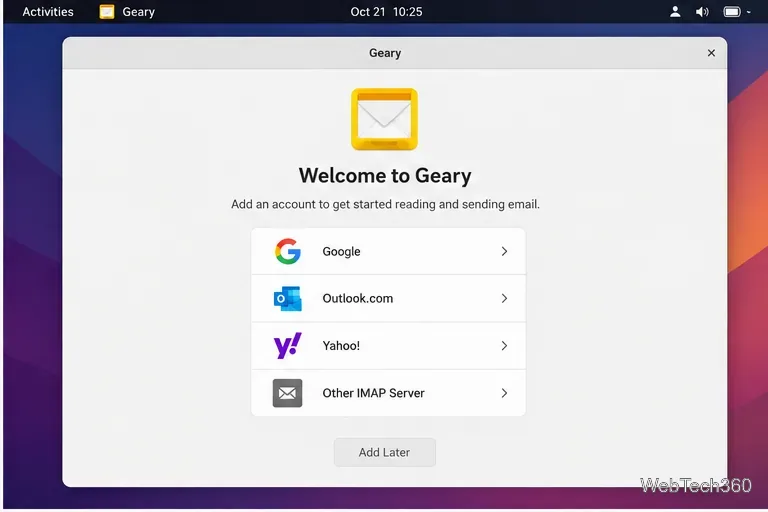
Launch Geary from your applications menu. If no account is configured, Geary opens its account setup flow. You can choose a supported provider or use the option for another IMAP server when your mail service is not listed.
A Geary-style account setup view showing common providers plus an Other IMAP Server option.
On a GNOME desktop, the preferred route for providers such as Google is often Settings > Online Accounts. Add the provider there, complete the provider's web-based authorization, and keep Mail access enabled. Geary is designed to pick up compatible accounts from GNOME Online Accounts. GNOME explains how this integration works in its Online Accounts documentation.
For Gmail, avoid outdated instructions that tell you to enable "Less secure apps." Google recommends OAuth or Sign in with Google for third-party mail clients instead of handing the app your normal account password. See Google's current Gmail third-party client guidance. If you must configure a generic IMAP account manually, copy the incoming and outgoing server details from your email provider's official support page rather than guessing ports or security settings.
3. Read mail and understand the inbox
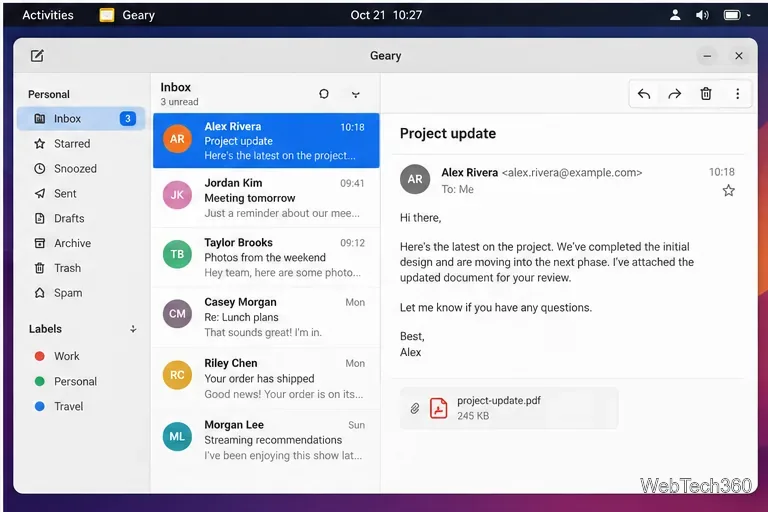
After the first synchronization, Geary organizes messages into conversations. The left side contains folders such as Inbox, Starred, Sent, Drafts, Archive, Trash, and Spam when your provider exposes them. The center lists conversations, while the reading pane shows the selected thread.
Geary's conversation layout places folders, the message list, and the selected message side by side.
Select any conversation to read it. Newer messages in the same discussion are grouped together, so you do not have to jump between separate copies of every reply.
4. Compose and send a message
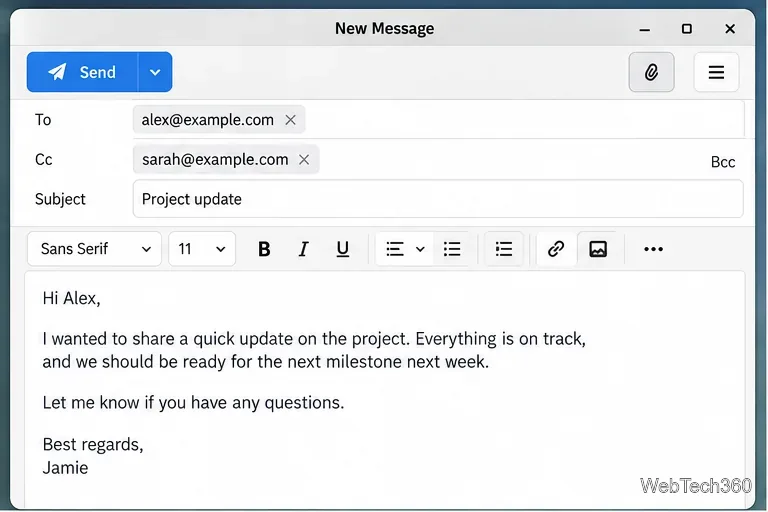
Click the compose button to start a new email. Add one or more recipients, enter a subject, write the message, and attach files if needed. Geary's composer supports both plain text and formatted HTML mail.
Use the composer to enter recipients, a subject, message text, formatting, and attachments before sending.
Review the recipient list before pressing Send, especially when using Cc or Bcc. If delivery fails because the account credentials changed, reauthorize the account through GNOME Online Accounts or update the IMAP/SMTP credentials for a manually configured account.
5. Search, reply, archive, and delete mail
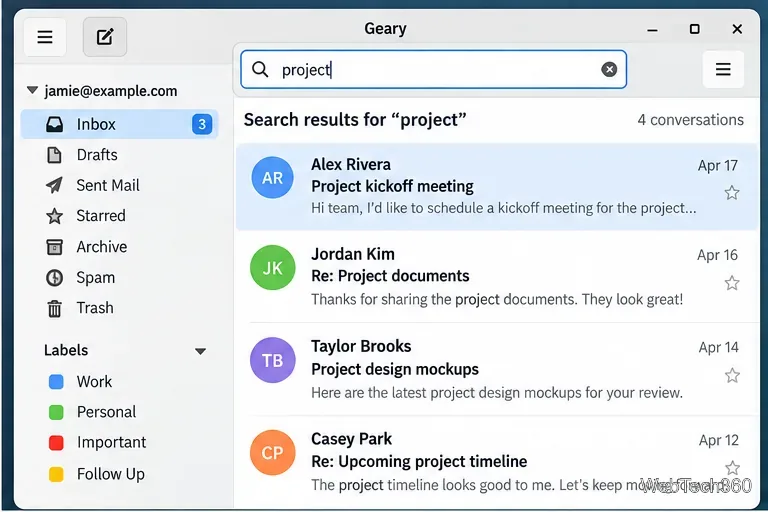
Use the search field to find conversations by words in the sender, subject, or message content. This is especially useful when an inbox has thousands of messages.
Search filters conversations by matching terms such as subject or message text.
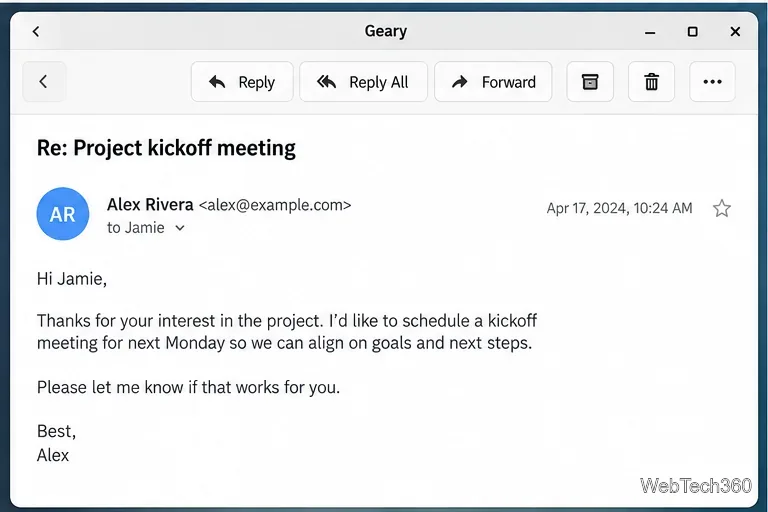
When a message is open, use the visible controls to Reply, Reply All, or Forward. Archiving removes a conversation from the Inbox while keeping it in the account's archive when the provider supports that behavior. The trash/delete control normally moves mail to the provider's Trash folder; permanent deletion rules are controlled by the mail service.
An open message provides the main reply, forwarding, archive, delete, and additional actions.
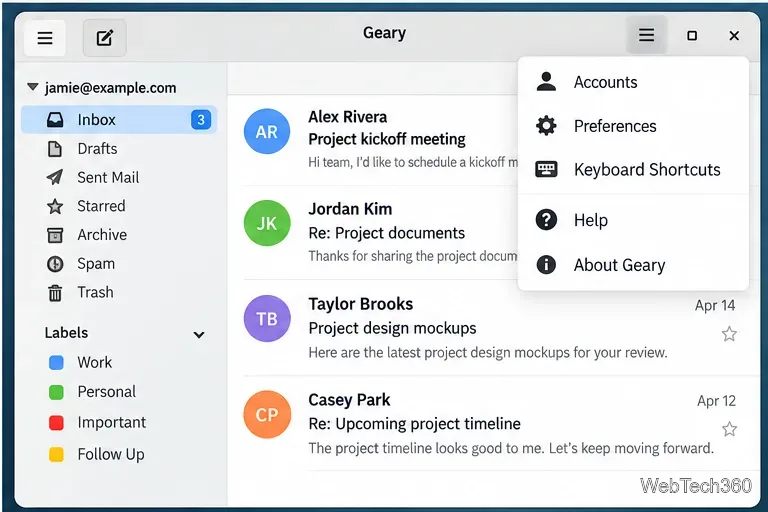
For less common commands, open Geary's application menu. The built-in documentation says keyboard shortcuts are available from the app menu and can also be opened with Ctrl+?.
The application menu provides quick access to account settings, preferences, keyboard shortcuts, help, and version information.
Troubleshooting common setup problems
Gmail keeps rejecting the password: remove the manually configured account and use GNOME Online Accounts or another OAuth-based sign-in path. A normal Google password is not the right fallback for older password-only authentication.
Mail does not appear: check that the correct account and folder are selected, confirm the computer is online, and let the initial IMAP synchronization complete.
A custom provider will not connect: verify the official IMAP and SMTP host names, ports, encryption method, username format, and authentication requirements from that provider.
You need a command or shortcut: press F1 for Geary help or Ctrl+? for the shortcut reference, as documented by the Geary project.
Geary remains appealing when you want a focused Linux mail client rather than a full personal-information manager. Its biggest strengths are straightforward account setup, conversation-based reading, fast search, and a clean composer; just keep the current authentication requirements of your email provider in mind when following older Linux tutorials.