How to Access a Windows BitLocker Partition in Linux

Use Dislocker to unlock a BitLocker volume in Linux, mount its virtual NTFS file read-only, and safely unmount it without exposing your password in a command.
Version note, checked October 6, 2026: This procedure applies to SUSE Linux Enterprise Server (SLES) 15 SP7 and compatible SLE 15 systems that use AppArmor. SUSE documents AppArmor as installed and running by default on SLES 15 SP7. SUSE Linux 16.0 removes AppArmor and uses SELinux instead, so do not apply the commands below to version 16.0; use SUSE’s SUSE Linux 16.0 comparison guide and the SELinux documentation for that release.
AppArmor is a Linux security module that restricts what a program can access. A profile is the policy attached to an executable: it can allow or deny access to files, capabilities, and other resources. This guide takes you from confirming the platform to enforcing a tested profile, with a cautious learning phase so a custom application is less likely to break unexpectedly.
Use a test or maintenance window if the application is important. You need an administrator account with sudo, the application’s actual executable path, and a list of the normal tasks it performs. Include background work, startup and shutdown, configuration reloads, uploads or exports, scheduled jobs, and any network-connected functions. A profile learned from one launch cannot infer features you never exercise.
Know where the application reads and writes data, which account runs it, and whether it starts helper processes. Avoid testing against sensitive production data when possible. Record the current service state and keep a copy of any existing profile before making changes.
First check the operating-system release and current AppArmor state:
cat /etc/os-release
sudo aa-status
Confirm the system reports SLES 15 SP7 or another release whose documentation supports AppArmor. On SLES 15 SP7, the SUSE guide says AppArmor is installed and running by default. If it is missing, SUSE documents installation with sudo zypper in -t pattern apparmor. If the service is installed but not running, inspect the system’s startup policy and service status before enabling it; do not disable the security module to work around an application problem. Consult SLES 15 SP7 AppArmor getting-started guide and SLES 15 SP7 AppArmor command-line tools guide for release-specific details.
AppArmor profiles are associated with program paths, so identify the actual executable rather than assuming the command users type is the binary. For a command available through the shell path, run:
command -v myapp
For a service, inspect its unit definition and process details using the tools available on your system. A launcher script, symbolic link, or interpreter may lead to a different executable than expected. Resolve a known path with readlink -f /path/to/myapp where appropriate. Substitute the verified absolute path in every command below; /usr/local/bin/myapp is only an example.
Before profiling, check whether a profile already exists under /etc/apparmor.d. SUSE stores profiles there, and the filename commonly replaces slashes in the executable path with dots. For example, /usr/local/bin/myapp maps to a filename such as usr.local.bin.myapp. Do not overwrite an existing vendor or locally maintained profile without reviewing it. SUSE also lists extra profiles under /usr/share/apparmor/extra-profiles; a suitable profile may provide a starting point, but it still needs review for your application and release (SUSE profile repository documentation).
Run the profile-generation tool as an administrator, using the full executable path:
sudo aa-genprof /usr/local/bin/myapp
aa-genprof creates a starting profile and places the program in complain mode while you exercise it. Complain mode records policy violations but does not block the denied operation, which allows you to observe behavior before enforcement. Follow the tool’s prompts; after exercising the application, use its scan option to review logged events. SUSE describes this as an iterative process, not a guarantee that the automatically suggested profile is complete.
While the profile is in complain mode, use the application as a normal operator would. Test ordinary workflows and less frequent but supported tasks, including reads, writes, uploads, report generation, service restarts, and helper jobs. Keep the test realistic: a program may use different files or child processes for an export than for its home screen.
Review kernel messages and the audit log for AppArmor events:
sudo journalctl -k | grep -i apparmor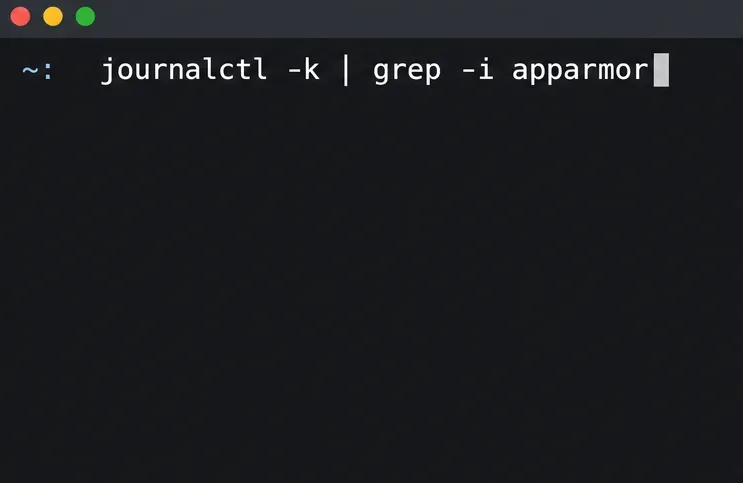
Depending on the system’s logging setup, SUSE also points to /var/log/audit/audit.log, journalctl | grep -i apparmor, and dmesg -T. A missing match in one log view does not prove the profile is correct: verify that the application was exercised and check the logging service and other documented log locations. Do not treat a generated profile as tested merely because the application starts once.
As root, use aa-logprof to process logged events and answer the prompts:
sudo aa-logprof
For each event, ask whether the access is necessary for a documented application task. Allow only the narrow path, access mode, or capability the program requires. A configuration file read may be expected; an unplanned write to an unrelated directory may signal a mistake or a separate component that needs investigation. Rules that are too broad weaken confinement, while rules that are too narrow can break valid tasks.
The profile is an access-control boundary, so a prompt should be answered from application behavior and operational requirements, not simply because it appeared in a log. The SUSE SLES 15 SP7 AppArmor command-line tools guide explains the command-line tools, and SUSE AppArmor support reference links to relevant man pages including aa-genprof, aa-logprof, and apparmor_parser.
Move to enforcement only after representative workflows succeed and you have reviewed legitimate events. Enforce the one application profile, reload AppArmor’s profile set, and restart the application or service so the running process uses the updated policy:
sudo aa-enforce /usr/local/bin/myapp
sudo systemctl reload apparmor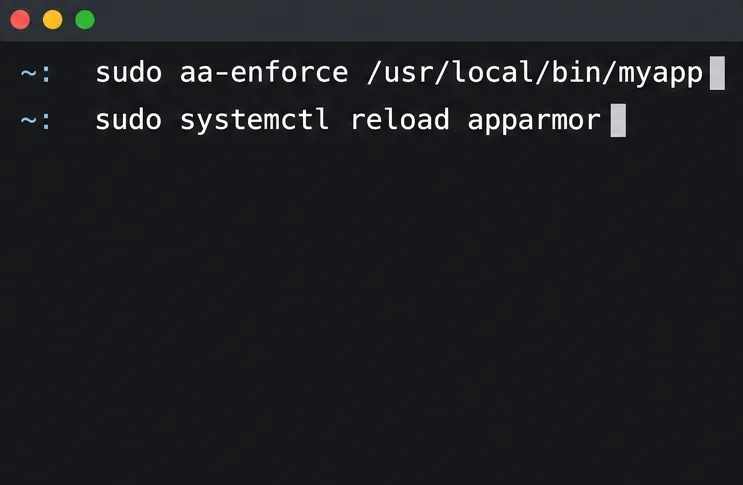
SUSE notes that reloading rereads profiles in /etc/apparmor.d; a program already running may need to be restarted before the updated profile takes effect. Coordinate that restart with the service owner and use the correct service-management command for the application. Then repeat key workflows under enforcement rather than assuming complain-mode success proves they will work unchanged.
Check the profile state and look for new denials after testing:
sudo aa-status
sudo journalctl -k | grep -i apparmor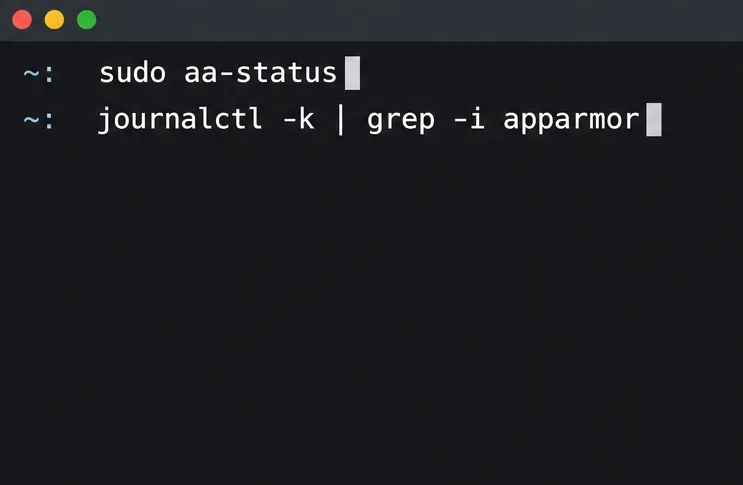
Confirm the intended profile is loaded and in enforce mode, the service remains healthy, and each required task still works. If enforcement blocks a legitimate operation, gather the relevant event, review whether the access is truly required, and refine the profile narrowly. For a short, controlled diagnosis, sudo aa-complain /usr/local/bin/myapp can put that program’s profile into complain mode; investigate, update, and retest before returning it to enforcement with aa-enforce. Reload and restart as needed. Avoid turning off AppArmor globally or granting broad permissions as a quick fix.
These references were checked on October 6, 2026. Commands and package details can vary by product release; confirm the documentation for the exact SLES service pack installed before making changes.
Use Dislocker to unlock a BitLocker volume in Linux, mount its virtual NTFS file read-only, and safely unmount it without exposing your password in a command.
Learn how to reduce RAM usage on Linux by finding memory-hungry apps, trimming browser and startup load, and testing a lighter desktop safely.
Compare four WhatsApp alternatives for Linux by privacy defaults, desktop support, setup requirements, and the people each app suits.
Troubleshoot a VirtualBox VM that will not start on Linux by checking vboxdrv, kernel headers, Secure Boot, Extension Pack versions, and VM logs.
Transfer your Ubuntu user data with a tar archive and external drive, then restore personal files and selected settings without overwriting the new setup.
Install gThumb on Linux, browse and make simple photo edits, then set it as the default app for the image types you choose in GNOME.
Create an organized playlist in Rhythmbox or save a reusable XSPF playlist in VLC. Learn how to add tracks, name a list, and reopen it on Linux.
Install Dino on Linux with Flatpak or your distribution’s package manager. Get current Ubuntu, Debian, Fedora, and Arch commands, plus first-launch tips.
Install Arch Linux’s linux-lts kernel, add it to GRUB or systemd-boot, select it at startup, and verify it while keeping a fallback kernel.
Download the right Pi 4 image, write it to a microSD card, and complete LibreELEC’s first-run setup with Raspberry Pi Imager.








