How to Share Files Over Bluetooth on Linux with Blueman

Send and receive files over Bluetooth on Linux with Blueman. Install OBEX support, pair devices, choose a file, accept transfers, and fix common issues.
ArcMenu is a GNOME Shell extension that adds a configurable application menu with multiple layouts, built-in search, and quick links. To set it up, check that your GNOME Shell version is supported, install ArcMenu from the current GNOME Extensions listing, enable it in the GNOME Extensions app, and choose a layout that suits your panel.
First, open Terminal and check your Shell version:
gnome-shell --version
Open the ArcMenu listing on GNOME Extensions and compare your version with the supported Shell versions shown in its Versions section. At the time of this update, the active 70.0 release lists GNOME Shell 45 through 51. If your system uses an older Shell release, check the listing for a compatible active version instead of forcing an incompatible build.
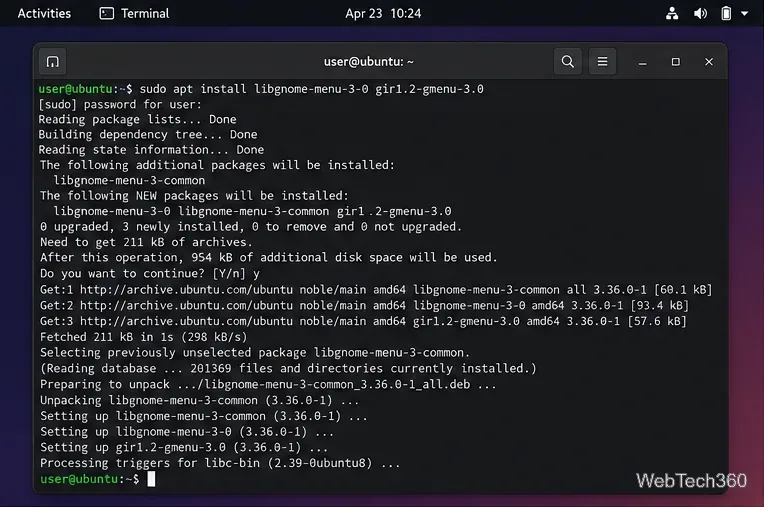
ArcMenu also requires the GMenu library. The extension listing names these packages for common distributions:
libgnome-menu-3-0 and gir1.2-gmenu-3.0.gnome-menus.libgnome-menu-3-0 and typelib-1_0-GMenu-3_0.Install the packages for your distribution with its package manager. Debian or Ubuntu users can run sudo apt install libgnome-menu-3-0 gir1.2-gmenu-3.0. Do not install packages from another distribution’s list.
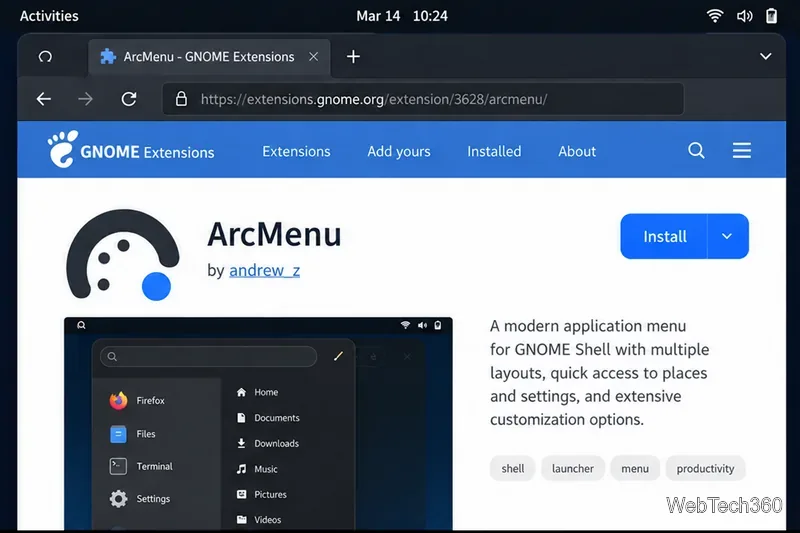
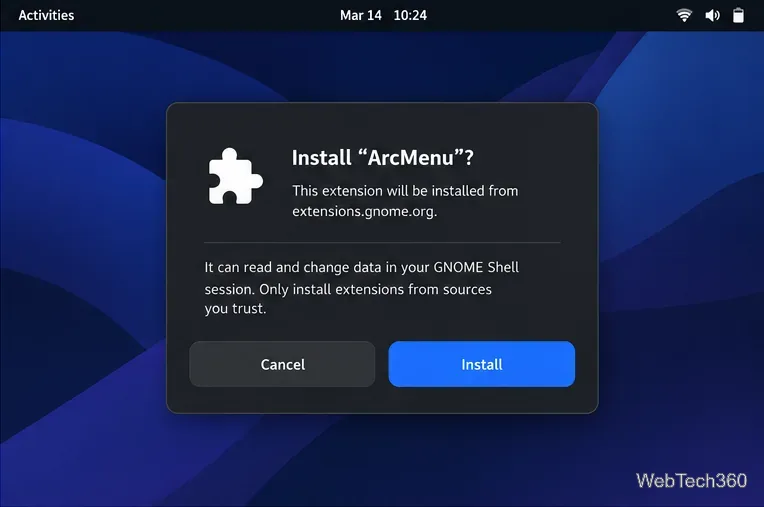
Install ArcMenu from the official GNOME Extensions listing. Website installation requires a browser add-on and a native connector. The current connector is gnome-browser-connector; older Ubuntu releases may use chrome-gnome-shell. See the GNOME integration guide for supported browsers and distro packages.
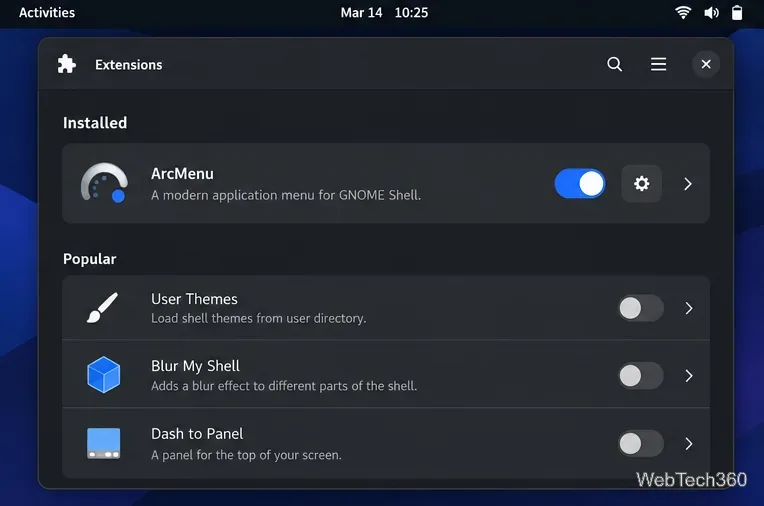
Open the GNOME Extensions app. Find ArcMenu in the installed list. If its switch is off, turn it on; select its settings button to configure the extension. The app is designed to enable or disable extensions and open their preferences.
In ArcMenu Settings, open Menu Layout and select one of the available layout previews. ArcMenu offers several menu styles, so the button location, category list, and shortcuts can differ between layouts. Start with the default layout, open ArcMenu to see how it fits your desktop, and then adjust appearance or pinned apps if needed.
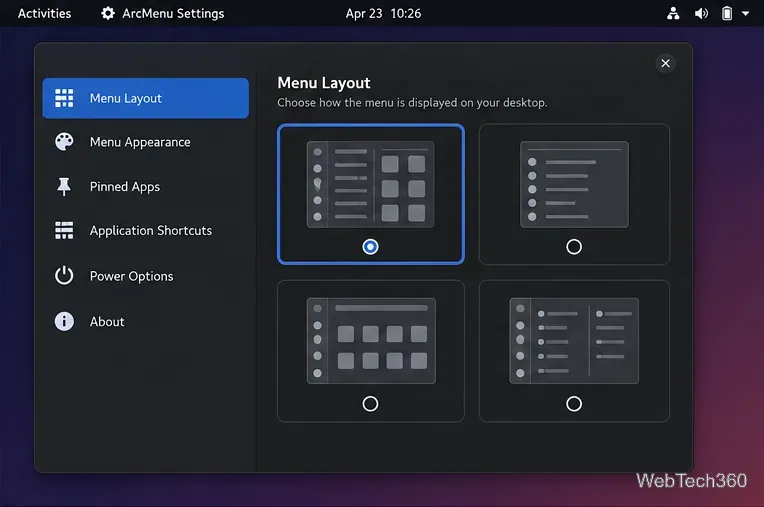
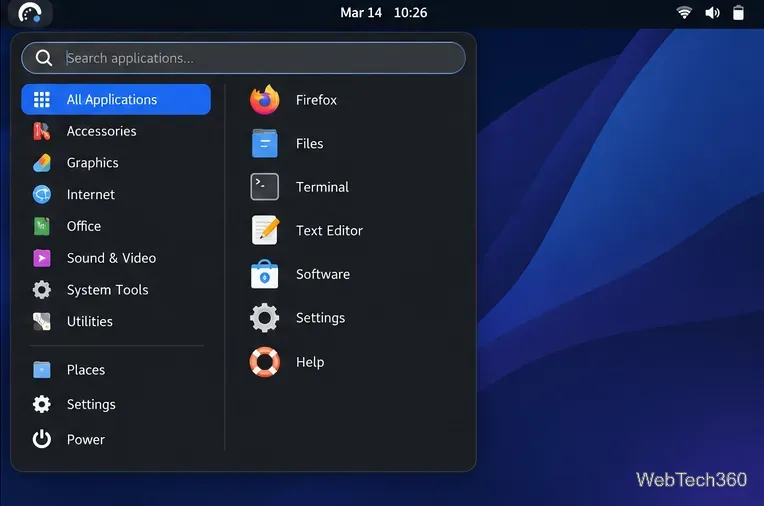
After enabling the extension, look for its menu button on the GNOME panel and click it. The button’s icon and position depend on the desktop and any panel extensions you use, so it may not be the old “A” icon at the upper-left corner. Use the category list to browse applications or select the search field and type an app name. ArcMenu’s built-in search is useful when you do not remember which category contains a program.
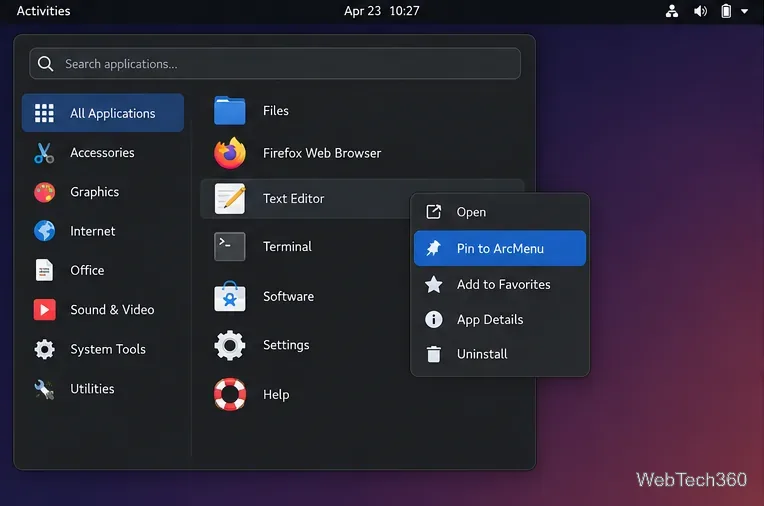
To keep an application easy to reach, open All Applications, right-click the app, and choose Pin to ArcMenu when that action appears. Some layouts put pinned applications in their own section. If the context menu does not offer pinning, open ArcMenu Settings and manage the list on the Pinned Apps page instead.
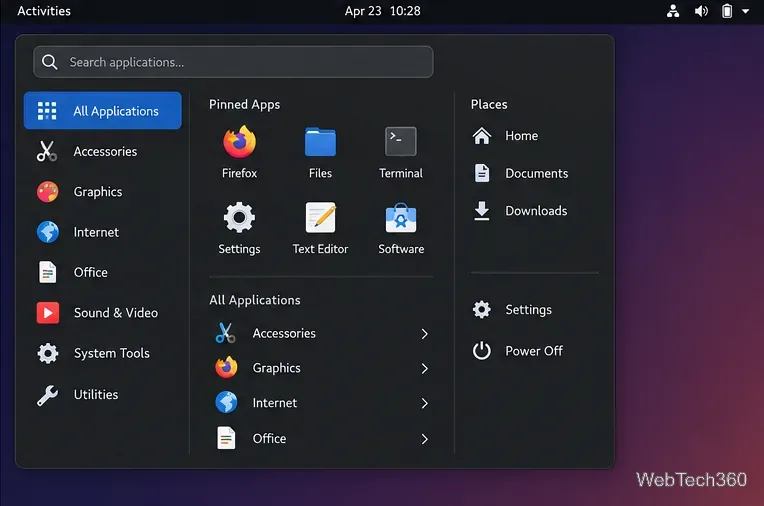
Layouts that include a Places column can open common locations such as Home, Documents, and Downloads directly. Other layouts may show links to Settings or power options in a different area. If those shortcuts are missing, check the current layout and its settings rather than assuming ArcMenu failed to install.
For version-specific help, use the ArcMenu project page and include your Linux distribution, GNOME Shell version, and ArcMenu version when reporting a problem.
Send and receive files over Bluetooth on Linux with Blueman. Install OBEX support, pair devices, choose a file, accept transfers, and fix common issues.
Connect GNOME Files to SSH/SFTP, FTP, SMB, WebDAV, or NFS with the correct server URI, sign-in details, and fixes for common connection errors.
Open SFTP, SSH, SMB, FTP, NFS, and WebDAV locations in Dolphin, sign in safely, transfer files, and save network folders for later.
Connect a DualShock 4 to Linux by USB or Bluetooth, then check controller detection and configure Steam Input only when a game needs it.
Use DNF5 parallel downloads to reduce RPM install waits in GNOME Software, then tell when mirror or Flatpak delays need a different fix.
Access iCloud on Linux in a current browser. Learn how to sign in, use iCloud Drive and other web apps, and understand the limits of browser access.
Save GRUB settings, boot files, and UEFI entry details to removable storage, then use rescue media to repair the correct boot path safely.
Install Bitwarden on Linux with the right DEB, RPM, Snap, Flatpak, or AppImage package, then sign in and set a secure vault timeout.
Pick a screensaver theme in Xfce, preview it, choose when it starts, and configure automatic locking in the separate Lock Screen tab.
Stop GNOME Shell from blanking or locking your display automatically. Change Power and Screen Lock settings, or use Caffeine for a temporary keep-awake toggle.








