Home
» LINUX
»
How to Set Up Automated Headless Debian Upgrades with Unattended-Upgrades
How to Set Up Automated Headless Debian Upgrades with Unattended-Upgrades
What unattended-upgrades does on a headless Debian server
unattended-upgrades is Debian's package for automatically downloading and installing selected APT updates without an interactive login. On a headless server, that makes it useful for security maintenance when no desktop session is available and nobody is expected to run apt upgrade every day.
As of October 2026, Debian 13 "trixie" is the stable Debian release, and the stable unattended-upgrades package is version 2.12. The package is meant for normal package updates, especially security and stable updates. It is not a substitute for the separate, planned process of upgrading from one major Debian release to another.
The practical model is simple: APT's periodic machinery refreshes package indexes, apt-daily-upgrade.service invokes the unattended-upgrade backend on schedule, and your policy decides which package origins are allowed. Debian logs the result under /var/log/unattended-upgrades/.
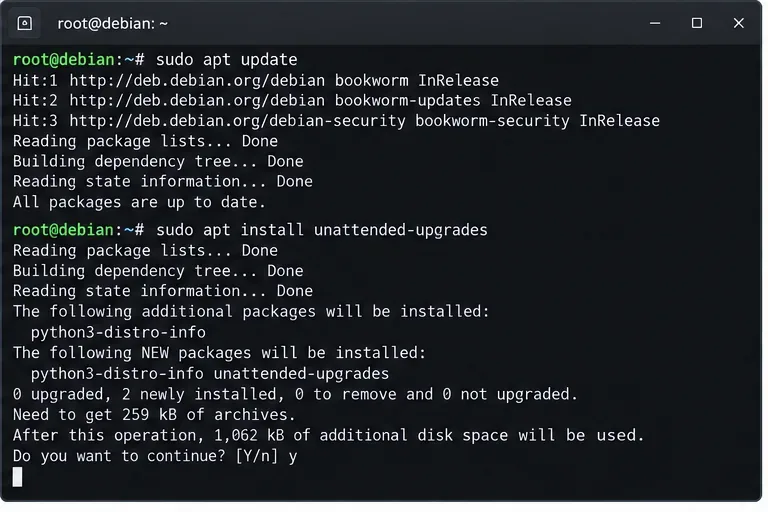
Installing the package is safe to repeat: APT will simply report that it is already installed if the host already has it. Debian describes the package as an automatic installer for security upgrades and other updates selected by policy.
Example terminal view for installing unattended-upgrades. Repository names and package counts vary by Debian release and host.
For a fleet, do not assume every image has the same default state. Some Debian installations already include unattended upgrades; others do not, and an existing configuration may have been disabled. After installation, inspect the effective configuration instead of assuming that package presence means the policy you want is active.
2. Enable periodic package-list refreshes and unattended runs
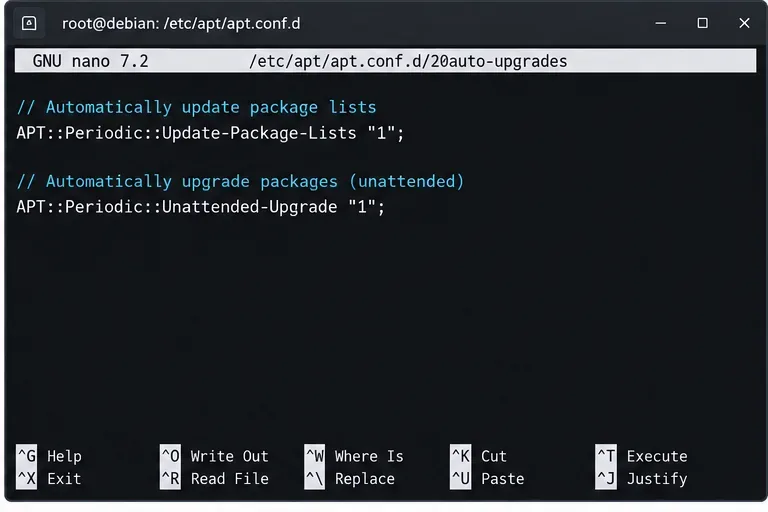
Debian's upstream README says a manual setup needs these two APT periodic values:
APT periodic settings that request daily package-list refreshes and unattended upgrade runs.
Do not read this as a promise that a job will start at exactly midnight every day. On systemd-based Debian systems, APT uses timer units and randomized scheduling behavior. For operations work, verify the actual timer state and next trigger on the host rather than designing monitoring around a guessed clock time.
3. Define which repositories may upgrade packages automatically
The key policy lives under Unattended-Upgrade::Origins-Pattern or the older Allowed-Origins form. Debian's 2.12 documentation recommends creating a local APT fragment that sorts after the packaged 50unattended-upgrades file, for example:
This is preferable to permanently editing the shipped file because package upgrades can replace or conflict with vendor-managed configuration. Before writing patterns, inspect the release metadata APT actually sees:
apt-cache policy
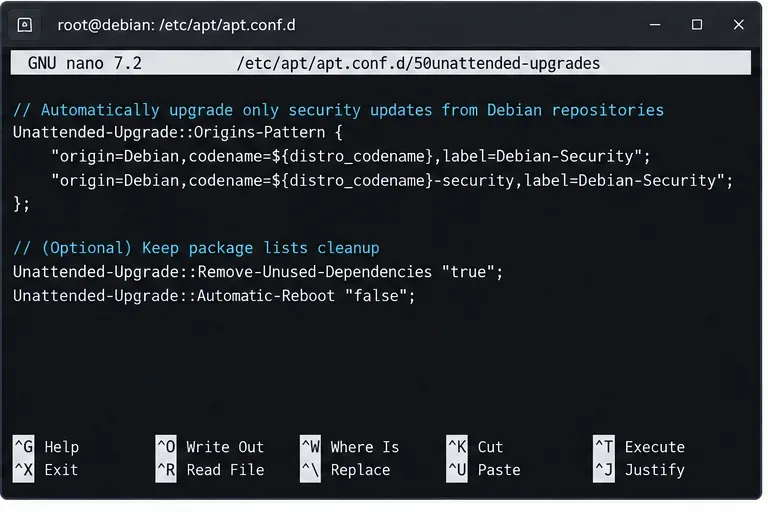
For most headless servers, a conservative policy is to keep automatic updates limited to Debian's normal stable and security channels. The exact patterns can differ with your repository layout, mirrors, third-party vendors, and pinning rules, so treat apt-cache policy as the source of truth on each environment.
Example policy editor view. Match origins to the repositories reported by apt-cache policy on your server rather than copying labels blindly.
Optional controls worth knowing
The 2.12 configuration supports package blacklists and whitelists, automatic reboots, mail reports, removal of unused dependencies, bandwidth limits, update-day restrictions, and syslog output. A few options are especially relevant on remote servers:
Only configure mail if the machine has a working mail transport. If you enable automatic rebooting, Debian's default behavior is significant: when Automatic-Reboot is true and /var/run/reboot-required exists, the host can reboot without confirmation. You can set Unattended-Upgrade::Automatic-Reboot-Time to schedule that reboot for a maintenance window.
For many production systems, leaving automatic reboot disabled is safer unless the service is redundant, maintenance windows are defined, and post-reboot health checks are automated.
4. Verify the systemd timers and run a dry test
On a normal systemd-based Debian installation, check the APT timers rather than looking for a made-up unattended-upgrades.timer unit:
systemctl status apt-daily.timer apt-daily-upgrade.timer
systemctl list-timers apt-daily.timer apt-daily-upgrade.timer
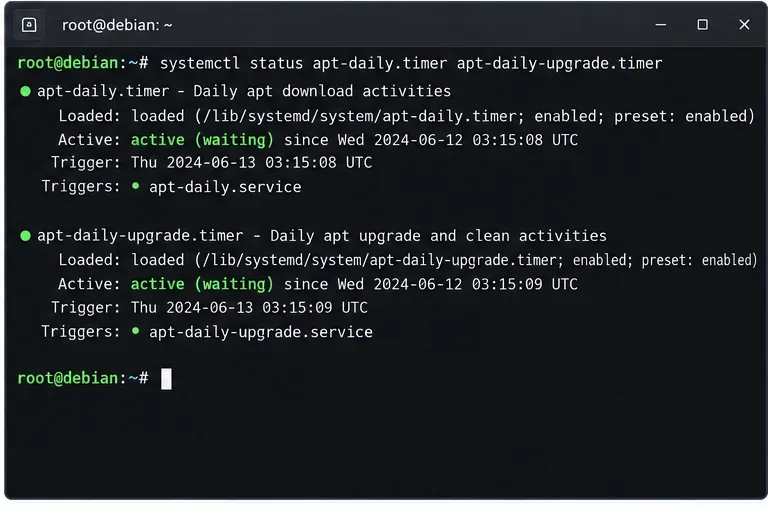
apt-daily.timer is associated with routine package download/index activity, while apt-daily-upgrade.timer triggers the upgrade/cleanup service path used by unattended upgrades.
Systemd timer status for APT daily work. The dates shown are illustrative; use systemctl list-timers for the actual next run on your host.
Next, test the policy without changing packages:
sudo unattended-upgrade --debug --dry-run
This is the most useful preflight check because it evaluates the real APT configuration and records debug details. Review the output for packages that would be selected or held back, unexpected third-party origins, dependency problems, and configuration-file prompts.
If the dry run selects nothing, that can be perfectly normal when the server is current. Confirm there are actually pending updates with apt list --upgradable, then compare their origins and policy against your configured patterns.
5. Monitor unattended upgrades and handle reboots deliberately
The package writes its main activity log and dpkg output under:
sudo tail -n 100 /var/log/unattended-upgrades/unattended-upgrades.log
sudo journalctl -u apt-daily-upgrade.service --since "7 days ago"
test -f /var/run/reboot-required && cat /var/run/reboot-required
For a single home lab machine, reviewing logs periodically may be enough. For business systems, send failures to central monitoring or syslog so a silent repository error, full filesystem, broken dependency, or interrupted dpkg state does not persist unnoticed.
Reference settings for common server policies
Scenario
Policy
Operational note
Security-focused server
Allow Debian security and stable updates; keep reboot manual
Good default when an outage is more costly than a delayed reboot
Stateless or redundant node
Allow updates and scheduled automatic reboot
Pair with health checks and load-balancer draining
Kernel-sensitive appliance
Use a package blacklist only with a documented exception process
Blacklisting can leave known vulnerabilities unpatched
Server with vendor repository
Do not allow the vendor origin until its update policy is reviewed
Check signing, support policy, and rollback expectations first
Troubleshooting quick reference
The timer is active but no packages are installed
Check whether there are pending upgrades, whether their repository origin matches your allowed policy, and whether a blacklist or dependency constraint is preventing selection. Run sudo unattended-upgrade --debug --dry-run for evidence rather than changing the policy at random.
The server waits on package configuration
unattended-upgrades is designed to avoid upgrades that would require unresolved dpkg configuration prompts. If a package is repeatedly held back, inspect the log and decide whether the configuration-file decision should be handled manually.
Updates never run after cloning a VM image
Confirm the timers are enabled and active, then inspect apt-config dump. Golden images often carry local APT fragments, masking, or policy overrides that differ from the package defaults.
You need to stop automatic upgrades
Use Debian's supported reconfiguration path:
sudo dpkg-reconfigure -plow unattended-upgrades
Disabling the package does not replace normal patch management; it simply returns responsibility to your manual or external orchestration process.
Final validation checklist
unattended-upgrades is installed from a trusted Debian repository.
APT periodic package-list refresh and unattended upgrade values are enabled.
Local policy is stored in a later override file such as 52unattended-upgrades-local.
Allowed origins were checked against apt-cache policy.
apt-daily.timer and apt-daily-upgrade.timer are active.
sudo unattended-upgrade --debug --dry-run completes without unexpected selections or errors.
Logs are monitored, and the reboot policy matches your maintenance model.
Major Debian release upgrades remain a separate planned procedure.
Official references
Use Debian's own documentation when validating behavior on a specific release: