How to Share Files Over Bluetooth on Linux with Blueman

Send and receive files over Bluetooth on Linux with Blueman. Install OBEX support, pair devices, choose a file, accept transfers, and fix common issues.
Cairo-Dock is a customizable Linux dock for launching and tracking applications. To set it up, install the package from your distribution, launch it in your current desktop session, adjust its position and applets, and enable startup at login. Package names and desktop compatibility vary, so use your distribution’s repositories and the current project instructions rather than old manual RPM downloads.
Cairo-Dock is easiest to integrate into an existing X11 desktop such as Xfce, MATE, or Cinnamon. The project’s bundled GNOME/Cairo-Dock session uses X11 and currently supports GNOME Session through version 49; newer GNOME sessions should start Cairo-Dock from the desktop you already use instead of selecting that bundled session. Wayland support depends on the compositor: upstream documents support for compositors such as Wayfire, KWin, Labwc, and COSMIC, but not GNOME Shell/Mutter. Check the Wayland notes from Cairo-Dock if your session uses Wayland.
If your desktop already has a dock or panel, decide whether you want both. You can hide or remove redundant launchers later, but running two docks at the same screen edge may make them overlap.
Use a terminal and choose the command for your Linux distribution. These commands install the packaged stable build; the version available may differ from the newest upstream release.
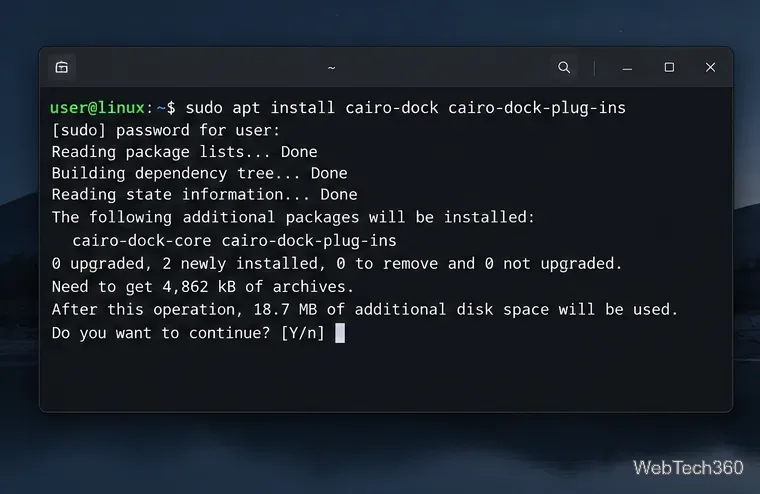
sudo apt update
sudo apt install cairo-dock cairo-dock-plug-ins
On Ubuntu, the package is in the Universe repository. If APT cannot find it, enable Universe in Software & Updates, or run sudo add-apt-repository universe, then run sudo apt update again. Debian lists Cairo-Dock and the plug-in metapackage in its package archive. See the Ubuntu package record or Debian package record.
# Fedora
sudo dnf install cairo-dock

# Arch Linux
sudo pacman -Syu cairo-dock
Fedora provides a Cairo-Dock metapackage. On Arch, some applet dependencies are optional; install only the extras you need. Consult the Fedora package page and ArchWiki’s Cairo-Dock page for current package details.
Package availability is release-specific. Search for Cairo-Dock on openSUSE’s software page and follow instructions only for your exact openSUSE release. Avoid installing a downloaded RPM built for a different release.
After installation, open Cairo-Dock from your applications menu, usually under a system-tools category. You can also start it from a terminal with cairo-dock. It should appear along a screen edge with a default set of launchers and applets.
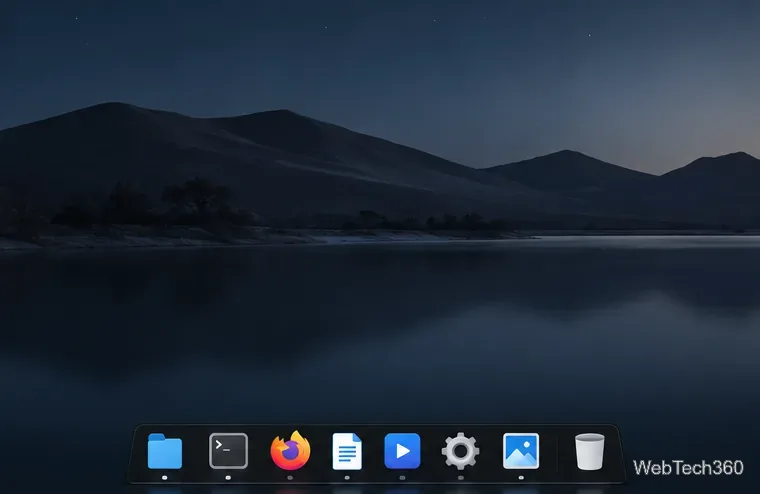
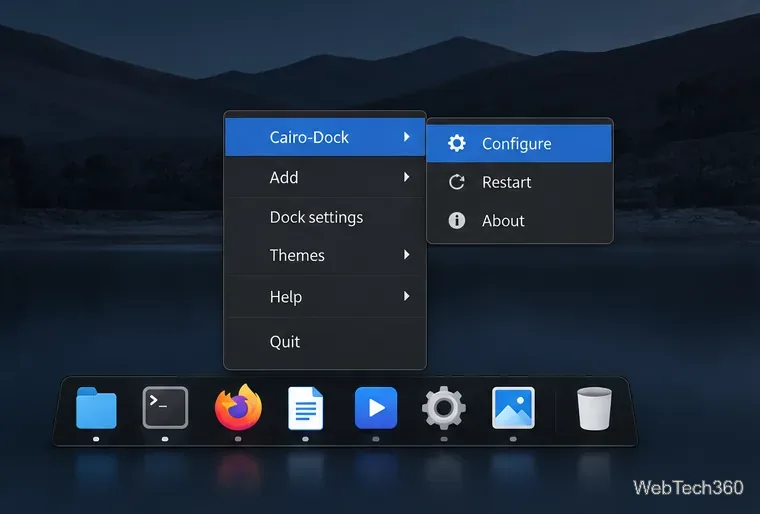
Right-click an empty area of the dock and open Cairo-Dock > Configure. In the configuration window, select a screen edge and set an icon size that fits your display. Try auto-hide if the dock covers windows; turn it off if you want the dock visible all the time. Changes can be adjusted again later, so start with a simple bottom-edge layout.
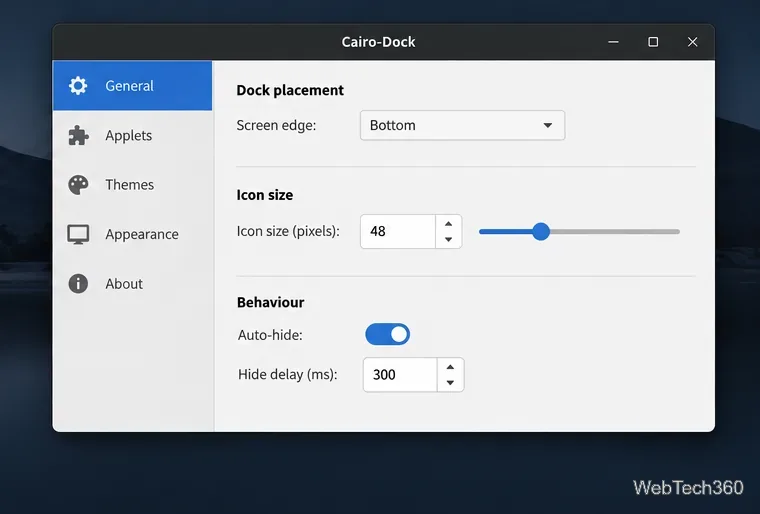
Open the Applets section in the configuration window to see available dock components. Enable only the ones you will use—for example, a clock, trash, workspace switcher, or system monitor. Applets and their dependencies vary by distribution; if an item is missing, check whether your package manager offers an additional Cairo-Dock plug-in package.
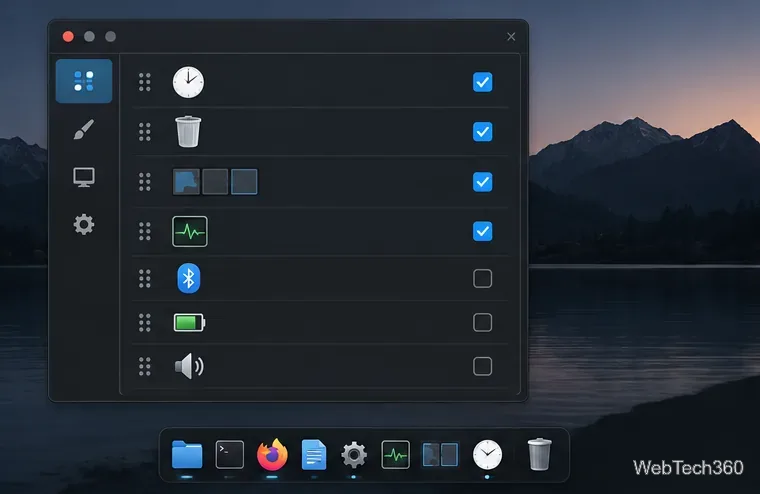
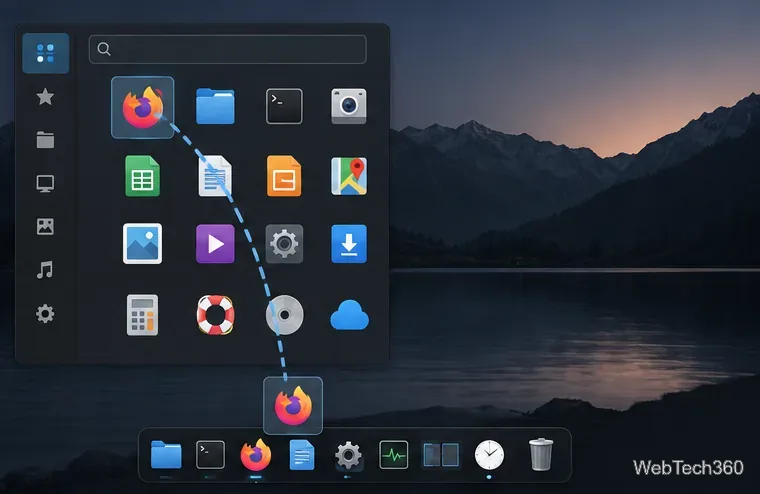
To pin an application, open the applications menu and drag its icon onto the dock. If the app is already running, right-click its dock icon and choose the option to make it a launcher. To remove an unwanted launcher or applet, right-click it and select its remove action. This changes the dock layout, not the application installed on your computer.
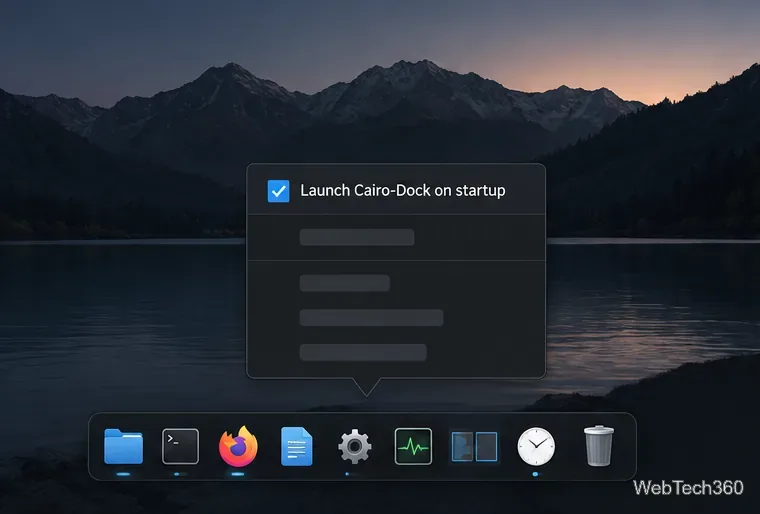
Once the dock looks right, enable its own startup option: right-click Cairo-Dock, open the Cairo-Dock submenu, and select Launch Cairo-Dock on startup. The project says this creates an XDG autostart entry under your home directory and works with many, though not all, desktop environments. If that menu item is unavailable, add cairo-dock through your desktop’s session or autostart settings; the exact menu differs between Xfce, KDE Plasma, MATE, and other desktops.
Recent upstream builds also provide a user systemd service, but it starts the dock in every graphical session managed by systemd. Use that only if it matches your setup, and avoid enabling more than one autostart method or you may get duplicate docks. The Cairo-Dock running guide lists the desktop-specific options and how to disable its service.
cairo-dock from a terminal to see startup errors.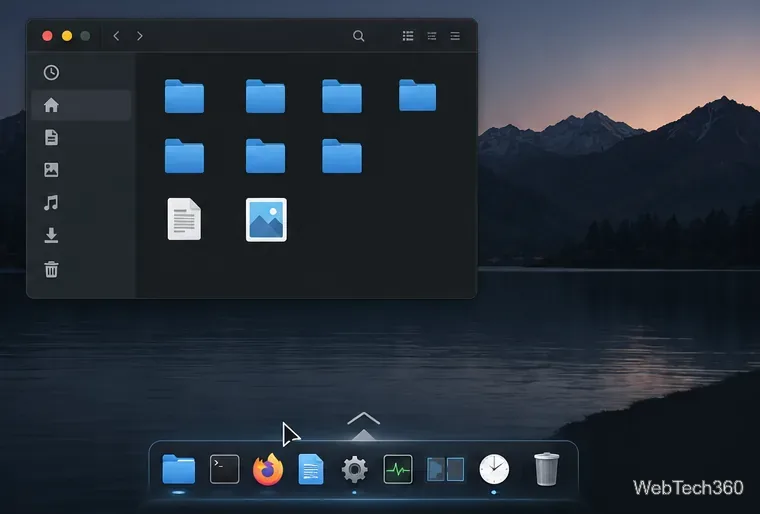
For other issues, see the project’s Cairo-Dock troubleshooting guide. Once its position, launchers, applets, and startup behavior match your desktop, the basic setup is complete.
Send and receive files over Bluetooth on Linux with Blueman. Install OBEX support, pair devices, choose a file, accept transfers, and fix common issues.
Connect GNOME Files to SSH/SFTP, FTP, SMB, WebDAV, or NFS with the correct server URI, sign-in details, and fixes for common connection errors.
Open SFTP, SSH, SMB, FTP, NFS, and WebDAV locations in Dolphin, sign in safely, transfer files, and save network folders for later.
Connect a DualShock 4 to Linux by USB or Bluetooth, then check controller detection and configure Steam Input only when a game needs it.
Use DNF5 parallel downloads to reduce RPM install waits in GNOME Software, then tell when mirror or Flatpak delays need a different fix.
Access iCloud on Linux in a current browser. Learn how to sign in, use iCloud Drive and other web apps, and understand the limits of browser access.
Save GRUB settings, boot files, and UEFI entry details to removable storage, then use rescue media to repair the correct boot path safely.
Install Bitwarden on Linux with the right DEB, RPM, Snap, Flatpak, or AppImage package, then sign in and set a secure vault timeout.
Pick a screensaver theme in Xfce, preview it, choose when it starts, and configure automatic locking in the separate Lock Screen tab.
Stop GNOME Shell from blanking or locking your display automatically. Change Power and Screen Lock settings, or use Caffeine for a temporary keep-awake toggle.








