Home
» LINUX
»
How to Set Up DXVK in Wine on Linux
How to Set Up DXVK in Wine on Linux
To set up DXVK in Wine on Linux, download its official release, copy the DLLs into your game’s Wine prefix, and add native overrides in winecfg. DXVK translates Direct3D 8–11 calls to Vulkan; it does not install Wine.
Check Wine and Vulkan first
Use Wine 7.1 or newer and a current graphics driver. DXVK 3.x requires a Vulkan 1.4-capable driver with the features in its driver support guide; a version number alone is not enough. For 32-bit games on 64-bit Linux, install 32-bit Vulkan libraries too.
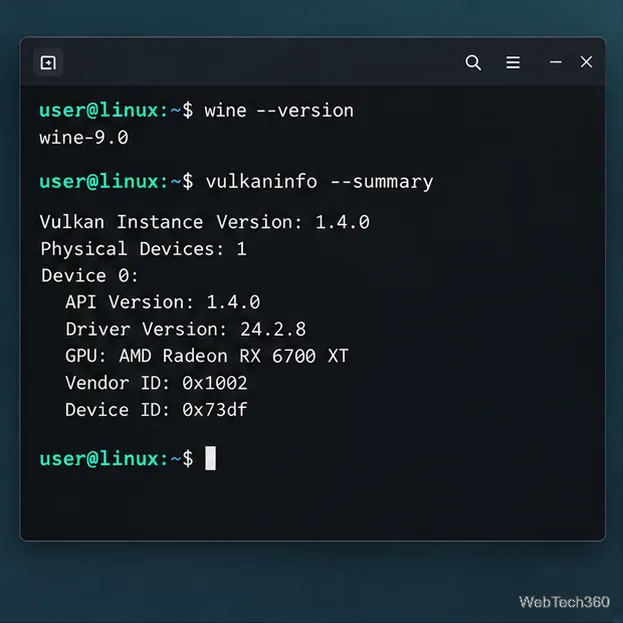
Check Wine with wine --version. Run vulkaninfo --summary to inspect devices and API version; install your distribution’s Vulkan tools package if missing. Update drivers through your distribution or GPU vendor.
The device and driver details in a Vulkan summary vary by computer; confirm that your installed driver meets DXVK’s current requirements.
Step 1: Download and extract DXVK
Download the latest stable archive from the official DXVK releases page. The page currently lists 3.1.1 as latest. If a newer release is available, use it and change the version in the folder path below. Upstream’s current method installs the release DLLs into a Wine prefix.
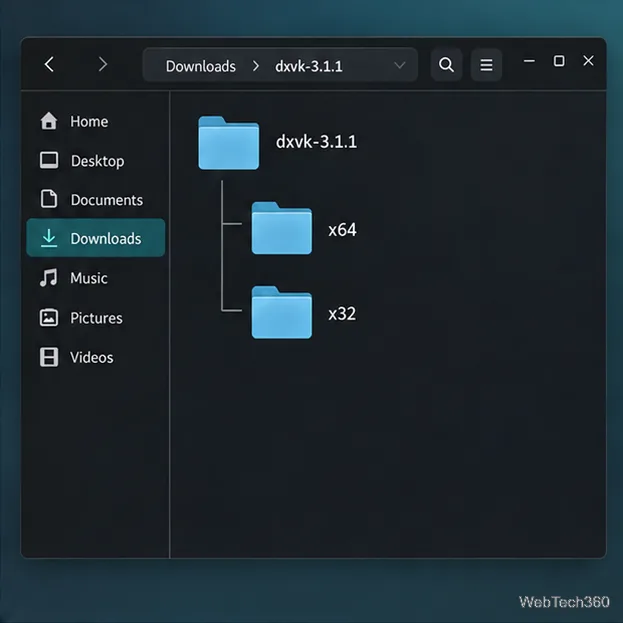
Extract the archive. Its folder contains separate x64 and x32 directories.
DXVK’s release archive separates 64-bit and 32-bit DLLs into the x64 and x32 folders.
Step 2: Install DXVK into the game’s Wine prefix
A Wine prefix holds a game’s Windows files, registry, and settings. Install DXVK and launch the game from the same prefix. This example creates ~/Games/dxvk-prefix; adjust the archive path if needed.
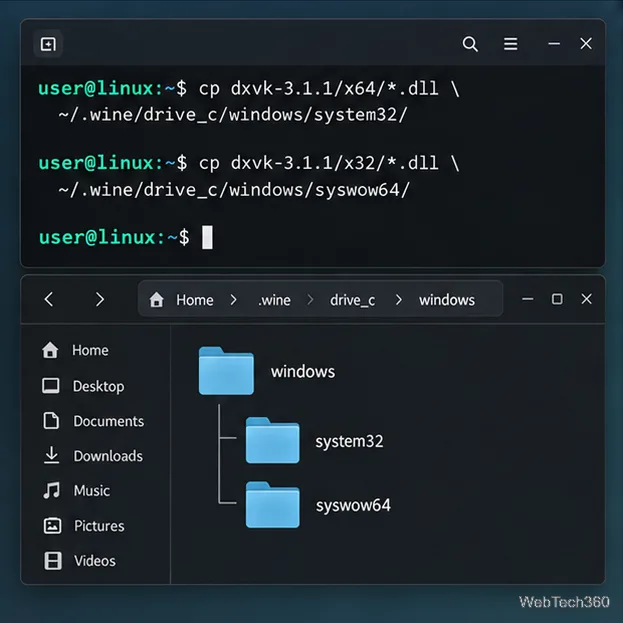
In a standard 64-bit prefix, Wine stores 64-bit DLLs in system32 and 32-bit DLLs in syswow64. In a pure 32-bit prefix, put only x32 files in system32. Do not run Wine as root or copy DLLs into Linux system directories.
Install both DLL sets in a 64-bit prefix so it can run either 64-bit or 32-bit Windows programs.
Step 3: Add the Wine DLL overrides
Open the configuration window for that exact prefix:
WINEPREFIX="$HOME/Games/dxvk-prefix" winecfg
In Libraries, add native overrides for d3d8, d3d9, d3d10core, d3d11, and dxgi, following the DXVK README. Put native first if Wine offers a load-order choice, then apply and close winecfg.
Step 4: Launch the game and verify DXVK
Start the game from its executable using the same prefix. Temporarily enable the DXVK HUD to confirm that the game loaded the translation layer:
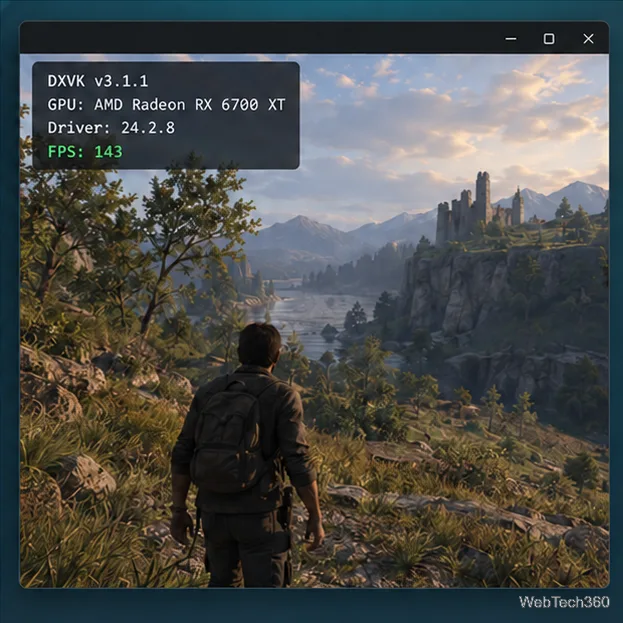
Replace /path/to/Game.exe with the executable’s path. A HUD showing the device and frame rate confirms DXVK is active. Remove the DXVK_HUD setting to hide it. DXVK writes diagnostics to the terminal; set DXVK_LOG_PATH to save log files in a folder.
The DXVK HUD can display the active DXVK version, graphics device, driver, and FPS.
If the game does not start
No HUD appears: confirm the executable uses the prefix where you copied the DLLs and set the overrides. The game may also be using a different graphics API.
Vulkan initialization fails: check the driver support guide, update the GPU driver, and confirm that both 64-bit and 32-bit Vulkan components are installed when needed.
The game uses Direct3D 12: DXVK covers Direct3D 8 through 11. Direct3D 12 titles need a separate translation layer such as VKD3D-Proton; DXVK alone will not handle them.
Online game: some multiplayer titles treat replacement Direct3D libraries as prohibited modifications. The DXVK project warns that using them can lead to an account ban, so check the game publisher’s rules before proceeding.
To remove DXVK from a prefix, remove the DXVK DLLs you copied, delete the corresponding overrides in winecfg, and run WINEPREFIX="$HOME/Games/dxvk-prefix" wineboot -u to restore Wine’s built-in DLLs. For games managed by Lutris, Bottles, Heroic, or Steam/Proton, use the launcher’s DXVK setting instead; those tools manage their own prefixes.