How to Access a Windows BitLocker Partition in Linux

Use Dislocker to unlock a BitLocker volume in Linux, mount its virtual NTFS file read-only, and safely unmount it without exposing your password in a command.
This beginner walkthrough builds a basic two-node, active/passive cluster with SUSE Linux Enterprise High Availability (SLE HA) 15. It uses the supported CRM Shell bootstrap scripts: initialize the first node with crm cluster init, add the second with crm cluster join, check membership, and test a planned failover of the management virtual IP. The examples follow SUSE’s SLE HA 15 SP7 documentation, published September 24, 2026; prompts can vary by service pack, hardware, and platform.
“HAE” is often used informally for the High Availability Extension. SUSE’s current product documentation calls it SUSE Linux Enterprise High Availability, or SLE HA. This procedure provides a working cluster foundation and Hawk2 management access. It does not automatically make an application, database, or its data highly available; those need their own Pacemaker resources, storage design, and workload-specific testing.
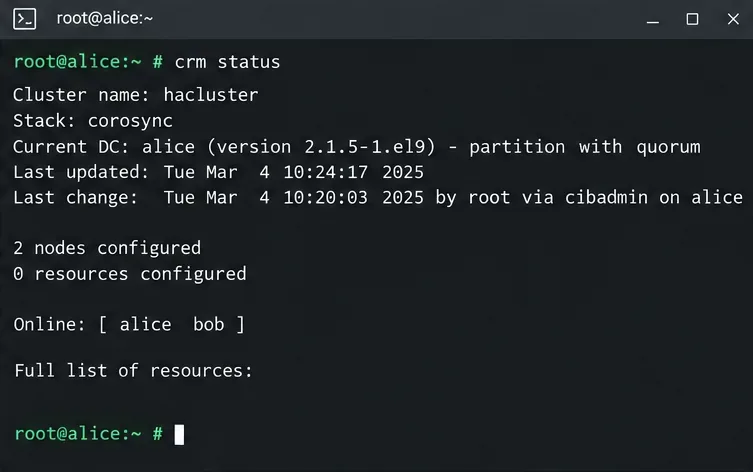
The terminal and Hawk2 screen illustrations below show representative interface views, not captures from a live system. Names and addresses are examples. Replace them with values from your network.
A cluster is a group of servers, called nodes, that coordinate to keep selected services running. Corosync handles node membership and cluster messaging. Pacemaker, the cluster resource manager, decides where managed resources should run and responds to failures. A resource is a service or address Pacemaker can start, stop, monitor, and move.
In this walkthrough, node alice and node bob form a two-node cluster. A floating management IP gives administrators a stable address for Hawk2, SUSE’s web interface. If one node is placed in standby, Pacemaker can move that IP to the other node. For a production two-node cluster, SUSE recommends adding QDevice/QNetd for quorum decisions and requires node fencing.
Do not treat a lab configuration as production-ready. SUSE’s SLE HA 15 SP7 system requirements require fencing, and its installation overview recommends testing the setup with two or three nodes before expanding it.
If SLE HA was not selected during SLES installation, enable the extension on each node. For a registered x86_64 SLES 15 SP7 host, the documented pattern is:
SUSEConnect -p sle-ha/15.7/x86_64 -r ADDITIONAL_REGCODE
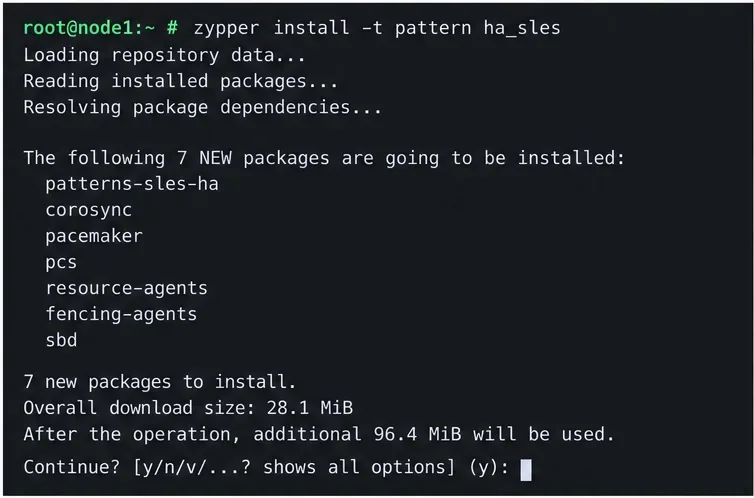
zypper install -t pattern ha_sles
Replace ADDITIONAL_REGCODE with the SLE HA registration code. Use the activation product identifier that matches your own service pack and architecture; do not copy the SP7 example to a different SLES 15 service pack. Run the package-pattern command on both nodes. SUSE documents the ha_sles pattern as the set of packages used to configure and manage the cluster.
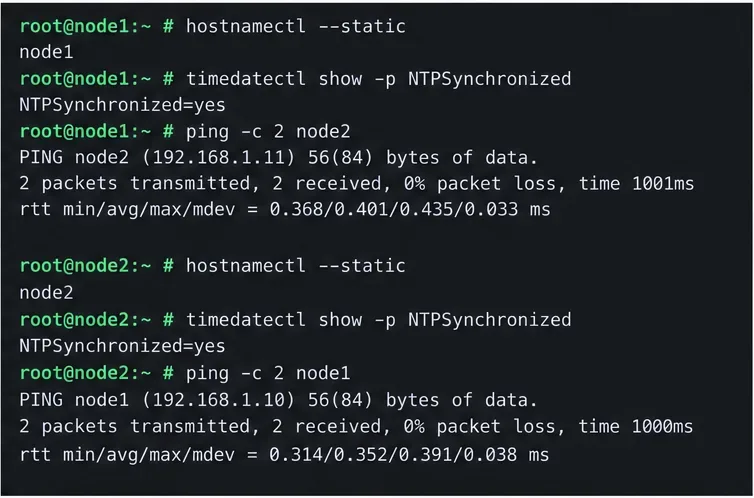
Give both nodes stable hostnames and static primary IP addresses. Confirm that each node can resolve the other by both short name and fully qualified name. SUSE’s setup guidance recommends listing cluster members in /etc/hosts when needed, because name resolution failures can break internal communication. For example, adapt entries like these to your DNS and address plan:
10.20.0.11 alice.example.net alice
10.20.0.12 bob.example.net bob
Synchronize both clocks to an NTP source outside the cluster and keep their time zones consistent. Chrony is the default NTP implementation on SLES 15. Check connectivity on the network you plan to use for Corosync. Bootstrap scripts can open the firewall ports needed for cluster communication, but confirm your host and network firewalls allow the traffic required by your selected topology. Unicast is the default in the bootstrap flow; the documented default Corosync port is 5405.
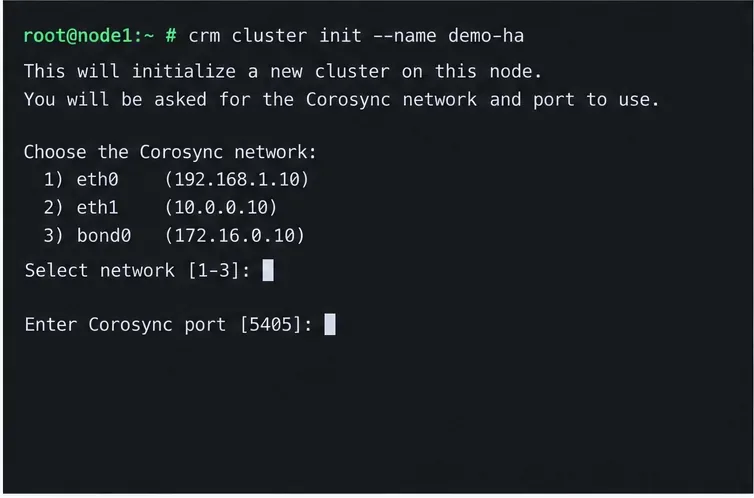
On alice, run the bootstrap command as root:
crm cluster init --name demo-haReview the prompts before accepting them. Select the interface and network address intended for Corosync, then confirm the port. The script checks time synchronization and watchdog availability, and can prepare SSH keys and related cluster configuration. It asks whether to configure SBD, a Hawk2 administration virtual IP, and QDevice/QNetd. SBD requires that the watchdog and shared device are already ready. If configuring QDevice in this bootstrap, prepare the QNetd server first. The script creates a running one-node cluster; it does not add bob at this stage.
Do not choose a random shared disk or device path for SBD. The path must identify the same appropriate storage on every node, and its failure behavior and timeouts need to match the storage design. SUSE notes that softdog cannot reboot a machine if all CPUs are stuck, so use the correct hardware watchdog for production wherever available.
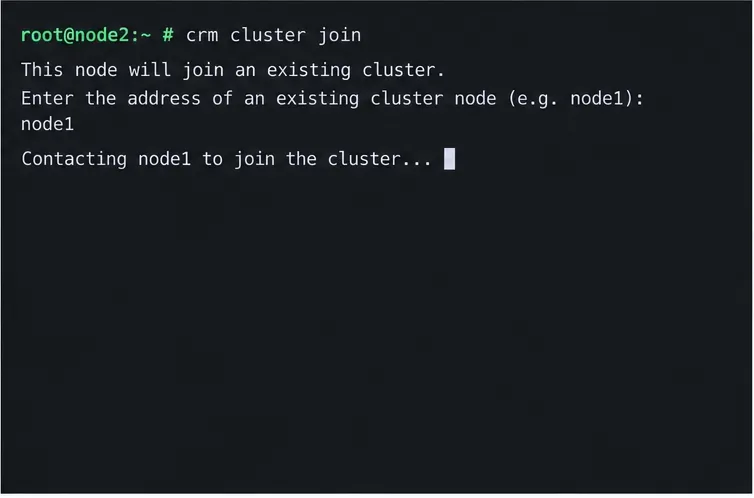
After the first node is initialized, log in to bob and run:
crm cluster joinFollow the prompt to identify the existing cluster node, alice. If you used a sudo account rather than root for the first node, SUSE documents specifying that account with -c, for example:
sudo crm cluster join -c USER@aliceThe join script copies the Corosync configuration, configures SSH and Csync2, brings the current machine online as a cluster node, and starts the service needed for Hawk2. Do not initialize both machines independently; the second node must join the cluster created by the first.
From either node, check the cluster summary:
crm statusLook for both node names under Online and a cluster partition with quorum. Check for failed actions or a node that is offline before proceeding. You can also sign in to Hawk2 using the administration VIP selected during initialization, typically at https://ADMIN-VIP:7630/. A first-visit certificate warning can occur when a self-signed certificate is in use; verify certificate details with the cluster administrator instead of ignoring an unknown certificate in a production environment.
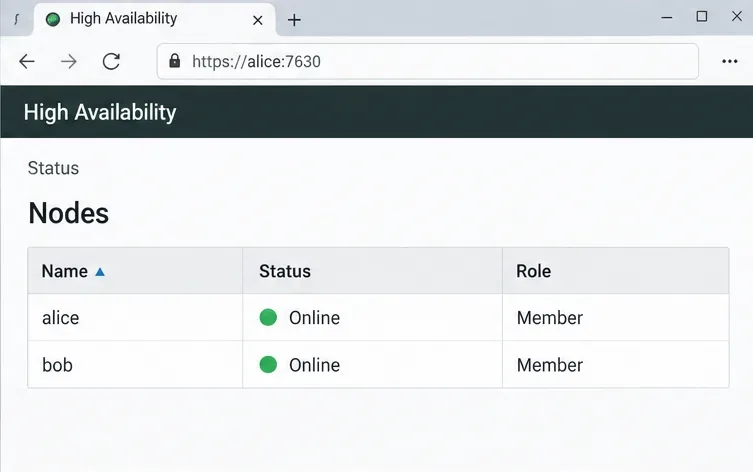
The bootstrap procedure creates a hacluster account for Hawk2. SUSE’s setup guide documents a default password during the basic setup, so change it immediately before leaving the system accessible:
passwd haclusterUse a unique strong password and follow your organization’s credential policy. Restrict access to the Hawk2 management network, install trusted certificates as appropriate, and do not expose the management interface directly to the public internet.
A planned standby test checks whether the management virtual IP can move when one node is intentionally removed from resource placement. Before testing, confirm both nodes are healthy, the cluster has quorum, and you have console or out-of-band access in case something behaves unexpectedly. From a client on the same network, continuously ping the management VIP, for example:
ping 10.20.0.20In Hawk2, open the node currently hosting the administration IP and select Standby. Then check Status > Resources. SUSE’s quick start describes the floating resource moving to the other node while the ping continues. When the test is complete, return the node to service using Hawk2’s corresponding action, confirm both nodes are online, and verify the resource is in the expected location.
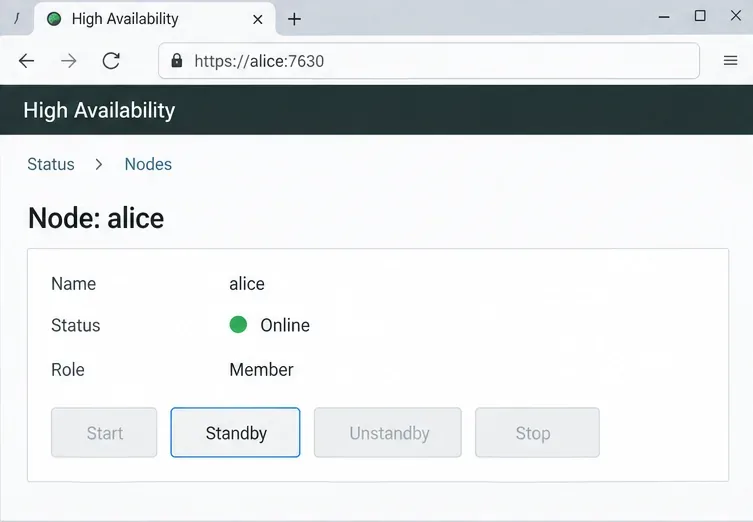
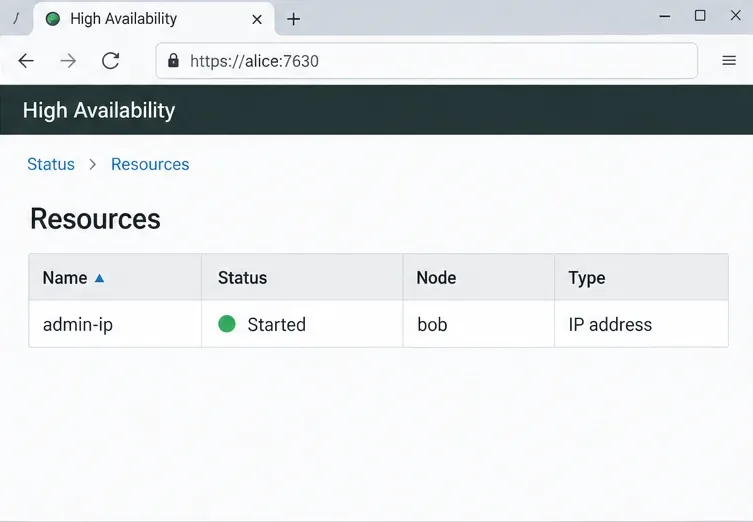
If both nodes remain visible and the administration IP moves to the peer, you have evidence that basic cluster membership and that floating IP resource work in this planned scenario. A ping alone does not prove an application is available, that client sessions survive, that shared data is protected, or that the cluster can recover from every network, storage, power, or software failure.
For an application, add the correct resource agent and configure ordering, colocation, monitoring, storage access, and fencing according to the application’s design. Never let two nodes write to ordinary shared storage at once. Test the workload’s recovery and data integrity in a staging environment, including realistic node and network failures, before production.
Use Dislocker to unlock a BitLocker volume in Linux, mount its virtual NTFS file read-only, and safely unmount it without exposing your password in a command.
Learn how to reduce RAM usage on Linux by finding memory-hungry apps, trimming browser and startup load, and testing a lighter desktop safely.
Compare four WhatsApp alternatives for Linux by privacy defaults, desktop support, setup requirements, and the people each app suits.
Troubleshoot a VirtualBox VM that will not start on Linux by checking vboxdrv, kernel headers, Secure Boot, Extension Pack versions, and VM logs.
Transfer your Ubuntu user data with a tar archive and external drive, then restore personal files and selected settings without overwriting the new setup.
Install gThumb on Linux, browse and make simple photo edits, then set it as the default app for the image types you choose in GNOME.
Create an organized playlist in Rhythmbox or save a reusable XSPF playlist in VLC. Learn how to add tracks, name a list, and reopen it on Linux.
Install Dino on Linux with Flatpak or your distribution’s package manager. Get current Ubuntu, Debian, Fedora, and Arch commands, plus first-launch tips.
Install Arch Linux’s linux-lts kernel, add it to GRUB or systemd-boot, select it at startup, and verify it while keeping a fallback kernel.
Download the right Pi 4 image, write it to a microSD card, and complete LibreELEC’s first-run setup with Raspberry Pi Imager.








