How to Access a Windows BitLocker Partition in Linux

Use Dislocker to unlock a BitLocker volume in Linux, mount its virtual NTFS file read-only, and safely unmount it without exposing your password in a command.
For most Pardus users, the simplest way to reach a desktop from another network is to install RustDesk on the Pardus computer and on the device you will use to control it. Install the official Debian-format package, share the Pardus computer’s ID for a one-time session, and use a permanent password only if you need unattended access. RustDesk avoids the router port-forwarding normally associated with direct RDP access.
This guide applies to Pardus desktop editions such as XFCE and GNOME. Pardus is Debian-based, so the RustDesk project recommends its .deb package for Debian-based systems. The official Pardus download page currently lists Pardus 25.2; Pardus 23 remains in the official version table as supported through the third quarter of 2027. Interface labels can differ by release and desktop. The screen images below are illustrative interface mockups, not captures from a tested Pardus computer.
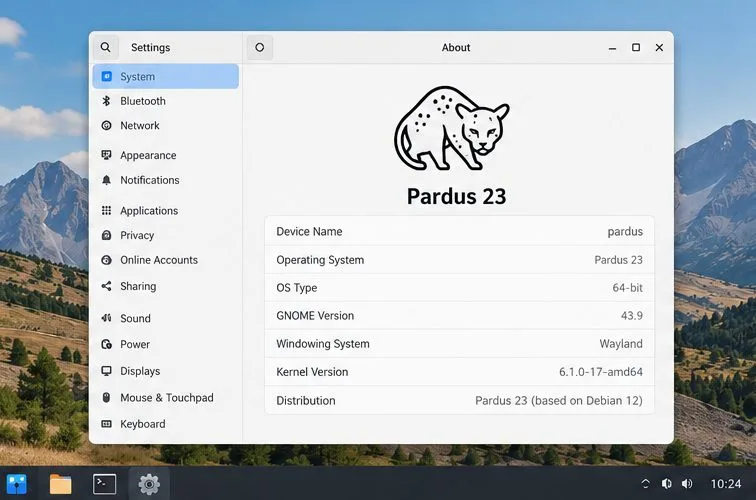
Use RustDesk when you want to view or control the existing Pardus desktop from Windows, macOS, Linux, or a mobile device, including when the two devices are on different networks. It is suitable for helping a family member, checking a home computer while traveling, or providing supervised support.
If you specifically need a Microsoft Remote Desktop Protocol (RDP) client to connect to Pardus, xrdp is a separate option. It provides an RDP-compatible graphical login, but requires its own setup and network planning. Keep RDP limited to a trusted local network or a VPN; do not expose its listening port directly to the public internet. This article uses RustDesk for the main walkthrough because it avoids making a public inbound RDP rule.
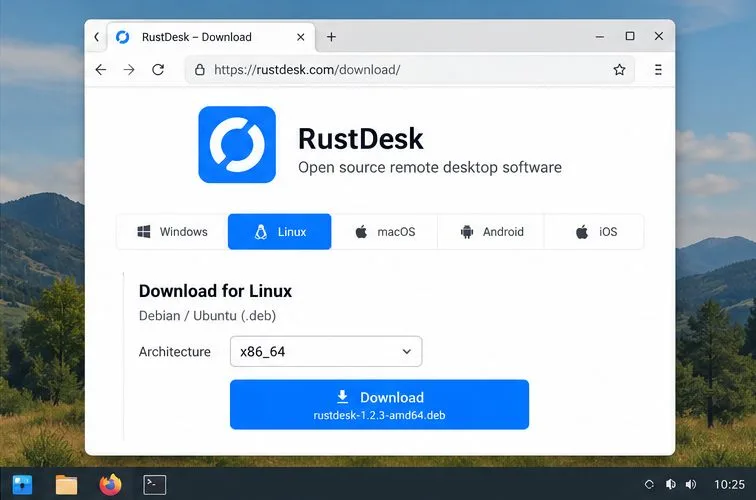
On the Pardus computer, open the official RustDesk download page. Select Linux, then choose the .deb package that matches the computer’s architecture. Most recent desktop PCs use 64-bit x86, but check rather than assume if the machine is older or ARM-based. Save the package to Downloads. The Linux documentation identifies .deb as the native choice for Debian-based distributions.
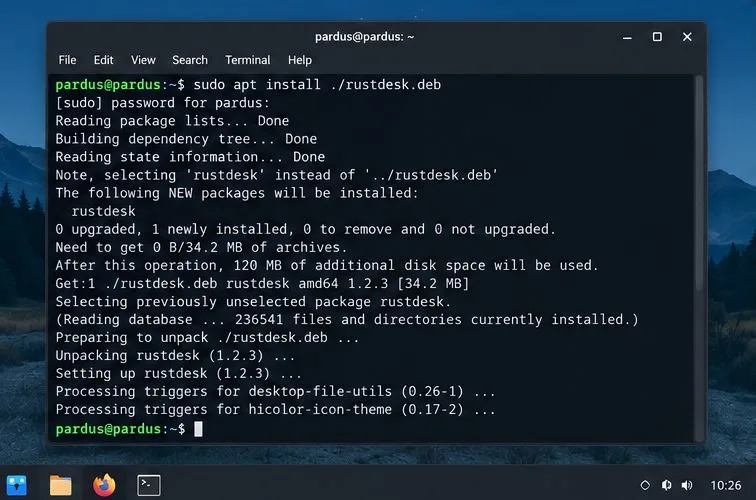
Open a terminal and change to the folder where the file was saved, commonly Downloads:
cd ~/Downloads
sudo apt install ./rustdesk-<version>.deb
Replace the example filename with the exact downloaded filename; the angle-bracket text is a placeholder. Enter your Pardus administrator password when prompted. Using apt install with the local package lets apt resolve package dependencies. You can also open the downloaded package in the Pardus software installer if it offers a local-package installation option.
If apt reports that the file cannot be found, check the filename and current folder with ls. If it reports an unsupported architecture or unmet dependency, download the correct current package and update Pardus through its normal updater before retrying. Do not bypass package checks by downloading a random build.
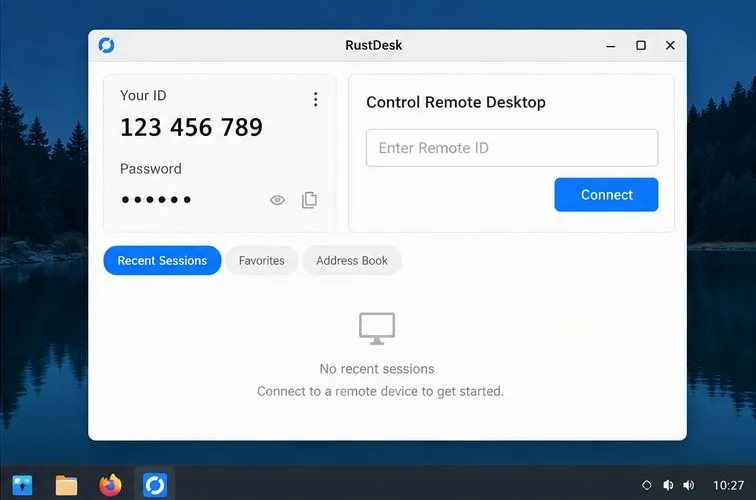
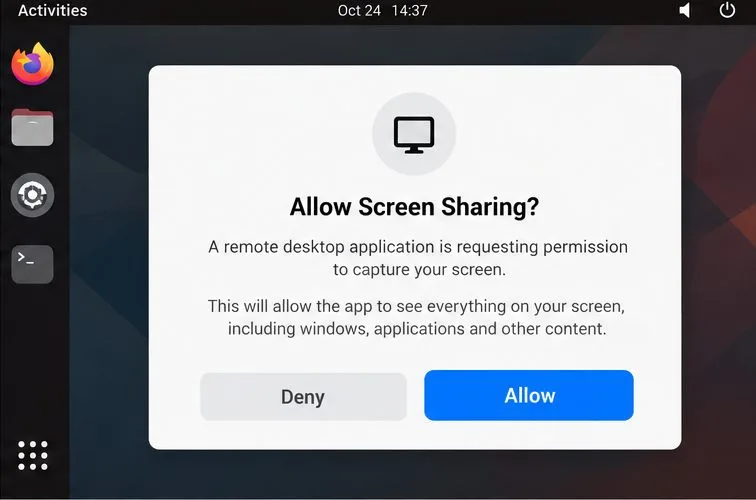
Launch RustDesk from the application menu. On the Pardus computer, locate its ID and one-time password in the main window. Keep these private and send them only to the person you intend to connect. On GNOME with Wayland, the desktop may request permission to share or capture the screen; allow it only for a session you initiated and understand. Permission dialogs and their timing vary across desktop environments and versions.
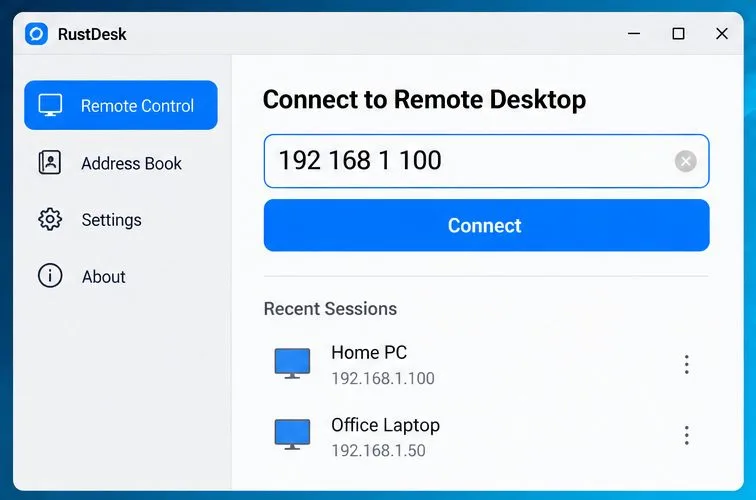
Install the RustDesk client on the controlling device using RustDesk’s official client download for its operating system. Enter the Pardus host’s ID in the remote ID field and start the connection. For a one-time support session, have the person at the Pardus computer read the current one-time password and approve the incoming request. Confirm that mouse, keyboard, display scaling, and clipboard behavior work as expected. A connection that works only while someone is present is a good fit for supervised support, but not for an unattended workstation.
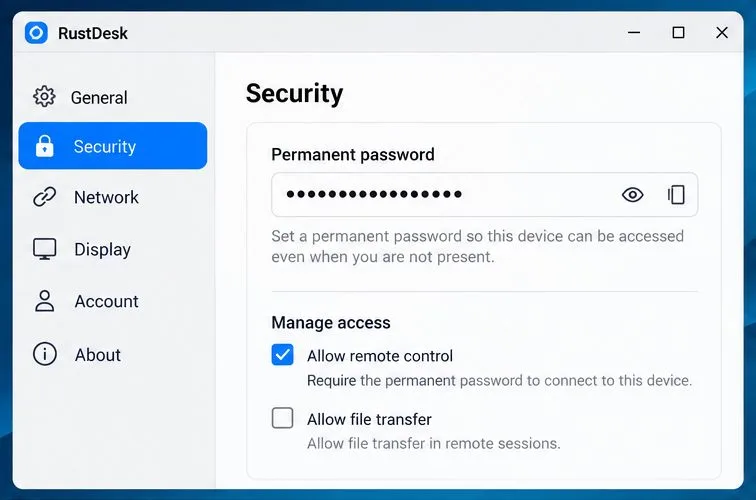
To reach your own computer without someone accepting each request, open RustDesk’s menu and review Settings > Security. Set a unique, strong permanent password and restrict which remote-control and file-transfer permissions are enabled. Do not reuse an email, banking, or system-login password. Share the password through a secure channel only with the intended user.
Then check Settings > General for service control and make sure the RustDesk service is installed and running if you expect connections when no desktop user has launched the app. Menu wording can vary by client version. Reboot and test from another device before relying on unattended access. Linux desktop permissions and the display server can still prevent access to the login screen: RustDesk currently documents Wayland support as experimental and says login-screen access requires X11. Do not assume a saved password alone guarantees access before login.
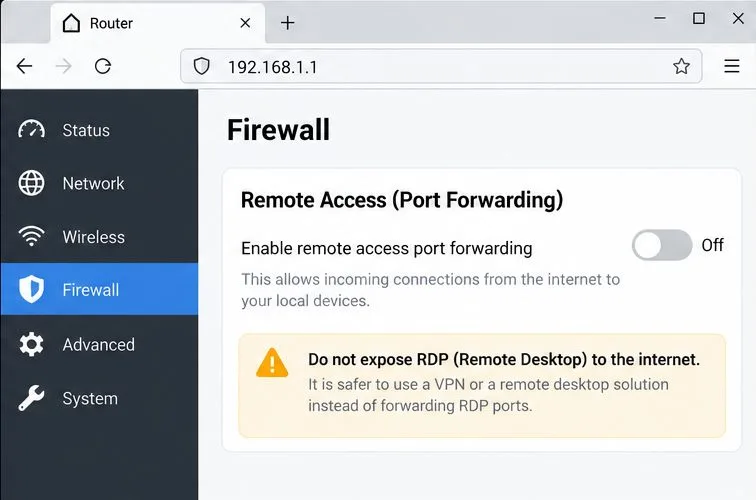
For access from outside your home or office, do not forward the RDP port or other remote-desktop ports from your router to Pardus. RustDesk clients can use RustDesk’s public rendezvous and relay services by default; organizations that need to control their own infrastructure can review the official self-hosting documentation and operate a RustDesk server. A VPN is another option when your organization already manages one. Keep Pardus, RustDesk, and the controlling device updated, and remove unattended access when you no longer need it.
Run one planned test from the actual network you will use, such as a phone hotspot if you expect to connect while away from home. The setup is ready when the client finds the correct Pardus computer, the intended screen appears, input responds, and the connection closes cleanly. For unattended access, also test after signing out and after reboot; if either test fails, treat the computer as supervised-only until you resolve the display-server or service limitation.
Choose xrdp when your workflow requires a standards-based RDP client or when your IT team already manages RDP through a VPN and firewall. The xrdp project describes it as an open-source RDP server that accepts connections from a range of RDP clients. Installation and desktop-session setup depend on the Pardus release and desktop; follow current project and distribution documentation and test locally before enabling remote reachability. For simple cross-network access to the existing desktop, RustDesk is usually the more direct starting point.
Release and compatibility details checked against the official pages on October 7, 2026. Package names, screens, and supported behavior can change; use the current release information before installing.
Use Dislocker to unlock a BitLocker volume in Linux, mount its virtual NTFS file read-only, and safely unmount it without exposing your password in a command.
Learn how to reduce RAM usage on Linux by finding memory-hungry apps, trimming browser and startup load, and testing a lighter desktop safely.
Compare four WhatsApp alternatives for Linux by privacy defaults, desktop support, setup requirements, and the people each app suits.
Troubleshoot a VirtualBox VM that will not start on Linux by checking vboxdrv, kernel headers, Secure Boot, Extension Pack versions, and VM logs.
Transfer your Ubuntu user data with a tar archive and external drive, then restore personal files and selected settings without overwriting the new setup.
Install gThumb on Linux, browse and make simple photo edits, then set it as the default app for the image types you choose in GNOME.
Create an organized playlist in Rhythmbox or save a reusable XSPF playlist in VLC. Learn how to add tracks, name a list, and reopen it on Linux.
Install Dino on Linux with Flatpak or your distribution’s package manager. Get current Ubuntu, Debian, Fedora, and Arch commands, plus first-launch tips.
Install Arch Linux’s linux-lts kernel, add it to GRUB or systemd-boot, select it at startup, and verify it while keeping a fallback kernel.
Download the right Pi 4 image, write it to a microSD card, and complete LibreELEC’s first-run setup with Raspberry Pi Imager.








