RetroShare is a decentralized friend-to-friend communication app for chat, messages, forums, channels, and file sharing. On Linux, the cleanest setup is to install a current package, create a local RetroShare profile, confirm your network settings, then exchange RetroShare IDs only with people you trust. RetroShare does not use a central account server, so your network starts empty until you add friends.
Install RetroShare on Linux
The RetroShare project currently provides explicit binary-install instructions for Ubuntu through its openSUSE Build Service repository. The commands below follow the official RetroShare downloads page and avoid the deprecated apt-key method found in older guides.
1. Add the RetroShare repository on Ubuntu
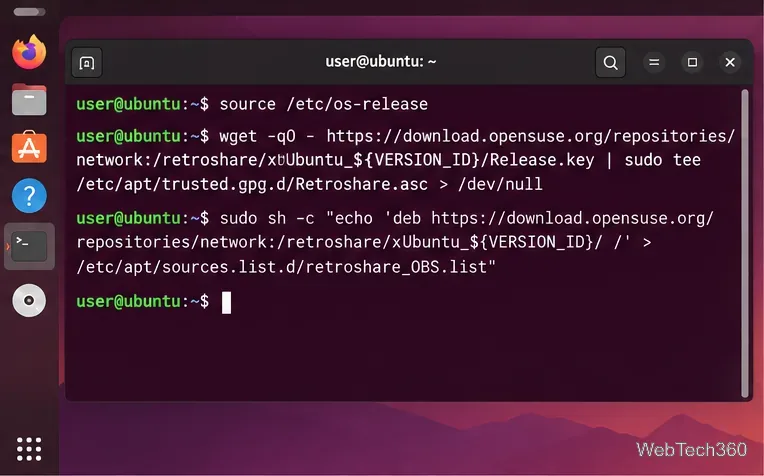
Open a terminal and load your Ubuntu version information:
source /etc/os-release
Then import the repository signing key and add the matching repository:
wget -qO - https://download.opensuse.org/repositories/network:/retroshare/xUbuntu_${VERSION_ID}/Release.key | sudo tee /etc/apt/trusted.gpg.d/Retroshare.asc
sudo sh -c "echo 'deb https://download.opensuse.org/repositories/network:/retroshare/xUbuntu_${VERSION_ID}/ /' > /etc/apt/sources.list.d/retroshare_OBS.list"
Add the RetroShare repository for your installed Ubuntu release before updating APT.
2. Install the RetroShare GUI
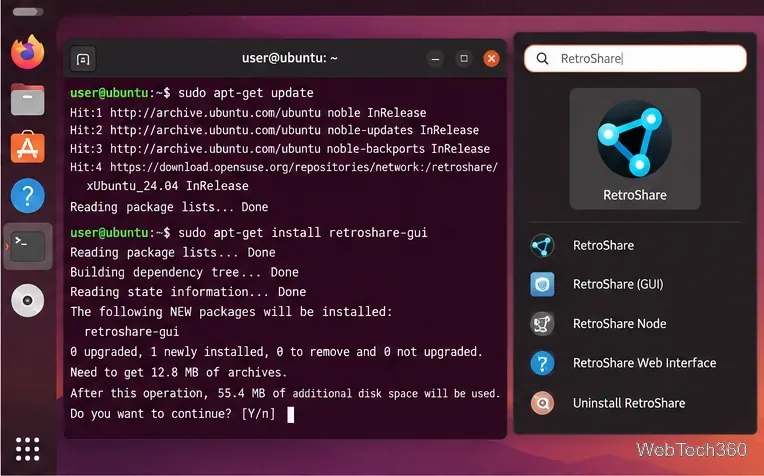
Refresh package metadata and install the graphical client:
After installation, launch RetroShare from your desktop application menu.
Install retroshare-gui, then start RetroShare from the Linux application menu.
If you use Debian, Arch, openSUSE, Fedora, or another distribution, do not blindly reuse old repository commands. RetroShare notes that some Linux packages are maintained independently. First check your distribution for a current package; if you need to compile it yourself, use the project’s current Linux build guide.
Create your RetroShare profile
3. Create a profile and protect it with a password
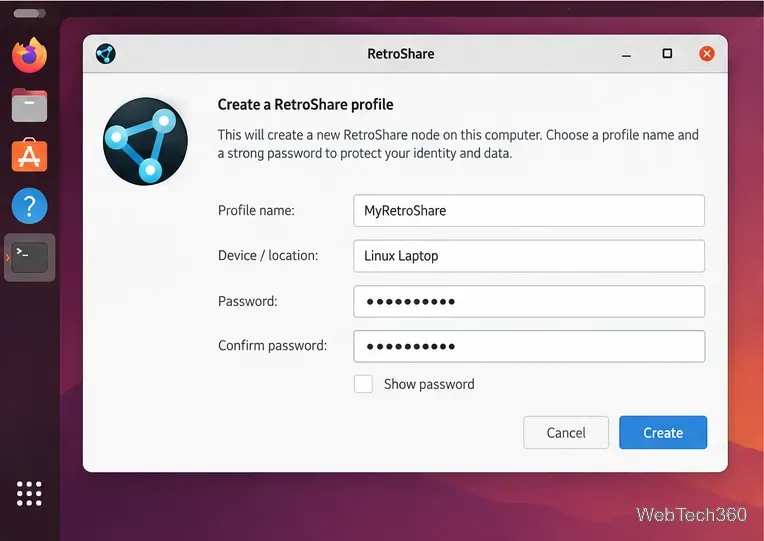
On first launch, create the local profile/node that represents this RetroShare installation. Choose a recognizable profile name, add a location label if the interface offers one, and set a strong password you can remember. The password protects access to your local RetroShare identity and keys.
Create a local RetroShare profile and secure it with a strong password.
4. Confirm RetroShare starts normally
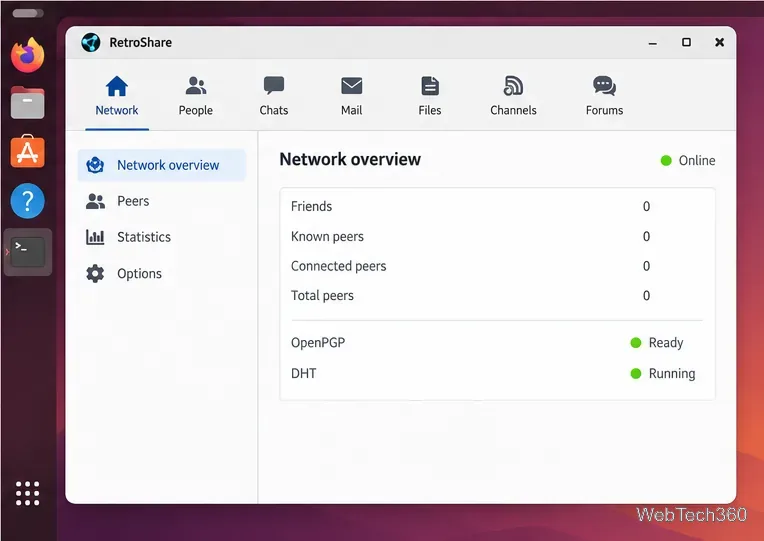
The main window may look empty at first. That is expected: RetroShare builds a friend-to-friend network, so there are no contacts or shared services until you exchange IDs with another user. The RetroShare project overview explains that direct neighbors authenticate each other and then form the private network mesh.
A new RetroShare profile begins with no friends; you add trusted contacts manually.
Configure connectivity
5. Check Network settings
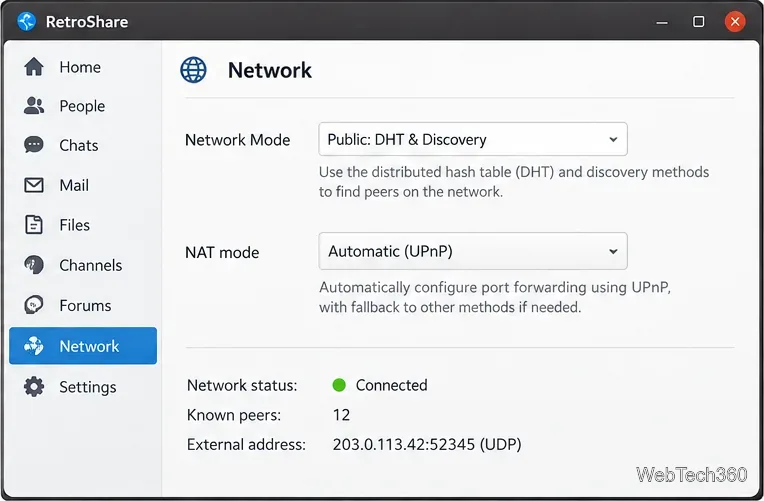
Open Settings or Options and review the Network section. The current RetroShare documentation recommends Public: DHT & Discovery for ordinary clearnet use because those mechanisms help trusted friends find changed addresses and connect through common NAT setups. If your router supports UPnP, Automatic/UPnP is the easiest NAT mode; otherwise you may need manual port forwarding.
For a normal internet connection, review DHT, Discovery, and NAT settings before troubleshooting peer connectivity.
See the official settings documentation for the available network modes. If you specifically want a Tor hidden node, follow RetroShare’s dedicated Tor hidden-node setup; simply running Tor beside RetroShare does not automatically route RetroShare traffic through Tor.
Add friends and start using RetroShare
6. Share your RetroShare ID with a trusted person
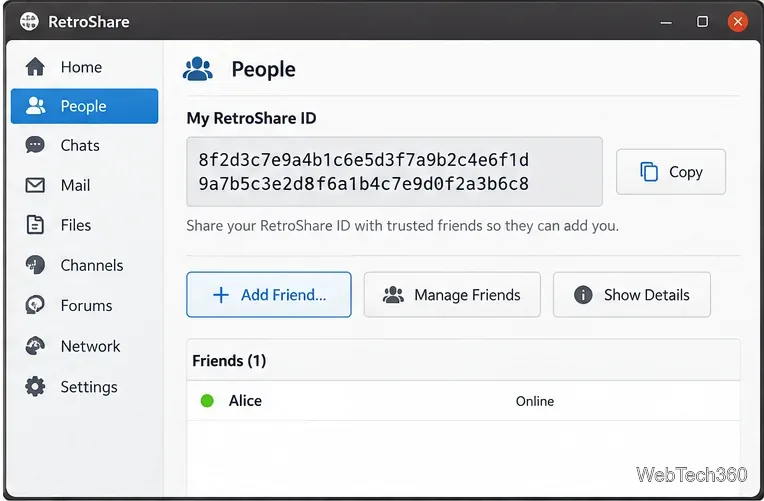
Open the People or friends area and find your RetroShare ID. Send that ID to your friend through a separate trusted channel, and ask them to send their ID to you. RetroShare’s first-steps guide describes this mutual exchange as the fastest way to establish the first connection.
Copy your RetroShare ID and exchange it directly with the person you want to add.
7. Add the friend’s ID
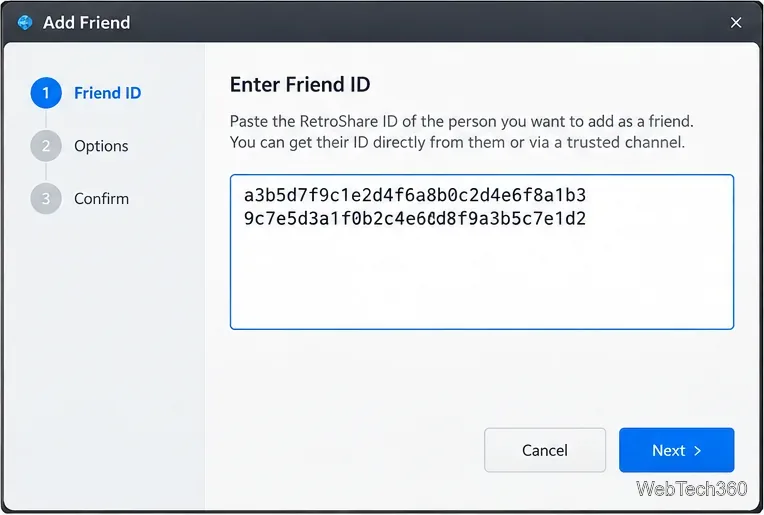
Select Add Friend, paste the ID your friend gave you, review the details, and finish the wizard. Depending on the version, RetroShare may also support importing a certificate file. Only add IDs or certificates that you received from the intended person.
Paste the friend’s RetroShare ID and verify it before completing the request.
8. Accept requests on both sides
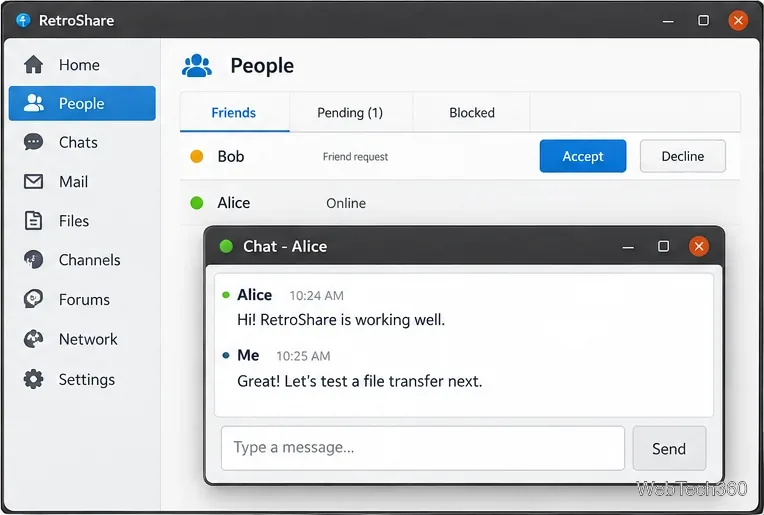
Both users need to trust/add each other. If RetroShare shows a pending friend request, review it and accept it only when you recognize the sender. Once the connection is established, you can open a private chat, use RetroShare messages, or configure file sharing. The project’s First Steps documentation notes that an initial connection may take some time, especially while DHT connectivity is being established.
After mutual approval, connected friends can chat and use other RetroShare services.
Quick troubleshooting checklist
Friend stays offline: confirm that both sides added each other and that DHT/Discovery is enabled for normal clearnet use.
NAT status is not working: try UPnP if your router supports it, or configure a manually forwarded port.
Package instructions fail: return to the official downloads page and verify that your Ubuntu release still has a matching repository instead of substituting an older distro URL.
You want stronger network anonymity: use the documented Tor or I2P hidden-node modes rather than assuming a separate proxy application protects RetroShare automatically.
Once your first trusted friend is connected, RetroShare’s chat, mail, forums, channels, and file-sharing features become useful without relying on a central service.