Home
» LINUX
»
How to Set Up Samba Shares in Ubuntu Server with Webmin
How to Set Up Samba Shares in Ubuntu Server with Webmin
You can set up Samba shares in Ubuntu Server without hand-editing /etc/samba/smb.conf by using Webmin's Samba Windows File Sharing module. The basic workflow is to install Samba, open Webmin over HTTPS, create a share, set its access rules, add a Samba user, and then connect from Windows.
1. Install Samba and Webmin
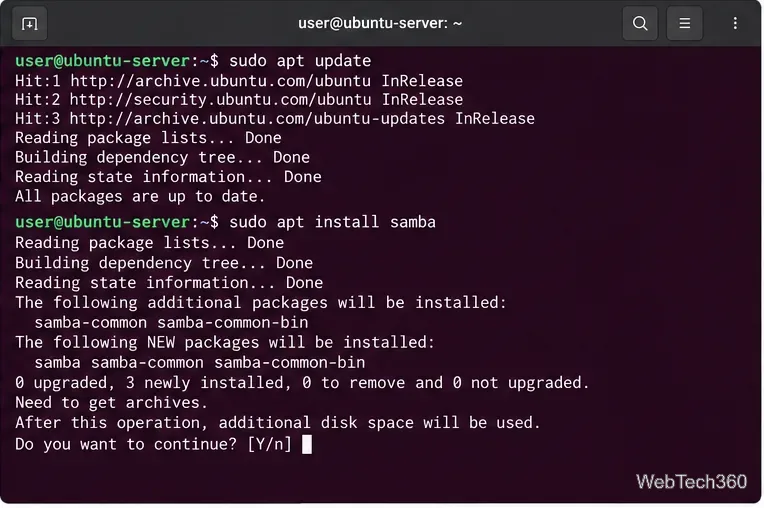
Start by installing Samba from Ubuntu's repositories:
sudo apt update
sudo apt install samba
Ubuntu's official Samba file server documentation uses the same samba package. If Webmin is not already installed, Webmin recommends adding its official repository with the setup script and then installing the package:
Install Samba before opening Webmin's Samba management module.
2. Sign in to Webmin over HTTPS
From a computer that can reach the server, open:
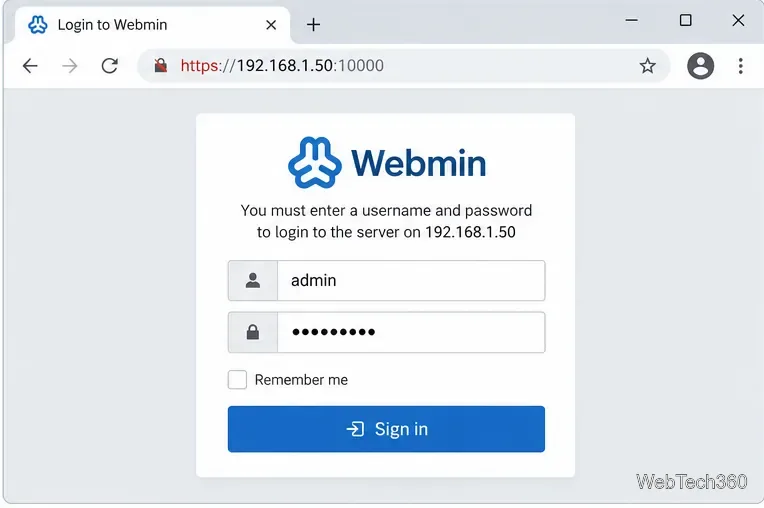
https://SERVER-IP:10000
Webmin's current installation guide specifies HTTPS on port 10000. Sign in with the administrative account configured for your Webmin installation. You do not need to enable remote root login or set a root password just for this tutorial. If a firewall protects the server, allow port 10000 only from trusted management networks where practical.
Open Webmin securely at the server address on port 10000.
3. Open the Samba Windows File Sharing module
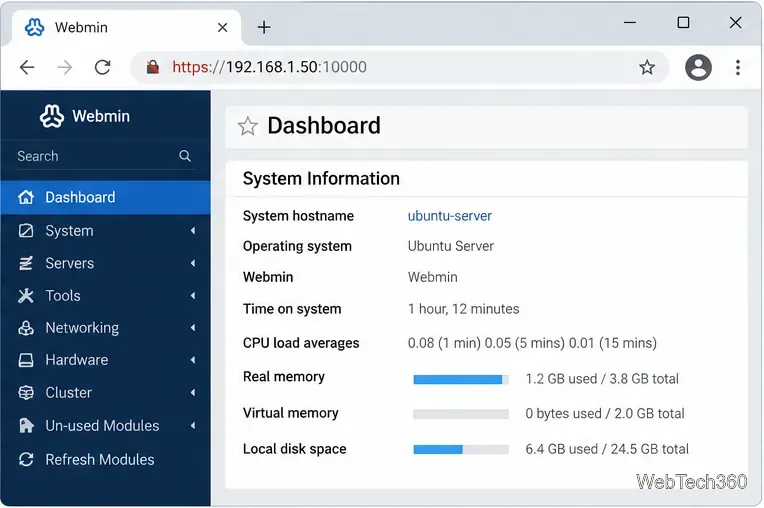
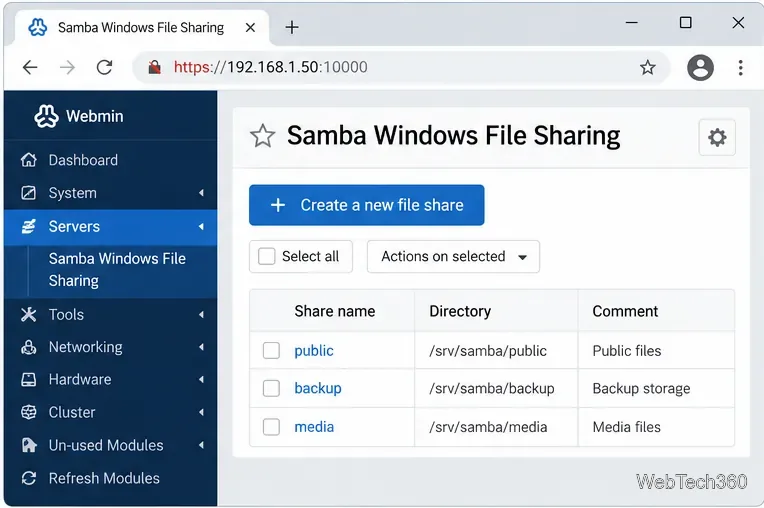
After login, open Servers > Samba Windows File Sharing. Webmin's Samba module documentation says the module lists existing shares and provides controls for creating new ones.
Use the Servers category in Webmin to reach Samba Windows File Sharing.
If Webmin reports that it cannot find smbd, confirm that the samba package installed successfully before changing module paths.
The Samba module shows existing shares and the button for creating a new file share.
4. Create the directory you want to share
Create the folder first and give the intended Linux user or group appropriate filesystem permissions. This example uses an existing Linux user named alex:
Linux permissions still apply even when Webmin says a share is writable. For a multi-user share, use a dedicated group and group permissions instead of making one user the owner.
5. Create the share in Webmin
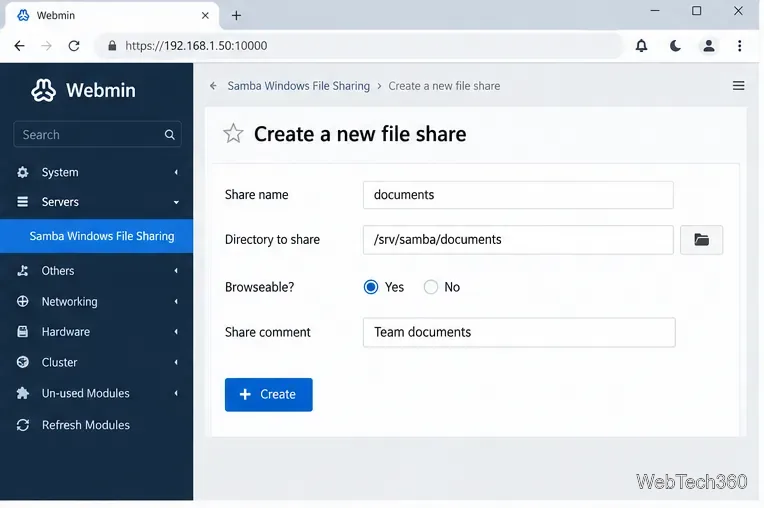
In Samba Windows File Sharing, click Create a new file share. Enter a simple share name such as documents, set Directory to share to /srv/samba/documents, leave Browseable? enabled if you want the share listed to clients, add a short comment, and click Create.
Set the share name, directory, browseability, and description before creating the share.
6. Configure security and write access
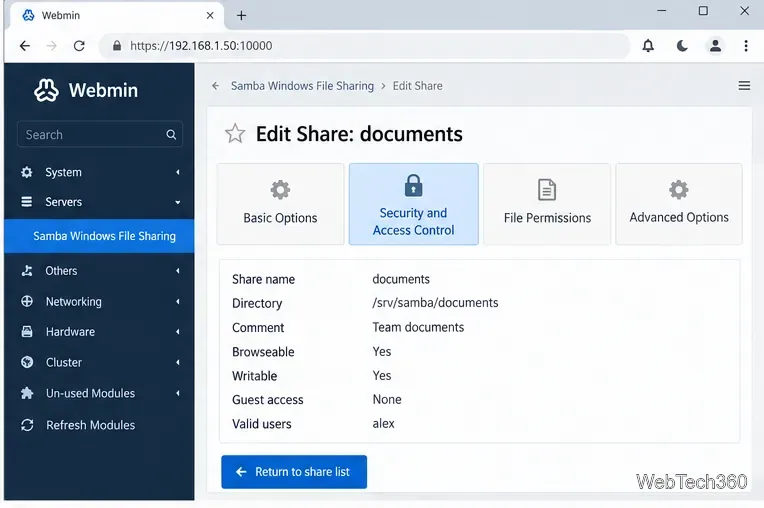
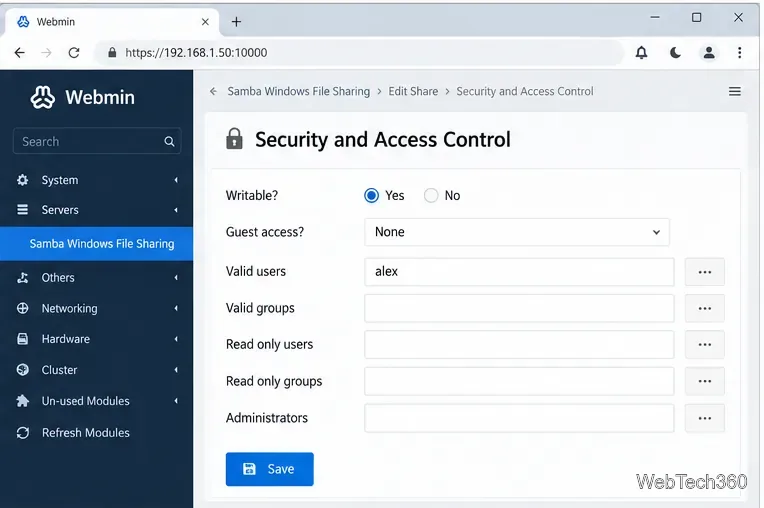
Click the new share, then open Security and Access Control. For a typical password-protected LAN share, set Writable? to Yes only if users should modify files, set Guest access? to None, and put allowed usernames in Valid users.
Open Security and Access Control to review who can use the share.
Webmin also supports guest access, but avoid combining unrestricted guest access with write permission unless you intentionally want anyone who can reach the share to create or change files. The Ubuntu Samba access-control guide explains that authenticated Samba users and normal Linux filesystem permissions work together.
For a private share, keep Guest access set to None and list the users who are allowed in.
7. Add the user to Samba
A Linux account is not automatically a Samba login. For an existing Linux user such as alex, add a Samba password with:
sudo smbpasswd -a alex
Enter the password that Windows clients will use for this share. The Ubuntu documentation notes that the Samba credential can be different from the Linux account password.
8. Apply the configuration and connect from Windows
Webmin notes that Samba normally notices configuration-file changes automatically, so a restart is usually unnecessary. If the module shows Restart Samba Servers and you need to force a reload, you can use it after saving the share.
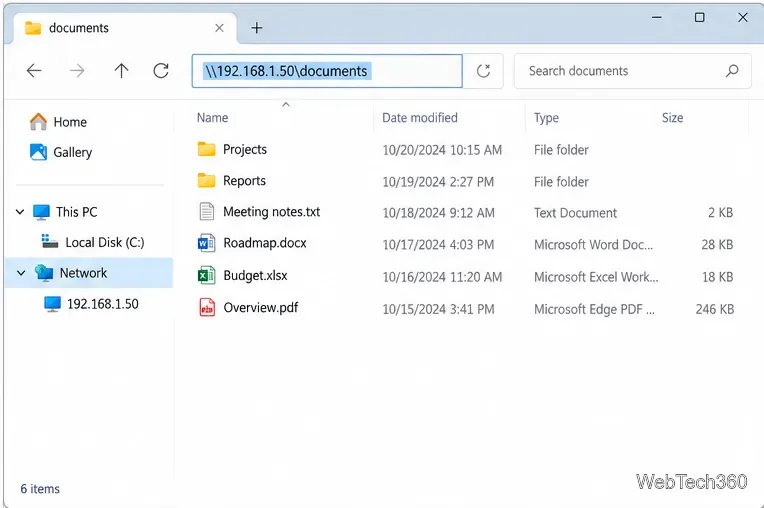
On Windows, open File Explorer and enter the UNC path:
\\SERVER-IP\documents
When prompted, sign in with the Samba username and password. If the share does not appear under Network, try the direct UNC path first; network browsing is not required for the share itself to work.
Connect directly to the Samba share with the server IP address and share name.
Quick troubleshooting
Permission denied: check both Webmin's share rules and Linux ownership or mode bits on the shared directory.
Login rejected: confirm the Linux user exists and has been added with smbpasswd -a.
Share is unreachable: verify that Samba is running and that your firewall allows SMB traffic from the client network.
Webmin is unreachable: confirm you are using https://, port 10000, and a trusted management path to the server.