systemd-networkd is systemd's built-in network manager for configuring Ethernet links, addresses, routes, bridges, VLANs, and other network devices. For a basic wired connection, the setup is straightforward: identify the interface, create a .network file, make sure no other manager owns the same interface, start systemd-networkd, and verify the result.
This guide uses DHCP on a wired Ethernet interface. If you are connected to the machine over SSH, use a local console or out-of-band management before changing network managers, because the handoff can temporarily drop the connection.
1. Check your Ethernet interface and current network manager
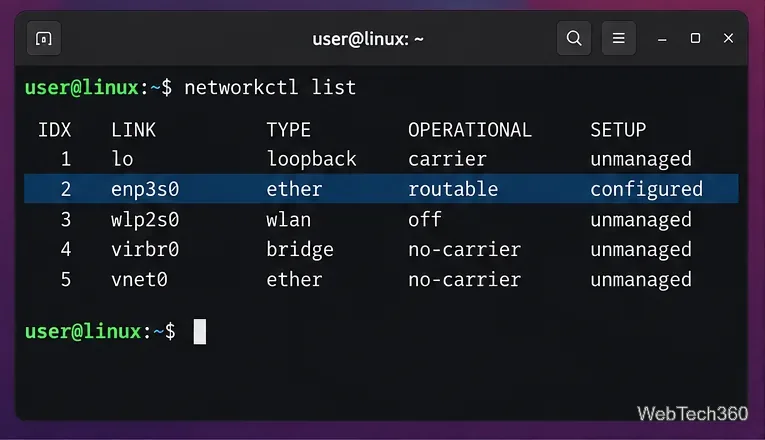
Start by listing links that systemd knows about:
networkctl list
Look for the wired interface, commonly named something like enp3s0, eno1, or eth0. You can also run ip link. Do not copy the example interface name blindly.
Next, check whether NetworkManager is active:
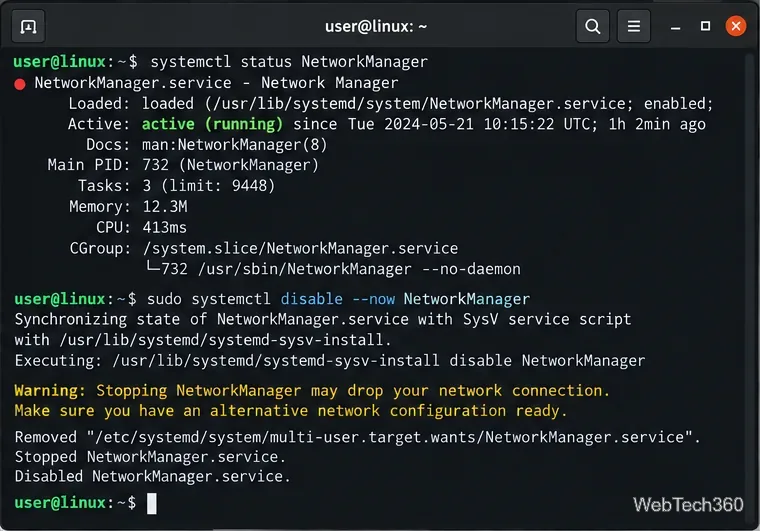
systemctl status NetworkManager
NetworkManager and systemd-networkd can coexist when they manage different interfaces, but you should not let both manage the same Ethernet link. The current systemd.network documentation explains how .network files match interfaces and how networkd determines ownership.
2. Create a DHCP network profile
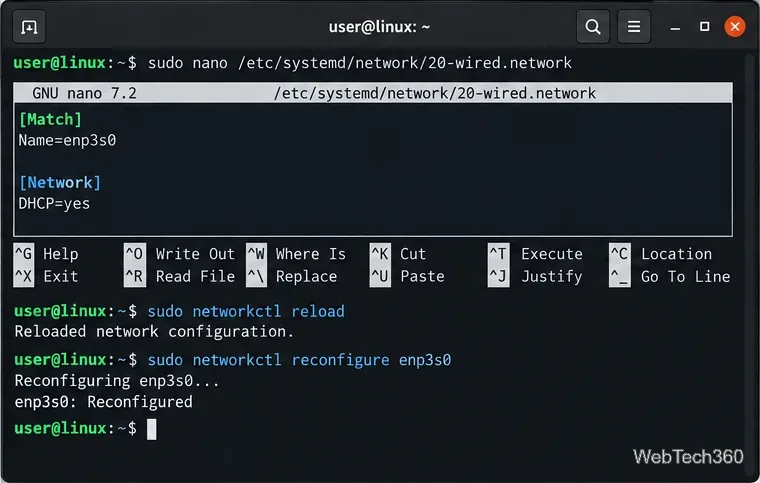
Local administrator profiles belong in /etc/systemd/network/. Create the directory if it does not already exist, then edit a file such as 20-wired.network:
sudo mkdir -p /etc/systemd/network
sudo nano /etc/systemd/network/20-wired.network
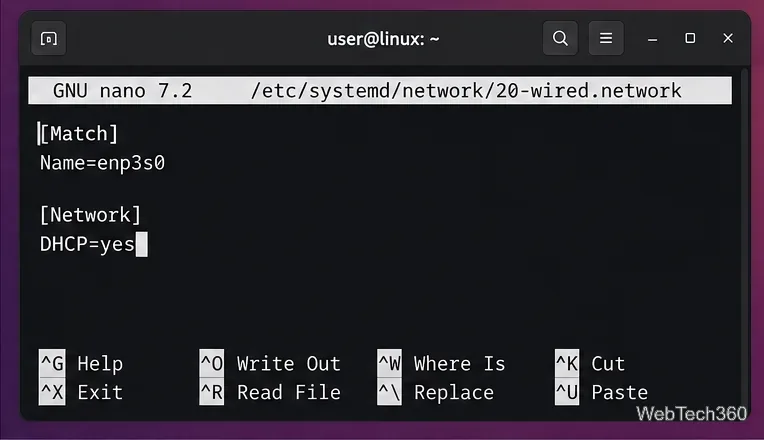
For a normal Ethernet connection that receives its address from your router or DHCP server, use:
[Match]
Name=enp3s0

[Network]
DHCP=yes
Replace enp3s0 with your actual interface. Files must end in .network. When several files match a link, systemd-networkd uses the first matching file in alphanumeric order, so a specific name such as 20-wired.network is easier to reason about than a broad catch-all.
Optional: use a static IPv4 address
If the machine needs a fixed address, replace DHCP=yes with values appropriate for your network:
[Match]
Name=enp3s0

[Network]
Address=192.168.1.50/24
Gateway=192.168.1.1
DNS=1.1.1.1
DNS=9.9.9.9
Do not reuse those sample addresses unless they match your subnet. The official systemd.network reference documents DHCP=, Address=, Gateway=, DNS=, and more advanced routing options.
3. Enable systemd-networkd
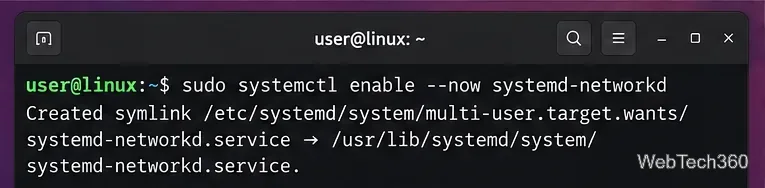
Once the profile is ready, enable networkd and start it immediately:
sudo systemctl enable --now systemd-networkd
If another service currently manages this same Ethernet interface, perform the handoff from a local console. For a host fully switching away from NetworkManager, you can stop and disable it with:
sudo systemctl disable --now NetworkManager
Do not disable NetworkManager when you still need it for Wi-Fi or other interfaces. systemd-networkd configures IP networking, but Wi-Fi authentication normally requires a separate component such as iwd or wpa_supplicant.
4. Configure DNS with systemd-resolved if needed
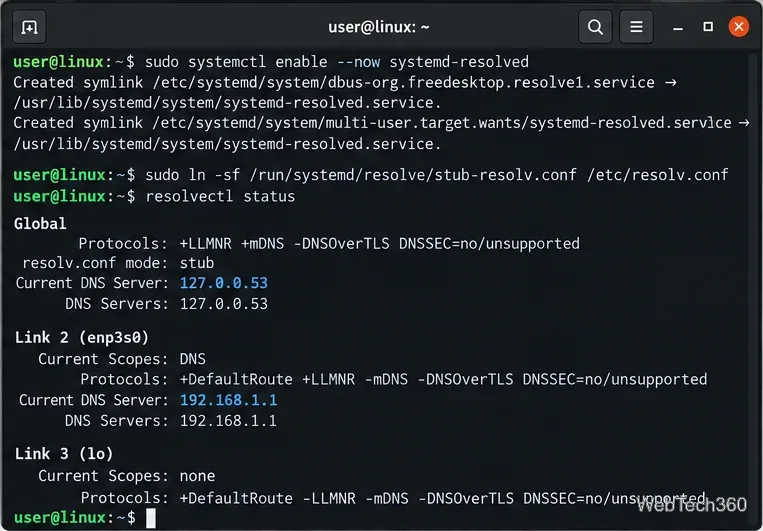
systemd-resolved is not a requirement for networkd itself, but it integrates well with networkd and can use DNS servers learned through DHCP. If your distribution is not already using another resolver, enable it:
sudo systemctl enable --now systemd-resolved
The systemd-resolved documentation recommends linking /etc/resolv.conf to its stub file when resolved is the system resolver. Check first:
readlink -f /etc/resolv.conf
If you intentionally want systemd-resolved to provide resolv.conf, use:
sudo ln -sf /run/systemd/resolve/stub-resolv.conf /etc/resolv.conf
Do not replace /etc/resolv.conf if your distribution or another DNS tool is deliberately managing it.
5. Reload the configuration and reconfigure the interface
After editing a .network file, reload networkd's configuration. You can then explicitly reconfigure the target link:
sudo networkctl reload
sudo networkctl reconfigure enp3s0
Replace enp3s0 with your interface name. The official networkctl manual documents both commands. A full systemctl restart systemd-networkd also reloads the service, but networkctl is usually the more targeted choice.
6. Verify that systemd-networkd is working
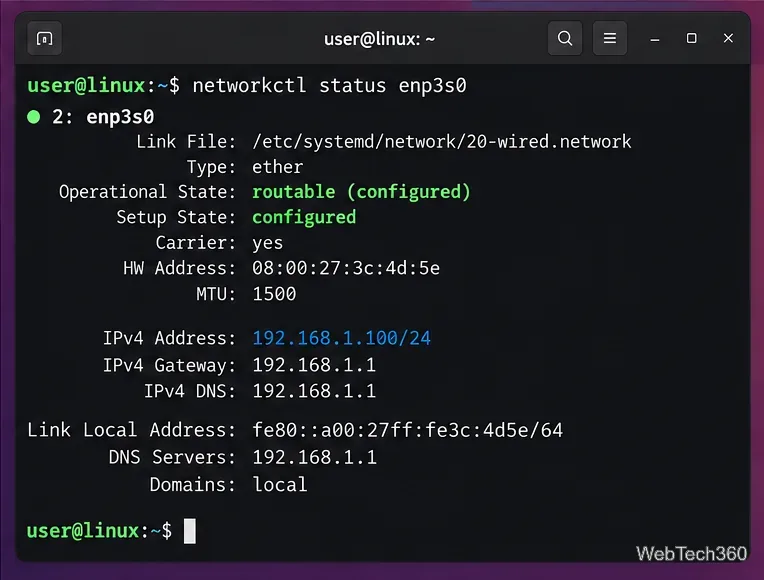
Check the interface status:
networkctl status enp3s0
For a healthy DHCP connection, you should see the link configured with an IP address, a default gateway, and usually DNS information.
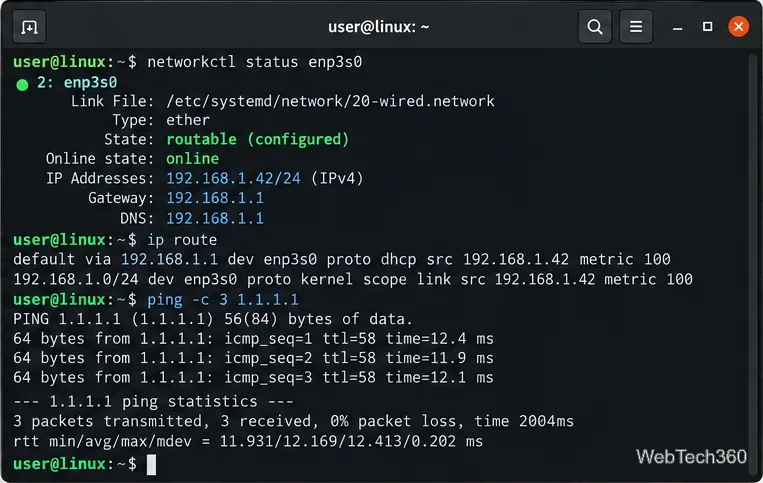
Then confirm routing and connectivity:
ip route
ping -c 3 1.1.1.1
If the IP ping works but websites or hostnames do not resolve, test DNS with resolvectl query example.com when using systemd-resolved. If the interface stays unmanaged, recheck the [Match] name and make sure another network manager is not claiming the same device.
For advanced setups such as bridges, bonds, VLANs, tunnels, or virtual devices, see the official systemd-networkd service documentation and the related systemd.netdev and systemd.link references.









