Home
» LINUX
»
How to Set Up the Joplin Note-Taking App on Linux
How to Set Up the Joplin Note-Taking App on Linux
Joplin is a free, open-source note-taking app for Linux that stores your notes locally first and can optionally sync them across devices. The current official Linux documentation recommends installing the desktop app with Joplin's install-and-update script, which also creates a desktop launcher. After installation, you can create notebooks, write in Markdown or Rich Text, add to-dos, and configure synchronization from the app's Options screen.
1. Install Joplin on Linux with the official script
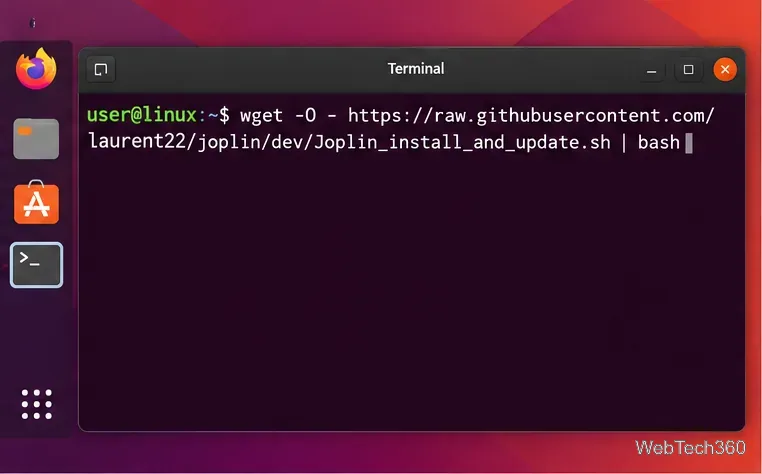
The script installs Joplin for your user account, downloads the Linux AppImage, makes it executable, and creates the desktop entry when your environment supports it. Run the command as your normal user rather than prepending sudo. To update an installation created this way, run the same command again; the script checks for and installs the current release.
If you would rather inspect the script before executing it, open the official Joplin GitHub repository from the installation page and review Joplin_install_and_update.sh first.
Run the official Joplin install-and-update script from a normal Linux user account.
Older guides often recommend Snap, AUR helpers, or other third-party packages as the main method. Joplin now labels alternative distributions as unofficial, so package-specific issues may need to be handled by those package maintainers rather than the Joplin project.
2. Start Joplin and create your first notebook
Launch Joplin from your desktop application menu. Joplin is designed to be offline first, so you can begin taking notes without creating a cloud account or enabling sync. The app keeps your local data available even when you are offline.
Click New notebook and give the notebook a clear name, such as Work, Personal, Research, or Recipes.
Select that notebook in the left sidebar.
Create a new note and enter a title.
Start typing. Joplin saves your note data locally as you work.
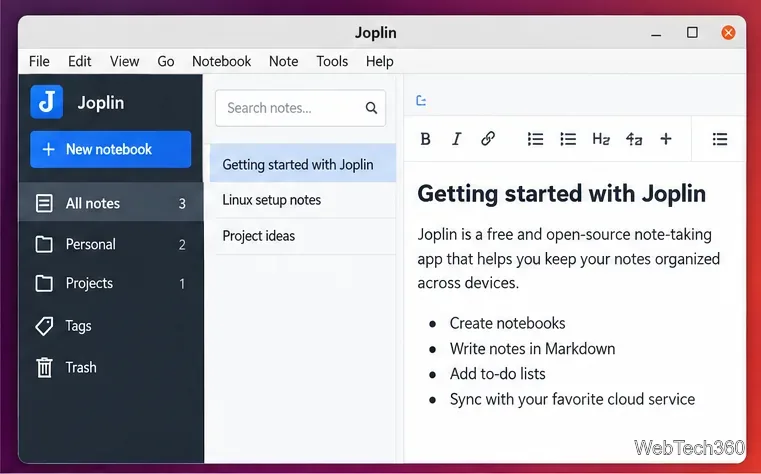
The official Using Joplin guide recommends organizing related notes into notebooks, while tags and search can help you find information across a larger collection.
The Joplin desktop layout keeps notebooks in the sidebar, notes in the center, and the active note in the editor area.
3. Write notes in Markdown or Rich Text
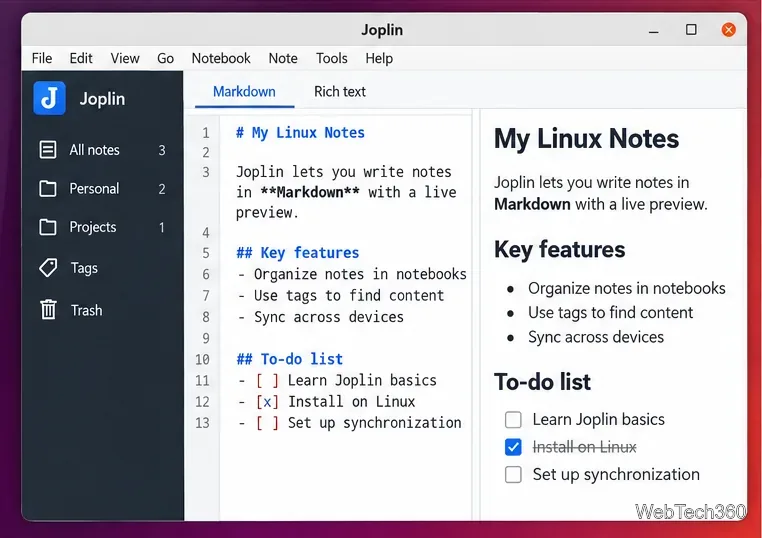
Joplin supports Markdown as its core note format and can display formatted output alongside the source. The official Markdown guide covers headings, bold text, links, lists, tables, code, checkboxes, and other supported syntax. If you prefer a more visual editing experience, Joplin Desktop also provides a Rich Text editor.
For simple task tracking, you have two useful choices. You can put Markdown checkboxes inside any note, or create a dedicated to-do note. On desktop, Joplin's to-do documentation says to use the New to-do button above the note list. To-do notes can be marked complete and can also have alarms.
Markdown notes can include headings, lists, and task checkboxes, with formatted content displayed alongside the source.
4. Set up synchronization if you use Joplin on multiple devices
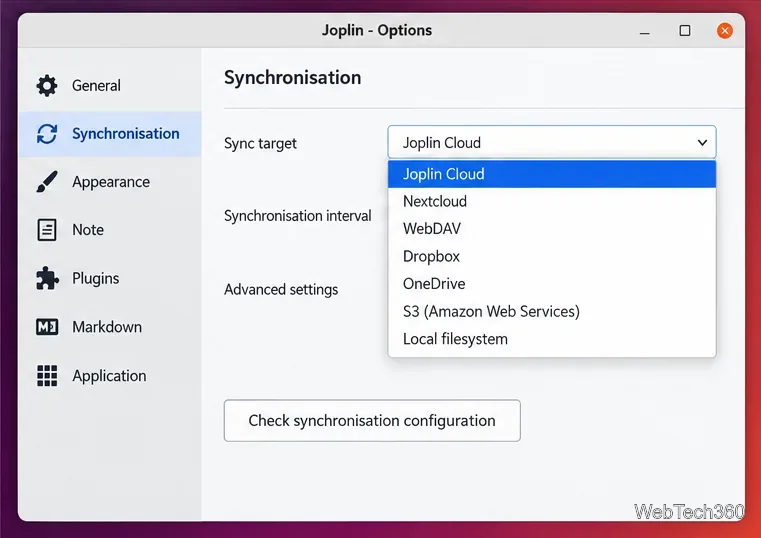
Sync is optional. If you want the same notes on Linux, a phone, or another computer, open Tools > Options on Linux, or press Ctrl+,, then choose Synchronisation. Joplin's current synchronization documentation lists Joplin Cloud, Nextcloud, S3, WebDAV, Dropbox, OneDrive, and the local filesystem as supported targets.
Select your synchronization target.
Enter the account, server, or path details required for that service.
Use the configuration check when it is available, then save the settings.
Return to the main window and click Synchronise to start the first upload.
When setting up additional devices, let the first computer finish its initial upload before connecting the next one. Joplin specifically recommends waiting for the first synchronization to complete so the other devices receive the full note collection.
On Linux, synchronization settings are available from Tools > Options, where you can choose the service used to sync notes.
Useful setup tips
Need to reopen settings quickly? On Linux, Ctrl+, opens the configuration screen, according to Joplin's configuration guide.
Want notes only on this PC? You do not need to configure a sync target; local note-taking works without one.
Using an unofficial Linux package? Update it through the package source that installed it. For the official script installation, rerun the script command above.
Moving from another note app? Joplin can import common formats, including Evernote exports and Markdown files, so you can migrate existing notes after the basic setup is complete.
Once these four steps are done, Joplin is ready for everyday Linux use: create notebooks, add notes or to-dos, choose Markdown or Rich Text, and enable sync only if you need the same data on multiple devices.