How to Share Files Over Bluetooth on Linux with Blueman

Send and receive files over Bluetooth on Linux with Blueman. Install OBEX support, pair devices, choose a file, accept transfers, and fix common issues.
To set up the qBittorrent Web UI on Linux, install qbittorrent-nox, start it once as a non-root user, then sign in through a browser. The first launch prints the Web UI address and login details. Set a strong password before leaving the service online. For remote access, use an SSH tunnel or HTTPS proxy instead of exposing the default HTTP port to the public internet.
The headless qbittorrent-nox package runs without a desktop window and is controlled in a browser. Install it from your distribution’s package manager:
sudo apt update && sudo apt install qbittorrent-noxsudo dnf install qbittorrent-noxsudo pacman -S qbittorrent-noxUbuntu packages are in the Universe component; enable it if APT cannot find the package. Package versions vary by release. Check the official Ubuntu, Debian, Arch, or Fedora package catalog if the package is unavailable. The upstream installation guide explains package and version options.
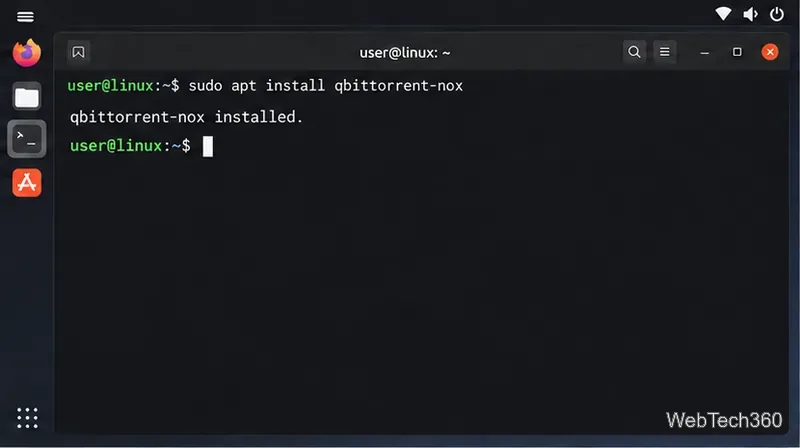
Do not run the client with sudo. qBittorrent stores settings and downloads for the account that starts it. For a quick test, use your normal non-root account. On a server, use a dedicated account such as qbtuser; create it with sudo adduser qbtuser or, where available, sudo useradd -m -s /bin/bash qbtuser. Initialize the client under that same account:
sudo -iu qbtuser
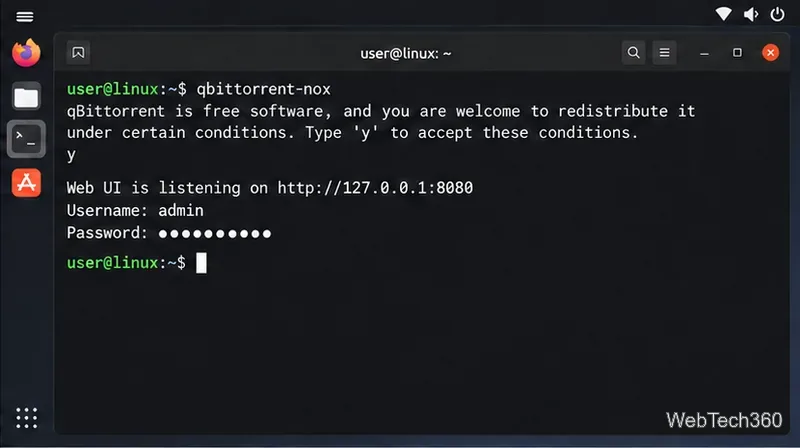
qbittorrent-nox
Accept the legal notice when prompted. qBittorrent prints the Web UI URL, usually http://localhost:8080, and the administrator username. Current releases with no saved password print a temporary random password in the terminal. Some older packages may still show adminadmin; use the value your version prints and change any default password immediately.
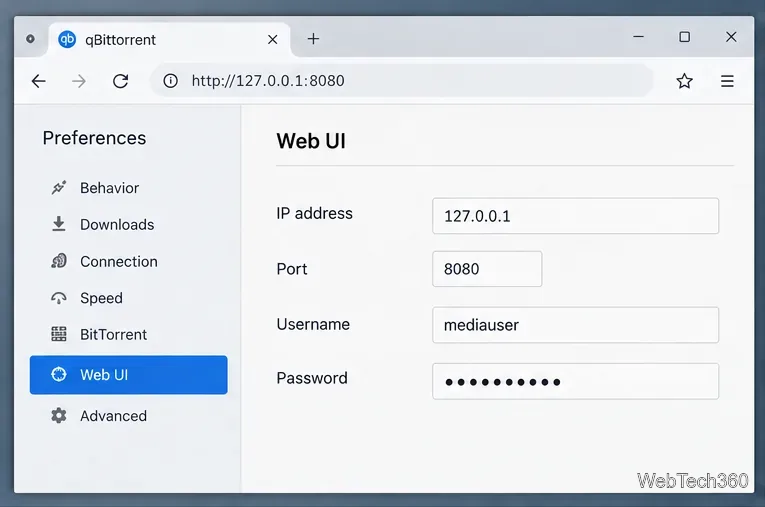
On the Linux machine, open the printed address in a browser and sign in as admin. If the client runs on a headless server, connect through SSH as described below. In Settings or Preferences → Web UI, set a unique, strong password. Keep port 8080 unless it is already in use. For a localhost-only setup, bind the Web UI to 127.0.0.1, then save the change.
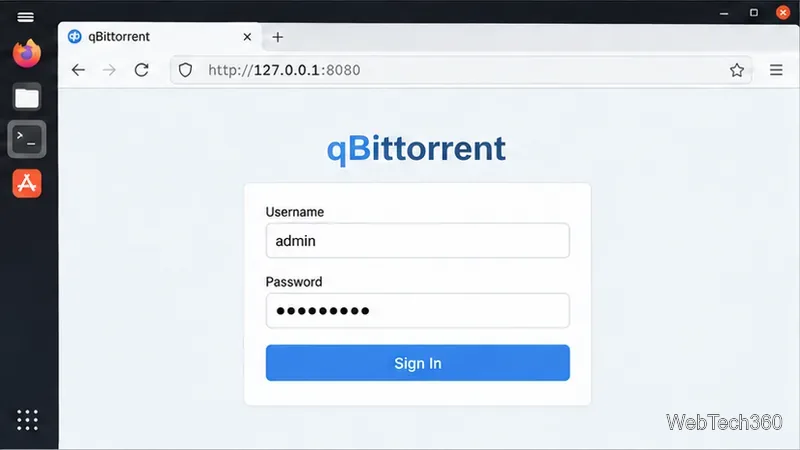
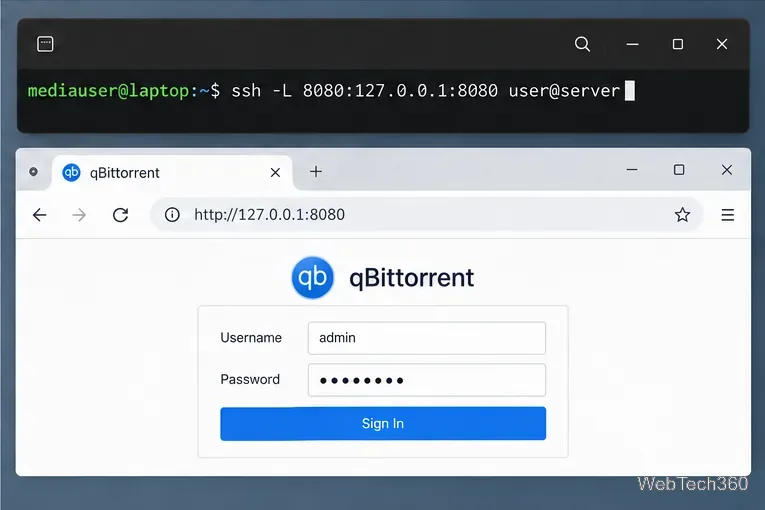
The Web UI uses HTTP by default, so a direct public port forward can expose your login. From your computer, open an SSH tunnel to the Linux server:
ssh -L 8080:127.0.0.1:8080 linux_user@server_addressKeep that terminal session open and visit http://127.0.0.1:8080 on your computer. For access without SSH, use a VPN or configure TLS termination with a reverse proxy. qBittorrent’s Linux HTTPS and NGINX guide covers one supported approach. Do not disable authentication or expose the Web UI to untrusted networks.
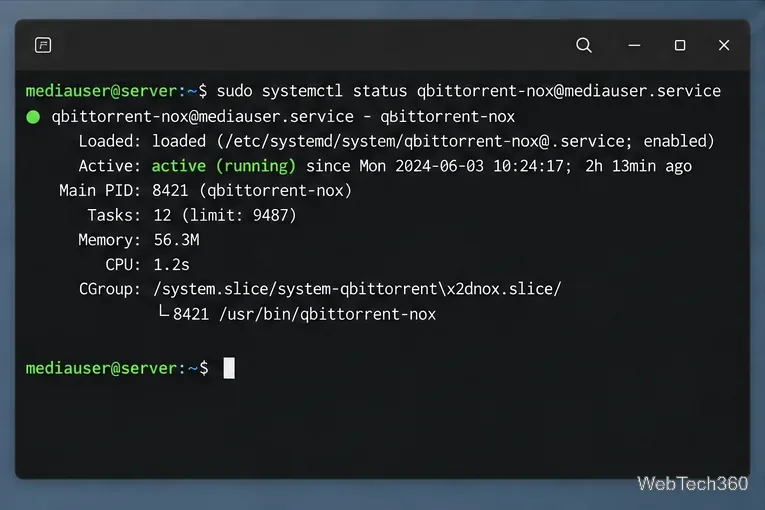
After saving the initial settings, stop the foreground process with Ctrl+C, then exit the account shell. Many distribution packages include the qbittorrent-nox@.service template. Enable it for the account used above and check its status:
sudo systemctl enable --now qbittorrent-nox@qbtuser
sudo systemctl status qbittorrent-nox@qbtuser
Replace qbtuser if you chose another account. If the unit is missing, follow the upstream systemd setup guide for your distribution. For a temporary background run without boot management, use qbittorrent-nox -d.
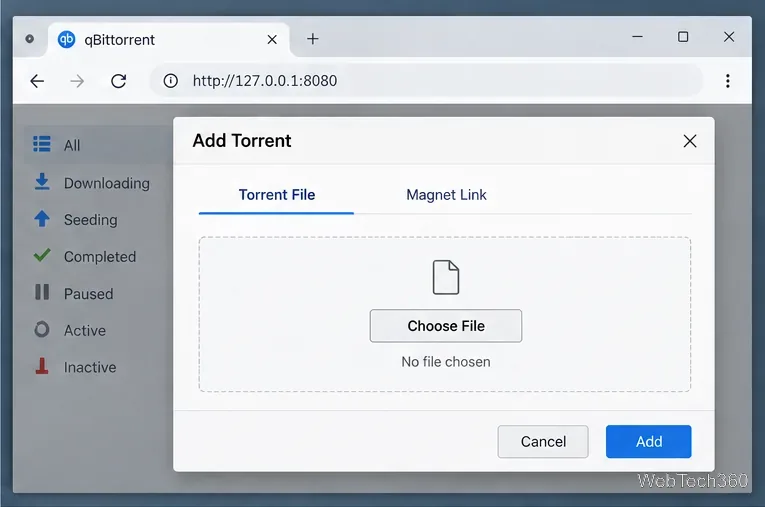
In the Web UI, click Add Torrent or the plus icon. Choose a .torrent file or select the magnet-link option and paste a magnet URI. Confirm the save path before starting the task, and only add content you are authorized to download or share.
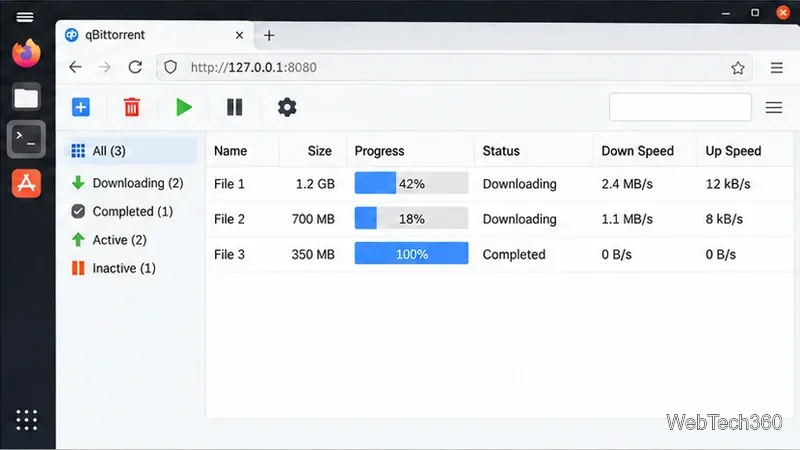
The Linux host downloads the data; it does not go to the device displaying the browser. Check the configured save path in the download settings. A service account’s files are stored under that account’s paths, not necessarily your personal home directory. Use SSH, SFTP, or a shared folder to retrieve them. When removing a completed torrent, read the confirmation and choose whether to keep or delete its data.
sudo systemctl status qbittorrent-nox@qbtuser, confirm the port in Settings, and verify that the tunnel uses the same port.sudo journalctl -u qbittorrent-nox@qbtuser -n 50 --no-pager. Use the same Linux account that owns the qBittorrent configuration. See the project’s password recovery guide if you are locked out.qbittorrent-nox --webui-port=8081. Update the browser URL and SSH tunnel. The qbittorrent-nox manual lists command-line options.Send and receive files over Bluetooth on Linux with Blueman. Install OBEX support, pair devices, choose a file, accept transfers, and fix common issues.
Connect GNOME Files to SSH/SFTP, FTP, SMB, WebDAV, or NFS with the correct server URI, sign-in details, and fixes for common connection errors.
Open SFTP, SSH, SMB, FTP, NFS, and WebDAV locations in Dolphin, sign in safely, transfer files, and save network folders for later.
Connect a DualShock 4 to Linux by USB or Bluetooth, then check controller detection and configure Steam Input only when a game needs it.
Use DNF5 parallel downloads to reduce RPM install waits in GNOME Software, then tell when mirror or Flatpak delays need a different fix.
Access iCloud on Linux in a current browser. Learn how to sign in, use iCloud Drive and other web apps, and understand the limits of browser access.
Save GRUB settings, boot files, and UEFI entry details to removable storage, then use rescue media to repair the correct boot path safely.
Install Bitwarden on Linux with the right DEB, RPM, Snap, Flatpak, or AppImage package, then sign in and set a secure vault timeout.
Pick a screensaver theme in Xfce, preview it, choose when it starts, and configure automatic locking in the separate Lock Screen tab.
Stop GNOME Shell from blanking or locking your display automatically. Change Power and Screen Lock settings, or use Caffeine for a temporary keep-awake toggle.








