Home
» LINUX
»
How to Set Up Tor Browser on Ubuntu
How to Set Up Tor Browser on Ubuntu
The current Linux release is Tor Browser; “Tor Browser Bundle” is the older name used in many guides. On Ubuntu, Tor Project’s documented desktop method is to download a Linux .tar.xz archive, extract it, and launch start-tor-browser.desktop. You can install it in your home folder as a regular user. This process does not turn every Ubuntu app into a Tor-routed app; it sets up Tor Browser itself.
1. Download Tor Browser from the official site
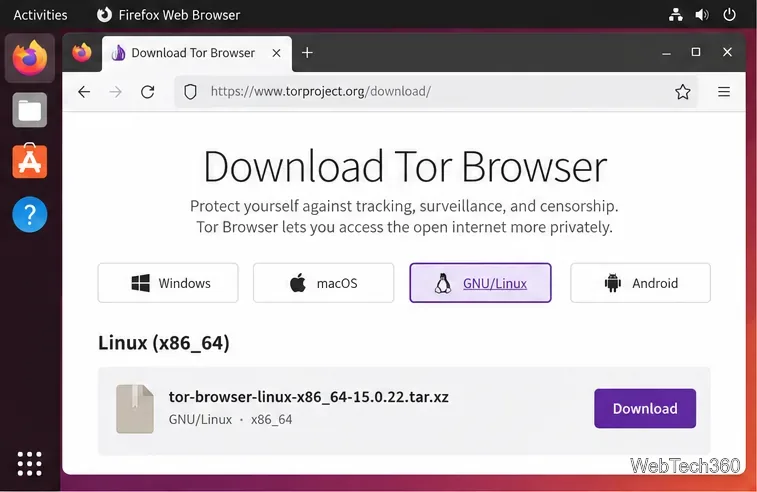
Open the Tor Browser desktop download page and choose GNU/Linux. For a 64-bit Intel or AMD Ubuntu system, select the x86_64 package. Tor currently recommends 64-bit Linux for the latest updates and security features, and its manual says 32-bit Linux support is being discontinued with a future major release. Choose the package that matches your system rather than copying an old filename or version number from a tutorial.
Choose the GNU/Linux archive that matches your Ubuntu system architecture.
Save the .tar.xz file, usually in ~/Downloads. If the Tor site is blocked on your network, Tor Project lists official mirrors and GetTor as alternate download routes on its download help page.
Optional but recommended: download the matching signature file and verify the archive before opening it. Tor’s signature verification guide explains how to check the signature with GnuPG. The archive name changes between releases, so follow the current guide instead of reusing a version-specific command from an older article. If verification reports a bad signature, do not run that archive; download it again from an official source and verify it once more.
2. Extract the Linux archive
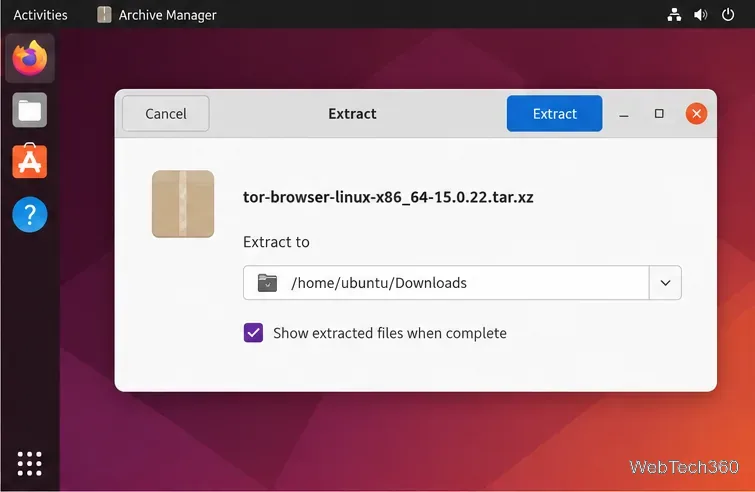
In Ubuntu Files, open Downloads, select the Tor Browser .tar.xz archive, and use the archive manager’s Extract option. Choose a destination and wait until extraction finishes. The extracted folder contains the launcher and browser files; the compressed archive itself is not the app you start.
Extract the downloaded archive to a folder you can find again.
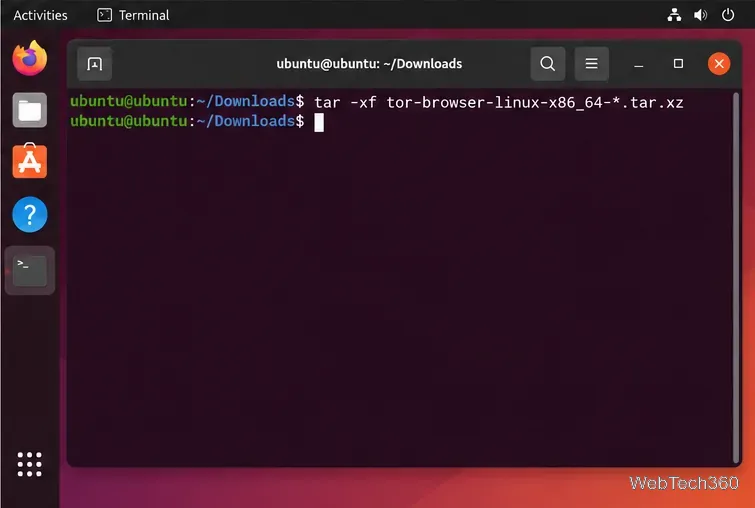
You can extract it in Terminal instead. Open Terminal with Ctrl+Alt+T, go to Downloads, and run:
cd ~/Downloads
tar -xf tor-browser-linux-x86_64-*.tar.xz
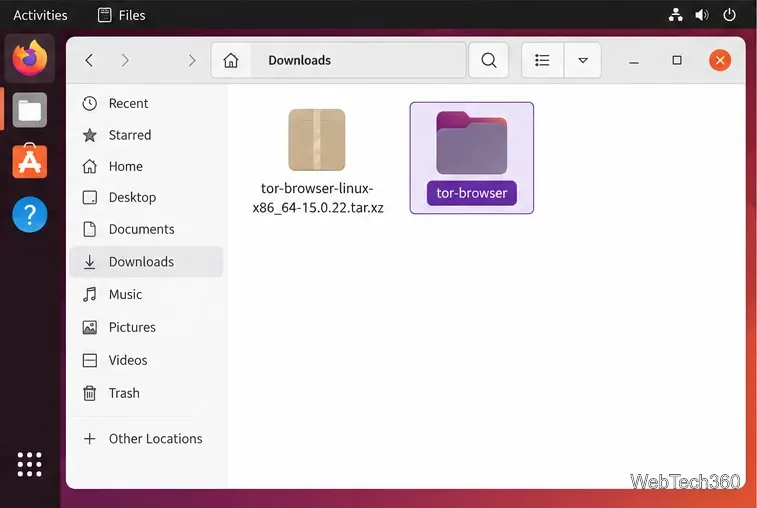
The wildcard works when there is one matching archive in Downloads. If you have more than one, type tar -xf and press Tab to complete the exact filename you want. On current Linux packages, extraction creates a folder named tor-browser. You can leave it in Downloads or move it to a stable location in your home folder; Linux has no single required install directory. Keep the extracted folder where you intend to use it.
The tar command unpacks the archive from Downloads.After extraction, open the tor-browser folder rather than the compressed archive.
3. Launch Tor Browser on Ubuntu
Use the file manager
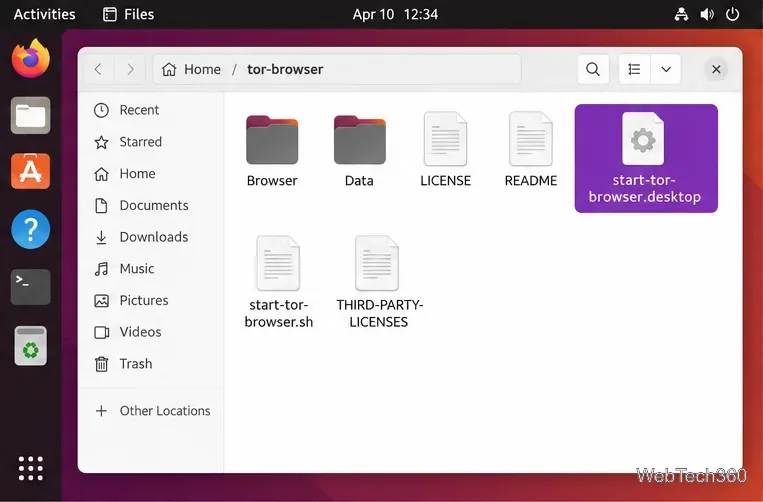
Open the extracted tor-browser folder in Files and double-click start-tor-browser.desktop. Tor Project’s installation guide lists this as the graphical launch method. If the desktop does not start the launcher, use the Terminal method below; it also makes permission problems easier to diagnose.
The desktop launcher is inside the extracted tor-browser folder.
Use Terminal
In Terminal, change into the extracted folder and run the launcher:
cd ~/Downloads/tor-browser
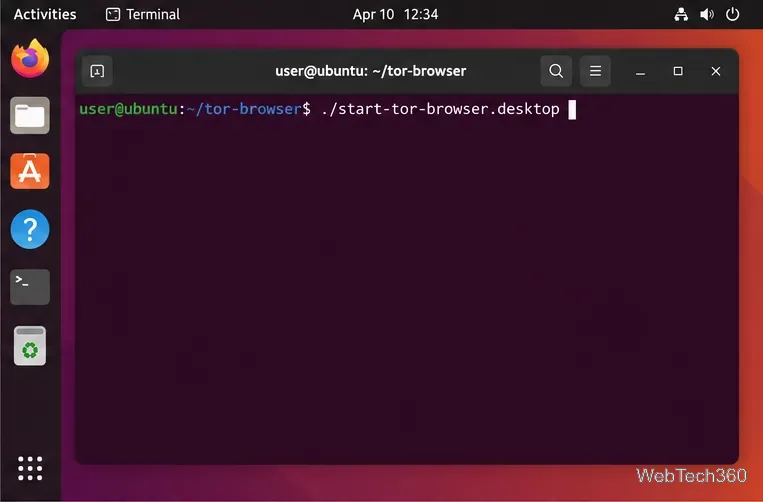
./start-tor-browser.desktop
If you moved the folder, substitute its actual location for ~/Downloads/tor-browser. Run Tor Browser as your normal Ubuntu user; the official archive method does not require sudo.
Run the desktop launcher from inside the extracted folder.
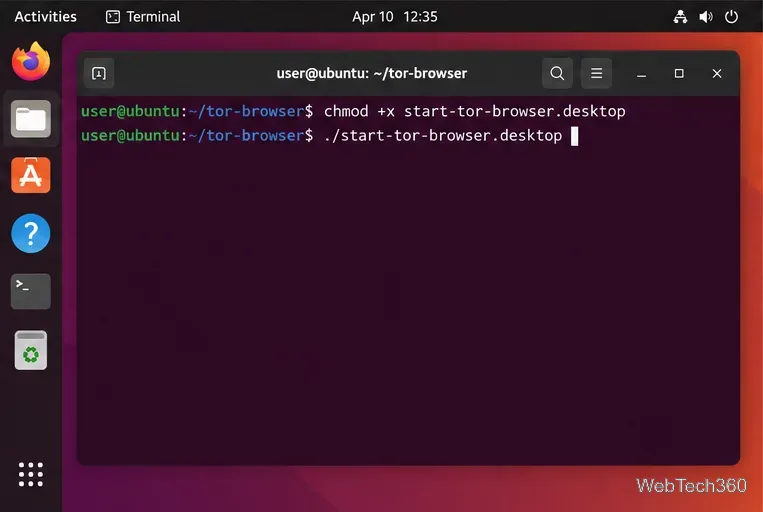
If Terminal says the launcher is not executable, stay in the tor-browser folder and set the executable permission, then try again:
This is the command-line fix in Tor Project’s Linux installation instructions. Do not run chmod on a different file or download a launcher from another site.
If the launcher lacks execute permission, apply the documented fix and run it again.
Add Tor Browser to the Applications menu (optional)
If you want to open Tor Browser from Ubuntu’s app menu, first put the extracted folder in the location where you plan to keep it. Open Terminal in that folder and run:
./start-tor-browser.desktop --register-app
Tor Project documents this command for registering Tor Browser as a desktop application. It creates convenient menu access; it does not replace the extracted program folder, so do not delete that folder afterward.
4. Connect to the Tor network
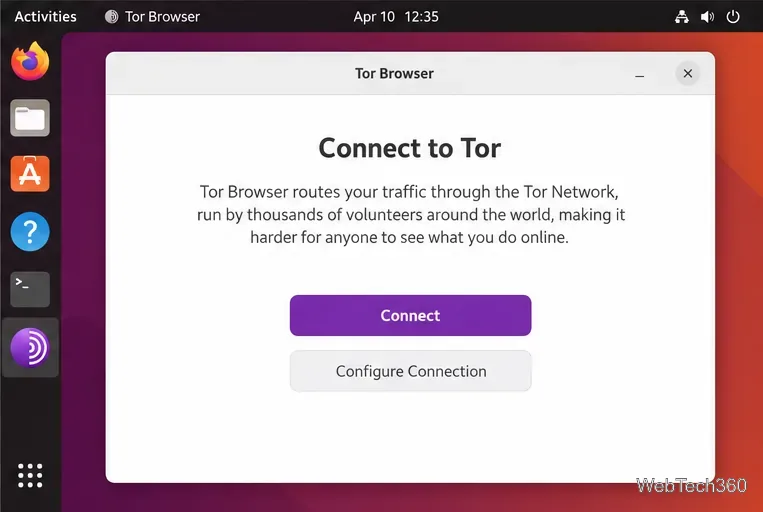
On first launch, Tor Browser opens its Connect to Tor window. In most cases, select Connect and wait for the connection to finish. You can enable automatic connection if you want Tor Browser to reuse the saved connection settings when it starts. See Tor’s first-launch instructions for the current connection options.
Select Connect for a direct connection, or Configure Connection if your network needs special settings.
If your network blocks Tor or requires a proxy, choose Configure Connection and follow the prompts. Tor’s Connection Assist can help users try a bridge when Tor is blocked. If the connection stalls, confirm that Ubuntu has internet access and the correct system date and time, then try the official connection help. A proxy is only needed when your network uses one.
Keep the browser current
Tor Browser checks for updates and displays an update prompt when one is available. Install updates promptly and restart the browser when asked; Tor Project explains the automatic and manual options in its update guide. Avoid installing extra browser add-ons, which Tor Project cautions can weaken the browser’s privacy protections.