Home
» LINUX
»
How to Set Up Tutanota Mail on Linux with Tuta’s Desktop App
How to Set Up Tutanota Mail on Linux with Tuta’s Desktop App
To set up Tutanota mail on Linux, install Tuta’s desktop app, then sign in or create an account. Tutanota is now called Tuta. Its Linux client is an AppImage, not an IMAP mailbox to add to Thunderbird.
The interface images below are illustrations of the setup flow. Button labels and account screens can change between app releases.
Choose a Linux installation method
Use the official Tuta download page and select Linux. Tuta says its AppImage is supported on the two latest Ubuntu LTS releases; check the Linux instructions for your distribution.
Flathub also lists a Flatpak, but it is labeled “Experimental,” has known issues, and is described as community provided and unsupported by Tutao GmbH. Arch AUR packages are also community maintained.
Install Tuta with the AppImage
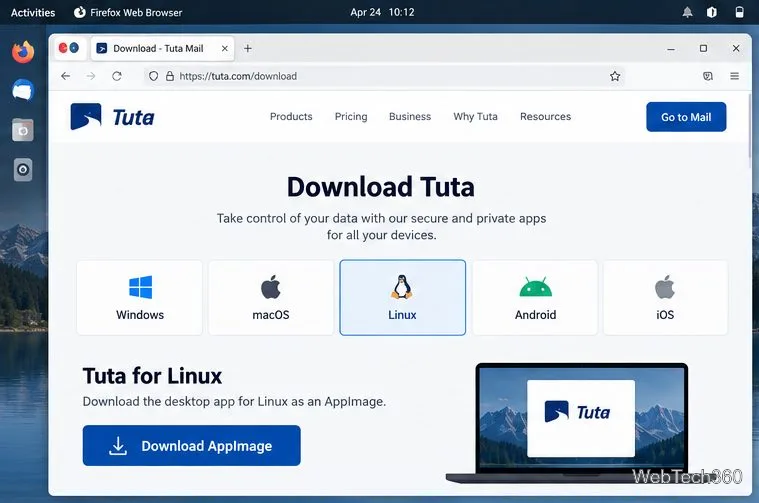
Download the Linux app. Open Tuta’s download page, choose Linux, and save the AppImage. Keep the file in Downloads or move it to a folder you use for applications.
Choose Linux on Tuta’s download page and download the desktop AppImage.
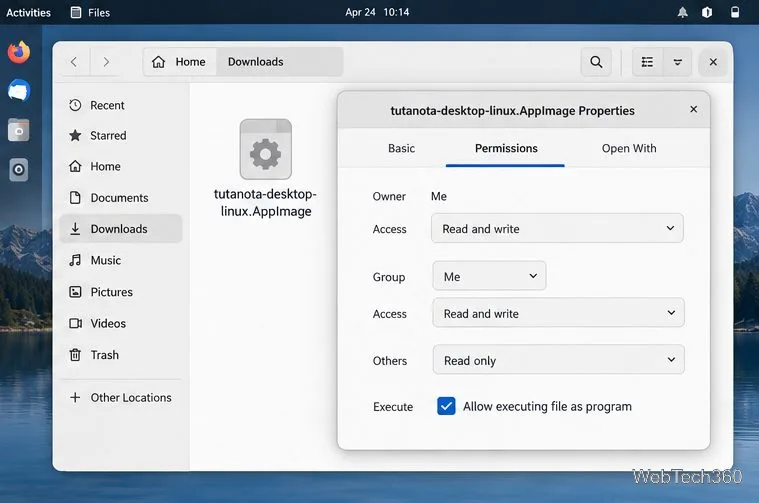
Allow the file to run. In your file manager, right-click the downloaded AppImage and open Properties. On the Permissions tab, enable the option named Allow executing file as program (the wording varies by desktop). Then close the dialog.
Enable execution permission for the AppImage in your file manager.
You can set the same permission from a terminal. If your download is in ~/Downloads, run:
cd ~/Downloads
chmod +x tutanota-desktop-linux.AppImage
./tutanota-desktop-linux.AppImage
Adjust the filename or folder if yours differs. Do not run the AppImage with sudo.
Using the Flatpak build
If Flatpak and the Flathub remote are already configured, the listed package can be installed from a terminal with:
flatpak install flathub com.tutanota.Tutanota
Confirm the package details before installing. If it is unreliable, use the AppImage or web app. Check the Flathub listing for current status.
Create a Tuta account or sign in
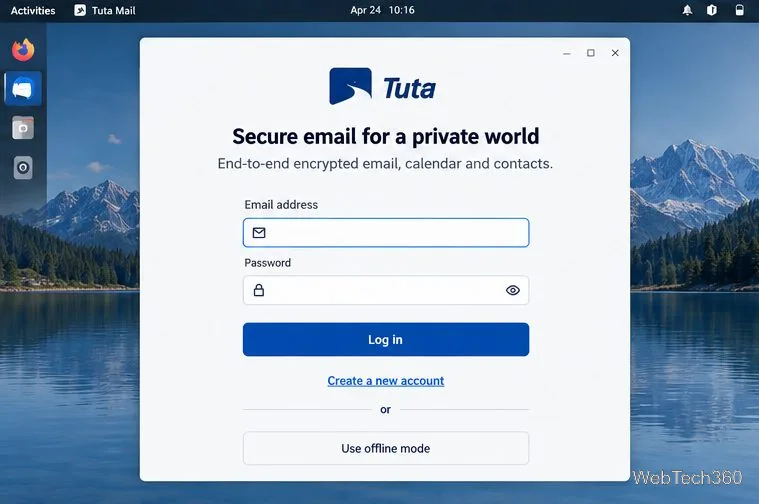
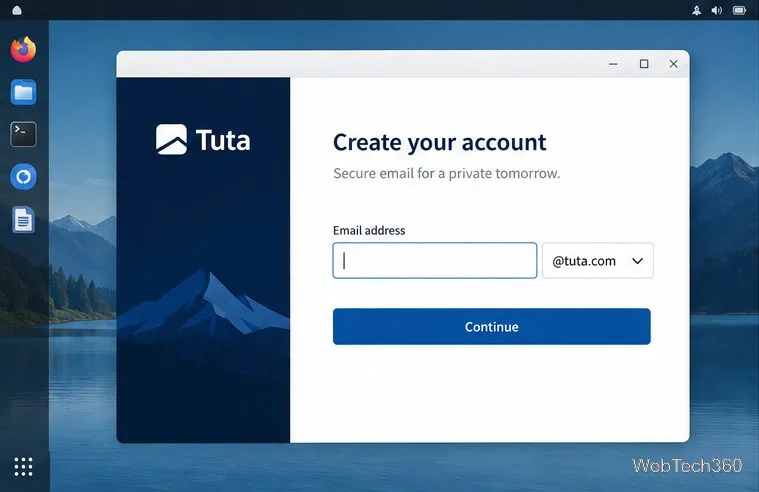
Open the app. If you already have a Tuta account, enter your full email address and password. If you are new, choose Create a new account or the equivalent sign-up option.
Open the Tuta desktop client and choose the account creation option.
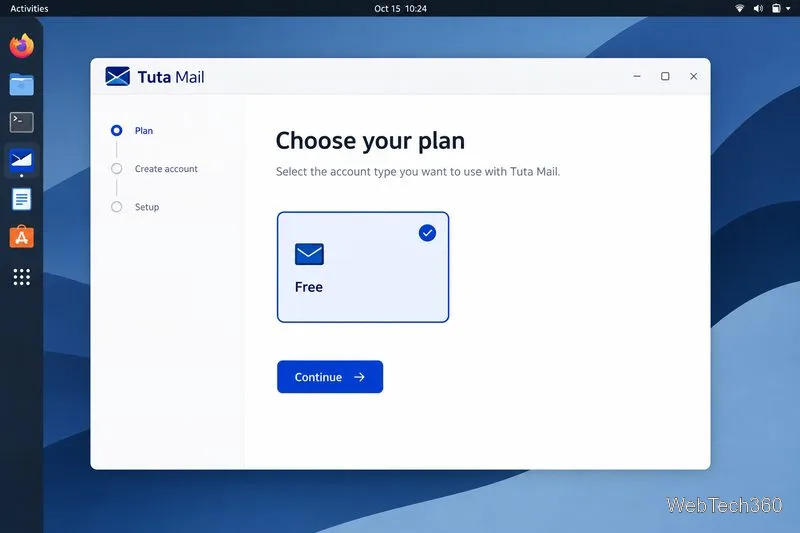
Choose a plan. Select the Free option for personal use if it meets your needs, or choose a paid plan if you need its additional features. Tuta’s support page says the free plan is available to private users; review the live pricing page for current plan details.
Select the Free plan if it fits your personal email needs.
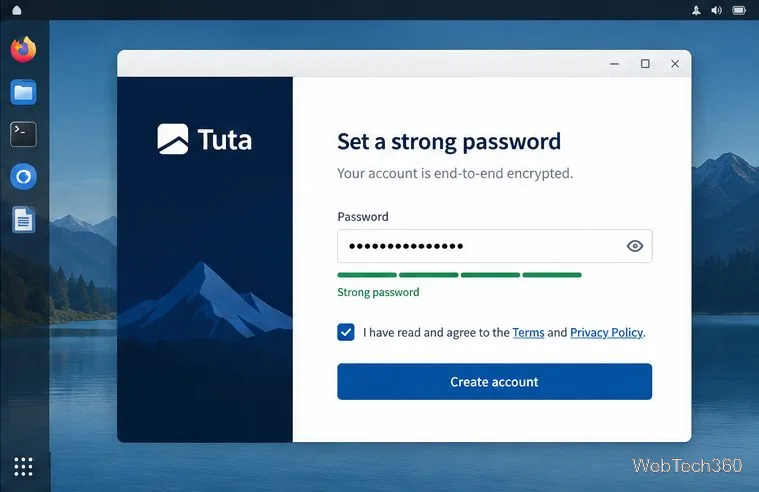
Pick an address and password. Enter the address you want, select an available Tuta domain, and follow the prompts. If the address is unavailable, try another. Create a long, unique password and keep it in a password manager. Complete any verification or CAPTCHA the signup flow presents.
Choose an available address and domain during signup.Set a strong, unique password and accept the displayed terms.
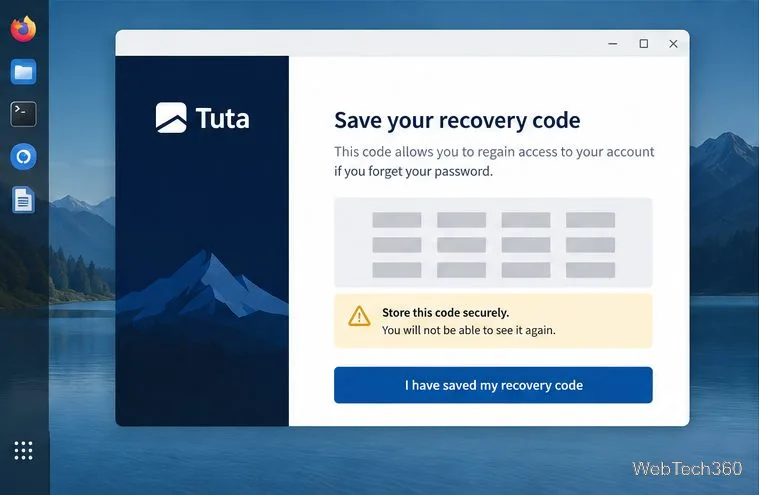
Save your recovery code. Store it securely before dismissing the screen; do not paste it into email, chat, or an unsecured note. Tuta says it can help reset a password or second factor when you still have the other required credential. If you lose both your password and second factor, the code alone cannot recover the account. Read Tuta’s recovery-code guidance and keep the code separate from your password.
Save the recovery code somewhere secure before continuing.
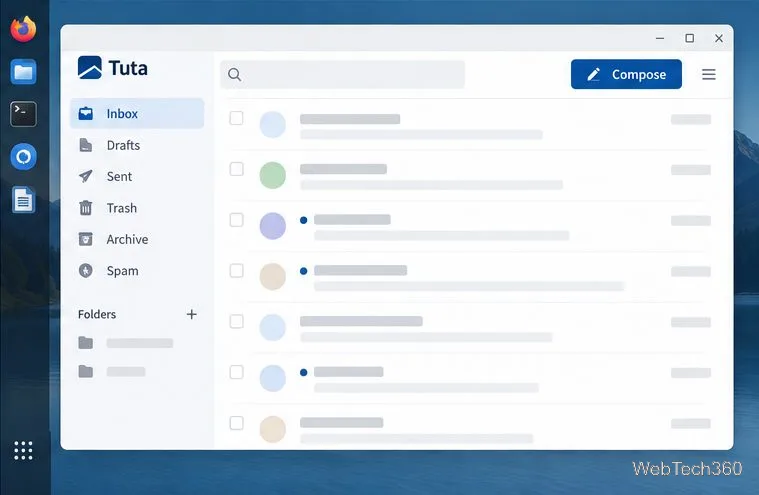
Finish signup and test the mailbox. Complete the on-screen steps, then sign in. Open the inbox and compose a short test message to an address you can access. Check that it appears in Sent and that replies arrive. You can use Tuta Mail in the desktop app or at app.tuta.com.
After sign-in, the inbox is ready for sending and receiving mail.
If the app will not start
Confirm that the AppImage is executable and that you launched the downloaded file, not an archive or partial download.
If Linux reports a missing AppImage or FUSE component, check your distribution’s current AppImage guidance. Avoid running the client with elevated privileges or bypassing its security sandbox.
If you use a distribution outside Tuta’s supported Ubuntu LTS releases, try the web app while checking Tuta’s live support page for compatibility details.
If account creation fails, verify the address and network connection, then retry later or follow any CAPTCHA prompt. Do not create accounts through a third-party package’s sign-up page.
Once logged in, keep the app updated through its normal update prompt and protect both your password and recovery code. Tuta does not provide standard IMAP access, so use its desktop client or web app to access this mailbox.