Home
» LINUX
»
How to Set Up uGet Downloader on Linux
How to Set Up uGet Downloader on Linux
uGet is still available on many Linux distributions, so the simplest setup is to install the distro package, launch uGet, choose where downloads should be saved, and add URLs to its queue. Browser integration is optional. One important caveat: the official uGet repository says the project is not under active development, even though distributions such as Ubuntu, Debian, Fedora, and Arch Linux continue to package uGet 2.2.3-based builds.
Install uGet on Linux
Open a terminal and use the command for your distribution. You do not need the old uGet Ubuntu PPA just to install the main application.
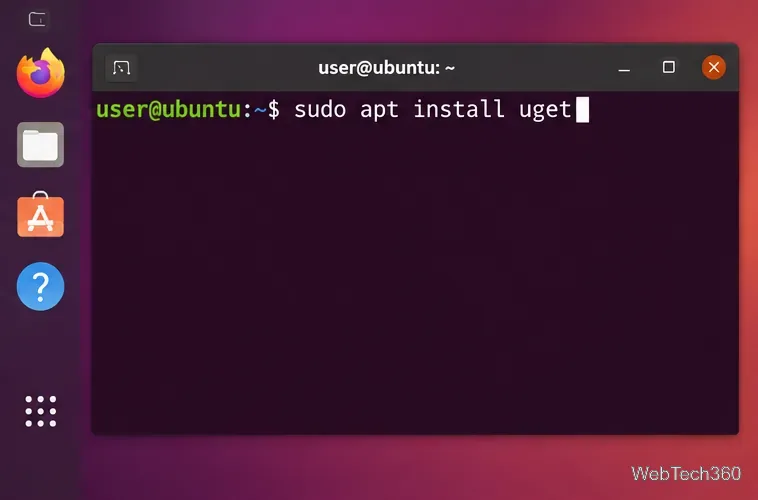
Ubuntu or Debian:sudo apt update && sudo apt install uget
Fedora:sudo dnf install uget
Arch Linux:sudo pacman -S uget
openSUSE: first run zypper search uget. If the package is listed in your enabled repositories, install it with sudo zypper install uget.
On Ubuntu and Debian-based systems, uGet can be installed from the normal package repositories with APT.
Run uGet and add your first download
After installation, open uGet from your desktop application menu. You can also try uget-gtk from a terminal if your package provides that executable.
Click the Add button or use the new-download command in uGet.
Paste the direct URL for the file you want to download.
Review the destination folder and file name before starting.
Start the download. uGet lets you keep multiple items in a queue and pause or resume supported transfers.
If you only need a desktop download queue, you can stop here. Firefox integration is not required for normal use.
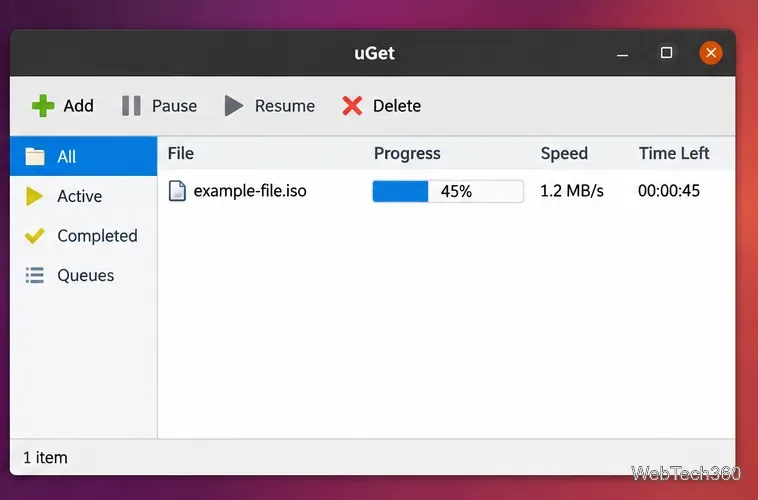
The main uGet window keeps active, queued, and completed downloads in one place.
Configure the download folder and limits
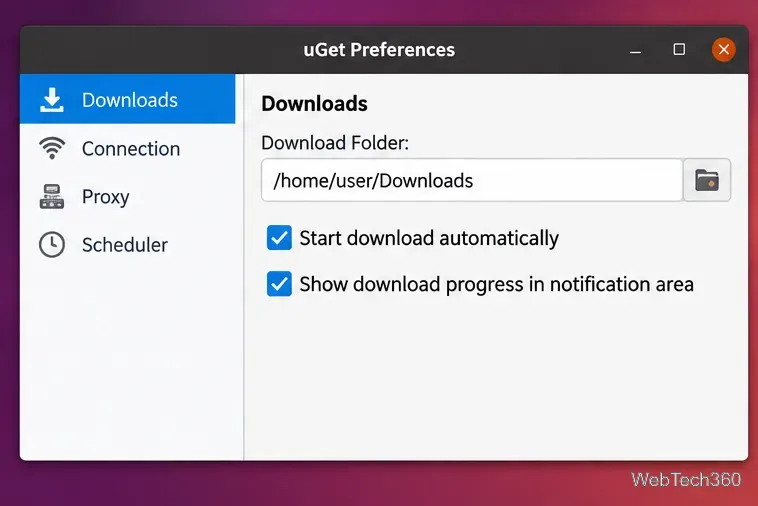
Open uGet's settings or preferences before adding a large batch of downloads. Menu wording can differ slightly between packaged builds, but the useful options are the same: choose a default download folder, review connection or bandwidth settings, configure a proxy if your network requires one, and use scheduling only when you actually need timed downloads.
Avoid setting extreme connection counts simply to chase higher speeds. The remote server, your network, and the selected backend all affect performance. Start with the defaults and change one setting at a time if a specific server is slow.
Set a sensible default download folder so new items do not end up in unexpected locations.
Optional: integrate uGet with Firefox
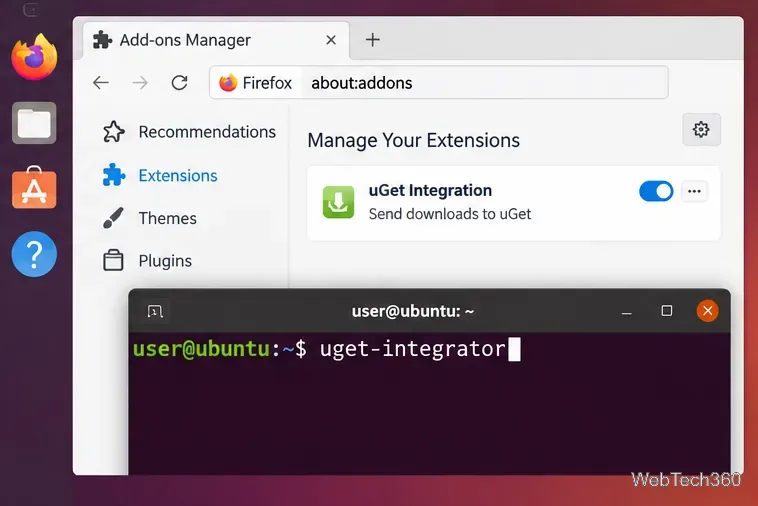
Firefox integration requires two separate pieces: the uGet Integrator native messaging host on Linux and the uGet Integration extension inside Firefox. The current Mozilla add-on page explicitly says both uGet and uGet Integrator must be installed before the extension can connect to the download manager.
First, check whether your distribution provides a current uget-integrator package. If it does not, the upstream uGet Integrator repository includes a Linux installer. A safer workflow is to download and inspect the script before running it:
wget https://raw.githubusercontent.com/ugetdm/uget-integrator/master/install/linux/install_uget_integrator.sh
less install_uget_integrator.sh
chmod +x install_uget_integrator.sh
./install_uget_integrator.sh
Next, install uGet Integration from Mozilla Add-ons and restart Firefox. The add-on page notes known Firefox integration issues, so do not assume every download will automatically transfer to uGet on every Firefox build or packaging format.
Firefox needs the browser extension as well as the native uGet Integrator component on Linux.
If Firefox still downloads files itself
Make sure uGet opens normally before troubleshooting the extension.
Confirm the uget-integrator executable is installed and available to the browser environment.
Disable and re-enable the Firefox extension, then restart the browser.
If browser interception remains unreliable, use uGet directly by copying a file URL into the application. That avoids depending on the aging browser-integration layer while preserving uGet's core queue, pause, resume, and download-management features.